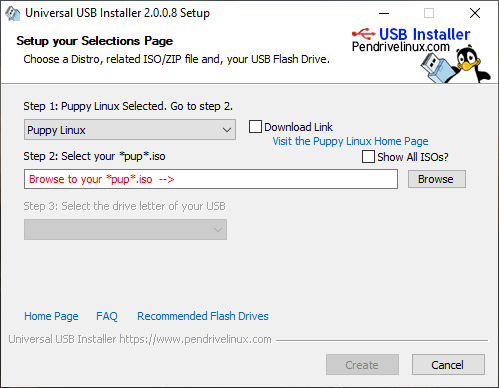
Universal USB Installer 2.0.3.8: Create Bootable and Multiboot USB Drives Easily
Introduction
Universal USB Installer 2.0.3.8, commonly known as UUI, is a free utility designed to create bootable USB drives from ISO image files. It allows users to install operating systems, run live Linux distributions, launch recovery utilities, and build portable diagnostic toolkits without using traditional CDs or DVDs.
The program supports Linux distributions, Windows installation media, antivirus rescue systems, disk-management utilities, and various maintenance tools. It combines a straightforward interface with advanced options such as multiboot support, persistent storage, BIOS and UEFI compatibility, and Secure Boot support.
Version 2.0.3.8 was released in July 2026.
What Is Universal USB Installer?
Universal USB Installer is a bootable USB creation program developed by Pen Drive Linux. It takes a bootable ISO file and prepares a USB flash drive so that a computer can start directly from it.
A bootable USB drive can be used to:
- Install Windows or Linux
- Test a Linux distribution without installing it
- Repair an operating system
- Recover deleted or inaccessible files
- Scan a computer for malware
- Clone or manage storage drives
- Reset passwords
- Test computer hardware
- Run portable diagnostic environments
Universal USB Installer is suitable for beginners because it organizes the creation process into clear steps. Users generally select a distribution or tool, choose the relevant ISO file, select the destination USB drive, and begin the installation.
Main Features of Universal USB Installer 2.0.3.8
Create Bootable USB Drives from ISO Files
The program can transfer supported ISO images to USB storage and configure the drive so that it can boot when the computer starts.
This removes the need to burn operating systems or recovery tools to optical discs.
Multiboot USB Support
Universal USB Installer can create a multiboot USB drive containing multiple operating systems and utilities.
Instead of dedicating one USB drive to a single ISO, users can build a complete portable toolkit containing:
- Linux distributions
- Windows installers
- Antivirus rescue tools
- Backup applications
- Partition managers
- Hardware diagnostics
- Password recovery utilities
- Disk-cloning programs
A boot menu appears when the computer starts from the USB drive, allowing the user to select the required system or utility.
Linux Live USB Creation
UUI supports numerous Linux distributions that can run directly from a USB flash drive.
Common examples include:
- Ubuntu
- Linux Mint
- Debian
- Fedora
- Kali Linux
- Puppy Linux
- openSUSE
- Kubuntu
- Xubuntu
- Arch-based distributions
A live Linux environment allows users to test the operating system or perform maintenance tasks without changing the installed Windows system.
Windows Installation Media
Universal USB Installer can be used to prepare bootable Windows installation media from compatible ISO files.
This is useful for:
- Installing Windows on a new computer
- Reinstalling a damaged operating system
- Upgrading an existing installation
- Accessing Windows recovery tools
- Preparing installation media for computers without optical drives
A USB drive with at least 8 GB of capacity is generally recommended for modern Windows installation media. Microsoft notes that creating Windows installation media may erase the existing contents of the selected USB drive.
Persistent Storage
Some supported Linux distributions can use persistent storage.
Normally, changes made during a live Linux session disappear after restarting the computer. Persistence reserves space on the USB drive for storing:
- Personal files
- Application settings
- Installed packages
- Wireless configurations
- Desktop preferences
- Documents and downloads
Persistence availability and capacity depend on the selected Linux distribution, USB filesystem, and available storage space.
BIOS and UEFI Compatibility
Universal USB Installer supports computers that use traditional BIOS firmware as well as more modern UEFI systems.
This makes the created USB media suitable for a broad range of older and newer computers.
Secure Boot Support
Compatible USB configurations can operate on systems where Secure Boot is enabled. However, actual compatibility may also depend on the operating system, ISO image, bootloader, and computer firmware.
Support for Multiple Image Formats
In addition to ISO files, newer UUI configurations may work with formats such as:
- IMG
- WIM
- VHD
- VHDX
- EFI
Support depends on the selected installation method and the operating system or utility being added.
Drag-and-Drop Functionality
Files can be added to a prepared UUI drive through drag-and-drop methods in supported configurations.
The program can then populate compatible boot menu entries when the drive is used again. This makes expanding a portable toolkit easier than rebuilding the entire USB drive.
Portable Operation
Universal USB Installer is distributed as a portable executable and normally does not require traditional installation. It can be launched directly after downloading.
This makes it suitable for storage on:
- USB flash drives
- External SSDs
- Technician toolkits
- Network folders
- Portable software collections
Automatic Download Links
For supported Linux distributions and utilities, the program may provide links or guidance for obtaining the required ISO file.
This helps users locate the appropriate operating-system image before preparing the USB drive.
Format and Preparation Options
Universal USB Installer includes options for preparing or formatting the destination USB drive.
Available filesystem choices may vary according to the selected boot method and image. Common USB filesystems include:
- FAT32
- NTFS
- exFAT
The correct filesystem depends on factors such as UEFI compatibility, individual file sizes, Secure Boot requirements, and the selected operating system.
What Is a Bootable USB Drive?
A bootable USB drive contains the files and boot information required to start a computer independently of its installed operating system.
When the computer is configured to boot from USB, its firmware loads the system stored on the flash drive instead of immediately starting Windows from the internal drive.
This allows users to perform tasks even when the installed operating system no longer starts correctly.
How to Create a Bootable USB Drive
The general process is straightforward:
- Download the required operating-system or utility ISO file.
- Connect a suitable USB flash drive to the computer.
- Back up any important files stored on the USB drive.
- Launch Universal USB Installer.
- Select the required distribution, operating system, or utility.
- Browse to the downloaded ISO file.
- Select the correct destination USB drive.
- Configure formatting or persistence options when necessary.
- Start the creation process.
- Wait until all files have been copied and configured.
- Safely eject the USB drive.
- Restart the target computer and select the USB device from its boot menu.
The exact options may differ depending on the selected ISO and installation mode.
How to Boot a Computer from USB
After creating the bootable drive:
- Insert the USB drive into the target computer.
- Restart or power on the computer.
- Open the temporary boot-device menu.
- Select the connected USB drive.
- Choose the required operating system or utility from the boot menu.
Common boot-menu keys include:
- F12
- F11
- F10
- F9
- Esc
The correct key varies by motherboard and computer manufacturer.
Users may need to adjust UEFI settings when the USB drive does not appear. Changing firmware settings should be done carefully because incorrect settings can prevent the installed operating system from starting normally.
Supported Operating Systems and Utilities
Universal USB Installer can prepare USB media for many categories of bootable software.
Linux Distributions
The program supports many popular and specialized Linux systems, including desktop, security, privacy, recovery, and lightweight distributions.
Windows Installers
Compatible Windows ISO images can be used to create installation or recovery media for modern Windows versions.
Antivirus Rescue Tools
Bootable antivirus environments can scan a computer without starting the potentially infected operating system.
Disk-Cloning Utilities
Applications such as disk imaging and cloning tools can be stored on a bootable USB drive for backup and migration work.
Partition Management Tools
Bootable partition editors allow users to create, resize, format, inspect, or repair drive partitions.
System Recovery Environments
Recovery tools can help repair boot problems, access files, reset passwords, and diagnose failed Windows installations.
Hardware Diagnostic Tools
Memory, storage, processor, and hardware-testing utilities can be included in a portable maintenance drive.
Universal USB Installer Portable Edition
Universal USB Installer is designed to work without a full installation process. Users can launch the downloaded executable directly.
Its portable nature provides several advantages:
- No installation wizard
- Quick startup
- Easy transfer between computers
- Minimal permanent system changes
- Suitable for technical support toolkits
- Can be stored with ISO files on an external drive
The program may still require administrative privileges because formatting drives and writing boot information are protected Windows operations.
System Requirements
Universal USB Installer has relatively modest software and hardware requirements.
Recommended Computer Requirements
- Operating system: Windows 7, Windows 8, Windows 10, or Windows 11
- Linux operation: May be possible through WINE
- Processor: Standard Intel or AMD-compatible processor
- Memory: 2 GB of RAM or more
- Storage: Enough free space for downloaded ISO files
- USB port: USB 2.0, USB 3.x, or newer
- Administrator privileges: Usually required
- Internet connection: Needed when downloading ISO images
The official project documentation lists Windows 7 through Windows 11 and Linux through WINE among its supported operating environments.
Recommended USB Drive
- Minimum capacity: 8 GB for many modern ISO files
- Recommended capacity: 16 GB or more
- Multiboot toolkit: 32 GB, 64 GB, or larger
- Recommended type: Fast USB 3.x flash drive or external SSD
Small Linux distributions may work on lower-capacity drives, while Windows images and multiboot collections require more space.
USB Drive Formatting Warning
Creating bootable media may format the selected USB drive and erase its stored files.
Before starting:
- Copy important files to another location
- Disconnect unrelated external drives
- Confirm the correct drive letter
- Review all formatting options
- Avoid interrupting the writing process
- Do not remove the drive until the operation is complete
Selecting the wrong disk can cause permanent data loss.
Advantages
- Free to use
- Open-source project
- Portable and does not require full installation
- Simple step-by-step interface
- Creates bootable USB drives from ISO files
- Supports Linux and Windows media
- Supports multiboot toolkits
- Includes persistent Linux storage options
- Compatible with BIOS and UEFI systems
- Can support Secure Boot configurations
- Suitable for recovery and diagnostic tools
- Works with many distributions and system utilities
- Allows USB storage to remain useful for regular files
- Useful for technicians and ordinary users
Disadvantages
- Primarily designed for Windows
- Formatting can erase the entire selected drive
- Some ISO images may require special configuration
- Not every unsupported ISO is guaranteed to boot
- Persistence is not available for every Linux distribution
- Secure Boot compatibility can vary
- USB creation speed depends heavily on drive performance
- Administrative permissions are usually required
- Beginners must be careful when selecting the destination disk
- Some computers may require manual firmware changes
- A USB drive can fail to boot when the ISO itself is corrupted
Universal USB Installer vs Rufus
Universal USB Installer and Rufus can both create bootable USB media, but they focus on slightly different workflows.
Rufus is commonly used for quickly writing a single operating-system image to a USB drive. It includes detailed partition-scheme, Windows customization, and filesystem options.
Universal USB Installer is particularly useful for users who want:
- A multiboot USB toolkit
- Multiple Linux distributions
- Persistent live Linux storage
- Recovery and diagnostic utilities
- A categorized list of supported bootable systems
- The ability to expand a portable boot collection
Rufus may be preferable for creating a dedicated Windows installation drive, while UUI may be more suitable for building a reusable multiboot toolkit.
Universal USB Installer vs Ventoy
Ventoy allows users to prepare a USB drive and copy ISO files directly onto it. Universal USB Installer provides a guided interface with categorized operating systems, installation options, persistence features, and boot preparation methods.
Ventoy is convenient for users who frequently add or remove ISO files, while Universal USB Installer provides a more guided experience for supported distributions and utilities.
The better option depends on whether the user prioritizes direct ISO copying or a structured installation workflow.
Common Problems and Solutions
USB Drive Does Not Appear
The drive may be disconnected, hidden, unrecognized by Windows, or excluded for safety.
Reconnect the drive, try another USB port, and restart the program with administrator privileges.
ISO File Does Not Boot
The ISO may be corrupted, unsupported, incorrectly copied, or incompatible with the selected boot mode.
Verify the ISO checksum, download it from an official source, and confirm whether the computer uses BIOS or UEFI.
Computer Ignores the USB Drive
The internal storage device may have higher boot priority.
Use the temporary boot menu or adjust the boot order through the firmware settings.
Secure Boot Error
The selected distribution or utility may not include a Secure Boot-compatible bootloader.
Temporarily disabling Secure Boot may help, but this should only be done when the ISO comes from a trusted source.
Files Larger Than 4 GB Cannot Be Copied
FAT32 cannot store individual files larger than 4 GB. A different filesystem or supported file-splitting method may be required.
Persistence Does Not Save Changes
The selected Linux distribution may not support the configured persistence method, or the persistent storage file may be damaged or full.
Safety Recommendations
Only use ISO images downloaded from official or trusted sources. Modified operating-system images can contain malware, unwanted software, or unauthorized changes.
Before creating bootable media:
- Verify the ISO checksum when available
- Scan downloaded files with updated security software
- Confirm the publisher and download source
- Back up the destination USB drive
- Disconnect drives that should not be modified
- Avoid unofficial modified Windows images
- Test important recovery media before an emergency occurs
Is Universal USB Installer Suitable for Beginners?
Yes. The program presents the main creation process through a clear interface and does not require command-line experience.
Beginners still need to understand that creating bootable media can erase the selected USB drive. Careful drive selection and data backup are essential.
Advanced users can benefit from multiboot support, persistent Linux storage, multiple file formats, recovery utilities, and portable diagnostic environments.
Who Should Use Universal USB Installer?
The program is suitable for:
- Windows users
- Linux beginners
- Computer technicians
- System administrators
- IT support teams
- Security researchers
- Software testers
- Students
- Hardware enthusiasts
- Users repairing damaged computers
- Anyone preparing operating-system installation media
Final Verdict
Universal USB Installer 2.0.3.8 is a flexible and user-friendly solution for creating bootable USB drives from ISO files. It supports operating-system installers, live Linux distributions, recovery environments, antivirus tools, and complete multiboot diagnostic toolkits.
Its portable operation, straightforward interface, persistent storage support, and compatibility with both BIOS and UEFI systems make it useful for beginners and experienced technicians.
Users must select the correct destination drive and back up existing data before beginning because formatting and boot preparation can erase stored files. With appropriate ISO images and a reliable USB drive, Universal USB Installer can transform a standard flash drive into a practical installation, recovery, and maintenance toolkit.