HashMyFiles 2.51 Portable: A Lightweight File Hash Calculator for Windows
Introduction
HashMyFiles 2.51 is a small and practical Windows utility designed to calculate the digital hash values of files quickly. Developed by NirSoft, the program can help users verify file integrity, compare files, detect identical content, and confirm whether downloaded files have been modified or corrupted.
The application supports several popular hashing algorithms and can process individual files, multiple files, or complete folders. Its lightweight and portable design makes it suitable for system administrators, security researchers, software testers, developers, and regular Windows users.
What Is HashMyFiles?
HashMyFiles is a file checksum calculator that generates unique digital values based on the contents of a file. These values can be used to identify files and detect even the smallest changes made to their data.
For example, when a software developer publishes an SHA-256 checksum for a downloadable file, HashMyFiles can calculate the checksum of the downloaded copy. If both values match, the file is likely identical to the original copy provided by the developer.
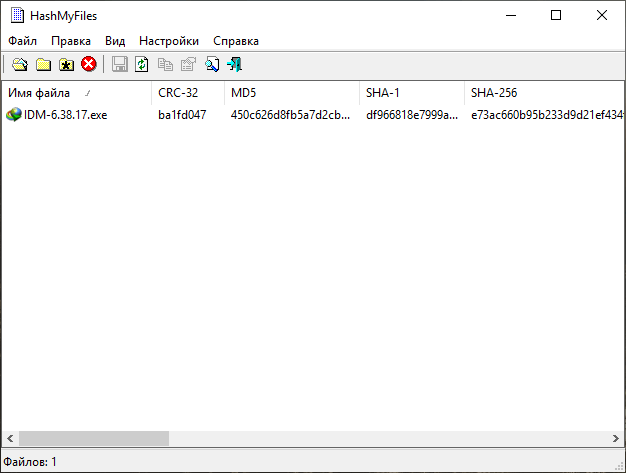
The program does not need a complicated setup process and provides all calculated information through a simple table-based interface.
What Is a File Hash?
A file hash is a fixed-length value created by processing a file through a mathematical algorithm. Every file produces a specific result based on its content.
Changing a single character or byte inside the file usually generates a completely different hash value. This makes hashing useful for:
- Checking file integrity
- Verifying software downloads
- Detecting modified files
- Finding identical files
- Comparing backups
- Organizing large file collections
- Supporting digital investigations
A matching hash generally indicates that two files contain the same data, even when they have different names or are stored in different folders.
Supported Hash Algorithms
HashMyFiles supports multiple checksum and cryptographic hashing algorithms.
MD5
MD5 produces a 128-bit hash value. It is fast and commonly used for identifying duplicate files and checking basic file integrity.
However, MD5 is no longer considered secure for modern cryptographic protection because different files can potentially be created with the same hash. It is still useful for non-security tasks such as duplicate identification.
SHA-1
SHA-1 produces a 160-bit value and offers stronger verification than older checksum methods. Like MD5, it should not be relied upon for modern security-sensitive cryptographic operations.
SHA-256
SHA-256 is part of the SHA-2 family and produces a 256-bit hash. It is widely used for software download verification and provides stronger resistance to collisions than MD5 and SHA-1.
SHA-384 and SHA-512
These algorithms generate longer hash values and may be useful when stronger digital verification is required.
CRC32
CRC32 is a fast checksum algorithm commonly used to detect accidental data corruption in archives, transferred files, and storage devices.
Main Features of HashMyFiles 2.51
Calculate Multiple Hash Types
The program can calculate several hash values for the same file. Users can choose the algorithms they need and disable unnecessary columns to improve processing performance.
Process Multiple Files
HashMyFiles is not limited to checking one file at a time. Users can add multiple files and calculate their hash values together.
This is useful when checking software packages, backup folders, downloaded files, or large collections of documents.
Folder Scanning
Entire folders can be added to the program. Depending on the selected settings, HashMyFiles can also process files stored inside subfolders.
Drag-and-Drop Support
Files and folders can be dragged directly from Windows File Explorer into the main program window. This provides a quick way to begin calculating hashes without navigating through several menus.
Windows Explorer Integration
HashMyFiles can be launched from the Windows Explorer context menu after enabling the appropriate option. This allows users to calculate hashes for selected files or folders directly from File Explorer.
Copy Hash Values
Calculated hashes can be copied to the Windows clipboard. Users can copy a single value, selected rows, or complete file information.
Export Reports
The displayed results can be saved in several formats for documentation or later analysis. Supported export options may include:
- Plain-text files
- Tab-delimited text
- CSV files
- HTML reports
- XML files
These export features are useful for system audits, software verification reports, and technical documentation.
Live Hash Display
The Live Hashes Display option can show the hash values of each file immediately after its calculation is completed instead of waiting for the entire list to finish.
This feature is particularly helpful when processing many large files because users can begin reviewing completed results while the remaining files are still being analyzed.
Hashing Time Information
The program can display information related to the hashing process, including the starting time, finishing time, and total calculation duration.
This can help users measure performance when processing large files or comparing different storage devices.
Duplicate File Identification
Files with matching hash values can be highlighted or grouped, making it easier to find files with identical content.
Two files may have different names, dates, or locations while still containing exactly the same data. Comparing hashes provides a more reliable identification method than comparing filenames alone.
Compare a Hash with Clipboard Content
Users can copy a published checksum from a website or document and compare it with a calculated file hash. Matching values can be visually identified inside the application.
This simplifies the process of verifying downloaded applications, ISO images, drivers, archives, and system files.
Command-Line Support
HashMyFiles provides command-line options for advanced users. The utility can be used in scripts, automated verification workflows, batch operations, and administrative tasks.
Lightweight Performance
The application has a very small file size and uses minimal system resources. It launches quickly and does not require a heavy development environment or security suite.
HashMyFiles Portable Edition
HashMyFiles is designed as a portable utility. It can run directly from its extracted folder without a traditional installation process.
Users can store it on:
- USB flash drives
- External hard drives
- Portable maintenance toolkits
- Network folders
- Cloud-synchronized directories
- Windows recovery environments
The portable format is useful for technicians who work on multiple computers and need a dependable hashing tool that can be launched immediately.
Advantages of the Portable Version
No Installation Required
Users only need to extract the downloaded archive and launch the executable file. No installation wizard is required.
Easy to Transfer
The complete application can be copied from one computer to another without reinstalling it.
Suitable for Technical Toolkits
System administrators and computer technicians can include HashMyFiles in a portable troubleshooting or maintenance package.
Minimal System Changes
The application can operate without adding a large number of files or background services to Windows.
Works from Removable Storage
HashMyFiles can be launched from a USB drive, allowing users to calculate checksums on different Windows computers.
How to Use HashMyFiles
Using HashMyFiles is straightforward:
- Extract the program archive into a folder.
- Launch the correct executable for your Windows architecture.
- Drag files into the main window or choose the Add Files option.
- Select the required hash algorithms.
- Wait for the calculation process to finish.
- Review the displayed MD5, SHA, or CRC32 values.
- Copy or export the results when necessary.
When verifying a download, compare the calculated value with the checksum published by the original software provider.
Verifying a Downloaded File
To verify a downloaded application or archive:
- Copy the official SHA-256 value provided by the developer.
- Open the downloaded file in HashMyFiles.
- Locate the calculated SHA-256 value.
- Compare both values carefully.
- Confirm that every character is identical.
When the values match, the downloaded file is likely unchanged. When they do not match, the file may be incomplete, corrupted, updated, or obtained from a different source.
A matching checksum confirms file consistency, but it does not automatically prove that the file is safe. Files should still be obtained from trustworthy sources and scanned with suitable security software.
Finding Duplicate Files
HashMyFiles can help detect duplicate content without relying only on filenames.
To find identical files:
- Add the folders that you want to examine.
- Calculate the same hash algorithm for all files.
- Sort the results by SHA-256, SHA-1, or MD5.
- Look for repeated hash values.
- Review matching files before removing anything.
Users should never delete duplicates based only on an automated result. Some applications intentionally store identical files in multiple locations.
User Interface
HashMyFiles uses a traditional NirSoft interface focused on speed and functionality. The main window presents file information in sortable columns.
Available details may include:
- Filename
- Full file path
- File size
- Modification date
- Creation date
- File attributes
- MD5 value
- SHA-1 value
- SHA-256 value
- SHA-384 value
- SHA-512 value
- CRC32 value
- Hash calculation duration
Columns can be resized, rearranged, enabled, or disabled according to the user’s requirements.
Performance
Hashing speed depends on several factors:
- File size
- Number of selected files
- Selected algorithms
- Processor performance
- Storage device speed
- Whether files are stored locally or on a network
- The number of simultaneous system operations
Small files are usually processed almost instantly. Large disk images, videos, backups, and archives require more time because the application must read all file data to generate an accurate hash.
Disabling unused algorithms may improve processing speed when scanning large file collections.
Common Uses
HashMyFiles can be used for many practical tasks.
Software Download Verification
Users can compare a downloaded program with its officially published checksum.
Backup Validation
Hash values can be generated before and after copying files to confirm that the backup contains identical data.
Duplicate Detection
Matching hashes can identify files with the same content regardless of their names.
Digital Forensics
Technical investigators can record hashes to document the identity and integrity of collected files.
File Transfer Verification
Checksums can confirm whether a file remained unchanged after being transferred through a network, USB drive, or cloud service.
System Administration
Administrators can monitor important configuration files and identify unexpected changes.
Software Testing
Developers and testers can compare application builds and verify distributed packages.
Archive Verification
Hash values can help confirm that compressed archives and disk images were downloaded or copied correctly.
System Requirements
HashMyFiles has modest hardware and software requirements.
Recommended Requirements
- Operating system: Microsoft Windows
- Processor: Standard Intel or AMD-compatible processor
- Memory: 1 GB of RAM or more
- Storage space: Minimal free disk space
- Display: Standard Windows-compatible display
- Administrator rights: Usually not required for normal files
Separate 32-bit and 64-bit packages may be available. The correct edition should be selected according to the installed Windows architecture.
Access permissions may be required when calculating hashes for protected system files or folders.
Advantages
- Free to use
- Lightweight and portable
- No traditional installation required
- Supports multiple hash algorithms
- Processes individual files and complete folders
- Fast calculation performance
- Drag-and-drop support
- Windows Explorer integration
- Duplicate-content identification
- Clipboard comparison
- Multiple export formats
- Command-line support
- Suitable for technical and regular users
- Does not run unnecessary background services
Disadvantages
- Available primarily for Windows
- Interface may appear basic or outdated
- Does not replace antivirus software
- MD5 and SHA-1 are unsuitable for modern security-sensitive verification
- Processing very large files can take time
- Duplicate results must be reviewed manually
- Beginners may not understand the differences between hashing algorithms
- Portable utilities may trigger false-positive warnings from some security products
Is HashMyFiles Safe?
HashMyFiles is a legitimate utility developed by NirSoft. However, users should obtain it from the official developer source rather than unknown third-party download pages.
Some antivirus programs may occasionally classify administrative or system utilities as suspicious because of their technical capabilities or portable behavior. This does not necessarily mean that the program is malicious, but any downloaded executable should still be verified carefully.
HashMyFiles does not provide malware protection. Its purpose is to calculate and compare file hashes.
Is HashMyFiles Suitable for Beginners?
Yes. The program can be used by beginners because its basic operation only requires adding a file and reading the calculated value.
More advanced users can benefit from:
- Command-line options
- Folder processing
- Multiple export formats
- Windows Explorer integration
- Automated checksum workflows
- Duplicate-content analysis
- Hash comparison tools
The most important concept for beginners is that they should compare values generated with the same algorithm. An MD5 value cannot be compared with an SHA-256 value.
HashMyFiles vs Antivirus Software
HashMyFiles and antivirus applications perform completely different tasks.
HashMyFiles calculates a digital identifier for a file. It can confirm that the file matches another known copy, but it does not inspect the file for malicious behavior.
Antivirus software analyzes files for malware, suspicious code, and known threats.
For safer download verification, users should:
- Download files from trustworthy sources.
- Compare the SHA-256 checksum when available.
- Scan the file with updated security software.
- Check the publisher’s digital signature.
- Avoid running unexpected executable files.
Final Verdict
HashMyFiles 2.51 Portable is a fast and lightweight utility for calculating and comparing file checksums on Windows. It supports multiple hashing algorithms, processes complete file collections, exports detailed reports, and operates without a complicated installation process.
The program is especially useful for verifying downloaded software, checking backup integrity, detecting identical files, validating transferred data, and documenting file information.
Its simple interface may not be visually modern, but it provides the essential tools required for reliable file hash calculation without consuming significant system resources. For users who need a portable and efficient checksum utility, HashMyFiles remains a practical choice.