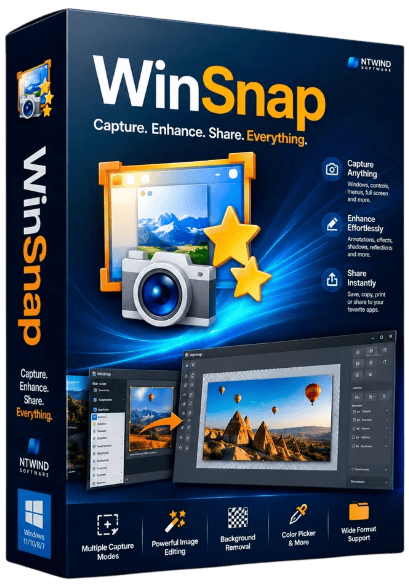
WinSnap 6.2.4: Professional Screenshot Capture, Annotation, and Image Editing Tool for Windows
WinSnap 6.2.4 is a lightweight and professional screen-capture utility designed for creating polished screenshots on Windows computers. It allows users to capture complete screens, individual windows, interface objects, selected regions, popup menus, and multiple items simultaneously.
The program includes a practical built-in editor for adding arrows, text, shapes, highlights, watermarks, shadows, reflections, outlines, and privacy effects without requiring a separate image-editing application.
WinSnap is especially useful for software developers, technical writers, bloggers, educators, customer-support teams, designers, and anyone who regularly creates screenshots for documentation, tutorials, presentations, websites, or social media.
What Is WinSnap?
WinSnap is a compact screenshot-capture and editing program developed by NTWind Software.
It is designed to improve the appearance of screenshots automatically by preserving rounded window corners, transparent title bars, native Windows shadows, and other interface effects that basic capture tools may not reproduce correctly.
The software supports Windows interface styles ranging from Aero Glass on Windows 7 to the Mica design used by Windows 11. It can also apply custom shadows, outlines, reflections, backgrounds, and annotations immediately after a screenshot is taken.
WinSnap can be used to create:
- Software tutorials
- Technical documentation
- Product guides
- Website images
- Application previews
- Customer-support instructions
- Educational materials
- Presentations
- Blog illustrations
- Social media graphics
- Error reports
- User-interface demonstrations
Its small installation size and straightforward interface make it suitable for both casual and professional users.
What Is New in WinSnap 6.2.4?
WinSnap 6.2.4 was officially released on July 8, 2026. The update focuses on improving the appearance and usability of the main capture controls.
The official changelog includes the following changes:
- Added vector icons for the Capture, Save, and Copy buttons
- The Delay button now displays the selected number of seconds
- Updated the timer icon to match the visual style of the other interface icons
- Added minor improvements and bug fixes
These are relatively small changes, but they make the capture workflow clearer and more convenient, particularly for users who frequently take delayed screenshots.
Vector Icons for Main Controls
Version 6.2.4 replaces or updates the main Capture, Save, and Copy controls with vector-based icons.
Vector icons can remain sharp when displayed at different resolutions and Windows scaling levels. This is particularly useful on modern laptops, 4K monitors, and systems using high-DPI display settings.
The updated buttons provide a more consistent visual appearance and better match the redesigned interface introduced throughout the WinSnap 6 generation.
The three primary actions are:
Capture
Starts the selected screenshot-capture mode.
Save
Exports the current screenshot to a supported image format.
Copy
Places the captured image on the Windows clipboard so it can be pasted into another application.
Improved Capture Delay Button
One of the most useful additions in WinSnap 6.2.4 is the updated Delay button.
When delayed capture is enabled, the button now displays the selected number of seconds directly on its icon. This allows users to confirm the active timer without reopening the settings menu.
Delayed capture is useful when taking screenshots of:
- Popup menus
- Dropdown lists
- Tooltips
- Context menus
- Hover effects
- Notifications
- Temporary interface states
- Menus that disappear after clicking elsewhere
For example, a user can select a five-second delay, start the capture, open the required menu, and wait for WinSnap to capture the screen automatically.
Displaying the delay duration directly on the button reduces confusion and makes repeated timed captures easier.
Updated Timer Icon
The timer icon has been redesigned to match the style of the other interface buttons.
This creates a more consistent appearance across the WinSnap toolbar and improves the visual quality of the main application window.
Although this is a minor interface improvement, consistent icons make the program easier to understand, particularly for new users who rely on visual controls rather than menus.
Modern WinSnap 6 Interface
WinSnap 6 features a redesigned interface inspired by the appearance of Windows 11.
The interface includes automatic dark-mode support, updated buttons, simplified controls, and a cleaner layout. The program can automatically adapt to the light or dark appearance configured in Windows.
Important interface areas include:
- Capture-mode controls
- Save and Copy buttons
- Capture Delay settings
- Screenshot preview
- Annotation tools
- Effects controls
- Canvas options
- Output settings
- External Tools menu
The interface is compact and avoids the complexity of a full professional graphics editor.
Window Capture
Window Capture allows users to select and capture an individual application window.
WinSnap is designed to preserve visual details such as:
- Rounded corners
- Native window shadows
- Transparent title bars
- Mica backgrounds
- Aero Glass effects
- Non-rectangular window shapes
These capabilities can produce cleaner screenshots than basic capture methods that include unwanted rectangular backgrounds or remove the original window effects.
This mode is ideal for capturing:
- Application interfaces
- Settings windows
- Dialog boxes
- Installation screens
- Browser windows
- File Explorer
- Error messages
- Software demonstrations
Region Capture
Region Capture allows users to select a specific rectangular section of the screen.
This is useful when only part of an application or webpage needs to be included.
The mode can be used for:
- Individual interface controls
- Selected paragraphs
- Website sections
- Error notifications
- Images
- Charts
- Forms
- Specific application panels
WinSnap also provides a Fixed Size option for repeatedly capturing regions with identical dimensions.
Fixed-size capture is valuable when producing a collection of screenshots that must have a consistent width and height.
Full-Screen Capture
Full-Screen Capture records the complete visible desktop.
Depending on the system configuration, it can include:
- The Windows desktop
- Taskbar
- Open applications
- Multiple visible windows
- Desktop icons
- Notifications
- Connected monitor content
Full-screen screenshots are useful for showing the complete working environment or explaining how several applications interact.
Users with multiple monitors should check the capture settings to confirm which display or desktop area will be included.
Object Capture
Object Capture can identify specific interface components rather than capturing an entire window.
Possible objects include:
- Buttons
- Toolbars
- Menus
- Panels
- Dialog sections
- Controls
- Application elements
This allows technical writers and software developers to isolate a specific interface element without manually cropping it afterward.
Object capture can make documentation cleaner because only the relevant part of the interface is shown.
Multi-Object Capture
WinSnap can capture multiple windows, interface objects, or selected regions and combine them into one screenshot.
In Object Capture mode, users can hold the Ctrl key and select several visible objects. A similar process is available in Region Capture mode for selecting several separate areas.
Multi-object capture can be useful for:
- Comparing two dialog boxes
- Showing several steps in one image
- Combining a window and popup menu
- Demonstrating related controls
- Creating software feature comparisons
- Capturing multiple areas without displaying the entire desktop
The empty space between selected objects can remain transparent when the screenshot is saved in a format that supports transparency.
Capturing Popup Menus
Capturing popup menus and dropdown lists can be difficult because they often disappear when another application is selected.
WinSnap solves this problem through delayed capture and object-selection tools.
A typical workflow involves:
- Selecting the preferred capture mode.
- Setting a capture delay.
- Starting the screenshot process.
- Opening the required popup menu.
- Waiting for the timer to finish.
- Editing and saving the resulting screenshot.
The updated delay indicator in version 6.2.4 makes this workflow more convenient.
Built-In Screenshot Editor
WinSnap includes a lightweight editor for adding notes and visual enhancements after a screenshot is captured.
The editor is not intended to replace advanced software such as Adobe Photoshop, but it includes the tools required for most screenshot-related tasks.
Users can add:
- Text comments
- Arrows
- Lines
- Rectangles
- Ellipses
- Freehand pen marks
- Highlights
- Pixelation
- Blur effects
- Color effects
- Watermarks
- Shadows
- Reflections
- Outlines
These tools allow screenshots to be prepared for tutorials, documentation, and presentations without opening another application.
Text Annotations
Text annotations can be used to explain parts of a screenshot or provide short instructions.
They are useful for adding:
- Step numbers
- Button names
- Short descriptions
- Warnings
- Explanatory labels
- Notes
- Feature names
Text can help readers understand the screenshot without requiring a long paragraph below the image.
For professional documentation, text annotations should be short, readable, and positioned so they do not cover important interface elements.
Arrows and Lines
Arrows are among the most useful screenshot-annotation tools.
They can direct attention toward:
- Buttons
- Settings
- Menus
- Error messages
- Input fields
- Important controls
- Status indicators
Lines can also be used to connect a note with a specific interface element.
Using a limited number of arrows generally produces a cleaner result than adding too many visual indicators to the same screenshot.
Shapes and Outlines
Rectangles, ellipses, and outlines can be placed around important areas.
These tools are useful when highlighting:
- Menu items
- Form fields
- Warning messages
- Selected settings
- Groups of buttons
- Data values
- Navigation controls
Shapes can provide a more organized appearance than freehand markings.
Highlight Tool
The Highlight tool can emphasize text or selected rectangular areas.
It is useful when creating instructions based on:
- Documents
- Websites
- Application menus
- Tables
- Configuration screens
- Source code
- Forms
WinSnap supports multicolor highlights and can also apply colorization or blur effects to a selected area.
Pixelate Sensitive Information
The Pixelate tool can hide sensitive information inside a screenshot.
It may be used to conceal:
- Email addresses
- Usernames
- Account numbers
- License keys
- Personal photographs
- Internal server names
- Private messages
- Customer information
- File paths
- IP addresses
WinSnap officially presents pixelation as a quick method for removing private information from screenshots.
Users should inspect the final exported image carefully to confirm that the information cannot still be read.
For highly confidential content, completely covering or cropping the information may be safer than applying a weak pixelation effect.
Blur and Color Effects
Blur can reduce the visibility of selected content, while colorization can draw attention toward or away from specific areas.
These effects can be used to:
- Emphasize an interface control
- Reduce background distraction
- Hide private content
- Create a visual focus
- Separate important and unimportant sections
Effects should be applied carefully so that the final screenshot remains easy to understand.
Custom Shadow Effects
WinSnap can preserve a window’s native shadow or replace it with a custom effect.
Users can adjust shadow properties such as:
- Color
- Size
- Direction
- Opacity
- Blur
- Distance
Built-in presets make it possible to apply a consistent appearance across several screenshots.
Shadows can help a window screenshot stand out when placed on a white document, presentation slide, or website background.
Reflections
Reflection effects create a mirrored appearance beneath the captured window or object.
This effect can be useful for:
- Product presentations
- Promotional graphics
- Website illustrations
- Software landing pages
- Decorative screenshots
Reflections are usually best suited to marketing images rather than technical documentation, where a simpler appearance may be easier to read.
Watermarks
WinSnap can add watermarks to screenshots.
Watermarks may contain:
- A website name
- Company logo
- Brand name
- Copyright notice
- Author name
- Project identifier
This feature is useful for protecting published images or maintaining consistent branding across tutorials and promotional content.
A watermark should be visible enough to identify the source without blocking important screenshot details.
PNG Transparency and Alpha Channel
WinSnap supports transparent screenshots through PNG and other compatible image formats.
When several windows or objects are captured together, the empty area between them can remain transparent. Shadows and reflections can also include partial transparency through the alpha channel.
Transparent screenshots are particularly useful for:
- Websites
- PowerPoint presentations
- Word documents
- Marketing designs
- Software manuals
- Graphic-design projects
WinSnap can also copy transparent images to the clipboard for use in compatible Microsoft Office applications.
Supported Image Formats
WinSnap can save screenshots in common image formats.
Depending on the selected version and configuration, these may include:
- PNG
- JPEG
- BMP
- GIF
- TIFF
PNG is generally the best format for software screenshots because it preserves sharp text, interface details, and transparency.
JPEG may produce smaller files for photographic content but can introduce visible compression around text and icons.
Automatic Saving
WinSnap can automatically save captured screenshots using configured naming and folder rules.
Automatic saving is useful when taking many screenshots in sequence because users do not need to manually select a filename after every capture.
Possible uses include:
- Recording software test results
- Creating step-by-step guides
- Capturing multiple application states
- Collecting reference images
- Documenting errors
- Preparing training materials
Users should choose a dedicated output folder to keep automatically saved screenshots organized.
Automatic Clipboard Copying
The application can automatically copy each screenshot to the Windows clipboard.
The image can then be pasted into applications such as:
- Microsoft Word
- PowerPoint
- Outlook
- OneNote
- Paint
- Image editors
- Chat applications
- Documentation software
This feature can speed up workflows in which screenshots need to be inserted immediately into another document.
Keyboard Shortcuts
WinSnap supports customizable keyboard shortcuts for starting common capture modes.
Hotkeys allow users to take screenshots without returning to the main application window.
They can be configured for actions such as:
- Full-screen capture
- Window capture
- Object capture
- Region capture
- Repeat last capture
The program can also replace or override the standard Print Screen function, depending on the configured settings.
Repeat Last Capture
Repeat Last Capture allows users to perform the previous screenshot action again.
This can be useful when:
- Capturing the same region repeatedly
- Documenting changing application states
- Retaking a screenshot after adjusting a menu
- Capturing several windows using the same settings
- Producing consistent tutorial images
The command saves time by avoiding repeated configuration.
External Tools Integration
WinSnap can send captured images to external applications through its Tools menu.
Users may configure programs such as:
- Microsoft Paint
- Adobe Photoshop
- Paint.NET
- Image optimizers
- File converters
- Other graphics editors
This allows basic editing to be completed inside WinSnap while more advanced tasks can be handled by a specialized application.
Performance and Resource Usage
WinSnap is a small utility with an installer of approximately 3 MB. The official package includes native 32-bit and 64-bit support.
The program is designed to run quickly without consuming the resources associated with a full graphics suite.
Performance may vary depending on:
- Screen resolution
- Number of monitors
- Screenshot dimensions
- Number of selected objects
- Applied shadows and blur effects
- Image format
- Available system memory
Recent WinSnap 6.2 updates also improved processing of complex objects, 4K shadow generation, and memory usage during region capture.
System Requirements
WinSnap officially supports Windows versions from Windows 7 through Windows 11.
The installer includes a native 64-bit edition that is selected automatically on compatible systems.
General requirements include:
- Windows 11, Windows 10, Windows 8, or Windows 7
- A compatible 32-bit or 64-bit processor
- Sufficient memory to run Windows
- Approximately 3 MB for the installer
- Additional storage for screenshots
- A standard Windows display
- Administrator privileges for installation
Because the program is lightweight, it can run on many older and low-resource computers.
Installation Guide
To install WinSnap 6.2.4:
- Download the installer from the official NTWind website.
- Close any older WinSnap instance.
- Run the setup file.
- Review the license agreement.
- Select the preferred installation options.
- Complete the installation.
- Launch WinSnap.
- Configure the capture hotkeys.
- Choose the preferred image format and output folder.
- Test the Window and Region capture modes.
The official WinSnap 6.2.4 installer is approximately 3 MB and includes the appropriate 32-bit or 64-bit application version.
Trial and License
WinSnap is commercial software, but a trial edition is available for evaluation.
The trial can be used for 30 days, although screenshots created with the unregistered version include a watermark.
The official website currently offers a lifetime license with free updates rather than a recurring subscription.
Licensing conditions and pricing may change, so users should review the current purchase information before ordering.
Advantages
WinSnap 6.2.4 offers several important advantages:
- Lightweight and fast
- Modern Windows 11-style interface
- Automatic light and dark modes
- High-quality window capture
- Rounded-corner and transparency support
- Region, screen, window, and object capture
- Multi-object and multi-region capture
- Delayed screenshot mode
- Built-in annotation tools
- Text, arrows, lines, and shapes
- Pixelation and privacy effects
- Custom shadows and reflections
- Watermark support
- PNG transparency
- Automatic save and clipboard options
- Customizable keyboard shortcuts
- Native 32-bit and 64-bit support
- No recurring subscription for the lifetime license
Limitations
Users should also consider several limitations:
- The full version requires a paid license
- Trial screenshots include a watermark
- The program does not record screen video
- Advanced image manipulation requires an external editor
- It is available only for Windows
- It does not provide the collaborative cloud features found in some larger tools
- Long scrolling-page capture is not its primary specialty
- Effects can make screenshots look excessive when overused
- Sensitive data must be reviewed carefully after pixelation
- It is more focused on screenshots than complete graphic design
WinSnap vs. Windows Snipping Tool
Windows includes the free Snipping Tool for basic screenshots.
The Snipping Tool is suitable for:
- Simple region captures
- Full-screen screenshots
- Basic window captures
- Quick annotations
- Short screen recordings
WinSnap is generally better suited to users who need:
- Accurate rounded window corners
- Native or custom shadows
- Transparent screenshot backgrounds
- Multi-object capture
- Multi-region capture
- Automatic visual effects
- Reusable presets
- Watermarks
- Advanced automatic saving
- More polished software documentation
WinSnap is not necessary for every user, but it provides greater control and more professional output than a basic screenshot utility.
Who Should Use WinSnap?
WinSnap is suitable for:
- Technical writers
- Software developers
- Website owners
- Bloggers
- Educators
- Students
- Customer-support agents
- Quality-assurance teams
- Graphic designers
- Marketing professionals
- Application reviewers
- Social media creators
- Business users
It is particularly valuable for anyone who regularly creates software screenshots and wants them to look clean without spending time editing each image manually.
Is WinSnap 6.2.4 Worth Installing?
WinSnap 6.2.4 is worth considering for users who need more control than the built-in Windows screenshot tools provide.
Its ability to preserve transparent windows, rounded corners, native shadows, and separate interface objects makes it especially useful for professional documentation and software presentations.
The built-in editor also covers common tasks such as adding arrows, text, highlights, shapes, watermarks, and privacy effects.
Version 6.2.4 is a small but useful update. The new vector icons improve high-resolution display quality, while the visible capture-delay duration makes timed screenshots easier to manage.
Final Verdict
WinSnap 6.2.4 is a compact and capable screenshot utility that combines flexible screen capture, automatic visual enhancement, lightweight editing, and efficient output tools.
It can capture full screens, individual windows, selected regions, interface objects, popup menus, and multiple elements within a single image. Its support for rounded corners, shadows, reflections, annotations, watermarks, and transparent PNG files makes it suitable for both technical and creative work.
The 6.2.4 update improves the interface with vector icons, a clearer capture-delay indicator, an updated timer icon, and additional bug fixes.
Overall, WinSnap remains an excellent choice for Windows users who need fast, polished, and professional screenshots without the complexity of a full image-editing application.