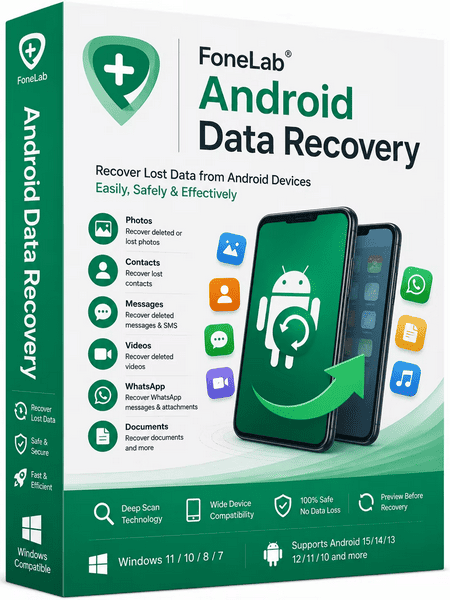
FoneLab Android Data Recovery 3.1.56: Recover Deleted Photos, Messages, Contacts, and Files
FoneLab Android Data Recovery 3.1.56 is a desktop data-recovery application designed to help users scan compatible Android phones, tablets, SIM cards, and SD cards for deleted or inaccessible files.
The software can search for several types of Android content, including photos, videos, contacts, text messages, call history, audio files, WhatsApp data, and documents. It also allows users to preview detected files before selecting the items they want to restore.
FoneLab Android Data Recovery is available for Windows and macOS and provides a guided recovery process suitable for beginners who do not have extensive technical experience.
What Is FoneLab Android Data Recovery 3.1.56?
FoneLab Android Data Recovery is a recovery utility that connects an Android device to a computer and scans supported storage locations for recoverable data.
It is intended for situations involving:
- Accidental file deletion
- System crashes
- Failed Android updates
- Rooting errors
- Virus attacks
- Damaged devices
- SD card problems
- Application errors
- Lost messages or contacts
- Factory-reset-related data loss
- Unresponsive Android systems
The official product page states that the software can recover data from Android phones, SIM cards, and SD cards, provided that the connected device can still be recognized by the application.
Recover Deleted Android Data
The main purpose of FoneLab Android Data Recovery 3.1.56 is to locate deleted or lost files on compatible Android devices.
When a file is deleted, its storage area may not be overwritten immediately. Recovery software attempts to identify and restore this remaining data before new files replace it.
Recovery success can depend on several factors:
- How long ago the file was deleted
- Whether the storage space has been overwritten
- The Android version
- The device manufacturer
- The selected scan mode
- Whether the device can be detected
- Whether root access is available
- The condition of the internal storage or SD card
Users should stop creating new files on the affected device as soon as possible. Taking photos, installing applications, recording videos, and downloading files may overwrite deleted data and reduce the chance of recovery.
Supported Recoverable File Types
FoneLab Android Data Recovery supports multiple categories of personal and application data.
Contacts
The software can scan for deleted or existing contact information, including names, phone numbers, email addresses, and other available details.
Recovered contacts can be useful after accidental deletion, synchronization errors, or device problems.
Text Messages
Users can search for deleted SMS messages and related information such as sender names, phone numbers, message text, and timestamps.
The amount of recoverable information depends on the device, Android version, and whether the relevant storage has been overwritten.
Message Attachments
Supported message attachments may include images, audio files, videos, and other media exchanged through compatible messaging systems.
Call History
FoneLab can scan for call-log records, including:
- Incoming calls
- Outgoing calls
- Missed calls
- Contact names
- Phone numbers
- Call times
- Call duration
This can help users restore useful communication records that were removed accidentally.
Photos and Images
The program can search for photographs, screenshots, downloaded images, application pictures, thumbnails, and other supported image files.
Photo recovery is one of the most useful functions for users who accidentally delete personal pictures or lose access to a damaged storage card.
Videos
FoneLab can analyze compatible storage for deleted or inaccessible video files.
Large video files can be more difficult to recover completely because portions of the file may have been overwritten. Recovered videos should therefore be tested after restoration.
Audio and Music
The application can scan for music, voice recordings, downloaded audio, ringtones, and other supported sound files.
Documents
Supported documents may include text files, office documents, archives, PDFs, and other files stored on the Android device or memory card.
WhatsApp Data
FoneLab advertises support for recovering selected WhatsApp data, including conversations and attachments, on compatible devices.
The exact results may vary according to the WhatsApp version, Android security restrictions, encryption, available backups, and the condition of the device storage.
Recover Data from Android Internal Storage
FoneLab Android Data Recovery can connect to a supported phone or tablet and scan its internal storage.
The typical process requires users to:
- Install and launch the program on a computer.
- Select Android Data Recovery.
- Connect the Android device using a USB cable.
- Allow file-transfer access on the phone.
- Enable USB debugging when requested.
- Select the file categories to scan.
- Wait for the scan to complete.
- Preview the detected files.
- Select the required items.
- Recover them to the computer.
The recovered files should be stored on the computer rather than returned immediately to the same Android storage. Saving data to the source device could overwrite other files that have not yet been recovered.
Recover Data from an SD Card
Memory cards can lose files because of accidental formatting, file-system corruption, unsafe removal, application errors, or physical damage.
FoneLab can scan supported Android SD cards for recoverable files such as:
- Photos
- Videos
- Music
- Voice recordings
- Documents
- Downloaded files
- Application media
For the best results, users should stop using the affected card immediately after discovering the data loss.
When possible, the memory card should be connected to the computer through a reliable card reader. A direct connection may provide better access than scanning through the phone.
Recovery software may not succeed when the card is physically damaged, encrypted, unreadable, or no longer detected by the computer.
SIM Card Data Recovery
The official product description states that FoneLab can recover supported data from SIM cards.
SIM cards normally contain a limited amount of information compared with modern smartphone storage. Depending on the device and carrier configuration, available information may include:
- Contact names
- Phone numbers
- Limited message data
- Network-related records
Modern Android phones often store contacts in a Google account or internal memory rather than directly on the SIM card. As a result, the available SIM recovery results may be limited.
Standard Scan
The standard scanning mode provides a faster way to search for accessible and recoverable Android data.
It is suitable for initial scanning because it requires less time and may not require advanced device modifications for basic data access.
Users should begin with the standard scan and review the detected results before attempting deeper recovery methods.
Deep Scan Mode
When the standard scan does not locate the required files, FoneLab provides a Deep Scan option.
According to the official user guide, Deep Scan searches more of the Android device’s storage and may detect additional lost data. However, full deep scanning can require the phone to be rooted. It also takes longer than the standard scan.
Rooting provides applications with elevated system access, but it may involve risks such as:
- Security vulnerabilities
- Warranty concerns
- Application compatibility problems
- Failed system updates
- Accidental data loss
- Device instability
- Banking application restrictions
Users should understand the risks and back up important data before modifying an Android device.
Preview Files Before Recovery
FoneLab Android Data Recovery allows users to preview detected content before restoring it.
The preview interface can help users identify:
- Required photos
- Specific text messages
- Important contacts
- Selected videos
- Relevant call records
- WhatsApp conversations
- Personal documents
Selective recovery saves time and storage space because users do not need to restore every detected file.
The program may also provide filters for displaying only deleted items, although the exact interface can differ between versions.
Recover Deleted and Existing Files
FoneLab can display both deleted and existing data found during scanning.
Existing-data access can be useful when users need to copy important information from a phone that is becoming unstable, has a damaged display, or cannot be used normally.
Deleted content may be visually marked or displayed through a separate filter, helping users distinguish it from files still present on the device.
Support for Thousands of Android Devices
The official product page states that FoneLab Android Data Recovery supports more than 6,000 Android phones and tablets.
Compatible manufacturers may include:
- Samsung
- Motorola
- Sony
- HTC
- LG
- Huawei
- Xiaomi
- OnePlus
- OPPO
- vivo
- ZTE
- Honor
- Other Android manufacturers
Support can vary according to the device model, Android version, security patch, connection method, and type of data being recovered.
Users should confirm device compatibility before purchasing a license.
USB and Wireless Connections
FoneLab supports connections through USB on compatible Android devices.
The official technical specifications list USB support for Android 4.0 and later. Wireless connection support is listed for Android 5.0 and later.
A USB connection is generally preferable for data recovery because it tends to be more stable and may provide better access to the device.
Users should use a reliable data cable rather than a charging-only cable.
USB Debugging
USB debugging may need to be enabled before the program can communicate properly with the Android device.
The setting is located inside Android Developer Options. The exact steps differ depending on the phone manufacturer and Android version.
A typical method is:
- Open Android Settings.
- Select About Phone.
- Tap the build number repeatedly to enable Developer Options.
- Return to the main settings menu.
- Open Developer Options.
- Enable USB Debugging.
- Connect the phone to the computer.
- Approve the computer’s authorization request.
USB debugging should be disabled after recovery when it is no longer needed, particularly on shared or public computers.
Handling Device Permissions
Modern Android versions include stronger security restrictions that limit access to application data and internal system folders.
During scanning, users may be asked to:
- Unlock the phone
- Select File Transfer mode
- Approve USB debugging
- Grant application permissions
- Install a temporary support component
- Allow access to contacts, messages, or files
- Authorize the connected computer
Users should read each permission request carefully and grant access only when using a trusted computer and an official copy of the software.
Recover Data from Damaged Android Devices
The FoneLab toolkit includes a separate Broken Android Data Extraction component intended for certain damaged or abnormal Android devices.
This component may be useful when a compatible phone:
- Has a broken screen
- Is frozen
- Is stuck on a black screen
- Cannot respond to touch
- Is affected by a system crash
- Is locked
- Is stuck during startup
- Has experienced water damage
The official documentation notes that broken-device extraction is primarily designed for supported Samsung devices and that it focuses on extracting existing data. Deleted-file recovery is handled through Android Data Recovery.
Physical damage to storage components may still require professional laboratory recovery.
Android Data Backup and Restore
The wider FoneLab for Android toolkit also contains an Android Data Backup and Restore function.
This tool can create backups of supported Android content on the computer and restore it later when required.
Regular backups are more reliable than relying on recovery software after data loss has already occurred.
The official FoneLab download center lists Android Data Recovery, Android Data Backup and Restore, and Broken Android Phone Data Extraction as separate components of the Android toolkit.
Recover Data After Accidental Deletion
Accidental deletion is one of the most common reasons for using Android recovery software.
Files may be deleted while:
- Organizing the gallery
- Clearing application storage
- Removing duplicate files
- Resetting an application
- Managing downloads
- Formatting an SD card
- Transferring files
- Cleaning device storage
- Updating Android
- Restoring factory settings
Recovery should be attempted as soon as possible because continued use of the device can overwrite deleted content.
Recover Data After a Factory Reset
Factory resetting an Android device removes user accounts, installed applications, settings, and locally stored content.
Recovering files after a factory reset can be difficult because newer Android devices use encryption and secure storage-management methods.
FoneLab may locate some recoverable data under suitable conditions, but users should not assume that every file can be restored.
Before using recovery software, users should also check:
- Google Photos
- Google Drive
- Google Contacts
- Google One backups
- Samsung Cloud
- Manufacturer cloud services
- WhatsApp backups
- Computer backups
- SD card copies
Cloud or local backups are often the most reliable recovery method after a factory reset.
Recover Data After Rooting Errors
Rooting and custom Android modifications can cause data loss when procedures fail or incompatible files are installed.
Potential problems include:
- Boot loops
- Missing applications
- Corrupted partitions
- Deleted user files
- Failed custom recovery installations
- Damaged operating-system files
- Inaccessible storage
FoneLab may help scan data when the device remains detectable. However, recovery results depend on the severity of the damage and whether encryption keys remain available.
Recover Data After System Crashes
Android system failures can make files inaccessible even when they have not been permanently deleted.
When a phone can still connect to the computer, FoneLab may be able to scan supported storage and copy detected data.
Users should avoid repeated factory resets, firmware flashing, or partition formatting before attempting recovery, as these actions may reduce the chance of restoring files.
Recover Data After a Virus Attack
Malicious applications can delete, hide, encrypt, or corrupt Android data.
FoneLab may help recover supported files after certain malware incidents, provided the device and its storage remain accessible.
However, the program is not an antivirus solution. Users should also:
- Remove suspicious applications
- Scan the phone with reputable security software
- Change important passwords
- Review account activity
- Update Android
- Enable two-factor authentication
- Avoid restoring infected application files
Recovered files should be scanned before being opened on the computer.
Easy-to-Use Interface
FoneLab Android Data Recovery uses a guided workflow that does not require users to type commands.
The main interface separates the available tools and guides users through device connection, permission setup, file selection, scanning, previewing, and recovery.
This makes the application accessible to beginners, although certain operations—especially rooting and damaged-device extraction—still require technical care.
Recovery Speed
Scanning time depends on:
- Device storage capacity
- Number of files
- USB connection speed
- Selected data types
- Device performance
- Standard or deep scanning
- SD card condition
- Android security restrictions
- Computer performance
A standard scan may finish relatively quickly, while a deep scan of a large device can take considerably longer.
The phone should remain connected throughout the process. Users should avoid launching demanding applications or disconnecting the cable while scanning is active.
Recovery Results Are Not Guaranteed
No data-recovery application can guarantee complete recovery in every situation.
Files may be impossible to restore when:
- Their storage sectors have been overwritten
- The device uses inaccessible encryption
- The memory chip is physically damaged
- The device cannot be detected
- The SD card has severe hardware failure
- The phone was securely erased
- The required decryption keys are missing
- Android security restrictions prevent access
- Storage was repeatedly used after deletion
Users should evaluate the scan results before purchasing, whenever the trial edition allows previewing.
Free Trial and Paid Version
FoneLab Android Data Recovery provides a trial mode that allows users to scan supported storage and preview detected files.
According to the official FAQ, scanning and previewing are available for free, but a paid license is required to restore the detected Android data.
Trial limitations and pricing can change, so users should review the current license information before purchasing.
Windows System Requirements
The official technical specifications list support for the following Windows systems:
- Windows 11
- Windows 10
- Windows 8.1
- Windows 8
- Windows 7
- Windows Vista
- Windows XP
The listed minimum requirements include:
- A 1 GHz Intel or AMD processor
- At least 1 GB of RAM
- At least 200 MB of available storage space
These are minimum requirements. A modern processor, additional memory, a stable USB connection, and sufficient free disk space are recommended for scanning larger devices.
macOS System Requirements
The official technical page lists support for macOS 10.6 and later.
Compatible processor information includes Intel processors and supported Apple Silicon chips. The listed memory requirement is at least 1 GB of RAM, with 200 MB or more of available storage space.
Actual compatibility may differ between software builds and newer macOS releases. Users should confirm that the downloaded installer supports their current operating system.
Android System Requirements
The official specifications list:
- Android 4.0 or later for USB connections
- Android 5.0 or later for wireless connections
Compatibility with individual recovery features may vary by Android version, device security patch, manufacturer, and file type.
Installation Process
Installing FoneLab Android Data Recovery is straightforward:
- Download the official installer.
- Open the setup file.
- Review the installation options.
- Complete the installation.
- Launch FoneLab for Android.
- Select Android Data Recovery.
- Connect the phone or tablet.
- Follow the on-screen instructions.
Users should avoid unofficial repacked installers, cracked versions, and activation tools because data-recovery applications require access to sensitive personal information.
Data Privacy and Security
Android recovery software may access personal photos, private conversations, contacts, documents, and communication records.
For safer use:
- Download the software from the official developer
- Use a trusted personal computer
- Avoid public or shared computers
- Disconnect unnecessary external drives
- Protect recovered files
- Delete temporary recovery data when finished
- Disable USB debugging afterward
- Do not upload sensitive recovered data unnecessarily
- Use a licensed and updated version
- Scan the installer with security software
Users should only scan devices they own or have explicit permission to access.
Advantages of FoneLab Android Data Recovery 3.1.56
FoneLab Android Data Recovery provides several useful advantages:
- Recovers multiple Android file types
- Supports photos, videos, contacts, and messages
- Supports call-history recovery
- Includes WhatsApp data scanning
- Can scan internal storage and SD cards
- Supports selected SIM card data
- Provides standard and deep scan modes
- Allows file preview before recovery
- Supports selective restoration
- Offers a beginner-friendly interface
- Works with thousands of Android devices
- Available for Windows and macOS
- Includes USB and wireless connection options
- Trial mode supports scanning and previewing
- Part of a wider Android recovery and backup toolkit
Disadvantages of FoneLab Android Data Recovery 3.1.56
The software also has several limitations:
- Full recovery requires a paid license
- Recovery success is not guaranteed
- Deep scanning may require root access
- Modern Android encryption can limit recovery
- Some devices may not be fully compatible
- WhatsApp recovery results can vary
- Scanning large storage devices can take time
- USB debugging may be required
- Damaged hardware may need professional recovery
- Some recovered files may be incomplete or corrupted
- Wireless recovery may be less stable than USB
- Factory-reset recovery can be difficult
- Rooting can introduce additional security risks
Is FoneLab Android Data Recovery Safe?
The official version is designed to scan and recover Android data without intentionally modifying unrelated personal files.
However, users must grant the application access to sensitive device content. It is therefore important to download it from the official developer and avoid modified or cracked packages.
Unofficial copies may contain:
- Spyware
- Password stealers
- Remote-access malware
- Cryptocurrency miners
- Browser hijackers
- Unwanted applications
- Modified recovery components
Using an official installer is especially important because the program handles private messages, contacts, photographs, and documents.
Is Rooting Always Required?
Rooting is not necessarily required for every scan.
Basic device access and standard scanning may work without root on supported devices. However, deeper access to deleted internal-storage data can require elevated permissions.
The official guide specifically states that Deep Scan requires rooting to scan the full storage area.
Users should begin with the standard scan and consider rooting only after understanding the risks.
Can It Recover Data from a Broken Screen?
It may be possible to recover files from a phone with a broken display when the device still starts, can be unlocked, and is recognized by the computer.
When the device cannot be controlled normally, FoneLab’s separate Broken Android Data Extraction component may help with selected supported Samsung models.
Severe physical damage, failed storage chips, and unavailable encryption keys may require professional repair or forensic recovery services.
Can It Recover Permanently Deleted Photos?
FoneLab may recover photos that are no longer visible in the gallery or recycle folder, but only when the underlying data has not been overwritten and remains accessible.
The term “permanently deleted” does not guarantee that a photo can be restored.
Recovery chances are generally higher when:
- The deletion happened recently
- The device has not been used afterward
- The photos were stored on a removable SD card
- The storage is not encrypted or damaged
- A deep scan can access the required area
Users should also check Google Photos and manufacturer cloud backups before scanning.
Who Should Use FoneLab Android Data Recovery?
The program may be useful for:
- Users who accidentally deleted Android photos
- People who lost contacts or messages
- Users recovering files from an SD card
- Owners of damaged but detectable phones
- Users affected by Android crashes
- People recovering data after failed rooting
- Users who need selective file preview
- Technicians assisting authorized device owners
- Users without a recent Android backup
It may not be suitable when the phone is physically undetectable, securely erased, or protected by unavailable encryption credentials.
Tips for Improving Recovery Chances
To improve the likelihood of successful recovery:
- Stop using the affected device immediately.
- Disable automatic downloads and application updates.
- Do not record new photos or videos.
- Avoid installing recovery software directly on the phone.
- Connect the device using a reliable USB cable.
- Begin with a standard scan.
- Use Deep Scan only when necessary.
- Save recovered files to the computer.
- Check cloud and local backups.
- Avoid repeated factory resets or firmware flashing.
- Keep the device charged during scanning.
- Do not disconnect the phone until the scan is complete.
FoneLab Android Data Recovery vs. Android Backups
Data recovery and data backup serve different purposes.
A backup stores copies of important files before they are lost. Recovery software attempts to locate data after deletion, corruption, or device failure.
Backups are more reliable because recovery depends on whether deleted storage has been overwritten.
Users should regularly back up Android data through:
- Google One
- Google Photos
- Google Drive
- Manufacturer cloud services
- WhatsApp backup
- A local computer
- An external drive
- FoneLab Android Data Backup and Restore
Recovery software should be considered a final option rather than a replacement for regular backups.
Final Verdict
FoneLab Android Data Recovery 3.1.56 is a comprehensive recovery application for users who need to scan Android phones, tablets, SIM cards, and SD cards for deleted or inaccessible data.
It supports a wide selection of content, including contacts, text messages, call history, photos, videos, audio files, documents, and selected WhatsApp data. Its guided interface, file-preview function, selective recovery, standard scan, and Deep Scan options make it accessible to beginners while still offering advanced recovery capabilities.
The application cannot guarantee that every deleted file will be restored. Modern Android encryption, overwritten storage, physical damage, and device-security restrictions can significantly affect the results. Deep scanning may also require root access, which introduces additional risks.
For users who have lost important Android files and do not have a usable backup, FoneLab Android Data Recovery provides a practical scanning and recovery solution. The trial mode can be used to check and preview detected files before deciding whether to purchase the full version.