WinScript 2.21.0: Customize, Debloat, and Optimize Windows with Automated PowerShell Scripts
WinScript 2.21.0 is a free, open-source Windows customization utility designed to help users remove unnecessary applications, improve privacy, adjust system performance, install essential software, and generate reusable PowerShell scripts through a simple graphical interface.
Instead of applying hidden system changes like many traditional optimization programs, WinScript creates a readable script based on the options selected by the user. The generated script can be reviewed, downloaded, saved, and executed on the current computer or reused across multiple Windows installations.
WinScript supports Windows 10 and Windows 11 and is suitable for home users, technicians, system administrators, gamers, and anyone who wants greater control over Microsoft’s operating system.
What Is WinScript?
WinScript is a lightweight script-building and Windows customization tool developed as an open-source project by flick9000.
The application allows users to choose specific Windows modifications from an organized interface. It then combines the selected actions into a PowerShell script that can be executed when the user is ready.
Its main capabilities include:
- Removing preinstalled Windows applications
- Disabling selected telemetry and tracking services
- Adjusting privacy permissions
- Applying performance-related tweaks
- Managing unnecessary background services
- Installing multiple applications automatically
- Updating installed applications
- Generating unattended Windows setup files
- Saving and importing configuration presets
- Creating transparent PowerShell scripts
The project is distributed under the GPL-3.0 license, making its source code publicly available for inspection, modification, and community contribution.
What Is New in WinScript 2.21.0?
WinScript 2.21.0 was officially released on July 12, 2026. The update introduces two specific additions documented in the official GitHub changelog.
Automatic Operating System and Browser Language Detection
Version 2.21.0 can automatically detect the language or locale configured in the operating system and web browser.
This improvement helps WinScript choose a more appropriate interface language without requiring users to configure it manually after launching the program.
Automatic locale detection is especially useful for users who run the online version or install WinScript on multiple computers with different regional settings.
Minecraft Education Removal Option
The update adds Minecraft Education to the program’s Remove Third-Party Apps section.
Users who do not need Minecraft Education can now include it in the generated removal script alongside other optional or preinstalled applications.
This can be useful for personal computers, workplace devices, refurbished systems, or educational machines being prepared for a different purpose.
Transparent Script-Based Operation
One of WinScript’s most important features is transparency.
Many optimization utilities make registry, service, privacy, and application changes without clearly showing the user what will happen. WinScript follows a different approach by generating a PowerShell script containing the selected operations.
Before executing the script, users can inspect its commands and understand which parts of Windows will be modified.
This approach offers several benefits:
- Users can review changes before applying them
- Scripts can be saved for future use
- The same configuration can be applied to several computers
- Technicians can create standardized Windows configurations
- Individual commands can be edited manually
- Changes are easier to document
- Users are not completely dependent on the graphical interface
However, users should still understand that PowerShell scripts can make significant system changes and must be reviewed carefully before execution.
Windows Debloating
Windows includes many preinstalled applications, promotional components, cloud services, and optional features that some users may not need.
WinScript provides a debloating section that allows users to select which components should be removed or disabled.
Available options may include removing or modifying components such as:
- Microsoft Store applications
- OneDrive
- Microsoft Copilot
- Microsoft Edge
- Xbox applications
- Widgets
- Windows Recall
- Consumer features
- Third-party promotional applications
- Optional communication applications
- Unwanted entertainment software
The official project documentation states that WinScript can remove preinstalled bloatware and unnecessary Windows components, including OneDrive, Copilot, Edge, Widgets, Recall, and Consumer Features.
Users should not remove a component simply because it is listed as optional. Some applications or Windows features may depend on components such as Microsoft Edge WebView, Microsoft Store services, Xbox components, or OneDrive integration.
Remove Third-Party Applications
WinScript can also generate commands for uninstalling supported third-party applications.
This is useful when preparing a new computer that includes promotional software or applications installed by the computer manufacturer.
The removal section may help users clean up:
- Trial applications
- Manufacturer utilities
- Entertainment applications
- Social media programs
- Unwanted communication tools
- Preinstalled games
- Third-party promotional software
- Educational applications that are no longer needed
Version 2.21.0 expands this section by adding Minecraft Education as a selectable removal option.
Privacy Controls
Windows contains several telemetry, diagnostic, advertising, synchronization, and permission features.
WinScript allows users to generate scripts that adjust selected privacy-related settings.
Depending on the available options, users may be able to:
- Disable selected Windows telemetry
- Reduce diagnostic data collection
- Limit advertising identifiers
- Disable activity tracking
- Block application access to sensitive permissions
- Disable background synchronization
- Reduce Microsoft Office telemetry
- Modify Windows Search data collection
- Control location access
- Restrict camera and microphone permissions
- Disable clipboard synchronization
- Reduce third-party application telemetry
The official WinScript documentation states that its privacy tools cover telemetry and data collection across Windows, Office, Search, and selected third-party software such as Adobe applications, Visual Studio Code, and Nvidia utilities.
Some privacy changes may disable features that users rely on, so every setting should be reviewed individually.
Performance Optimization
WinScript includes a collection of optional settings intended to reduce background activity and improve Windows responsiveness.
Available performance-related adjustments may include:
- Enabling the Ultimate Performance power plan
- Reducing mouse input delay
- Changing unnecessary services to manual startup
- Disabling selected telemetry services
- Modifying Windows Defender CPU usage
- Disabling Superfetch or SysMain
- Disabling Storage Sense
- Reducing background application activity
- Adjusting visual effects
- Changing network-related options
- Removing unnecessary scheduled tasks
The project’s official feature list specifically mentions Ultimate Performance mode, mouse input adjustments, service configuration, Windows Defender CPU settings, Superfetch, and Storage Sense controls.
These settings do not guarantee a major performance increase on every computer. The result depends on the system hardware, Windows configuration, installed applications, and selected tweaks.
Service Management
Windows services operate in the background and provide functions such as networking, printing, security, updates, hardware support, synchronization, and diagnostics.
WinScript can adjust the startup behavior of selected services that may not be necessary for every user.
Changing some services from automatic to manual can reduce background resource usage, but disabling the wrong service can cause problems with:
- Windows Update
- Bluetooth devices
- Printers
- Network sharing
- Search indexing
- Microsoft Store applications
- Gaming services
- Security software
- Remote access
- Hardware management
Users should therefore avoid applying aggressive service configurations without understanding their effects.
Bulk Application Installation
WinScript includes an application installer that can generate commands for installing several programs at once.
Users can select software from categories such as:
- Web browsers
- Media players
- Archive utilities
- Development tools
- Communication applications
- Productivity software
- Gaming utilities
- System tools
- Image editors
- File management applications
The program can generate installation commands using Winget or Chocolatey, depending on the user’s preferred package manager.
This feature can save considerable time when setting up a new computer or reinstalling Windows.
Winget Support
Winget is Microsoft’s command-line package manager for Windows.
It allows users to search for, install, update, and manage supported applications through terminal commands.
WinScript can use Winget to install selected applications automatically through its generated script.
Advantages of using Winget include:
- Centralized application installation
- Reduced need to visit multiple websites
- Automated installation commands
- Easier application updates
- Reusable setup scripts
- Support for many popular Windows programs
Application availability depends on the Winget repository and the accuracy of the selected package identifiers.
Chocolatey Support
Chocolatey is another popular Windows package manager supported by WinScript.
It can install applications and development tools through PowerShell commands.
Users can select Chocolatey as their package manager when generating an application installation script.
Chocolatey can be particularly useful for:
- Development environments
- Administrative tools
- Command-line utilities
- Automated workstation setup
- Repeated software deployments
Users should review the source and maintenance status of packages before installing them.
Update Installed Applications
The WinScript 2.20 series introduced an Update Installed Apps option, which remains available in version 2.21.0.
This feature can generate commands for updating supported applications through the selected package manager.
Keeping applications updated can provide:
- Security fixes
- Compatibility improvements
- New features
- Performance corrections
- Stability updates
- Support for newer file formats
The official WinScript changelog shows that the Update Installed Apps function was introduced in version 2.20.0.
Unattended Windows Installation
WinScript can generate a customized autounattend.xml file for automating Windows installation.
An unattended setup file provides answers to Windows installation prompts in advance, reducing the amount of manual interaction required during installation.
The feature can be used to configure options such as:
- Installation language
- Regional preferences
- Local account creation
- Windows 11 hardware requirement bypasses
- Out-of-box experience settings
- Privacy preferences
- Automated WinScript execution
- Setup prompt reduction
- Update-related behavior
The official repository states that WinScript can generate an autounattend.xml file, bypass selected Windows 11 requirements, create local accounts, skip some setup prompts, and automatically apply a WinScript configuration after installation.
This feature is particularly useful for technicians and users who frequently reinstall Windows.
Configuration Presets
WinScript allows users to save selected options as configuration files.
A saved configuration can later be imported instead of selecting every tweak again manually.
Configuration files are useful for:
- Repeating the same setup after reinstalling Windows
- Configuring several computers
- Sharing a recommended setup
- Creating gaming, privacy, or workstation presets
- Maintaining standardized business computers
- Testing different groups of tweaks
The desktop application also supports importing a configuration file through a command-line flag.
Desktop and Online Versions
WinScript can be used through either a desktop application or an online interface.
Desktop Version
The desktop version is installed or launched directly on Windows and provides access to the available customization options.
It is suitable for users who prefer a native application and want to generate or execute scripts locally.
Online Version
The online version allows users to select options through a browser and generate a custom script without installing the complete desktop application first.
The official website provides access to both desktop and online versions.
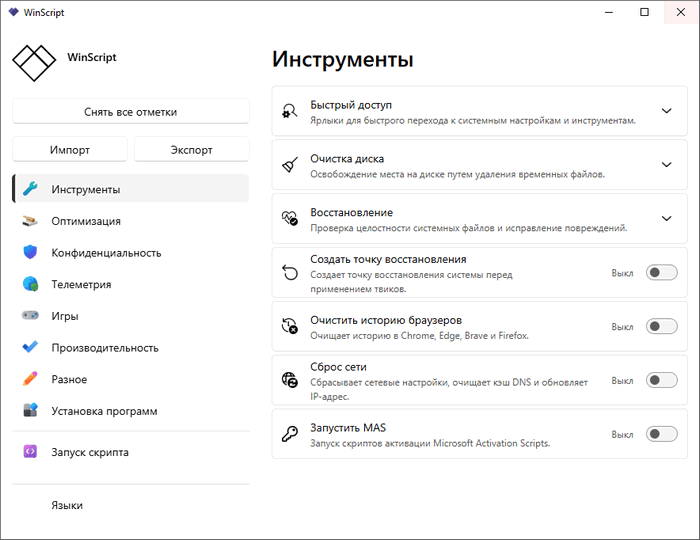
User Interface
WinScript provides a visual interface that organizes Windows modifications into separate sections.
Instead of requiring users to write PowerShell commands manually, it presents options using checkboxes, toggles, radio buttons, and categorized menus.
Typical sections include:
- Debloat
- Privacy
- Performance
- Applications
- Third-party app removal
- Windows setup
- Presets
- Script generation
The interface makes advanced system customization more accessible, but users should still understand each option before including it in a script.
Windows Defender Detection Warning
The WinScript developers note that the desktop application may sometimes be flagged by Microsoft Defender.
According to the official release notes, this can happen because the generated scripts are capable of changing Windows system settings. The developers describe these detections as false positives and emphasize that the project is transparent and open source.
However, users should still follow normal security precautions:
- Download WinScript only from the official website or GitHub repository
- Verify the release source
- Review generated scripts
- Avoid unofficial modified editions
- Scan downloaded files
- Check digital signatures when available
- Create a restore point before running scripts
Open-source availability improves transparency, but it does not eliminate the need for careful review.
Code-Signed Executables
Starting with WinScript 2.20.0, the official executables are code-signed through SignPath.
Code signing helps Windows verify that the executable came from the expected publisher and was not modified after signing.
The official release history confirms that code signing was added to all WinScript executables in version 2.20.0.
Users should still obtain releases from official project sources.
Installation Methods
WinScript can be installed or launched in several ways.
Desktop Installer
Users can download the official desktop release from the project’s GitHub release page.
Winget Installation
WinScript can be installed through Winget using the supported package command.
PowerShell Launch
The project also provides a PowerShell command for launching WinScript directly.
These installation methods are documented in the official repository.
Users unfamiliar with PowerShell should use the standard desktop version and review every action before execution.
Recommended Safety Steps
Before applying a WinScript configuration, users should:
- Create a Windows restore point.
- Back up important files.
- Save BitLocker recovery keys.
- Export important browser data.
- Review every selected option.
- Read the generated PowerShell script.
- Avoid removing components required by other applications.
- Test aggressive tweaks individually.
- Restart Windows after major changes.
- Keep a copy of the original configuration.
Users should be especially careful when disabling security services, removing Microsoft Store components, changing Windows Defender settings, or modifying BitLocker.
Advantages
WinScript 2.21.0 offers several important benefits:
- Free and open-source
- Transparent PowerShell script generation
- Simple graphical interface
- Windows debloating tools
- Privacy configuration options
- Performance-related tweaks
- Bulk application installation
- Winget and Chocolatey support
- Application update commands
- Reusable configuration presets
- Unattended Windows setup generation
- Desktop and browser-based versions
- Automatic locale detection
- Support for Windows 10 and Windows 11
- Useful for new Windows installations
Limitations
Users should also consider the following limitations:
- Some tweaks can disable useful Windows features
- Removing system components may cause compatibility issues
- Performance improvements vary between computers
- Generated scripts may trigger antivirus warnings
- Administrative privileges are required for many changes
- Aggressive debloating can interfere with Windows updates
- Package installation depends on external repositories
- Some changes are difficult to reverse manually
- Beginners may not understand every generated command
- A restore point and backup are strongly recommended
Who Should Use WinScript?
WinScript is suitable for:
- Windows 10 and Windows 11 users
- PC enthusiasts
- System administrators
- Computer technicians
- Gamers
- Privacy-conscious users
- Users reinstalling Windows
- People configuring multiple computers
- Developers preparing new workstations
- Users who want transparent system modifications
It is particularly valuable for people who want automation without relying entirely on a closed optimization utility.
WinScript vs. Traditional PC Optimizers
Traditional PC optimization applications usually scan the computer and apply internal changes automatically.
WinScript works differently. It allows the user to choose changes and then creates a visible PowerShell script.
This provides more transparency and control, but also places greater responsibility on the user.
WinScript is generally better for users who want:
- Reviewable system commands
- Reusable configuration files
- Automated software installation
- Windows installation customization
- Clear control over individual tweaks
Traditional optimization applications may be easier for users who only want automatic junk cleaning or simple maintenance.
Is WinScript 2.21.0 Safe?
WinScript can be used safely when it is downloaded from the official project, the generated script is reviewed, and appropriate backups are created.
The application itself is open source, but the effects of the generated script depend entirely on the options selected by the user.
Removing major Windows components, disabling security features, or applying several experimental tweaks at once can create problems even when the tool is legitimate.
The safest approach is to apply only necessary changes and avoid selecting every available option automatically.
Is WinScript 2.21.0 Worth Using?
WinScript 2.21.0 is an excellent option for users who want to customize Windows through a transparent and repeatable process.
Its combination of debloating, privacy adjustments, performance settings, automated software installation, application updates, and unattended setup generation makes it more than a basic Windows tweaking utility.
The new automatic locale detection improves accessibility, while the addition of Minecraft Education expands the third-party application removal options.
Users who understand Windows configuration and PowerShell will receive the greatest benefit, although the graphical interface also makes the program approachable for less experienced users.
Final Verdict
WinScript 2.21.0 is a powerful open-source Windows customization and automation tool that allows users to create tailored PowerShell scripts without writing every command manually.
It can remove unwanted applications, reduce telemetry, adjust system behavior, install multiple programs, update existing software, and automate Windows installation.
The program’s greatest advantage is transparency. Users can inspect the exact script before allowing it to modify the computer.
Version 2.21.0 is a focused update that adds automatic operating-system and browser locale detection and introduces Minecraft Education to the third-party removal list.
Overall, WinScript is a valuable utility for users who want greater control over Windows 10 or Windows 11, provided that they review every selected tweak, create proper backups, and avoid unnecessary system modifications.