Fresh key, tested today: my PC switched to Pro with 91 days on the clock
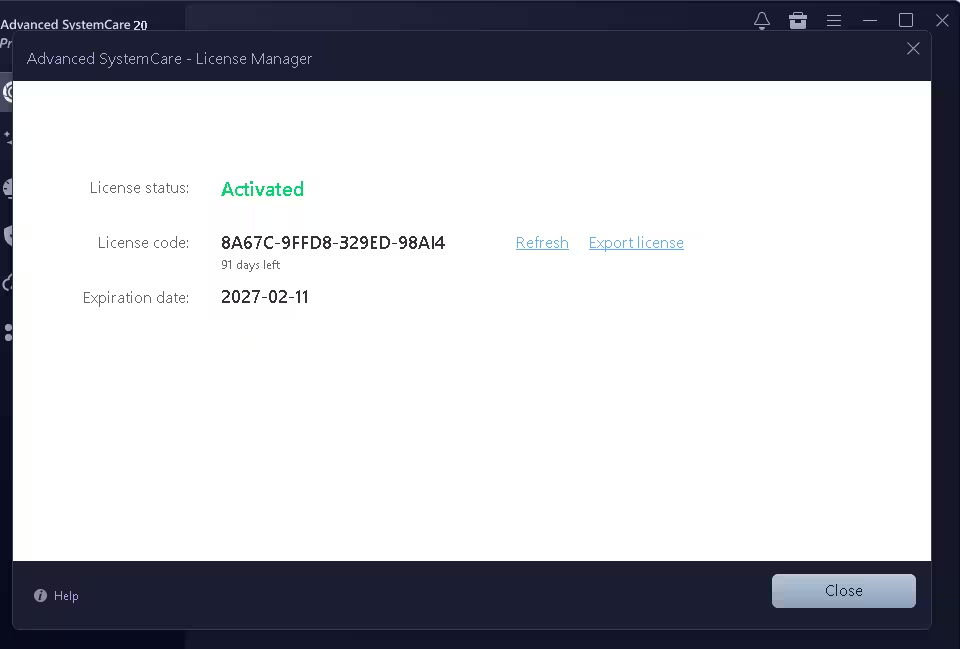
I activated this new Advanced SystemCare 20 Pro license key on my own Windows PC on 12 November 2026, and License Manager changed to Activated. Pro runs until 11 February 2027 (that’s 90 days from today). The end date stays the same whenever you activate, so every day you wait is a day of Pro you lose.
Your giveaway license code
8A67C-9FFD8-329ED-98AI4
I’ve been writing about Advanced SystemCare on wkconquer.com for years, and every autumn or so IObit bumps the version number. Most years the change is a fresh coat of paint. Version 20 is a bit different: the headline feature is a proper disk-space cleaner, which is what most people want from a tool like this when their C drive turns red.
This page used to cover version 19. Rather than leave you with an old build and old codes, I’ve rewritten it around version 20: new screenshots from my own PC, a fresh Pro key that I activated before publishing, and honest notes on which parts are worth your time.
🔄 What changed on this page (12 Nov 2026): a new Pro code that runs until 11 February 2027 replaces the previous key, and there’s a fresh activation screenshot from my PC. Earlier update (18 Oct 2026): rewritten for Advanced SystemCare 20 with all-new screenshots and the version 19 keys removed.
What’s new in Advanced SystemCare 20
IObit announced version 20 on 9 September 2026. Strip away the press-release language and there are three real changes.
1. Custom Clean: finally, a space finder built in
There’s a new Custom Clean tab in the sidebar with three ticks: Junk Files, Duplicate Files and Large Files. You pick a drive from the dropdown and hit Scan. According to IObit, the large-file pass hunts for bulky videos, disk images, ISO files and forgotten installers in places like Downloads and Documents, and you can preview them before anything is deleted. The duplicate finder keeps one copy of each identical photo, video, document or song.
In older versions, Large File Finder and Duplicate File Finder were buried in the toolbox. Putting them on the main sidebar is a small change that makes a big difference, because now people will actually use them.
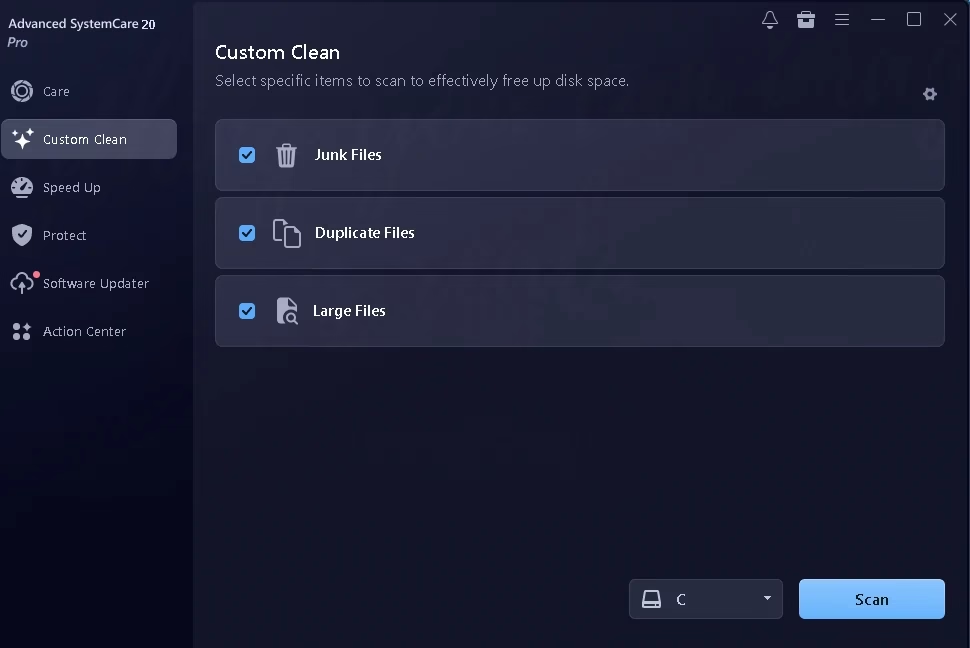
My advice: treat the large-file results as a shopping list, not a delete button. An ISO you downloaded last year is probably safe to bin. A large video in Documents might be the only copy of your kid’s school function. Read the list before you clear it.
2. A rebuilt scan engine
IObit calls it Smart Scan. Instead of checking one module after another, it runs several at the same time, and IObit says it flags fewer false positives. The big SCAN button on the Care tab still gives you AI Mode (it decides what to check) or Manual Mode (you tick the boxes). On my PC the scan felt quicker than version 19, but I didn’t time either run, so I won’t quote you a number. How long it takes depends heavily on how cluttered your drive is.
3. Network speed and disk temperature monitoring
IObit says version 20 adds a live upload/download readout, handy for catching a background app quietly eating your bandwidth, and a disk-temperature monitor that warns you before a drive runs hot. The Performance Monitor was set to load at Windows startup on my install. If you’d rather keep your system tray tidy, you can turn it off under Settings → General Settings.
My hands-on test with the Pro key
I tested on my everyday Windows PC, not a fresh virtual machine. That matters, because a clean test install always looks great. A machine that’s been in daily use for months is where you see whether a cleaner earns its place.
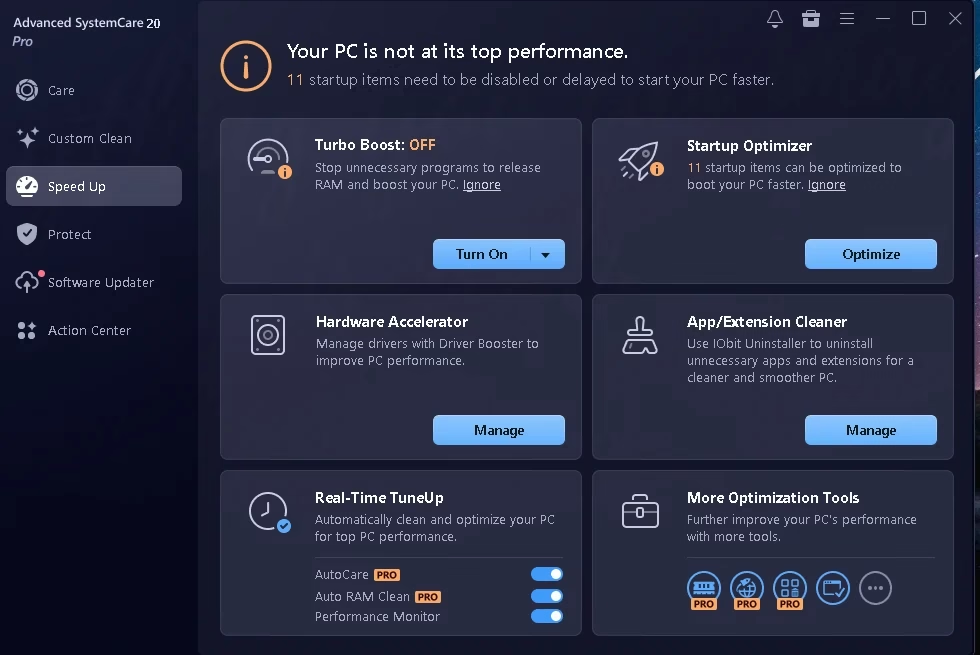
Speed Up: 11 startup items flagged
The Speed Up tab told me 11 startup items could be disabled or delayed. Startup Optimizer is the tile I’d open first, because trimming startup apps is the change most likely to shorten boot time. Turbo Boost was off out of the box. It pauses background programs to free up RAM, which helps during a game or a heavy export, but you don’t need it running all day.
Two tiles are really shortcuts to other products. Hardware Accelerator opens Driver Booster, and App/Extension Cleaner opens IObit Uninstaller. If you want the full Driver Booster experience, we have a Driver Booster 14 Pro giveaway with a key that runs until 29 March 2027.
Software Updater: the part I’d pay for
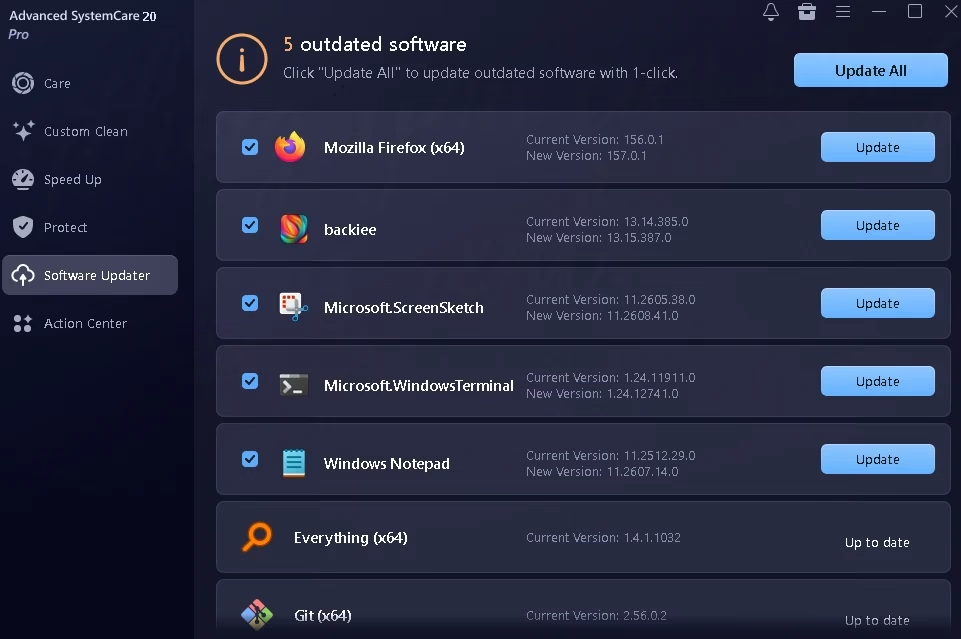
This is still the most useful thing in the suite. It found five outdated programs: Mozilla Firefox, the backiee wallpaper app, Windows Terminal, Windows Notepad and Microsoft’s ScreenSketch package (that’s the Snipping Tool). It also marked Everything and Git as up to date, which they were, so no false alarms.
Notice that three of those five are Microsoft Store apps. Plenty of updaters ignore Store apps entirely, so this is a real plus. Out-of-date software is a common way in for malware, and this catches it without you opening each app’s About box. I’d still glance down the list before clicking Update All, just to make sure nothing you deliberately kept on an older version gets bumped.
Protect: useful toggles, plus a VPN pitch
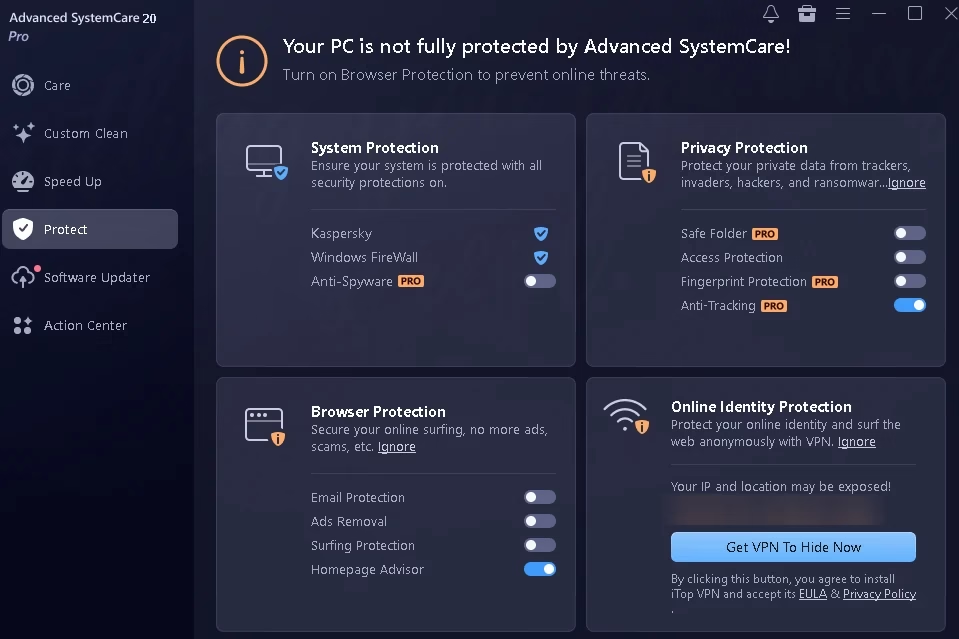
The Protect tab picked up my existing Kaspersky install and Windows Firewall straight away, which is reassuring: it isn’t trying to replace your antivirus. Under Privacy Protection you’ll find Safe Folder (a locked folder for sensitive files), Fingerprint Protection, Access Protection and Anti-Tracking. Only Anti-Tracking was on after activation. If you keep scanned ID cards or tax papers on your PC, Safe Folder is worth a few minutes to set up. Just remember it’s a Pro feature and this key has an end date (more on that in the FAQ).
The bottom-right card is an ad. It shows your public IP address and town, then offers a Get VPN To Hide Now button that installs iTop VPN. Skip it unless you actually want that VPN. If you ever share a screenshot of this tab, blur that line first, as I have below.
One setting I’d change right away
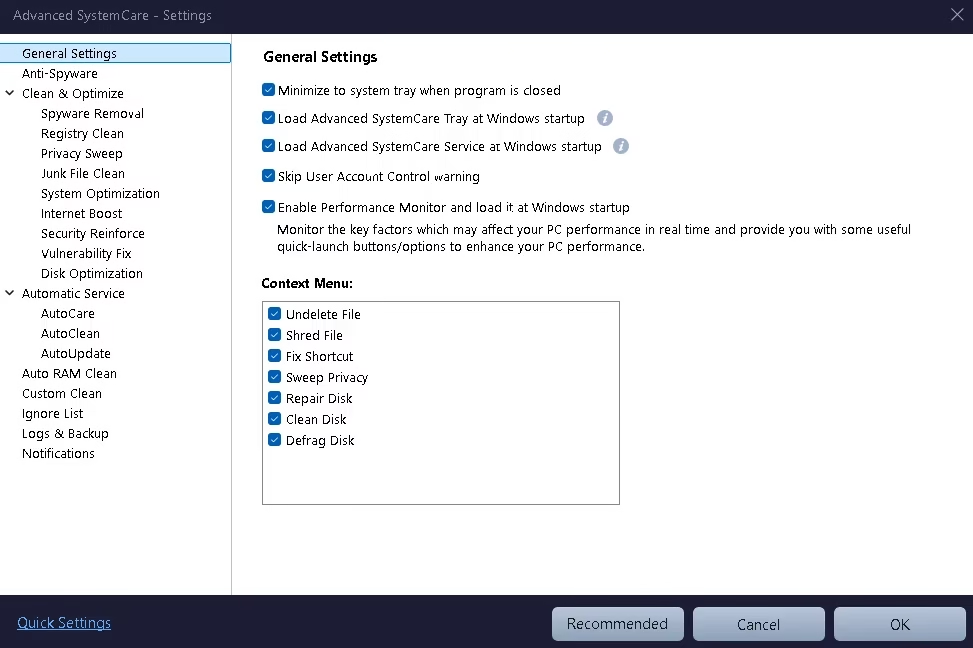
Open ☰ menu → Settings → General Settings. Most of the boxes there are harmless: minimise to tray, load at startup, run the Performance Monitor. But “Skip User Account Control warning” was ticked on my install. UAC is the Windows prompt that asks before a program makes system-level changes. I’d rather see that prompt, so I unticked it. It costs you one extra click now and then, and it’s one less shortcut around a Windows safety check.
The same page lets you trim the right-click menu. Advanced SystemCare adds seven entries (Undelete File, Shred File, Fix Shortcut, Sweep Privacy, Repair Disk, Clean Disk and Defrag Disk). If your context menu already feels crowded, untick the ones you’ll never use.
Right after you activate Pro, a pop-up offers an Enable all features button. Most of what it turns on is fine, but notice that Registry Deep Clean and Secure File Deletion stay off. That’s the right call. Registry cleaning brings little benefit on modern Windows, and secure deletion (DoD 5220.22-M overwriting) is slow and only needed when you’re getting rid of truly sensitive files.
Giveaway details at a glance
| Product | Advanced SystemCare 20 Pro by IObit |
| License code | 8A67C-9FFD8-329ED-98AI4 |
| Pro until | 11 February 2027, a fixed end date (90 days left today) |
| Last tested | 12 November 2026: activated on my PC with 91 days of Pro left |
| Activation limit | Not disclosed; treat it as first come, first served |
| Works on | Windows 11, 10, 8/8.1, 7, Vista and XP |
| Normal price | $29.99/year for 1 PC on IObit’s US store, often discounted (checked 18 Oct 2026; prices vary by region). 60-day money-back guarantee. |
| Antivirus included? | No. That’s Advanced SystemCare Ultimate. |
Free vs Pro: what the key actually gets you
The free edition handles the basics: startup cleanup, junk removal and one-click RAM release. Here’s what switches on once the giveaway key is in, based on IObit’s own comparison and what I saw in the app:
| Feature | Free | Pro (this key) |
|---|---|---|
| Junk cleaning and startup optimisation | ✔ | ✔ |
| RAM release | Manual | Automatic |
| One-click update of outdated software | — | ✔ |
| Safe Folder for sensitive files | — | ✔ |
| Anti-Tracking and Fingerprint Protection | — | ✔ |
| AutoCare, AutoUpdate and deeper cleaning | — | ✔ |
| Premium technical support | — | ✔ |
Want antivirus in the same window? Advanced SystemCare Ultimate bundles these tools with a Bitdefender-based scanner, and our Advanced SystemCare Ultimate 18 review covers it in detail, though that giveaway’s activation window closed on 2 November 2026.
How to activate the free Advanced SystemCare 20 Pro license
- Run the installer and choose Custom install. Untick any extra IObit apps you don’t want.
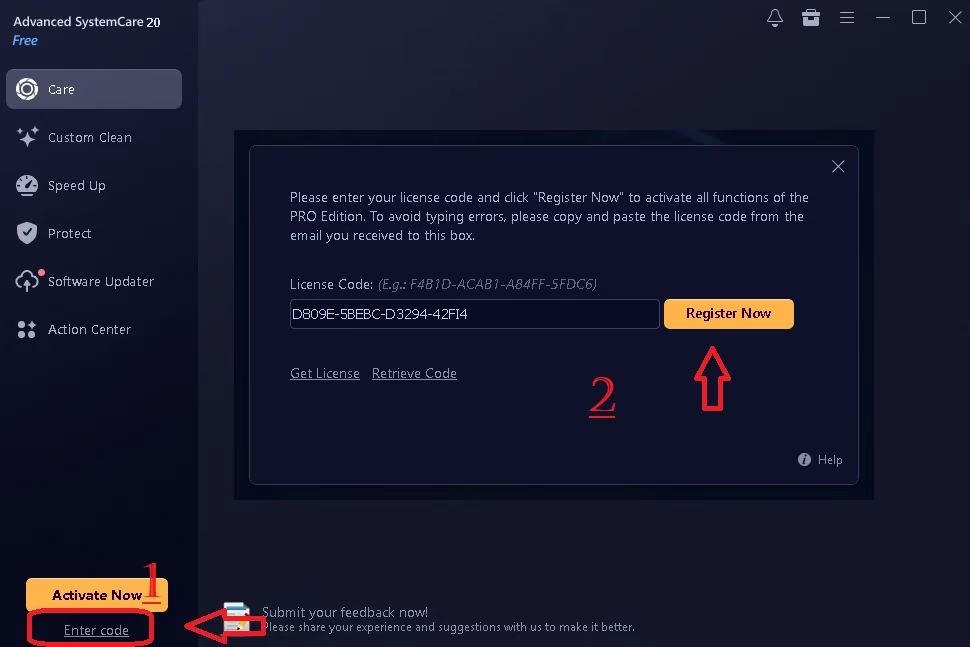
- Open the program. Below the orange Activate Now button at the bottom left, click Enter code.
- Paste
8A67C-9FFD8-329ED-98AI4into the box. Copy and paste it rather than typing. - Click Register Now. The label under the program name switches from “Free” to “Pro”.
- To double-check, open ☰ menu → My Subscription. You should see License status: Activated and an expiration date of 2027-02-11.
⚠️ Code rejected? First, check you copied all 23 characters, including the three