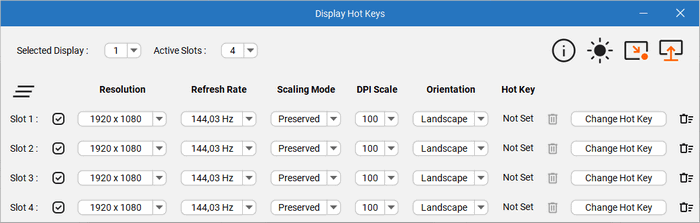
Display Hot Keys 4.1.1 – Quickly Manage Display Settings with Keyboard Shortcuts
Introduction
Display Hot Keys 4.1.1 is a lightweight Windows utility designed to make managing display settings faster and more convenient through customizable keyboard shortcuts. Instead of repeatedly opening Windows Settings whenever you need to change a display option, the program allows frequently used monitor configurations to be accessed through hotkeys.
This can be particularly useful for users who regularly switch between different monitors, resolutions, refresh rates, orientations, or other display configurations throughout the day.
The application focuses on simplicity and productivity, providing quick access to display-related actions without adding unnecessary complexity to the Windows desktop.
What Is Display Hot Keys?
Display Hot Keys is a utility that allows users to assign keyboard shortcuts to different display settings and configurations.
Normally, changing monitor settings in Windows requires opening the Settings application, navigating to the Display section, selecting the appropriate monitor, and modifying the desired option.
When these changes need to be performed repeatedly, the process can become inconvenient. Display Hot Keys is designed to reduce those repetitive steps by making selected display changes accessible through keyboard combinations.
Quick Display Configuration
The primary advantage of Display Hot Keys is speed.
Users who frequently move between different display configurations can perform common actions without navigating through several Windows menus.
Once the desired shortcuts have been configured, switching between display settings can become a much faster process.
This is especially valuable for users with complicated desktop environments involving multiple monitors.
Custom Keyboard Shortcuts
Customizable hotkeys are at the center of the application.
Users can configure keyboard combinations for supported display actions according to their own workflow.
This means frequently used configurations can be activated with a simple shortcut instead of manually adjusting the same settings repeatedly.
Carefully selecting memorable keyboard combinations can make the program feel like a natural extension of Windows.
Resolution Management
Screen resolution is one of the most important display parameters because it determines the number of pixels displayed on the screen.
Different applications, games, legacy software, remote desktop environments, and presentation scenarios may work better with different resolutions.
Display Hot Keys can make switching between preferred display configurations significantly more convenient for users who regularly need to change resolution.
This can be particularly useful when testing applications or games at several resolutions.
Refresh Rate Control
Refresh rate determines how frequently a monitor updates the displayed image.
Modern monitors may support several refresh rates, such as 60 Hz, 75 Hz, 120 Hz, 144 Hz, 165 Hz, 240 Hz, or higher depending on the hardware.
Gaming users may prefer the highest available refresh rate, while certain applications or compatibility scenarios may require another setting.
Being able to access preferred display configurations quickly can reduce the time required to move between these environments.
Display Orientation
Monitor orientation can be useful for specialized desktop configurations.
While most users operate displays in landscape mode, programmers, writers, streamers, designers, and productivity-focused users sometimes rotate secondary monitors into portrait orientation.
Display Hot Keys can help simplify workflows where display orientation needs to be changed regularly.
Instead of repeatedly navigating through Windows display settings, users can access their preferred configurations much more efficiently.
Multi-Monitor Environments
Display Hot Keys can be particularly useful for systems with multiple monitors.
Multi-monitor configurations are increasingly common among gamers, programmers, designers, video editors, traders, office professionals, and content creators.
Different tasks may require different monitor arrangements. A user might need one configuration for normal desktop work, another for gaming, and another when connecting a television or projector.
A utility focused on rapid display configuration can significantly reduce the inconvenience associated with repeatedly changing these settings.
Useful for Gaming
Gamers can benefit from Display Hot Keys when different games require different display configurations.
For example, one game may be optimized for a particular resolution and refresh rate, while another may be played using a different monitor or display mode.
Older games can also behave differently at modern resolutions and may require temporary changes for improved compatibility.
Having keyboard shortcuts available for commonly used display settings can make switching between gaming configurations faster.
Useful for Content Creators
Video editors, photographers, graphic designers, streamers, and other content creators often use more than one display.
Their workflows may involve a primary high-resolution monitor, a secondary workspace monitor, and an additional screen used for previews or monitoring.
Display Hot Keys can simplify transitions between different working arrangements, especially when the same computer is used for several types of creative work.
Presentations and Projectors
Users who frequently connect laptops or desktop computers to projectors, televisions, or external displays may also find Display Hot Keys useful.
Presentation environments often require specific resolutions or display arrangements.
Quick access to known configurations can save time before presentations and reduce the need to manually search through Windows settings while an audience is waiting.
Productivity
The major productivity benefit of Display Hot Keys comes from reducing repetitive actions.
Changing a display setting once through Windows is not particularly difficult. However, performing the same operation several times every day can become inefficient.
Keyboard shortcuts reduce the number of mouse clicks and menu transitions required for frequently repeated configurations.
For power users, these small time savings can become meaningful over extended periods.
Simple User Interface
Display Hot Keys is designed around a straightforward interface rather than a complicated collection of unrelated system tools.
The primary goal is to configure display-related actions and associate them with convenient shortcuts.
This makes the application accessible to ordinary Windows users while still providing practical functionality for more advanced setups.
Lightweight Design
Another important advantage is the program’s relatively focused nature.
Display Hot Keys does not attempt to replace the complete Windows display-management system. Instead, it provides quicker access to commonly repeated display operations.
This focused design makes it appropriate for users who want a small utility rather than a large system-management suite.
Background Operation
A hotkey utility generally needs to remain available while Windows is running so that configured keyboard shortcuts can be detected.
Display Hot Keys can therefore fit naturally into a normal desktop workflow, allowing users to trigger display actions without repeatedly opening the program’s main interface.
For users who rely heavily on shortcuts, this provides a much smoother experience than manual display configuration.
Windows Integration
Display Hot Keys is intended to complement the display-management capabilities already available in Microsoft Windows.
Windows provides extensive monitor settings, but accessing particular options can require several steps.
The application effectively adds a shortcut-oriented layer over common display-management tasks, making existing functionality easier to access.
Practical Everyday Uses
There are many situations where quick display switching can be useful.
A desktop user may want a high-refresh-rate configuration while gaming and a different configuration during ordinary work.
A laptop user may frequently connect and disconnect an external monitor.
A developer may test applications at different resolutions.
A streamer may use several monitors during broadcasts but a simpler configuration during everyday use.
A presentation laptop may regularly move between its built-in screen and different external displays.
Display Hot Keys is designed to make these recurring transitions more efficient.
Advantages
Display Hot Keys 4.1.1 provides a convenient method for managing frequently used display configurations through keyboard shortcuts.
Its main advantages include fast access to display settings, customizable hotkeys, usefulness with multiple monitors, convenient switching between display configurations, and a lightweight design.
It can be particularly valuable for gamers, developers, content creators, office professionals, and users who regularly connect their computers to different displays.
Disadvantages
Display Hot Keys is a specialized utility, so users who rarely modify their monitor settings may not gain much benefit from installing it.
Its usefulness also depends heavily on the user’s hardware and workflow. Someone using a single monitor permanently configured at one resolution and refresh rate may have little reason to use display hotkeys.
Users should also avoid assigning shortcuts that conflict with keyboard combinations already used by Windows, games, or other applications.
Who Should Use Display Hot Keys?
Display Hot Keys is best suited to users who frequently modify their Windows display configuration.
This includes multi-monitor users, gamers, streamers, developers, video editors, graphic designers, laptop users with external monitors, and professionals who regularly connect computers to televisions or projectors.
It can also be useful for anyone who simply prefers keyboard-driven workflows and wants to minimize repetitive navigation through Windows Settings.
Conclusion
Display Hot Keys 4.1.1 is a practical Windows utility created to simplify repetitive display-management tasks through customizable keyboard shortcuts.
Rather than repeatedly navigating through Windows display menus, users can prepare frequently used configurations and access supported display actions much more efficiently.
Its lightweight approach makes it particularly useful for multi-monitor environments, gaming systems, creative workstations, presentation computers, and other setups where display settings change regularly.
For users who frequently switch between monitor configurations and want a faster, keyboard-oriented workflow, Display Hot Keys can provide a simple and convenient solution.