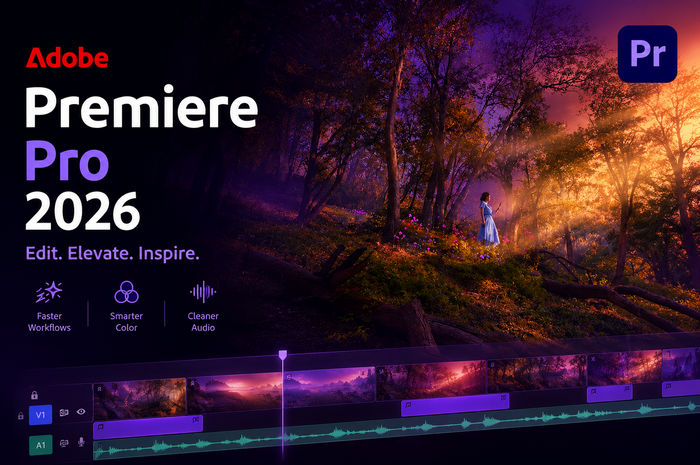
Adobe Premiere Pro 2026 v26.3.2 – Complete Review, Features, Advantages and Disadvantages
Introduction
Adobe Premiere Pro 2026 v26.3.2 is a professional non-linear video editing application designed for filmmakers, video editors, YouTube creators, marketing professionals, broadcasters, and other content creators. It provides a comprehensive environment for transforming raw video, audio, graphics, images, and effects into finished productions.
Premiere Pro is suitable for projects ranging from short social-media clips and YouTube videos to documentaries, interviews, advertisements, music videos, multicamera productions, and professional film projects.
The software combines traditional timeline-based editing with modern automation and AI-assisted technologies designed to accelerate repetitive production tasks while preserving detailed manual control for experienced editors.
Professional Timeline Editing
The timeline is the central workspace of Adobe Premiere Pro. Video, audio, graphics, photographs, adjustment layers, and other elements can be organized across multiple tracks.
Editors can cut, trim, move, duplicate, replace, and rearrange clips while maintaining precise control over timing.
Different sequences can also be created within the same project, making it possible to organize complicated productions into manageable sections.
This flexible non-linear workflow allows editors to make significant changes without permanently modifying the original source footage.
High-Resolution Video Editing
Premiere Pro is designed to handle modern high-resolution video workflows.
Depending on the source media, codecs, computer hardware, and project configuration, editors can work with HD, Full HD, 4K, and higher-resolution material.
High-resolution editing naturally requires more processing power, memory, graphics performance, and storage bandwidth. Professional users working with demanding footage therefore benefit considerably from modern hardware and fast storage.
Proxy Workflow
High-resolution or highly compressed footage can be difficult to edit smoothly on less powerful computers.
Premiere Pro provides proxy workflows that allow lower-resolution or easier-to-process versions of source clips to be used during editing.
Editors can work with these lightweight proxy files for improved timeline responsiveness while retaining the original high-quality media for final output.
This approach is especially useful for 4K and higher-resolution footage, multicamera projects, and computationally demanding codecs.
Advanced Trimming Tools
Professional editing requires more than simply cutting clips at approximate locations.
Premiere Pro provides specialized trimming tools that allow editors to precisely adjust edit points while controlling how surrounding clips behave.
Ripple, rolling, slip, and slide editing techniques provide different methods of modifying timing without unnecessarily rebuilding the surrounding sequence.
These tools become particularly valuable when working on complex productions where timing needs to be adjusted frame by frame.
Multicam Editing
Multicamera editing is useful when the same event has been captured simultaneously from several cameras.
Premiere Pro can organize synchronized camera angles into a multicamera workflow, allowing editors to switch between perspectives while reviewing the footage.
This can dramatically accelerate editing for interviews, podcasts, concerts, conferences, live performances, and other productions involving multiple cameras.
Synchronization can be based on appropriate timecode or audio information depending on the production workflow.
Professional Color Correction
Color correction is a major component of modern video post-production.
Premiere Pro includes the Lumetri Color toolset, providing controls for exposure, contrast, highlights, shadows, white balance, saturation, curves, color wheels, and other image characteristics.
Editors can use these controls to correct footage captured under difficult lighting conditions or create a consistent visual appearance between clips recorded using different cameras.
Creative Color Grading
Beyond technical correction, Premiere Pro can be used to establish a deliberate visual style.
Color grading allows editors to create warmer, cooler, cinematic, dramatic, desaturated, or other stylized appearances.
Look-up tables, commonly known as LUTs, can be incorporated into appropriate workflows as starting points for particular looks.
Professional results still require careful adjustment because a LUT that works well for one camera or lighting condition may not produce the same result on another shot.
AI-Powered Editing Features
Modern versions of Premiere Pro increasingly integrate artificial intelligence and machine-learning technologies into the editing workflow.
AI-assisted tools are designed to reduce the amount of time required for repetitive tasks such as transcription, speech-related editing, reframing, audio processing, and other production operations.
These technologies do not eliminate the creative role of the editor. Instead, they can provide faster starting points while allowing users to refine the results manually.
Text-Based Editing
Text-based editing provides a different way of working with spoken video.
Premiere Pro can generate transcripts for supported content and allow editors to use text as part of the editing workflow.
Instead of locating every spoken sentence manually on the timeline, editors can work with the transcript to find dialogue and make certain editorial decisions more efficiently.
This can be particularly useful for interviews, podcasts, documentaries, educational videos, and other dialogue-heavy projects.
Speech to Text
Speech-to-text technology can automatically transcribe spoken dialogue in supported workflows.
The generated transcript can be used for navigation, editing, and caption creation.
Automatic transcription can save substantial amounts of time compared with manually typing long interviews or presentations.
Accuracy depends on factors such as language, pronunciation, recording quality, background noise, microphone quality, and the number of speakers, so generated text should always be reviewed before publication.
Captions and Subtitles
Premiere Pro provides tools for creating and managing captions.
Captions can be generated from transcripts and then reviewed, corrected, formatted, and positioned according to the project’s requirements.
This is increasingly important for social media, educational content, accessibility, and videos that may be watched without sound.
Editors can also work with caption formats appropriate for different delivery platforms and production requirements.
Audio Editing
Video quality is only one part of professional production. Poor audio can significantly reduce the perceived quality of an otherwise excellent video.
Premiere Pro provides tools for adjusting volume, panning, fades, audio transitions, and effects.
Editors can work with dialogue, music, ambient sound, sound effects, and other audio elements directly within the timeline.
For more specialized audio production, Premiere Pro can also be combined with dedicated audio applications.
Essential Sound
The Essential Sound workflow helps editors categorize audio into types such as dialogue, music, sound effects, and ambience.
Different controls can then be applied according to the selected audio category.
This simplifies many common audio-processing tasks for video editors who may not have extensive professional audio-engineering experience.
Automatic Audio Enhancement
AI-assisted and automated audio-processing features can help improve dialogue and reduce some common recording problems.
These technologies can be useful when working with interviews, podcasts, tutorials, and recordings captured outside controlled studio environments.
However, severely distorted, clipped, or extremely noisy recordings may still require specialized restoration techniques and cannot always be completely repaired.
Video Effects
Premiere Pro includes a broad selection of effects for modifying video footage.
Editors can apply blur, sharpening, distortion, stylization, color effects, transformations, keying, and numerous other adjustments.
Effects can be customized using parameters and keyframes, providing considerably more control than simple preset-based editing applications.
Third-party plugins can further expand the available effects depending on the user’s workflow.
Transitions
Transitions can be placed between clips to control how one shot changes into another.
Premiere Pro includes commonly used transitions such as dissolves, fades, wipes, and other effects.
Although transitions can be useful, professional editing often relies on carefully timed direct cuts. Excessive use of elaborate transitions can distract viewers from the content.
Premiere Pro therefore provides both simple and creative options while leaving the final decision to the editor.
Keyframe Animation
Keyframes allow parameters to change over time.
Editors can animate position, scale, rotation, opacity, audio levels, effects, and numerous other properties.
For example, a photograph can gradually zoom toward the viewer, text can move across the screen, or an effect can become progressively stronger during a particular scene.
Keyframes provide a fundamental animation system directly within the editing timeline.
Motion Graphics
Premiere Pro provides tools for incorporating titles, lower thirds, captions, logos, and other graphical elements.
Motion graphics templates can help editors create professional-looking visual elements without constructing every animation from scratch.
This is useful for YouTube videos, advertisements, news content, interviews, social-media videos, corporate presentations, and branded productions.
Integration with Adobe After Effects
Premiere Pro integrates closely with Adobe After Effects.
Premiere is generally used for assembling and editing the primary video sequence, while After Effects specializes in motion graphics, visual effects, compositing, and advanced animation.
Editors can therefore perform the majority of their work in Premiere Pro and use After Effects when individual shots require more sophisticated visual treatment.
This combination is widely used in professional post-production workflows.
Integration with Adobe Photoshop
Photoshop files can also be incorporated into Premiere Pro projects.
This is useful for thumbnails, titles, graphic elements, layered compositions, photographs, and other visual assets.
Layered Photoshop documents can provide additional flexibility when graphics need to be animated or modified during production.
Integration with Adobe Audition
For projects requiring more advanced audio processing, Premiere Pro can work alongside Adobe Audition.
Audition provides specialized tools for audio restoration, mixing, waveform editing, and other sound-production tasks.
This combination allows video editors to handle ordinary audio adjustments in Premiere while moving more demanding sound work into a dedicated environment.
Adjustment Layers
Adjustment layers allow effects and color corrections to be applied across multiple clips without modifying every clip individually.
For example, an editor can place an adjustment layer above several clips and apply a common color treatment.
Changing or removing the adjustment later affects the entire relevant section.
This provides a convenient non-destructive method of managing effects across complicated sequences.
Masks and Tracking
Masks allow effects and corrections to be restricted to particular areas of a video frame.
They can be useful for blurring faces, emphasizing specific objects, applying selective color adjustments, or creating visual effects.
Tracking functionality can help masks follow moving subjects across frames.
More complicated tracking and compositing requirements may still benefit from After Effects, but Premiere Pro provides useful tools for many everyday tasks.
Green Screen and Chroma Key
Premiere Pro can process footage captured against green or blue screens.
Keying tools allow the selected background color to be removed so that another image, video, or digital environment can be placed behind the subject.
Professional chroma-key results depend heavily on the quality of the original recording. Even lighting, sufficient separation between the subject and background, and high-quality footage can significantly improve the final result.
Auto Reframe and Social Media
Video content is now frequently distributed across platforms that use different aspect ratios.
A traditional widescreen video may need to be converted into vertical or square formats for social-media platforms.
Auto Reframe can help reposition important content when adapting sequences to different frame dimensions.
Editors should still review automatically reframed shots because complex movement or compositions may require manual correction.
Slow Motion and Speed Controls
Premiere Pro provides extensive control over playback speed.
Clips can be accelerated, slowed down, reversed, or modified using speed-ramping techniques.
High-frame-rate footage can produce particularly smooth slow-motion results when used correctly.
Time-remapping controls allow editors to create gradual transitions between normal speed, slow motion, and faster playback.
Stabilization
Shaky handheld footage can sometimes be improved using stabilization tools such as Warp Stabilizer.
The software analyzes movement and attempts to produce a smoother result.
Stabilization effectiveness depends on the original footage. Extremely violent camera movement, strong motion blur, or complicated rolling-shutter artifacts can limit the quality of the correction.
Scene Detection
Long video files may contain multiple individual shots.
Scene-edit detection can help identify cut points and divide certain types of previously edited footage into separate clips or segments.
This can save significant time when editors need to work with material that is no longer available as the original project timeline.
Media Organization
Large video projects can contain hundreds or thousands of media assets.
Premiere Pro provides bins, labels, metadata, search tools, sequences, and other organizational features to help editors manage complex productions.
Good organization becomes increasingly important as projects grow. Clearly structured bins for footage, audio, graphics, music, and sequences can save substantial time during editing.
Export Options
Once editing is complete, Premiere Pro provides extensive export controls.
Users can configure resolution, frame rate, codec, bitrate, audio properties, and other settings according to the final destination.
Videos can be prepared for online platforms, social media, professional delivery, local playback, archival purposes, or further post-production.
Understanding export settings is important because unnecessarily high bitrates can create very large files, while overly aggressive compression can significantly reduce image quality.
Hardware Acceleration
Premiere Pro can take advantage of supported graphics hardware to accelerate various editing, playback, effects, and encoding operations.
GPU acceleration can provide substantial performance improvements when working with high-resolution footage and demanding effects.
Actual acceleration depends on the graphics processor, driver, codec, effect, and project configuration.
A balanced system with a capable CPU, GPU, sufficient RAM, and fast storage generally provides the best editing experience.
Performance and System Requirements
Professional video editing can place significant demands on computer hardware.
Full HD projects are generally easier to handle than 4K or higher-resolution productions. Multicam footage, complex effects, high-bitrate media, RAW video, and advanced color processing can increase resource requirements considerably.
Fast SSD storage can improve media access and cache performance, while sufficient RAM is important for larger projects.
Users working professionally with Premiere Pro should consider the entire system rather than focusing on a single component.
Advantages of Adobe Premiere Pro 2026 v26.3.2
Adobe Premiere Pro provides an exceptionally comprehensive professional editing environment.
Its major strengths include advanced timeline editing, professional trimming, multicamera support, sophisticated color correction, audio processing, transcription, captions, AI-assisted workflows, proxy editing, motion graphics, effects, masks, tracking, speed controls, stabilization, and extensive export options.
Integration with After Effects, Photoshop, Audition, and the broader Adobe ecosystem provides another major advantage for professional creators.
The software can scale from relatively simple social-media projects to complicated professional productions.
Disadvantages of Adobe Premiere Pro 2026 v26.3.2
Premiere Pro has a substantial learning curve. Beginners may initially find its timeline, effects, audio routing, color-management options, codecs, proxies, sequences, and export settings complicated.
Professional video editing also requires powerful hardware, particularly for high-resolution and effects-heavy projects.
Large projects can consume significant storage space because source footage, proxies, previews, cache files, audio, graphics, and exports may all exist simultaneously.
Premiere Pro is also distributed through Adobe’s subscription ecosystem, which may not appeal to users who prefer purchasing software through a traditional perpetual license.
Adobe Premiere Pro vs After Effects
Premiere Pro and After Effects serve different but complementary purposes.
Premiere Pro is primarily a video editor. It is designed for arranging footage, building sequences, editing dialogue, working with audio, performing color correction, and producing complete videos.
After Effects specializes in compositing, motion graphics, animation, and advanced visual effects.
For most professional workflows, Premiere Pro is used to construct the main edit while After Effects handles individual shots or sequences requiring sophisticated animation and effects.
Adobe Premiere Pro vs DaVinci Resolve
Premiere Pro and DaVinci Resolve are both professional video-production platforms, but their workflows and ecosystems differ.
Premiere Pro is particularly attractive to users already working with Photoshop, After Effects, Illustrator, Audition, and other Adobe applications.
DaVinci Resolve is especially well known for its advanced color-grading environment while also providing editing, visual-effects, motion-graphics, and audio-production capabilities.
The better choice depends on the user’s workflow, existing software ecosystem, hardware, collaboration requirements, and personal preferences.
Who Should Use Adobe Premiere Pro?
Adobe Premiere Pro 2026 v26.3.2 is suitable for professional video editors, filmmakers, YouTubers, social-media creators, marketing teams, educators, businesses, broadcasters, and other users who need detailed control over video production.
Beginners can also learn the software, particularly if they plan to develop professional editing skills over time.
Users who only need to cut a few clips together occasionally may find simpler video editors more convenient, while those producing complex content can benefit significantly from Premiere Pro’s extensive toolset.
Conclusion
Adobe Premiere Pro 2026 v26.3.2 is a comprehensive professional video-editing environment that combines traditional timeline-based editing with modern AI-assisted production tools.
Its extensive capabilities cover virtually every major stage of video post-production, including media organization, cutting, trimming, multicamera editing, color correction, audio processing, transcription, captions, motion graphics, effects, stabilization, reframing, and final export.
The software requires time to master and benefits substantially from powerful hardware, but these requirements reflect the depth of its professional toolset.
For creators who need a flexible editing platform capable of handling everything from short online videos to demanding professional productions, Adobe Premiere Pro remains one of the most established and capable solutions in modern video post-production.