NetSpeedTray 2.1.3 – A Lightweight Network Monitoring Tool for Windows
Introduction
NetSpeedTray 2.1.3 is a lightweight and open-source network monitoring application designed for Windows users who want to keep an eye on their internet connection and system performance without constantly opening Task Manager or other monitoring utilities. The program places real-time network information directly on the Windows taskbar, allowing users to monitor download and upload speeds while continuing to work, browse, play games, or watch videos.
One of the main advantages of NetSpeedTray is its simple approach. Instead of filling the desktop with large monitoring windows, the application integrates its information into the taskbar and provides quick access to more detailed statistics whenever they are needed.
Real-Time Internet Speed Monitoring
The primary purpose of NetSpeedTray is to display live download and upload speeds directly on the Windows taskbar. Network statistics are updated frequently, making it easy to notice sudden changes in bandwidth usage.
This can be particularly useful when downloading large files, playing online games, streaming high-resolution videos, uploading content, or troubleshooting an unstable internet connection. Users can quickly determine whether their connection is currently active and how much bandwidth is being used without opening another application.
NetSpeedTray can automatically detect the primary internet connection and can also be configured to monitor specific network adapters. This makes the program useful for computers that have multiple Ethernet, Wi-Fi, VPN, or virtual network interfaces.
Taskbar Integration
One of NetSpeedTray’s most distinctive features is its integration with the Windows taskbar. Modern releases of the program are designed so that the network speed widget behaves more like a native part of the Windows interface rather than a separate floating window.
This provides a cleaner desktop experience and makes network information available at a glance. Users do not have to switch between applications or keep a monitoring window permanently open.
The interface is particularly well suited to Windows 11, with modern visual elements such as rounded corners, dark-mode support, and controls designed to fit the overall Windows interface.
Download and Upload Statistics
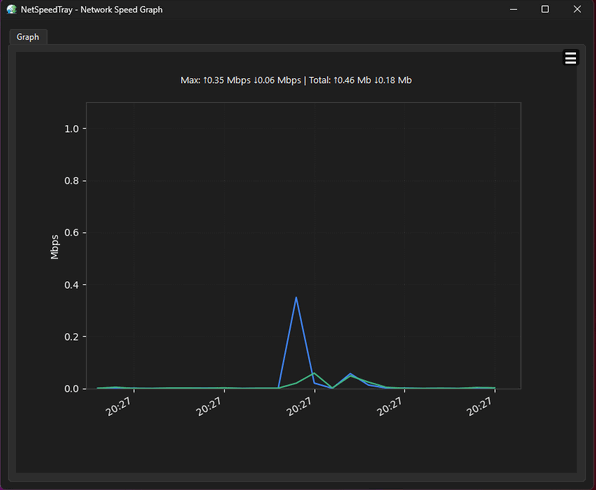
NetSpeedTray does more than display the current network speed. It can maintain network history and provide information about previous network activity.
This makes it easier to understand how the connection has behaved over time instead of relying exclusively on the current download or upload value. Historical information can be particularly useful when investigating temporary connection slowdowns or periods of unusually high bandwidth consumption.
The program also provides data-usage tracking, including daily, weekly, and monthly totals. Users who have limited internet plans can configure a monthly data cap and use alerts to keep track of their consumption.
The Monitor Interface
For users who need more information than the taskbar widget provides, NetSpeedTray includes a dedicated Monitor interface.
The Monitor organizes information into areas covering overall system status, network activity, and hardware performance. Users can examine historical graphs, network connections, resource utilization, and other statistics without having to install several separate monitoring programs.
Network information can include active application connections and remote hosts, helping users understand which programs are communicating over the network. The developers specifically avoid presenting misleading estimated per-application network speeds where Windows cannot accurately provide that information without additional driver-level functionality.
CPU, GPU, RAM and Hardware Monitoring
Although its name focuses on network speed, NetSpeedTray has evolved into a broader system-monitoring utility.
The application can display CPU and GPU utilization alongside network statistics. RAM and VRAM information can also be monitored, while supported hardware configurations may provide CPU and GPU temperature and power-consumption information.
This is useful for gamers and power users because they can monitor both network traffic and hardware load from a single application. Temperature readings on some hardware may require additional tools such as LibreHardwareMonitor or OpenHardwareMonitor, while certain NVIDIA GPU information can be obtained through NVIDIA’s available system interfaces.
Wi-Fi Network Information
Newer versions of NetSpeedTray provide additional Wi-Fi information directly through the widget. Users can display the current wireless band, such as 2.4 GHz, 5 GHz, or 6 GHz.
This is a surprisingly useful feature because a computer can occasionally reconnect using a slower Wi-Fi band without the user immediately noticing. Seeing the current band directly on the taskbar can make troubleshooting wireless performance much easier.
The application can optionally display the Wi-Fi network name as well. On Windows 11, accessing the SSID is subject to Windows’ Location privacy permission. According to the project documentation, this information is read locally and is not transmitted by NetSpeedTray.
Network Latency Monitoring
Another useful capability is network latency monitoring. Instead of looking exclusively at bandwidth, NetSpeedTray can provide an indication of connection responsiveness.
Bandwidth and latency measure different aspects of a network connection. A connection can have excellent download speed while still experiencing high latency, which may cause noticeable delays during online gaming, video calls, remote desktop sessions, or other real-time activities.
Having both types of information available gives users a more complete picture of their network performance.
Customization Options
NetSpeedTray offers several customization options that allow users to change how information appears on the taskbar.
Users can customize layouts, fonts, decimal values, indicators, speed thresholds, and other visual settings. Different network speeds can also be represented using configurable color thresholds, making periods of heavy traffic easier to recognize.
A mini graph can be displayed with the taskbar information, while users interested in hardware statistics can choose which CPU, GPU, RAM, temperature, or power information should appear.
These options allow NetSpeedTray to remain extremely simple for users who only want download and upload speeds while still providing considerably more information for advanced users.
Multi-Monitor and High-DPI Support
NetSpeedTray is designed with modern desktop configurations in mind. It supports multi-monitor environments and provides options for choosing the preferred display for the widget.
High-DPI displays are also considered, which is important for laptops and monitors using Windows display scaling. Previous releases introduced several improvements specifically intended to make taskbar positioning and alignment more reliable on high-resolution displays.
Privacy and Security
Privacy is one of the strongest aspects of NetSpeedTray. The project is open source and distributed under the GPLv3 license. According to its official documentation, the application contains no advertising, tracking, or telemetry.
The official installer and portable releases are digitally signed, and the built-in update mechanism verifies downloaded installers before executing them. The application also attempts to redact potentially sensitive information such as IP addresses, MAC addresses, hostnames, and local paths from diagnostic logs and support bundles.
For privacy-conscious users who want a local network monitor without cloud accounts or advertising, these characteristics make NetSpeedTray particularly attractive.
Performance and Resource Usage
NetSpeedTray is designed to remain relatively lightweight while running continuously in the background. This is important because network monitoring software normally needs to remain active throughout a Windows session.
Users can keep the application running with Windows and have network information immediately available after signing in. Monitoring options can also be adjusted depending on how much information the user wants displayed.
The combination of a compact taskbar widget and a more detailed Monitor window means that advanced information does not need to remain visible or consume desktop space continuously.
Portable and Installed Versions
NetSpeedTray is available in both installer and portable formats. The standard installer is appropriate for users who want conventional Windows integration, while the portable edition is useful for users who prefer running applications without a traditional installation.
The project also supports installation through Windows Package Manager using Winget, providing an additional convenient installation and update method for experienced Windows users.
Compatibility
NetSpeedTray officially targets 64-bit versions of Windows 10 and Windows 11. The developers note that older Windows releases such as Windows 7 and Windows 8 are not officially supported because of differences in the Windows taskbar and related system APIs.
Windows 11 users are likely to get the most visually integrated experience because several interface components have been specifically designed around the modern Windows 11 appearance.
Advantages of NetSpeedTray 2.1.3
The biggest advantage of NetSpeedTray is convenience. Download and upload speeds remain visible directly on the taskbar without requiring Task Manager or a browser-based speed test.
Its additional hardware monitoring, historical graphs, data-usage statistics, Wi-Fi information, latency monitoring, customization options, and multi-monitor support make it much more capable than a basic bandwidth meter.
Another major advantage is its open-source nature. There are no advertisements or telemetry according to the project’s documentation, and users can inspect the publicly available source code.
Disadvantages of NetSpeedTray 2.1.3
NetSpeedTray is primarily designed for Windows 10 and Windows 11, so users of older Windows versions or other operating systems will need an alternative.
Some advanced hardware information, particularly accurate temperature and power readings, may depend on the hardware configuration and additional monitoring components. Therefore, not every computer will provide exactly the same hardware statistics.
The large number of customization and monitoring options can also be unnecessary for users who simply want a very basic internet-speed indicator. Fortunately, most of these additional features are optional.
Conclusion
NetSpeedTray 2.1.3 is an excellent option for Windows users looking for a convenient way to monitor internet activity directly from the taskbar. What begins as a simple download and upload speed indicator has developed into a capable network and hardware monitoring utility.
Real-time network speeds, historical statistics, data-usage tracking, Wi-Fi information, latency monitoring, CPU and GPU statistics, hardware monitoring, extensive customization, and strong privacy characteristics give the application considerably more functionality than a traditional taskbar bandwidth meter.
Its lightweight approach and integration with Windows make it particularly suitable for gamers, content creators, power users, and anyone who frequently needs to check network performance without interrupting their workflow. For users looking for a free and open-source Windows network monitor with no advertising or telemetry, NetSpeedTray is a compelling choice.