Topaz Gigapixel Pro 1.3.3 – Professional AI Image Upscaling, Restoration, and Face Recovery
Overview
Topaz Gigapixel Pro 1.3.3 is an advanced artificial intelligence image-enhancement application designed for enlarging photographs, restoring damaged images, recovering facial details, reducing visible image defects, and preparing low-resolution graphics for professional printing and digital production.
Instead of enlarging an image by simply stretching its existing pixels, Gigapixel analyzes the visual content and generates new pixels that are intended to match the surrounding structures, textures, edges, and photographic details.
The program can be used as a standalone desktop application or integrated into supported Adobe Photoshop and Lightroom Classic workflows. It provides several specialized AI models for photographs, portraits, scanned images, illustrations, computer-generated artwork, compressed files, and severely degraded sources.
Version 1.3.3 is a maintenance release that improves export-folder handling, performance, cropping stability, subscription information, and general application reliability.
What Is Topaz Gigapixel Pro?
Topaz Gigapixel Pro is a professional AI-powered image upscaler and restoration tool developed by Topaz Labs.
Its main purpose is to increase image resolution while preserving or reconstructing important details. It can enlarge images by up to six times their original dimensions, depending on the selected workflow and output settings.
The software is designed for photographers, graphic designers, publishers, printing companies, digital artists, archivists, e-commerce teams, real-estate agencies, marketing departments, and production studios that frequently work with images that are too small or damaged for their intended use.
The Pro edition is intended for professional and commercial workflows that may require advanced licensing, team-management options, production integration, higher processing limits, local rendering, cloud rendering, or specialized enterprise services.
Available features and service limits can depend on the selected Topaz plan.
What Is New in Topaz Gigapixel Pro 1.3.3?
Topaz Gigapixel 1.3.3 was officially released on July 27, 2026.
The update fixes an issue where the export menu could forget previously selected output folders. Users should now experience more consistent destination handling when processing and exporting multiple images.
Version 1.3.3 also addresses random application crashes and performance slowdowns that could affect editing or export workflows.
A problem involving incorrect pricing information inside the subscription-information dialog has been corrected.
The update fixes a cropping crash caused by a missing interface icon and resolves a Mac installer issue that could cause the installation process to stall while verifying downloaded AI models.
Topaz Labs also included fixes for several additional miscellaneous crashes, making version 1.3.3 primarily focused on reliability and workflow stability.
Improvements Inherited from Version 1.3.2
Version 1.3.3 includes the improvements introduced in the preceding 1.3.2 update.
One notable addition is support for opening JPEG XL files. JPEG XL, commonly identified by the JXL extension, is a modern image format designed to provide efficient compression and high image quality.
The update also improved HEIC compatibility by updating the software’s image-processing components and fixing several crashes associated with HEIC files.
Face Recovery version 3 received corrections intended to resolve rendering problems that could appear when processing portraits.
Windows installer support was improved for folder paths containing non-ASCII characters. This is important for users whose Windows account names or directory paths contain Arabic, Chinese, Japanese, Cyrillic, accented European, or other international characters.
The update also corrected installer crashes, model-download timeout handling, temporary cloud-upload filenames, thumbnail-generation problems, login messages, and issues involving multiple application instances.
AI-Powered Image Upscaling
Image upscaling is the main function of Topaz Gigapixel.
Traditional enlargement methods create additional pixels by estimating values between the original pixels. While this increases the dimensions, it can also produce blurry edges, soft textures, and visible pixelation.
Gigapixel uses trained AI models to analyze the type of image being processed. It then attempts to reconstruct realistic details while increasing the resolution.
The software may improve:
- Edge definition.
- Fine textures.
- Facial features.
- Hair details.
- Animal fur.
- Architectural lines.
- Landscape details.
- Printed text.
- Illustration outlines.
- Details lost through compression.
- Clarity in scanned photographs.
AI enlargement cannot guarantee a perfectly accurate reconstruction of information that is completely missing. Generated details should therefore be reviewed carefully, particularly in documentary, forensic, scientific, medical, or historical workflows.
Upscaling Images Up to Six Times
Topaz Gigapixel can enlarge supported images by up to six times their original dimensions through its standard scaling controls.
For example, an image measuring 1,000 × 1,000 pixels could be enlarged to 6,000 × 6,000 pixels.
Because increasing both width and height multiplies the total pixel count, a six-times enlargement can produce a file containing 36 times as many pixels as the original.
Large outputs require significantly more:
- System memory.
- Graphics memory.
- Processing time.
- Temporary storage.
- Final file storage.
Users should select the output dimensions according to the actual print, publishing, display, or cropping requirement rather than automatically choosing the largest available size.
Lossless Zoom
The Lossless Zoom workflow allows photographers to crop closely around a subject and then restore the remaining image to a more useful resolution.
This is valuable for wildlife, sports, events, aviation, surveillance, travel, and distant-subject photography where the subject occupies only a small portion of the original frame.
Although the feature can produce impressive results, the term “lossless” should not be interpreted as a guarantee that every reconstructed detail is identical to information captured by the camera.
The final quality depends on:
- Original focus.
- Motion blur.
- Sensor noise.
- Compression.
- Subject size.
- Available pixels.
- Selected AI model.
- Enlargement factor.
- Processing settings.
Standard AI Model
The Standard model is designed as a balanced starting point for many ordinary photographs.
It attempts to improve sharpness and visible detail without applying excessive reconstruction.
This model can be suitable for:
- General photography.
- Landscapes.
- Travel images.
- Product photographs.
- Event photography.
- Everyday camera files.
- Moderately compressed images.
Users who are uncertain which model to choose can begin with Standard and compare the result with other models inside the preview interface.
Standard MAX Model
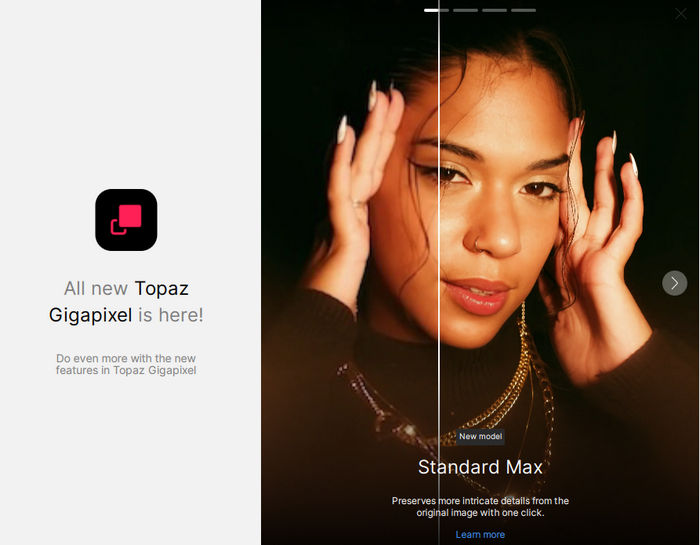
Standard MAX is designed for accurate and natural-looking image restoration while remaining faithful to the original source.
It is intended to provide more detailed results than older standard upscaling methods while processing considerably faster than early diffusion-based models.
Standard MAX can be useful when the goal is to produce a clean, realistic enlargement without creatively rebuilding the content.
Possible uses include:
- Commercial photography.
- Publishing.
- Product imagery.
- Print production.
- Architectural photographs.
- Client-delivery files.
- Professional image archives.
High Fidelity Model
The High Fidelity model is intended for images that already contain substantial detail or are already relatively high resolution.
It focuses on preserving original structures, textures, and photographic characteristics while enlarging the file.
High Fidelity may be appropriate for:
- Professional camera photographs.
- High-quality scans.
- Studio images.
- Detailed landscapes.
- Fine-art reproductions.
- Large-format printing.
Applying an overly creative restoration model to a high-quality source can change fine details unnecessarily. High Fidelity offers a more conservative alternative for these situations.
Low Resolution Model
The Low Resolution model is optimized for small, compressed, or visibly degraded source images.
It can help recover useful clarity from:
- Small website images.
- Old digital-camera photographs.
- Messaging-app images.
- Social media downloads.
- Low-resolution screenshots.
- Heavily compressed JPEG files.
- Cropped subjects.
The model may create details that appear realistic but are not necessarily identical to the original subject. Faces, logos, writing, and technical details should be reviewed at full magnification.
Text and Shapes Model
The Text and Shapes model is designed for graphics containing defined edges, lettering, symbols, diagrams, or geometric elements.
It can be useful for:
- Logos.
- Signs.
- Scanned documents.
- Presentation graphics.
- Interface elements.
- Diagrams.
- Posters.
- Packaging.
- Illustrations containing text.
Ordinary photographic models may soften or distort lettering. A specialized model can preserve straighter edges and improve the readability of suitable source material.
However, AI processing can still change individual letters, numbers, or symbols. Important text should always be checked manually after enhancement.
Art and Computer Graphics Model
The Art and CG model is intended for non-photographic images, including digital artwork, illustrations, renders, and computer-generated graphics.
It attempts to preserve clean lines, smooth color regions, and stylized details without introducing photographic textures that do not belong in the source.
It can be used for:
- Digital paintings.
- Anime-style artwork.
- Game assets.
- Concept art.
- 3D renders.
- Illustrations.
- Comic artwork.
- Generated images.
- Marketing graphics.
The optimal model still depends on the visual style and condition of the original image.
Wonder Model
Wonder is an advanced enhancement model designed to upscale, sharpen, and reduce noise through a simplified workflow.
It is intended for severely degraded or extremely low-resolution images that may not respond well to conventional upscaling models.
Wonder requires fewer manual adjustments and attempts to generate a complete enhanced result automatically.
It may be useful for:
- Tiny portrait photographs.
- Old internet images.
- Damaged family photographs.
- Heavily compressed pictures.
- Images with limited visible detail.
- Difficult restoration projects.
Because Wonder can reconstruct missing visual information, it may make larger creative changes than conservative models. The enhanced result should not automatically be treated as a historically or technically exact reproduction.
Recover Model
The Recover model focuses on restoring detail from damaged, soft, out-of-focus, or low-resolution images.
It can attempt to improve images affected by:
- Poor focus.
- Motion softness.
- Low-quality scanning.
- Excessive compression.
- Small source dimensions.
- Image degradation.
- Weak facial details.
Recover can provide a useful starting point when an image needs more than straightforward resizing.
Results may vary according to the severity of the damage and the amount of useful structure remaining in the original file.
Redefine Model
Redefine is a generative enhancement model that can rebuild visual structures when the original image contains very little usable detail.
It is designed for cases where ordinary models cannot produce a satisfactory enlargement because the source is too small, damaged, compressed, or unclear.
Redefine may create new textures and structures based on its interpretation of the original content. This makes it powerful for creative restoration, but it also introduces the possibility of significant differences from the actual subject.
It should be used carefully for:
- Identifiable people.
- Historical records.
- Evidence.
- Artwork ownership documentation.
- Scientific material.
- Product representation.
- News photography.
Users can guide supported Redefine workflows with descriptive instructions where available, but every result should be reviewed manually.
Face Recovery Version 3
Face Recovery is designed specifically for improving faces inside low-resolution or damaged photographs.
It analyzes detected facial regions and attempts to restore:
- Eyes.
- Eyebrows.
- Nose details.
- Mouth structure.
- Skin texture.
- Facial shape.
- Hair near the face.
- Neck and surrounding areas.
Face Recovery version 3 offers more advanced portrait reconstruction than earlier generations.
It can be useful for restoring family photographs, group pictures, event images, school photographs, wedding images, and old portrait scans.
Faces occupy a sensitive part of an image, and incorrect reconstruction can change a person’s identity or expression. Users should compare the processed face closely with the original and reduce the effect when the result appears artificial.
Dust, Scratch, and Surface-Damage Restoration
Selected Gigapixel models and restoration workflows can help reduce visible defects in old or scanned images.
These defects may include:
- Dust marks.
- Small scratches.
- Surface damage.
- Compression blocks.
- Noise.
- Minor scanning artifacts.
- Faded details.
Automatic processing can improve large portions of an image quickly, while supported brush-based controls can help users target particular areas more selectively.
Severely damaged photographs may still require manual retouching in Photoshop or another dedicated image editor after the AI enhancement is complete.
Local AI Rendering
Topaz Gigapixel supports local processing on compatible computers.
With local rendering, the image remains on the user’s system during processing. This can be important when working with:
- Confidential client material.
- Unreleased advertising campaigns.
- Proprietary designs.
- Private family photographs.
- Internal company documents.
- Sensitive production assets.
Local performance depends heavily on the processor, graphics card, graphics memory, system memory, model type, and output size.
Generative AI models require more powerful hardware than basic enhancement models.
Cloud Rendering
Cloud rendering allows supported AI models to be processed using Topaz servers instead of relying entirely on the user’s computer.
It can be useful when:
- The local GPU is unsupported.
- The computer does not have enough video memory.
- A generative model is too demanding.
- Large jobs would take too long locally.
- The user needs access to the latest server-based models.
Cloud processing requires a reliable high-speed internet connection.
Users working with private, copyrighted, regulated, or confidential images should review Topaz Labs’ current privacy and cloud-processing terms before uploading files.
Cloud availability, concurrency, resolution limits, and usage allowances can depend on the selected subscription or Pro plan.
Batch Processing
Topaz Gigapixel can process multiple images in a batch.
This is valuable for photographers, studios, publishers, and businesses that need to enlarge or restore many images using similar settings.
A batch workflow may be used for:
- Event photographs.
- Product catalogs.
- Real-estate listings.
- Scanned archives.
- Stock-image collections.
- Client galleries.
- E-commerce images.
- Game or design assets.
Users should test their settings on a small sample before processing an entire collection.
Different images may require different models, particularly when a batch contains portraits, illustrations, text, landscapes, and severely damaged sources.
Image Cropping
The application includes cropping controls for reframing an image before enhancement and export.
Cropping can remove unwanted edges, improve composition, isolate the subject, or create a required aspect ratio.
The 1.3.3 update fixes a crash that could occur in the crop interface because of a missing icon.
When combining cropping with heavy enlargement, users should monitor the final pixel dimensions carefully because a small crop enlarged by six times can become extremely large.
Image Preview and Comparison
Gigapixel provides preview tools for comparing the original image with the enhanced result before export.
Users can inspect important areas such as:
- Faces.
- Eyes.
- Hair.
- Text.
- Fine patterns.
- Building edges.
- Animal fur.
- Foliage.
- Compression artifacts.
Viewing the image at 100% magnification is important because a result that appears attractive when zoomed out may contain artificial textures or distorted details when viewed closely.
Comparison tools help users choose between AI models and determine whether processing is too strong.
Photoshop Integration
Topaz Gigapixel can operate as a plugin in supported Adobe Photoshop and Photoshop Elements configurations.
A common workflow is:
- Open an image in Photoshop.
- Perform preliminary corrections.
- Send the image to Gigapixel.
- Select the AI model and output size.
- Process the image.
- Return the enhanced result to Photoshop.
- Complete retouching, color correction, or compositing.
Plugin compatibility depends on the operating system, host application, processor architecture, and installed Gigapixel version.
Photoshop plugins are not supported on Windows ARM and Snapdragon systems, although the standalone application can still be used.
Lightroom Classic Integration
Gigapixel can also be included in a Lightroom Classic workflow.
Photographers can send selected files from their catalog to Gigapixel, process them, and return the enlarged results for additional organization or editing.
Users should choose an appropriate intermediate format to preserve the required bit depth, transparency, metadata, and image quality.
Large AI-generated files can consume significant catalog and storage space.
Standalone Desktop Application
The standalone application allows users to open images directly without requiring Photoshop or Lightroom Classic.
This is the simplest workflow for users who only need to:
- Enlarge an image.
- Restore a photograph.
- Recover facial details.
- Process a batch.
- Prepare a file for printing.
- Export an enhanced copy.
The standalone version also avoids the additional memory and GPU load created by running Gigapixel and a large host application simultaneously.
JPEG XL Support
The 1.3.2 update added support for opening JXL files.
JPEG XL is a modern format that can provide efficient compression and high-quality image storage.
The release notes specifically confirm input support. Users should not assume that every JXL export configuration is available unless it appears in the application’s export options.
Format compatibility can change as Gigapixel and its underlying imaging libraries are updated.
HEIC Support Improvements
HEIC is widely used by modern smartphones and Apple devices because it can store high-quality images efficiently.
The updated image-processing library included with version 1.3.2 fixes multiple crashes associated with HEIC files.
HEIC handling may still depend on the source file, color profile, metadata, bit depth, and operating-system components.
For important projects, users should verify the exported color and orientation before deleting or replacing the original file.
Export Options
After enhancement, users can save the processed image to a selected destination.
Available export settings may include:
- Output folder.
- Filename.
- File format.
- Quality level.
- Resolution.
- Color profile.
- Metadata handling.
- Overwrite behavior.
Version 1.3.3 fixes a problem where the export menu could forget the selected output folder.
Users should save results as new files rather than overwriting their only original copies.
Print Preparation
Gigapixel is particularly useful for preparing images for large-format printing.
A small source may not contain enough pixels for a sharp poster, canvas, exhibition print, book cover, advertising display, or billboard.
By increasing the pixel dimensions, Gigapixel can provide a file that is more suitable for the intended physical size.
Print quality still depends on:
- Viewing distance.
- Printer resolution.
- Paper or material.
- Source quality.
- Output dimensions.
- Sharpening.
- Color management.
- Compression.
- Print-service requirements.
Users should ask the printer for the required pixel dimensions, color space, file format, and bleed specifications before processing the final image.
Photography Applications
Photographers can use Gigapixel for many practical tasks.
It can help with:
- Enlarging cropped wildlife subjects.
- Improving distant sports photographs.
- Preparing wedding images for large prints.
- Restoring old family photographs.
- Enlarging real-estate images.
- Improving event photographs.
- Preparing exhibition prints.
- Recovering portrait details.
- Enhancing photographs from older cameras.
- Creating larger stock-image files.
Gigapixel should complement good camera technique rather than replace proper focus, exposure, lens selection, and resolution whenever these can be controlled during capture.
E-Commerce and Product Images
Online stores often receive product images from several suppliers, cameras, and marketplaces.
These files may have inconsistent sizes, compression levels, and visible quality.
Gigapixel can enlarge small product photographs and improve their presentation on high-resolution displays.
Users should avoid enhancement settings that alter product colors, textures, logos, labels, dimensions, or construction details. Product imagery should accurately represent the item being sold.
Graphic Design and Publishing
Designers and publishers may need to use an image that is too small for a book, magazine, poster, banner, or advertising layout.
Gigapixel can provide a larger working file while preserving more apparent detail than ordinary resizing.
It can be used for:
- Book covers.
- Editorial layouts.
- Posters.
- Packaging.
- Advertising campaigns.
- Trade-show graphics.
- Presentation backgrounds.
- Archival reproductions.
Designers should inspect text, trademarks, faces, and repeating patterns because these can reveal AI-generated artifacts.
Restoring Old Photographs
Old printed photographs are often available only as small, faded, scratched, or low-quality scans.
A typical restoration workflow may include:
- Scan the original photograph at the highest practical optical resolution.
- Preserve an untouched archival copy.
- Correct the image orientation.
- Remove major borders or unwanted areas.
- Open the scan in Gigapixel.
- Compare conservative and generative restoration models.
- Apply Face Recovery carefully where required.
- Export a high-quality working file.
- Complete manual repair in a photo editor.
- Save separate archival, print, and sharing copies.
AI processing can create a visually pleasing interpretation, but it cannot guarantee historically accurate reconstruction of missing details.
Supported Operating Systems
Topaz Gigapixel supports modern Windows and macOS computers.
Supported platforms include:
- Windows 10 on compatible Intel or AMD systems.
- Windows 11 on Intel or AMD systems.
- Windows 11 on supported Qualcomm Snapdragon computers.
- macOS on Apple Silicon.
- macOS on selected Intel-based Mac computers.
Linux, virtual machines, ghost machines, and external GPUs are not officially supported.
Some advanced models and plugin workflows are unavailable on particular processor architectures.
Minimum Windows Requirements
The official minimum requirements for Intel and AMD Windows computers include:
- Windows 10 with current updates or Windows 11.
- An Intel or AMD processor with AVX support released after 2016.
- 16 GB of system memory.
- A dedicated NVIDIA, AMD, or supported Intel graphics card with 6 GB of VRAM.
- A supported integrated Intel UHD 600 or Intel Iris Xe graphics processor.
- Approximately 55 GB of available space on the system drive.
Generative AI models are highly memory-intensive and require at least 8 GB of video memory for officially supported local operation.
Systems with only 6 GB of VRAM may process some models slowly or fail to run them correctly.
Recommended Windows Configuration
Topaz recommends a more capable configuration for better performance:
- Windows 11 with current updates.
- An Intel or AMD processor with AVX instructions released after 2020.
- At least 24 GB of RAM.
- An NVIDIA RTX 20-series or newer GPU.
- Alternatively, an AMD Radeon 5000-series or newer GPU.
- At least 8 GB of graphics memory.
- Approximately 55 GB of available internal storage.
- NVIDIA Studio drivers where available.
Users processing extremely large outputs may require much more memory.
Windows ARM and Snapdragon Support
Topaz Gigapixel supports compatible Windows 11 computers using Qualcomm Snapdragon X, X Plus, or X Elite processors.
The minimum configuration includes:
- Windows 11.
- 16 GB of system memory.
- Qualcomm Snapdragon processor.
- Qualcomm Hexagon NPU.
- Qualcomm Adreno GPU.
- Approximately 55 GB of available system-drive space.
Generative models require at least 24 GB of RAM and may process more slowly on ARM devices than on systems with powerful dedicated GPUs.
Face Recovery version 3 is not available on Snapdragon computers.
Photoshop and Photoshop Elements plugin workflows are also unsupported on Windows ARM. Users must process images through the standalone application.
Minimum Mac Requirements
Apple Silicon systems require:
- macOS 13 or newer.
- An Apple M-series processor.
- At least 16 GB of unified memory.
- Approximately 30 GB of available internal storage.
Generative models require macOS 14 or newer.
Topaz recommends macOS 15, at least 24 GB of memory, and an M-series Pro, Max, or Ultra processor for better performance.
Intel Mac Limitations
Selected Intel Macs are supported, but their capabilities are more limited.
Intel Mac requirements include:
- macOS 13 or newer.
- An Intel processor from 2016 or later.
- At least 16 GB of RAM.
- At least 4 GB of VRAM.
- Approximately 30 GB of available storage.
Only core models support local preview and export on Intel Macs. Generative models require cloud rendering.
Face Recovery version 3 is unavailable, and processing is considerably slower than on Apple Silicon.
Topaz recommends using the standalone application instead of plugin mode on Intel Macs to reduce system load.
Memory Requirements for Very Large Images
Large upscales can require at least 24 GB of memory.
Topaz identifies outputs of 256 megapixels or more, such as an image measuring 16,000 × 16,000 pixels, as very large upscales.
Processing these images may require at least 128 GB of RAM.
Users should calculate the final dimensions before processing. A small source enlarged by a high factor can produce an unexpectedly large file that exceeds available memory or application limits.
Storage Requirements
The current Windows version requires approximately 55 GB of free space on the system drive.
A significant portion of this space is used by application components and downloaded AI models.
Additional temporary storage is required during processing, and output images can become very large.
Users should maintain free space on the C drive even when the application or image files are stored elsewhere.
Installing Gigapixel in its default supported location is recommended to avoid plugin and model-management problems.
Internet Requirements
A stable high-speed internet connection is needed to:
- Download the installer.
- Download AI models.
- Activate the software.
- Install updates.
- Access cloud rendering.
- Verify account or subscription information.
Core local processing may continue without continuously uploading the source image, but activation and selected features still require internet access.
Advantages
- Enlarges images by up to six times.
- Uses specialized AI models for different image types.
- Provides conservative and generative restoration options.
- Includes advanced facial-detail recovery.
- Supports local and cloud rendering.
- Works as a standalone application.
- Integrates with supported Photoshop and Lightroom Classic workflows.
- Supports batch image processing.
- Helps prepare small images for large prints.
- Includes models for photographs, artwork, text, and damaged images.
- Supports modern HEIC and JPEG XL input workflows.
- Provides detailed preview and comparison controls.
- Runs on Windows, Apple Silicon, Intel Mac, and selected Snapdragon systems.
- Can restore old photographs and compressed digital images.
- Version 1.3.3 improves performance and general stability.
Disadvantages
- Requires powerful modern hardware for the best performance.
- Generative models need substantial graphics memory.
- Large outputs can require very large amounts of RAM.
- The Windows installation and model files require significant storage.
- AI-generated details may not match the original subject exactly.
- Face Recovery can alter identity or expression when applied too strongly.
- Some advanced models require cloud processing on unsupported hardware.
- Intel Mac and Snapdragon systems have feature limitations.
- Linux and virtual machines are not officially supported.
- Cloud processing requires an internet connection.
- Batch processing can take considerable time.
- It is not a complete replacement for a layer-based photo editor.
- Professional plans may be expensive for occasional users.
- Generated text and small symbols may require manual correction.
Who Should Use Topaz Gigapixel Pro 1.3.3?
The application is suitable for:
- Professional photographers.
- Photography studios.
- Graphic designers.
- Publishers.
- Printing companies.
- Fine-art reproduction specialists.
- Digital artists.
- Game-asset creators.
- Marketing agencies.
- E-commerce businesses.
- Real-estate photographers.
- Museum and archive teams.
- Photo-restoration professionals.
- Wildlife and sports photographers.
- Production teams processing large image collections.
Is Gigapixel a Complete Photo Editor?
Topaz Gigapixel is a specialized image-enhancement and upscaling application rather than a complete photo editor.
It does not replace the full range of features available in Photoshop, Affinity Photo, Lightroom Classic, Capture One, or similar applications.
Gigapixel is strongest when used for:
- Increasing resolution.
- Recovering details.
- Improving small images.
- Restoring faces.
- Preparing images for printing.
- Reconstructing damaged sources.
Complex selections, layers, compositing, typography, RAW development, detailed color grading, and manual retouching are better performed in dedicated editing software.
Recommended Professional Workflow
A safe and effective workflow includes:
- Preserve the original image without modification.
- Perform basic exposure and color corrections when necessary.
- Remove severe dust or damage that could confuse the AI.
- Open the image in Gigapixel.
- Select the most appropriate AI model.
- Compare several models at 100% magnification.
- Use Face Recovery only when required.
- Select realistic output dimensions.
- Export to a new file.
- Inspect faces, text, edges, and textures carefully.
- Complete manual retouching in a dedicated editor.
- Save separate archival, print, and web versions.
Processing a representative sample is recommended before beginning a large batch job.
Final Verdict
Topaz Gigapixel Pro 1.3.3 is a powerful AI image-upscaling and restoration solution for professional photographers, designers, publishers, studios, and businesses that regularly work with low-resolution or damaged images.
Its specialized models can enlarge photographs, restore portraits, improve compressed files, preserve illustrations, recover difficult details, and prepare images for large-format printing. The availability of both conservative and generative models gives users flexibility when choosing between source accuracy and more extensive reconstruction.
Version 1.3.3 does not introduce a major new AI model, but it provides valuable reliability improvements. It fixes export-folder memory, random crashes, slower performance, cropping instability, incorrect subscription information, and Mac installation problems.
The software requires modern hardware and substantial storage, particularly when processing generative models or very large outputs. Users must also remember that artificial intelligence can create plausible details rather than recover historically exact information.
When used carefully and combined with manual review, Topaz Gigapixel Pro 1.3.3 provides an effective professional workflow for enlarging, restoring, and preparing images that would otherwise be too small or damaged for demanding print and digital projects.