TrayStatus Pro 5.2.0: Monitor Keyboard Keys and System Performance from the Windows Tray
TrayStatus Pro 5.2.0 is a lightweight Windows utility developed by Binary Fortress Software. It displays the current status of important keyboard keys and system-performance indicators directly in the Windows notification area.
The program is especially useful for laptops, compact keyboards, wireless keyboards, and devices that do not include physical indicator lights for Caps Lock, Num Lock, or Scroll Lock. It can also display CPU usage, memory consumption, hard-drive activity, audio playback status, and custom Windows performance counters.
TrayStatus 5.2.0 was released on July 22, 2026. This version updates the application to Microsoft .NET 10, adds and improves icon sets for better visibility, and includes general fixes and performance improvements.
What Is TrayStatus Pro?
TrayStatus Pro is a system-tray monitoring application for Windows.
Once installed, it places small icons in the notification area near the Windows clock. These icons allow users to check the status of keyboard keys and selected system resources without opening a separate monitoring window.
TrayStatus can display the condition of:
- Caps Lock
- Num Lock
- Scroll Lock
- Kana Lock
- Alt
- Ctrl
- Shift
- Windows key
- CPU usage
- Memory usage
- Hard-drive activity
- Audio playback
- Custom performance counters
The free edition provides the basic keyboard-status functionality, while the Pro edition unlocks advanced monitoring, automation, notifications, and customization features.
What Is New in TrayStatus Pro 5.2.0?
TrayStatus Pro 5.2.0 is primarily a technical and visual improvement release.
Updated to Microsoft .NET 10
Version 5.2 updates TrayStatus to the Microsoft .NET 10 desktop runtime.
The required runtime is installed automatically when necessary, making the setup and upgrade process easier for users who do not already have it installed.
New and Updated Icon Sets
The update introduces new icon sets and improves existing ones for better visibility.
Clearer icons are particularly important for a tray-based application because the notification area provides limited space. Improved designs can make it easier to distinguish active and inactive states at a glance.
General Performance Improvements
TrayStatus 5.2.0 includes general fixes and performance improvements.
These changes are intended to provide more reliable monitoring, smoother operation, and better compatibility with modern Windows environments.
Keyboard Status Indicators
The primary purpose of TrayStatus is to show the state of important keyboard keys.
Many modern laptops and compact keyboards no longer include dedicated LED indicators. This can make it difficult to know whether Caps Lock or Num Lock is enabled until incorrect text or numbers have already been entered.
TrayStatus solves this problem by showing dedicated system-tray icons.
Caps Lock Indicator
The Caps Lock indicator shows whether uppercase typing mode is currently enabled.
This is useful when:
- Entering passwords
- Writing documents
- Completing online forms
- Using compact keyboards
- Working with remote desktops
- Using keyboards without indicator lights
The visible tray icon can help prevent typing errors before they occur.
Num Lock Indicator
The Num Lock indicator shows whether the numeric keypad is configured for entering numbers or performing navigation functions.
This feature is useful for accountants, office employees, data-entry workers, and users who frequently enter numerical information.
Scroll Lock Indicator
Although Scroll Lock is less commonly used today, some applications and spreadsheets still rely on it.
TrayStatus makes it easier to determine whether the key was enabled accidentally.
Modifier Key Indicators
The program can also monitor modifier keys, including:
- Alt
- Ctrl
- Shift
- Windows key
These indicators may be useful when troubleshooting a stuck key, using accessibility equipment, working through remote-control software, or testing keyboard behavior.
Kana and International Keyboard Indicators
TrayStatus supports Kana-related indicators for users working with compatible international keyboard layouts.
The program is also translated into multiple languages, making it suitable for users in different regions.
Toggle Keys from the System Tray
TrayStatus does more than display the current key state.
Users can double-click a supported key indicator to toggle that key on or off. For example, double-clicking the Num Lock icon can change the Num Lock state without pressing the physical keyboard key.
This can be helpful when:
- A keyboard key is damaged
- Using a touch-based Windows device
- Working with a remote computer
- Using a keyboard without a dedicated key
- Quickly correcting an accidental key state
Trigger Rules
Triggers are one of the most useful features included with TrayStatus Pro.
They allow the program to enable or disable Caps Lock, Num Lock, or Scroll Lock automatically when a specific application or window becomes active.
For example, users can create rules that:
- Enable Num Lock when a spreadsheet opens
- Disable Caps Lock in a messaging application
- Turn on Scroll Lock for a specialized program
- Restore a preferred key state when switching windows
- Apply a default state to applications without a specific rule
This feature is valuable for users who regularly switch between applications requiring different keyboard configurations.
CPU Usage Monitoring
TrayStatus Pro can display current CPU activity in the Windows notification area.
The indicator provides a quick visual reference for processor load without requiring users to open Task Manager.
CPU monitoring can help identify:
- Applications using excessive processing power
- Background tasks slowing down the computer
- High activity during video rendering
- CPU usage while gaming
- Resource consumption during software development
- Unexpected activity when the computer should be idle
TrayStatus is not a replacement for a complete diagnostic tool, but it provides a convenient way to notice unusual processor activity.
Memory Usage Monitoring
The Pro edition can display system-memory usage in the notification area.
This is useful for users who run multiple applications simultaneously or work with demanding software such as video editors, virtual machines, games, browsers, and development environments.
A consistently high memory indicator may suggest that:
- Too many applications are open
- A program is consuming excessive RAM
- The system needs additional memory
- A background process is not releasing resources
- The computer is relying heavily on virtual memory
Users can then open Task Manager or another diagnostic application for more detailed information.
Hard-Drive Activity Indicators
TrayStatus can display storage read-and-write activity.
This feature is particularly useful on laptops and desktop computers that do not include a physical drive-activity light.
The program can display indicators for:
- Physical storage devices
- Individual logical drives
- Read activity
- Write activity
- Drive letters
Separate indicators can help users understand which storage device is active.
Hard-drive activity monitoring may be useful when:
- A computer appears frozen
- Large files are being copied
- Software is being installed
- Windows is performing background maintenance
- A backup is running
- A program is loading data
- A storage device is behaving unexpectedly
Previous TrayStatus versions also added support for opening File Explorer by double-clicking a separate drive-activity indicator.
Custom Performance Counters
TrayStatus Pro can create custom status indicators using Windows Performance Counters.
This feature allows advanced users and system administrators to monitor information beyond the built-in CPU, memory, and disk indicators.
Custom counters may be configured for statistics such as:
- Network activity
- Disk queue length
- Processor statistics
- IIS requests
- Storage performance
- Application activity
- System services
- Other Windows performance data
The available counters depend on the installed operating system, applications, services, and hardware.
This makes TrayStatus Pro more flexible than a simple keyboard-indicator application.
Audio Playback Status
The Pro edition can display whether audio is currently playing.
This can help identify hidden applications, browser tabs, or background processes producing sound.
It may also be useful when troubleshooting audio activity or checking whether media playback is active while another window is open.
Key Toggle Notifications
TrayStatus Pro can show a desktop notification or play a sound whenever a monitored key is toggled.
Notifications provide immediate feedback when Caps Lock, Num Lock, or another supported key changes state.
This is useful for:
- Users with visual impairments
- People using compact keyboards
- Remote desktop sessions
- Touch-based Windows devices
- Users who frequently press Caps Lock accidentally
- Keyboards with unreliable indicator lights
Sound notifications can also provide confirmation without requiring the user to look at the notification area.
Customizable Icon Themes
TrayStatus includes built-in light and dark icon themes.
Users can select icons that remain visible against their current Windows taskbar and notification-area design. The application can also use custom icon themes for users who want a personalized appearance.
The version 5.2 update expands and improves the available icon sets, making indicators easier to recognize.
Light and Dark Mode Support
TrayStatus supports modern Windows light and dark interface themes.
Earlier updates introduced an option that allows the icon theme to change automatically based on the current Windows appearance.
This helps maintain indicator visibility when Windows switches between light and dark modes.
Free Edition vs. TrayStatus Pro
TrayStatus uses the same installer for both the Free and Pro editions.
New installations include a 30-day Pro trial. After the trial expires, users can continue using the basic free edition by removing the license key from the program settings.
TrayStatus Free Features
The free edition is mainly intended for basic keyboard monitoring.
It provides essential indicators for keys such as:
- Caps Lock
- Num Lock
- Scroll Lock
- Alt
- Ctrl
- Shift
- Windows key
- Kana Lock
TrayStatus Pro Features
The Pro edition adds advanced functionality such as:
- Trigger rules
- CPU usage indicators
- Memory usage indicators
- Hard-drive activity monitoring
- Audio playback status
- Custom performance-counter indicators
- Key-toggle sounds
- Tray notifications
- Separate storage activity indicators
- Additional display and behavior options
- One-click update installations
The Pro edition is more suitable for power users, administrators, technical professionals, and people who need automatic key-state management.
User Interface
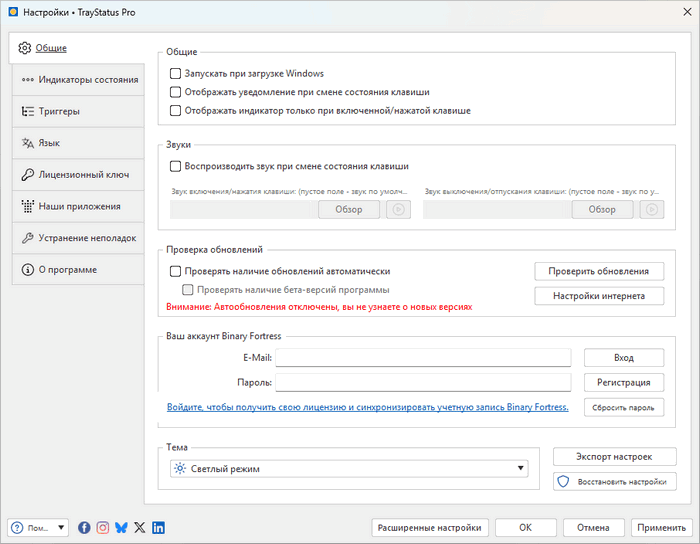
TrayStatus has a simple settings window that organizes the available indicators and program options.
Users can choose which icons appear in the notification area and disable indicators they do not need.
Keeping only necessary icons enabled helps avoid overcrowding the Windows tray.
The configuration process generally involves:
- Opening TrayStatus settings.
- Selecting the indicators to display.
- Choosing an icon theme.
- Configuring notification behavior.
- Creating trigger rules when needed.
- Adjusting performance-counter options.
- Applying the changes.
The application then continues operating quietly in the background.
System Requirements
TrayStatus 5.2 officially supports:
- Windows 10 version 1607 or newer
- Windows 11
- Windows Server 2016
- Windows Server 2019
- Windows Server 2022
- x86 processors
- x64 processors
- ARM64 devices
- Microsoft .NET 10 Desktop Runtime
- Microsoft WebView2 Runtime
The .NET and WebView2 runtimes are installed automatically when required.
Windows 7, Windows 8, Windows 8.1, and older Windows 10 builds are not supported by the latest version. Users of older operating systems must use an earlier compatible TrayStatus release.
Installation Options
Binary Fortress provides several installation formats.
Standard Installer
The standard installer is recommended for most users.
It configures the program and its required components for normal use.
ZIP Version
A no-installer ZIP edition is available mainly for testing.
The developer recommends using the standard installer to ensure that all TrayStatus functions operate correctly.
MSI Installer
An MSI package is available for administrators performing managed or enterprise deployments.
It is not recommended for ordinary personal installations.
TrayStatus can also be installed through Microsoft WinGet.
How to Install TrayStatus Pro 5.2.0
- Obtain the official TrayStatus installer.
- Run the installation file.
- Approve the Windows security prompt.
- Allow the installer to add required Microsoft runtimes.
- Complete the installation wizard.
- Open TrayStatus.
- Activate the Pro trial or enter a valid license key.
- Select the keyboard and performance indicators you want.
- Choose a suitable icon theme.
- Save the settings.
The selected indicators should then appear in the Windows notification area.
Some icons may be placed inside the tray overflow menu. They can usually be dragged to the visible taskbar area or enabled through Windows notification settings.
Performance and Resource Usage
TrayStatus is designed to run continuously in the background.
Because its primary job is displaying small tray indicators, it is generally less demanding than full desktop monitoring applications.
Actual resource use depends on:
- The number of active indicators
- Performance-counter configuration
- Disk-monitoring settings
- Trigger rules
- Notification options
- System hardware
- Windows configuration
Users who only need Caps Lock and Num Lock indicators can disable the additional monitoring features.
Advantages of TrayStatus Pro 5.2.0
- Displays important keyboard states in the system tray
- Useful for keyboards without LED indicators
- Supports Caps Lock, Num Lock, and Scroll Lock
- Monitors modifier keys
- Displays CPU and memory usage
- Shows hard-drive activity
- Supports custom Windows performance counters
- Provides automatic key-state triggers
- Includes sound and desktop notifications
- Supports custom icon themes
- Works with light and dark Windows themes
- Compatible with x86, x64, and ARM64 systems
- Supports Windows 10, Windows 11, and Windows Server
- Includes a 30-day Pro trial
- Basic functionality remains available for free
- Lightweight and easy to configure
Disadvantages
- Advanced features require a paid Pro license.
- Multiple tray indicators can create visual clutter.
- Performance-counter configuration may be difficult for beginners.
- It is available only for Windows.
- The latest version does not support Windows 7 or Windows 8.
- Some users may not need the additional system-monitoring features.
- Tray icons can sometimes be hidden automatically by Windows.
- It is not a replacement for a complete hardware-monitoring application.
Is TrayStatus Pro Safe?
TrayStatus is developed by Binary Fortress Software and is intended to run as a legitimate Windows notification-area utility.
Users should obtain the installer from an official or trusted source and avoid unofficial modified packages, cracked versions, and unknown repacks.
The official download page also publishes installer hashes that can be used to verify that downloaded files have not been corrupted or modified.
Who Should Use TrayStatus Pro?
TrayStatus Pro 5.2.0 is suitable for:
- Laptop users
- Owners of compact keyboards
- Wireless-keyboard users
- Windows tablet users
- Remote desktop users
- Office workers
- Data-entry professionals
- System administrators
- Technical-support specialists
- Users with accessibility requirements
- People who frequently press Caps Lock accidentally
- Users who want simple resource indicators
- Anyone needing application-specific Num Lock rules
The Pro edition provides the greatest value to users who need automatic triggers or system-performance monitoring.
Is TrayStatus Pro 5.2.0 Worth Using?
TrayStatus Pro is a practical utility for users who need reliable visual feedback about keyboard states.
Its basic purpose is simple, but the Pro edition expands the program into a flexible notification-area monitoring tool. The ability to display CPU, memory, storage, audio, and custom performance information makes it useful beyond Caps Lock and Num Lock monitoring.
Application-based trigger rules are another major advantage. They can automatically maintain the correct keyboard state when users switch between spreadsheets, business applications, games, remote systems, and other software.
Users who only require a basic Caps Lock indicator may be satisfied with the free edition. Those who need automation, notifications, performance counters, or storage monitoring will benefit more from the Pro license.
Final Verdict
TrayStatus Pro 5.2.0 is a lightweight and highly practical Windows utility for monitoring keyboard states and system activity directly from the notification area.
Version 5.2.0 modernizes the application with Microsoft .NET 10, clearer icon sets, general fixes, and performance improvements. It retains the program’s most important features, including lock-key indicators, trigger rules, CPU and memory monitoring, disk-activity icons, custom performance counters, notifications, and customizable themes.
For users whose keyboards lack physical status lights, or for professionals who want compact performance indicators without keeping Task Manager open, TrayStatus Pro provides a convenient and customizable solution.