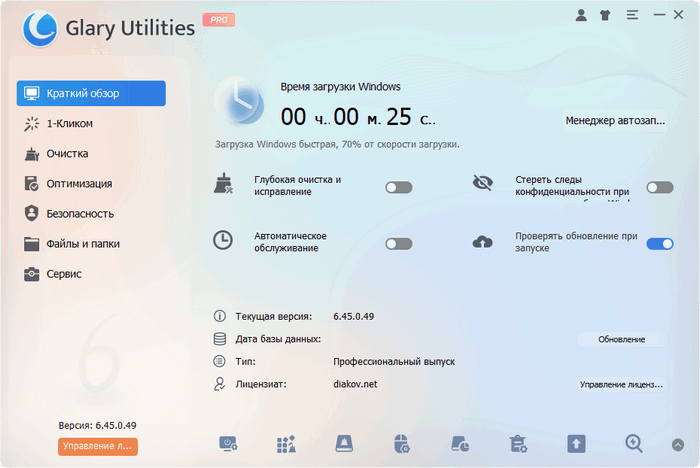
Glary Utilities Pro 6.45.0.49: Complete PC Cleaning and Optimization Suite
Glary Utilities Pro 6.45.0.49 is a comprehensive Windows maintenance suite designed to clean unnecessary files, repair common system problems, improve performance, protect privacy, and manage important areas of the computer from one organized interface.
Instead of installing several separate maintenance applications, users can access more than twenty utilities for cleaning, optimization, file management, security, startup control, software removal, and system analysis.
What Is Glary Utilities Pro?
Glary Utilities Pro is the commercial edition of Glarysoft’s all-in-one Windows optimization software. It combines multiple maintenance tools into a simple interface suitable for both beginners and experienced users.
The program can scan the computer for temporary files, invalid registry entries, broken shortcuts, privacy traces, startup problems, and other items that may affect system performance or consume unnecessary storage space.
Its One-Click Maintenance feature allows users to perform several common maintenance operations through a single scan.
What’s New in Glary Utilities Pro 6.45.0.49?
Version 6.45.0.49 introduces improvements to the Disk Defrag module.
The update enhances the display of system information related to cached partition files. It also improves the algorithm used to read cached partition files, increasing its processing speed by approximately 15%.
These changes are designed to make disk analysis and optimization more responsive. The release also continues the regular development of the program’s interface, stability, and maintenance tools.
One-Click Maintenance
One-Click Maintenance is one of the most convenient features in Glary Utilities Pro. It combines several system-cleaning and repair operations into one automated process.
The scan can check for:
- Invalid registry entries.
- Broken desktop and Start menu shortcuts.
- Unnecessary temporary files.
- Browser and Windows activity traces.
- Startup and shutdown problems.
- Potential disk errors.
- Unwanted software components.
Users can select which categories should be scanned before starting the maintenance process.
After scanning is complete, the program displays the detected issues and allows the user to review them before applying repairs.
Disk Cleaner
The Disk Cleaner searches for unnecessary files that may be occupying storage space.
It can identify items such as:
- Windows temporary files.
- Browser cache.
- Application leftovers.
- Log files.
- Error reports.
- Thumbnail caches.
- Recycle Bin content.
- Outdated system files.
- Temporary installation data.
Removing these items can free disk space and reduce unnecessary system clutter.
Users should review cleaning results carefully, especially when selecting advanced or custom cleanup categories.
Registry Repair
The Registry Repair tool scans the Windows Registry for invalid, outdated, or unnecessary entries.
These entries may remain after programs are removed, files are moved, or software configurations are changed. The tool attempts to identify entries that no longer point to valid system resources.
Glary Utilities can create registry backups before applying changes, allowing users to restore previous settings if a problem occurs.
Registry cleaning should be treated as a maintenance feature rather than a guaranteed method of significantly increasing computer speed.
Disk Defrag
Disk Defrag analyzes storage drives and reorganizes fragmented data where appropriate.
Fragmentation mainly affects traditional mechanical hard drives. Reorganizing files can help reduce the time required to access data on heavily fragmented drives.
Version 6.45.0.49 improves cached partition file processing and enhances the related system-information display.
Solid-state drives should not be treated in exactly the same way as mechanical drives. Users should follow the program’s recommendations and avoid unnecessary traditional defragmentation operations on SSDs.
Startup Manager
The Startup Manager displays programs and services that launch automatically with Windows.
Too many startup applications can increase boot time and consume memory in the background. Users can disable unnecessary entries without immediately uninstalling their associated programs.
The manager provides information that can help users determine which applications are essential and which ones can be started manually when needed.
Important security software, hardware utilities, and system components should not be disabled without understanding their purpose.
Uninstall Manager
The Uninstall Manager provides an organized list of installed applications and helps remove software that is no longer required.
It can also search for leftover files and registry entries after the standard uninstallation process is completed.
The tool may display information such as:
- Application name.
- Publisher.
- Installation date.
- Installed size.
- Version number.
- Usage frequency.
- Installation location.
This makes it easier to identify large, unused, or recently installed programs.
Software Update
The integrated Software Update tool scans installed applications and alerts users when newer versions may be available.
Keeping software updated can provide:
- Security patches.
- Bug fixes.
- Performance improvements.
- Compatibility enhancements.
- New features.
The Pro edition supports more convenient automatic updating of Glary Utilities itself, while the free edition may redirect users to a download page.
Users should still verify important software updates through the original application developer whenever possible.
Memory Optimizer
The Memory Optimizer monitors RAM usage and attempts to make additional memory available when required.
It can be useful on computers with limited memory or when many applications are running simultaneously. However, modern Windows versions already include advanced memory-management technologies.
The tool is best used carefully rather than running aggressive memory optimization continuously.
Context Menu Manager
The Context Menu Manager allows users to control entries that appear when right-clicking files, folders, drives, or the Windows desktop.
Applications often add commands to these menus during installation. Over time, the context menu may become crowded with unnecessary or outdated options.
Users can disable unwanted entries to create a cleaner and more organized right-click menu.
Tracks Eraser
Tracks Eraser removes activity records created by Windows, web browsers, and supported applications.
It may clean:
- Browser history.
- Cookies.
- Download history.
- Recently opened documents.
- Search records.
- Temporary internet files.
- Clipboard content.
- Windows Run history.
- Application activity lists.
This feature helps improve local privacy, especially on computers shared by multiple users.
Deleting local history does not make internet activity anonymous or remove information already stored by websites and online services.
File Shredder
Standard file deletion usually removes the file’s reference while leaving its data recoverable until overwritten.
The File Shredder overwrites selected files before deletion, making recovery considerably more difficult.
It is useful when permanently removing confidential documents, financial files, personal records, or other sensitive data.
Secure deletion may behave differently on solid-state drives because of wear-leveling and internal storage-management technologies.
File Undelete
Glary Utilities includes a recovery tool for searching storage devices for accidentally deleted files.
Recovery success depends on several factors, including:
- How recently the file was deleted.
- Whether its storage sectors were overwritten.
- The type of storage device.
- The file system.
- Whether TRIM is enabled on an SSD.
- Continued use of the affected drive.
To improve the possibility of recovery, users should stop writing new data to the affected drive as soon as possible.
Duplicate File Finder
The Duplicate File Finder scans selected drives and folders for files that may contain identical data.
Duplicate files can consume considerable storage space, especially in collections of photographs, videos, backups, documents, and downloaded content.
Users can review matches before deletion and select which copies should remain.
System folders and application directories should normally be excluded to reduce the risk of deleting required program files.
Disk Space Analyzer
The Disk Space Analyzer shows how storage space is being used.
It can organize files by:
- Folder.
- File type.
- Extension.
- Size.
- Location.
This helps users find large files, forgotten archives, old installation packages, videos, backups, and other items consuming significant storage space.
Unlike automatic cleanup, the analyzer gives users direct control over what should be removed.
Empty Folder Finder
The Empty Folder Finder searches for directories that contain no files.
Empty folders are usually harmless, but removing abandoned directories can make storage structures easier to navigate.
Some applications intentionally create empty folders for configuration or future use. Users should avoid deleting folders from protected Windows and application directories without reviewing them first.
Shortcut Fixer
The Shortcut Fixer searches for invalid shortcuts that point to files or applications that no longer exist.
It can detect broken links on the desktop, in the Start menu, and in other selected locations.
Depending on the available information, the program may repair or remove the invalid shortcuts.
Registry Defrag
Registry Defrag attempts to reorganize the physical files used by the Windows Registry.
After numerous software installations and removals, registry files may contain unused internal space. The tool can analyze these files and rebuild them into a more compact structure.
A Windows restart may be required to complete the operation.
Users should close running applications and create a restore point before performing registry-level maintenance.
Process Manager
Process Manager provides detailed information about programs and background processes currently running on the computer.
It can help users:
- View resource consumption.
- Locate executable files.
- Stop unresponsive processes.
- Research unknown processes.
- Monitor active applications.
- Review process properties.
Stopping essential Windows processes may cause instability, data loss, or an immediate system restart.
Driver Manager
Driver Manager helps users back up and restore installed hardware drivers.
A driver backup can be useful before reinstalling Windows, replacing hardware, or testing a new driver version.
Users should normally obtain updated drivers from Windows Update or the original hardware manufacturer rather than relying exclusively on automated driver tools.
System Restore Manager
Glary Utilities provides access to Windows System Restore features.
Restore points can help return system files, registry settings, and installed software configurations to an earlier state after a problematic change.
They do not replace a complete backup because personal documents may not be fully protected by System Restore.
Browser Assistant
Browser-management tools help users review browser extensions, add-ons, settings, and potentially unwanted modifications.
These features can be useful when a browser homepage, search provider, or extension configuration has changed unexpectedly.
Browser compatibility may vary depending on the browser version and its security restrictions.
Automatic Maintenance
Glary Utilities Pro can run selected maintenance operations automatically according to a schedule.
Users may configure the application to perform routine tasks without starting every tool manually.
Automatic maintenance can include:
- One-Click Maintenance.
- Privacy-trace removal.
- Software update checks.
- General cleanup operations.
- Scheduled system scans.
Automated tasks should be configured conservatively so important files, browser sessions, or saved information are not removed unexpectedly.
Free and Pro Editions
Glary Utilities is available in Free and Pro editions.
The free edition includes many of the core cleaning and optimization tools and is intended mainly for personal use.
The Pro edition adds benefits such as:
- Automatic maintenance.
- Scheduled One-Click Maintenance.
- Automatic program updates.
- Deeper cleaning and repair options.
- Privacy-trace removal during shutdown or logoff.
- Commercial-use rights.
- Professional technical support.
- More convenient background operation.
The suitability of the Pro edition depends on whether the user needs automation and advanced maintenance rather than occasional manual cleaning.
User Interface
Glary Utilities Pro organizes its features into clear categories such as:
- Clean Up and Repair.
- Optimize and Improve.
- Privacy and Security.
- Files and Folders.
- System Tools.
This structure allows beginners to use One-Click Maintenance while giving experienced users access to individual modules.
The program supports multiple languages and provides descriptions for many available tools and settings.
Advantages
- Includes more than twenty maintenance utilities.
- Simple One-Click Maintenance feature.
- Cleans temporary and unnecessary files.
- Provides registry repair and backup options.
- Manages startup applications.
- Detects software leftovers.
- Includes privacy-cleaning tools.
- Finds duplicate and large files.
- Supports file recovery and secure deletion.
- Provides scheduled automatic maintenance.
- Offers software-update notifications.
- Includes disk and system-analysis tools.
- Supports multiple Windows versions.
- Suitable for beginners and advanced users.
Disadvantages
- Some advanced features require a paid subscription.
- Aggressive cleaning may remove useful history or cached data.
- Registry cleaning normally provides limited performance improvement.
- Several tools duplicate features already included in Windows.
- Automatic maintenance requires careful configuration.
- File recovery is not guaranteed.
- Some operations require administrator privileges.
- Beginners may find the number of included tools overwhelming.
- Incorrect use of advanced tools may affect system stability.
System Requirements
Glary Utilities Pro supports 32-bit and 64-bit editions of Microsoft Windows.
Basic requirements include:
- Windows 11, Windows 10, Windows 8.1, Windows 8, or Windows 7.
- Compatibility may also be available for older Windows releases.
- Intel Pentium, AMD K5, or faster processor.
- At least 32 MB of RAM for the published minimum configuration.
- At least 20 MB of available storage for basic installation requirements.
- A display resolution of at least 800 × 600.
- Administrator privileges for certain maintenance operations.
- Internet access for activation, updates, and online services.
A modern computer with additional memory and free storage is recommended for a smoother experience.
Safety Recommendations
Before using system-cleaning and optimization utilities, users should take several precautions:
- Create a Windows restore point.
- Back up important personal files.
- Review scan results before deletion.
- Avoid removing unfamiliar registry entries manually.
- Do not interrupt disk or registry operations.
- Keep important drivers and installation files available.
- Close running applications before major maintenance.
- Download the application from trusted sources.
- Avoid unofficial activation tools or modified installers.
Regular backups remain more important than any optimization utility.
Who Should Use Glary Utilities Pro?
Glary Utilities Pro is suitable for users who want a centralized maintenance application instead of managing many separate Windows tools.
It can be useful for:
- Home computer users.
- Office workstations.
- Older computers with limited storage.
- Users who install and remove many applications.
- People managing several PCs.
- Users who prefer scheduled maintenance.
- Technicians performing routine cleanup.
- Users who want convenient access to Windows tools.
Experienced users may prefer to run individual modules manually, while beginners can rely on One-Click Maintenance with conservative settings.
Conclusion
Glary Utilities Pro 6.45.0.49 is a feature-rich Windows maintenance suite that combines cleaning, optimization, privacy, file-management, and system-control tools within one application.
The latest release improves Disk Defrag by enhancing cached partition information and accelerating its file-reading algorithm. Alongside these changes, the program continues to provide useful features such as One-Click Maintenance, Disk Cleaner, Startup Manager, Uninstall Manager, Tracks Eraser, Duplicate File Finder, and scheduled automatic maintenance.
Glary Utilities Pro can make routine computer maintenance more convenient, but users should review detected items carefully and create backups before applying advanced repairs. Used responsibly, it provides an organized and accessible way to clean and manage Windows computers.