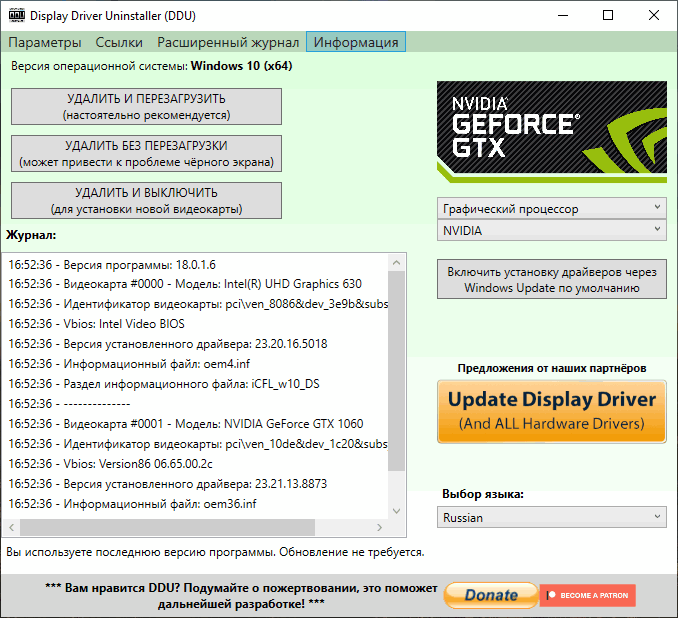
Display Driver Uninstaller 18.1.5.6: Completely Remove GPU Drivers from Windows
Display Driver Uninstaller 18.1.5.6, commonly known as DDU, is a powerful Windows utility designed to completely remove graphics and audio drivers from a computer. It can delete driver files, folders, registry entries, driver-store packages, and other components that may remain after using the standard Windows uninstallation process.
Developed by Wagnardsoft, DDU is especially useful when troubleshooting graphics problems, replacing a graphics card, switching between GPU manufacturers, or performing a clean installation of a new driver. Version 18.1.5.6 is officially available through the Wagnardsoft website.
What Is Display Driver Uninstaller?
Display Driver Uninstaller is a specialized driver-cleaning tool for Windows. It focuses primarily on display drivers from NVIDIA, AMD, and Intel, allowing users to remove existing driver packages more thoroughly than Windows Settings or Device Manager.
A normal driver uninstallation may leave behind configuration files, cached packages, registry keys, services, profiles, and additional software components. These leftovers can occasionally interfere with a new driver installation or cause problems such as crashes, black screens, poor gaming performance, incorrect resolutions, or driver installation errors.
DDU attempts to remove these remaining components and return the system to a cleaner state before another driver is installed.
Main Features
Complete Graphics Driver Removal
DDU can remove graphics driver packages from the major GPU manufacturers:
- NVIDIA
- AMD
- Intel
The program searches for related files, folders, services, registry entries, driver-store packages, and additional components associated with the selected manufacturer.
Audio Driver Cleaning
In addition to graphics drivers, DDU includes support for removing certain audio drivers, including Realtek and Creative Sound Blaster packages.
This can be useful when audio drivers become corrupted, fail to update correctly, or create conflicts after hardware or software changes.
Clean and Restart
The Clean and Restart option removes the selected driver and automatically restarts the computer afterward.
This is the recommended option for most troubleshooting situations because it allows Windows to restart with the old driver components removed.
Clean Without Restarting
This option removes the driver without immediately restarting Windows.
It may be useful for advanced maintenance procedures, but restarting the system is generally recommended before installing a replacement driver.
Clean and Shut Down
The Clean and Shut Down option removes the current driver and turns off the computer.
This is particularly useful when replacing a graphics card. The user can remove the old driver, shut down the system, install the new GPU, and then install the appropriate driver after restarting the computer.
Safe Mode Support
DDU is commonly used in Windows Safe Mode because Safe Mode prevents many graphics driver services and background processes from running.
Cleaning the driver while these components are inactive can help the program remove files that might otherwise remain locked or in use.
DDU can still operate in normal Windows mode, but Safe Mode is generally the preferred environment for the most thorough cleaning process.
Driver Installation Prevention
Windows Update may automatically install a graphics driver after the existing package is removed. DDU includes options that can help prevent Windows from downloading and installing a replacement driver before the user installs the desired version manually.
This feature is useful when Windows repeatedly installs an older or unsuitable driver.
Detailed Logging
The program displays a detailed log of the actions performed during the cleaning process.
This allows advanced users to review removed services, files, folders, registry entries, devices, and driver packages.
Manufacturer-Specific Options
DDU provides additional settings for NVIDIA, AMD, and Intel drivers. Depending on the selected manufacturer, users may choose whether to remove related folders, control panels, shader caches, software components, and other optional data.
These settings provide more control over the cleaning process.
Automatic Update Checking
The application can check for newer versions, helping users stay updated with support for recent drivers, hardware, and Windows changes.
Using the latest release is recommended because graphics driver packages frequently change their file structures, services, and installed components.
When Should You Use DDU?
Display Driver Uninstaller is not required for every routine driver update. Graphics drivers can usually be updated directly through the official NVIDIA, AMD, or Intel installer.
However, DDU can be helpful in several situations.
Driver Installation Failures
A new graphics driver may refuse to install, stop during installation, or display an error message. Removing the old package with DDU may eliminate corrupted files or conflicting components.
Black Screens and Display Problems
Incorrect or damaged drivers can cause black screens, flickering, visual corruption, resolution problems, or missing display options.
A clean driver removal followed by a fresh installation may resolve these issues.
Gaming Crashes and Performance Problems
Driver conflicts may contribute to crashes, stuttering, unstable frame rates, or reduced gaming performance.
DDU can help determine whether the installed graphics driver is responsible by allowing a completely fresh driver installation.
Switching Graphics Card Manufacturers
Users moving from an NVIDIA graphics card to an AMD model, or from AMD to NVIDIA, may benefit from removing the previous manufacturer’s driver package before installing the new hardware.
This reduces the possibility of old services and software components conflicting with the replacement GPU.
Replacing or Upgrading a Graphics Card
The Clean and Shut Down option is useful before physically replacing a graphics card.
After the computer shuts down, the old card can be removed and the new hardware installed without leaving the previous driver active.
Rolling Back to an Older Driver
Sometimes a recent graphics driver introduces performance issues, application crashes, or compatibility problems.
DDU can remove the current package before an older, more stable driver version is installed.
How to Use Display Driver Uninstaller 18.1.5.6
Before starting, download the graphics driver you plan to install afterward. Obtain it directly from the official NVIDIA, AMD, Intel, or computer manufacturer website.
It is also recommended to create a Windows restore point or system backup before making major driver changes.
Step 1: Download and Extract DDU
Download Display Driver Uninstaller from the official Wagnardsoft website and extract the program files to a separate folder.
Avoid downloading modified copies from unknown websites.
Step 2: Disconnect from the Internet
Temporarily disconnecting the computer from the internet can prevent Windows Update from automatically installing a graphics driver immediately after the existing package is removed.
Step 3: Start Windows in Safe Mode
Restart Windows in Safe Mode for the most complete cleaning process.
Safe Mode loads only essential system components, reducing the number of active driver files and services.
Step 4: Open DDU
Launch Display Driver Uninstaller and review the available options.
The program may display a warning or recommendation related to Safe Mode when opened in normal Windows mode.
Step 5: Select the Device Type
Choose the appropriate device category, such as GPU or Audio.
For graphics driver removal, select GPU.
Step 6: Select the Manufacturer
Choose NVIDIA, AMD, or Intel according to the currently installed graphics driver.
Selecting the correct manufacturer is essential because DDU removes components based on this choice.
Step 7: Choose a Cleaning Action
Select one of the available actions:
- Clean and restart
- Clean and do not restart
- Clean and shut down
For most software troubleshooting situations, Clean and Restart is the most suitable option.
Step 8: Install the New Driver
After Windows restarts, install the graphics driver downloaded earlier.
Restart the computer again after installation, even when the driver installer does not require it.
System Requirements
Display Driver Uninstaller supports 32-bit and 64-bit editions of Windows, from Windows 7 SP1 through Windows 11. The program requires Microsoft .NET Framework 4.6 or later. Support for Windows Insider Preview builds may be experimental because those versions can contain unfinished system changes.
Recommended requirements include:
- Windows 7 SP1, Windows 8, Windows 10, or Windows 11
- 32-bit or 64-bit processor
- Microsoft .NET Framework 4.6 or later
- Administrator privileges
- A system restore point or backup
- Safe Mode for the most thorough cleaning
Advantages
Display Driver Uninstaller offers several important benefits:
- Removes NVIDIA, AMD, and Intel graphics drivers
- Deletes leftover driver files and registry entries
- Cleans packages from the Windows driver store
- Supports selected Realtek and Sound Blaster audio drivers
- Provides restart and shutdown cleaning options
- Helps prepare Windows for a clean driver installation
- Can reduce conflicts when switching GPU manufacturers
- Includes manufacturer-specific cleaning settings
- Provides detailed activity logs
- Supports modern 32-bit and 64-bit Windows systems
- Available as a free utility
Possible Disadvantages
DDU is a powerful maintenance utility and should be used carefully.
Removing a working driver unnecessarily may create temporary display problems or cause Windows to use the basic Microsoft display driver until a replacement package is installed.
Incorrect options may remove saved profiles, application settings, shader caches, or other data the user wanted to keep.
The program also does not guarantee that every graphics problem will be fixed. Hardware failure, overheating, unstable overclocking, damaged Windows files, faulty memory, or game-specific bugs may produce symptoms similar to driver problems.
For ordinary driver updates, using the official manufacturer installer is usually sufficient. DDU is more appropriate for troubleshooting, hardware replacement, manufacturer switching, and difficult installation problems.
Safety Recommendations
Before using Display Driver Uninstaller:
- Download DDU only from its official source.
- Download the replacement graphics driver in advance.
- Create a restore point or backup.
- Close running applications.
- Save important work.
- Disconnect from the internet temporarily.
- Confirm the correct GPU manufacturer.
- Avoid interrupting the cleaning process.
- Restart Windows before installing another driver.
- Do not use aggressive settings unless they are necessary.
Is Display Driver Uninstaller 18.1.5.6 Worth Using?
Display Driver Uninstaller 18.1.5.6 is a valuable troubleshooting utility for PC users, gamers, technicians, and system builders.
It is particularly useful when a standard driver uninstall does not solve the problem or when old driver components continue to interfere with a fresh installation.
The program provides a deeper cleaning process than Windows Device Manager and can simplify tasks such as changing graphics cards, switching GPU brands, rolling back drivers, or resolving corrupted installations.
However, it should be treated as an advanced maintenance tool rather than something that must be used before every graphics driver update.
Final Conclusion
Display Driver Uninstaller 18.1.5.6 provides a reliable way to completely remove NVIDIA, AMD, and Intel graphics drivers from Windows.
Its ability to delete leftover files, folders, registry entries, services, and driver-store packages makes it an effective solution for resolving difficult graphics driver problems and preparing a system for a clean installation.
With Safe Mode support, multiple cleaning actions, manufacturer-specific settings, audio driver cleaning, and detailed logs, DDU remains one of the most practical utilities for advanced driver maintenance.
Users should create a backup, select the correct hardware manufacturer, and prepare the replacement driver before beginning the cleaning process. When used correctly, DDU can save time and help restore stable graphics performance without requiring a complete Windows reinstallation.