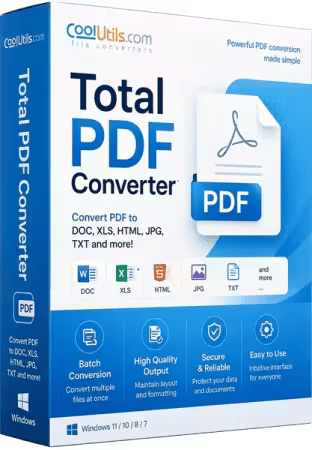
Coolutils Total PDF Converter 6.5.0.183: Powerful Batch PDF Conversion Software for Windows
Coolutils Total PDF Converter 6.5.0.183 is a professional Windows application designed to convert PDF documents into editable files, images, spreadsheets, web pages, archival formats, and several other commonly used file types.
The program supports individual and batch conversion, allowing users to process one document, multiple selected files, or complete folders in a single operation. It works entirely on the computer, so documents do not need to be uploaded to an online conversion service.
Total PDF Converter is suitable for home users, office employees, businesses, records managers, publishers, developers, and organizations that regularly work with large collections of PDF files.
What Is Coolutils Total PDF Converter 6.5.0.183?
Coolutils Total PDF Converter is an offline document-conversion utility developed primarily for Microsoft Windows.
It can transform PDF files into formats that are easier to edit, analyze, publish, print, archive, or integrate into other workflows. The program combines a graphical interface for everyday use with command-line support for automation.
According to the official product page, Total PDF Converter supports batch processing, OCR for scanned documents, folder-structure preservation, password-protected PDFs, command-line conversion, watermarks, digital signatures, and fully offline operation.
Supported Output Formats
Total PDF Converter can export PDF content into a wide range of file formats.
Supported output options include:
- DOC
- DOCX
- RTF
- XLS
- CSV
- HTML
- XHTML
- TXT
- JPEG
- PNG
- TIFF
- BMP
- GIF
- WMF
- EMF
- EPS
- PostScript
- XML
- PDF/A
The available formats make the application useful for document editing, data extraction, image creation, website publishing, printing, and long-term digital archiving.
The exact selection of formats and options may vary depending on the installed edition and software build.
Convert PDF to Word Documents
One of the program’s most useful functions is converting PDF files into editable Word-compatible documents.
Users can convert PDFs to:
- DOC
- DOCX
- RTF
This is useful when the original editable document is no longer available and changes need to be made to the text.
PDF-to-Word conversion may preserve:
- Paragraphs
- Fonts
- Text alignment
- Basic formatting
- Tables
- Images
- Page structure
The result depends on the complexity of the original PDF. Documents containing unusual fonts, complex columns, handwritten content, or heavily designed layouts may require manual correction after conversion.
Convert PDF to Excel and CSV
Total PDF Converter can extract tabular information from PDF files and save it in spreadsheet or structured-data formats.
Available options include:
- PDF to XLS
- PDF to CSV
This feature can help users reuse information from:
- Financial reports
- Price lists
- Invoices
- Transaction records
- Inventory documents
- Statistical reports
- Business forms
- Research tables
PDF tables are not always stored as true structured cells. As a result, complicated layouts, merged columns, or scanned tables may need to be adjusted manually after conversion.
The official Coolutils page specifically promotes PDF-to-Excel and CSV conversion for extracting editable text and tabular data from reports, contracts, and forms.
Convert PDF Pages to Images
Total PDF Converter can convert PDF pages into image formats such as:
- JPEG
- PNG
- TIFF
- BMP
- GIF
- WMF
- EMF
Image conversion is useful for:
- Presentations
- Website content
- Document previews
- Social media graphics
- Publishing workflows
- Digital archives
- Printing systems
- Thumbnail generation
Users can normally control image resolution, quality, size, compression, and color settings.
A multi-page PDF can be converted into separate image files, with each page stored as an individual image.
Create Multi-Page TIFF Files
TIFF is commonly used in document-management, scanning, legal, medical, governmental, and archival workflows.
Total PDF Converter can turn a PDF into:
- Separate TIFF images
- A single multi-page TIFF document
Multi-page TIFF output can be useful for organizations working with legacy document-management systems or specialized imaging software.
Users may also be able to select compression options to balance file size and image quality.
Convert PDF to HTML
PDF documents can be converted into HTML for web publishing or browser-based access.
This may help users:
- Reuse document text on websites
- Publish reports online
- Extract images and text
- Create browser-readable archives
- Migrate old PDF content into a content-management system
PDF and HTML use different layout structures, so complex page designs may not appear exactly the same after conversion.
Simple reports and text-based documents will generally produce cleaner results than PDFs containing overlapping objects, unusual fonts, or complicated graphical layouts.
Convert PDF to Plain Text
The PDF-to-TXT feature extracts text content without retaining the full visual design of the original document.
Plain-text conversion can be useful for:
- Searching document content
- Importing text into another application
- Data analysis
- Text indexing
- Database processing
- Creating lightweight archives
- Preparing content for translation
- Extracting information from reports
Formatting, images, complex tables, and page design will not normally be preserved in a plain-text file.
Convert PDF to PDF/A
PDF/A is an archival variation of PDF designed for long-term document preservation.
Total PDF Converter can convert standard PDFs into PDF/A files for:
- Corporate records
- Legal archives
- Financial documentation
- Governmental records
- Compliance workflows
- Research collections
- Document-management systems
The official Coolutils documentation presents PDF/A conversion as a feature for records managers and compliance teams that need long-term archival documents.
Users should verify the resulting file with an appropriate PDF/A validation tool when strict legal or regulatory compliance is required.
Batch PDF Conversion
Batch processing is one of the main advantages of Coolutils Total PDF Converter 6.5.0.183.
Instead of converting documents individually, users can select:
- Multiple PDF files
- Every PDF inside a folder
- Files stored in several subfolders
- Complete document collections
The program then processes all selected documents using the same output settings.
Batch conversion is particularly useful for:
- Office document migration
- Digital archiving
- Legal case files
- Financial reports
- Scanned document collections
- Publishing projects
- Data-processing workflows
- Business record conversion
The official product page states that the desktop program can convert hundreds or thousands of PDF files in one batch.
Preserve the Original Folder Structure
When processing folders and subfolders, Total PDF Converter can preserve the original directory structure in the output location.
For example, if source documents are arranged by client, department, year, or project, the converted files can retain the same organization.
This prevents thousands of converted files from being placed into one unorganized folder.
Folder-structure preservation is especially useful for:
- Corporate archives
- Legal records
- Customer documents
- Research collections
- Departmental reports
- Backup migrations
- Server-based conversion tasks
Built-In File Browser
The program includes its own file-navigation interface.
Users can browse through drives and folders, select PDF files, preview supported content, and start conversion without repeatedly opening Windows File Explorer.
Checkboxes can be used to select individual documents or entire groups of files.
The interface helps users identify the source documents and confirm the selected output location before conversion begins.
Conversion Wizard
After selecting an output format, Total PDF Converter displays a configuration wizard.
The available settings depend on the selected format and may include:
- Output folder
- Page range
- Image quality
- Resolution
- Compression
- Document size
- File naming
- Headers and footers
- Watermarks
- Page numbers
- Security settings
- Metadata
- Document-combination options
This guided process makes advanced conversion settings easier to access without requiring command-line knowledge.
OCR for Scanned PDF Documents
Scanned PDFs usually contain images of text rather than selectable text characters.
Total PDF Converter includes optical character recognition functionality that can analyze supported scanned documents and extract readable text.
OCR may be useful for:
- Scanned contracts
- Printed reports
- Paper invoices
- Archived correspondence
- Books
- Receipts
- Forms
- Historical documents
The official product page states that the software can run OCR on scanned files and can turn scanned TIFF images into searchable PDF documents.
OCR accuracy depends on:
- Scan resolution
- Image clarity
- Page alignment
- Language
- Font style
- Background noise
- Handwriting
- Physical document quality
Users should review recognized text before using it in important legal, financial, or medical workflows.
Convert Selected Pages
Total PDF Converter allows users to convert specific pages instead of processing an entire document.
Users may be able to select:
- Individual pages
- A page range
- Odd-numbered pages
- Even-numbered pages
- Selected sections of a document
The official Coolutils page confirms that odd and even pages can be extracted separately.
This feature helps users avoid creating large output files when only a small part of the original PDF is needed.
Combine Multiple PDF Files
The program can combine selected documents during conversion.
For example, several PDF files can be converted into:
- One Word document
- One multi-page TIFF file
- A combined archival document
- A consolidated text file
Combining documents can be useful for:
- Monthly reports
- Legal case collections
- Customer records
- Scanned document groups
- Project documentation
- Research material
Users should arrange the source files in the correct order before starting the conversion.
Password-Protected PDF Support
Total PDF Converter can process supported password-protected PDF files when the user has the necessary password and permission to access the document.
Protected PDFs may use:
- Open passwords
- Editing restrictions
- Copying restrictions
- Printing limitations
- Other document permissions
The program is not intended to bypass encryption without authorization.
Users should only convert protected files they own or have permission to access.
Add Watermarks
Users can add a watermark to converted documents during processing.
Watermarks may contain:
- Company names
- Confidentiality notices
- Draft labels
- Copyright information
- User names
- Project identifiers
- Dates
- Custom text
This feature is useful for organizations that need to mark documents before distribution or archiving.
Watermark placement, opacity, font, size, and appearance may be configurable depending on the output format.
Add Headers and Footers
Total PDF Converter can add customized headers and footers to supported output files.
Possible elements include:
- Document title
- File name
- Company name
- Date
- Page number
- Copyright notice
- Project code
- Department information
Headers and footers can help standardize documents produced from multiple PDF sources.
Add Page Numbers
Page numbering can be added automatically during conversion.
This is particularly useful when:
- Combining several PDFs
- Creating printed reports
- Preparing legal records
- Producing manuals
- Archiving scanned documents
- Creating client-facing documents
Sequential numbering can make large converted document sets easier to navigate and reference.
Digital Signatures
Total PDF Converter includes support for adding digital signatures to compatible output documents.
Digital signatures can help confirm:
- Document origin
- File integrity
- Signer identity
- Whether a document has been modified
A valid digital certificate may be required.
Users working with legally binding documents should confirm that the selected signature method meets the applicable legal and organizational requirements.
Offline Document Processing
Total PDF Converter runs locally on the Windows computer.
Documents do not need to be uploaded to a website for conversion. This provides several benefits:
- Greater privacy
- No online file-size limits
- No dependence on upload speed
- Better handling of large files
- Easier conversion of confidential documents
- Continued operation without internet access
- Greater control over document storage
The official product page emphasizes that conversion takes place entirely on the local computer and files are not uploaded or shared online.
Offline processing can be particularly important for legal, financial, corporate, governmental, and medical documents.
Unlimited Local File Sizes
Online PDF converters commonly restrict file size, page count, or daily usage.
Because Total PDF Converter works locally, it can process files without the typical upload limits imposed by web-based services.
Actual limits depend on:
- Available system memory
- Free disk space
- PDF complexity
- Number of pages
- Output format
- Processor performance
- Windows configuration
Very large document collections may take more time and require additional temporary storage.
Command-Line Support
Total PDF Converter includes command-line functionality for advanced users.
Command-line conversion can be used to:
- Process files without opening the graphical interface
- Convert complete folders
- Apply predefined options
- Create batch files
- Automate recurring tasks
- Integrate conversion into scripts
- Use Windows Task Scheduler
- Connect the converter to business workflows
The official website confirms that the desktop application can be operated from the command line and through batch scripts.
Users should review the documentation included with their installed version because command parameters may differ between releases.
Automated Conversion Workflows
Command-line support makes Total PDF Converter suitable for recurring workflows.
For example, a business could configure a scheduled task that:
- Checks a folder for new PDF files.
- Converts the documents into Word, TIFF, CSV, or PDF/A.
- Saves the results in an output directory.
- Preserves the original folder structure.
- Moves processed files into an archive.
Automation can reduce repetitive manual work when organizations receive large numbers of documents regularly.
Personal and Commercial Uses
Coolutils Total PDF Converter can be useful in many environments.
Office and Administration
Employees can convert reports, forms, correspondence, and contracts into editable Word or Excel files.
Accounting and Finance
Financial tables and statements can be converted into spreadsheet formats for analysis.
Legal Work
Legal teams can convert, combine, number, watermark, and archive case documents.
Publishing
PDF pages can be exported as images or HTML for websites, presentations, and publications.
Document Archiving
Records can be converted into PDF/A or multi-page TIFF for long-term storage.
Data Processing
Command-line conversion can integrate PDF extraction into automated business processes.
Education and Research
Students and researchers can extract text, images, and tables from academic documents.
Simple Conversion Process
The general conversion process is straightforward:
- Install and launch Total PDF Converter.
- Browse to the folder containing the source documents.
- Select one or more PDF files.
- Choose the required output format.
- Configure the conversion settings.
- Select the destination folder.
- Start the conversion.
- Review the converted files.
Batch users can select an entire folder instead of choosing each document separately.
Conversion Quality
The program attempts to preserve the content and layout of the original PDF.
Conversion quality depends on:
- Source-document design
- Embedded fonts
- Table complexity
- Image quality
- PDF creation method
- OCR accuracy
- Output format
- Encryption
- Unsupported graphical elements
A PDF converted into an image will normally preserve its visual appearance more accurately than a PDF converted into an editable Word or Excel document.
Editable formats may require manual corrections because PDFs are designed primarily for fixed visual presentation rather than content editing.
Trial and Paid License
Coolutils provides a free 30-day trial of Total PDF Converter.
The trial allows users to test the interface, supported formats, conversion quality, and compatibility before purchasing a license.
Commercial use may require an appropriate business license.
Pricing, licensing conditions, and trial limitations may change, so users should review the current official purchase information before ordering.
Windows Compatibility
Total PDF Converter is designed for Microsoft Windows computers.
The official Coolutils product family currently lists compatibility with Windows versions that include:
- Windows 7
- Windows 8
- Windows 10
- Windows 11
Related Coolutils converter products also list support for both 32-bit and 64-bit Windows systems.
Compatibility with older systems may differ according to the exact application version. Users should check the installer requirements before deployment.
Recommended System Configuration
Detailed hardware requirements for build 6.5.0.183 are not clearly displayed on the main product page.
For comfortable operation, a practical Windows configuration should include:
- A supported version of Windows
- A modern multi-core processor
- At least 4 GB of RAM
- Sufficient free storage for temporary and output files
- A mouse and keyboard
- Administrative permission for installation
Large batches, high-resolution images, OCR, and complex PDFs will benefit from additional memory and a fast SSD.
Advantages of Coolutils Total PDF Converter 6.5.0.183
The program provides several important advantages:
- Converts PDFs into more than 15 output formats
- Supports DOC, DOCX, XLS, CSV, HTML, TIFF, and images
- Includes batch conversion
- Processes entire folders
- Preserves folder structures
- Supports scanned-document OCR
- Converts selected page ranges
- Extracts odd or even pages
- Includes PDF/A archival conversion
- Supports password-protected files
- Provides watermarking
- Adds headers, footers, and page numbers
- Supports digital signatures
- Includes command-line automation
- Works entirely offline
- Does not require file uploads
- Provides a 30-day trial
- Suitable for personal and commercial workflows
Disadvantages of Coolutils Total PDF Converter 6.5.0.183
The application also has several limitations:
- It is not completely free
- It is primarily designed for Windows
- Complex layouts may not convert perfectly
- OCR results require manual review
- PDF-to-Excel tables may need correction
- Some fonts may be replaced
- Large batches may require significant resources
- Advanced command-line use requires technical knowledge
- Password-protected documents require valid authorization
- It is mainly a converter rather than a full PDF editor
- Strict PDF/A compliance may require separate validation
- Exact features may vary between software builds
Is Total PDF Converter a PDF Editor?
Total PDF Converter is primarily a file-conversion application rather than a complete PDF editor.
It can convert, combine, watermark, number, and process documents, but it is not designed to provide every editing feature found in dedicated PDF-editing software.
Users who need to directly rewrite PDF text, move individual page objects, design forms, or extensively edit annotations may require a separate PDF editor.
Is Total PDF Converter Safe?
The official Coolutils version is designed for local document conversion.
Because files remain on the computer, it can provide better privacy than online services for confidential material.
Users should still follow basic security precautions:
- Download the installer from the official developer
- Avoid cracked or modified editions
- Scan the installer with updated security software
- Back up important source documents
- Never overwrite originals without testing
- Use valid passwords and permissions
- Protect sensitive converted files
- Verify digital signatures and archival output
Unofficial packages may contain malware or unwanted modifications.
Does It Require Adobe Acrobat?
Total PDF Converter uses its own conversion system and does not depend on Adobe Acrobat for its primary functionality.
This can make it useful on computers where Acrobat is not installed.
Certain documents may still contain advanced PDF features that are interpreted differently by third-party conversion engines.
Who Should Use Total PDF Converter?
Coolutils Total PDF Converter may be suitable for:
- Office employees
- Accountants
- Legal professionals
- Records managers
- Publishers
- Researchers
- Teachers and students
- Computer technicians
- System administrators
- Businesses processing large document collections
- Users who prefer offline conversion
- Developers creating automated workflows
People who only convert one small PDF occasionally may find a simple online tool sufficient. Frequent or confidential batch conversion is where the desktop application provides the greatest benefit.
Total PDF Converter vs. Online Conversion Services
Online converters are convenient for occasional and non-sensitive documents, but they usually require uploading the original PDF to a remote server.
Total PDF Converter provides:
- Local processing
- Larger batch capacity
- No regular uploads
- Command-line automation
- Folder-structure preservation
- More advanced output settings
- Better handling of confidential documents
- No common online file-size restrictions
Online tools may be more convenient when using a phone, tablet, Linux system, or computer where software installation is not permitted.
Final Verdict
Coolutils Total PDF Converter 6.5.0.183 is a comprehensive Windows utility for converting PDF documents into editable files, spreadsheets, images, web formats, text, and archival documents.
Its strongest features include batch processing, complete-folder conversion, folder-structure preservation, OCR, command-line automation, selected-page extraction, PDF/A output, watermarking, headers, footers, page numbers, and offline operation.
The program is particularly useful for businesses and professionals who regularly process large collections of PDF documents or handle confidential files that should not be uploaded to an online service.
Conversion results will depend on the structure and quality of the source PDF. Complex tables, unusual fonts, scanned pages, and advanced graphical layouts may require manual correction.
For Windows users who need a flexible offline PDF converter with batch and automation capabilities, Coolutils Total PDF Converter 6.5.0.183 provides a practical and feature-rich solution.