USB flash drives remain one of the easiest ways to carry files between computers, but they’re also vulnerable to accidental deletion, unwanted file modifications, and malware that silently copies itself onto removable drives.
If you’ve ever plugged your USB drive into a public computer or shared it with colleagues, you’ve probably wondered whether there’s an easy way to stop anyone—or anything—from changing its contents.
That’s exactly where Yamira comes in.
Yamira is a free, open-source Windows utility that allows you to make an NTFS-formatted USB drive effectively read-only by changing its file permissions. Unlike encryption software, it doesn’t hide or lock your files behind a password. Instead, it prevents you from modifying or deleting files while still allowing you to view them.
In this review, we’ll explain how Yamira works, its strengths and limitations, and whether it’s the right choice for protecting your USB drives.
What is Yamira?
Yamira is a lightweight Windows utility designed to protect USB storage devices against unwanted modifications.
Instead of using encryption or proprietary drivers, Yamira changes the NTFS file permissions on the USB drive. Once protection is enabled, files can still be opened and copied, but they cannot be edited, renamed, or deleted by standard Windows users.
Since it relies on Windows’ built-in NTFS security features, there’s no background service or driver running continuously.
Key Features
- Free and open source
- Small portable application
- Makes NTFS USB drives effectively read-only
- No drivers or background services
- Protection can be enabled or disabled in seconds
- Compatible with modern Windows versions

How Does Yamira Work?
Many people assume Yamira physically locks a USB drive. That’s not how it works.
Instead, Yamira modifies the NTFS Access Control Lists (ACLs) on the drive. These permissions determine who can read, write, modify, or delete files.
After protection is enabled:
- Files remain visible.
- Files can still be copied from the USB drive.
- Creating new files is blocked.
- Existing files cannot be modified.
- Renaming files is prevented.
- Deleting files is denied.
When protection is turned off, normal write access is restored.
Because the protection depends on NTFS permissions, the drive must be formatted as NTFS.

Who Should Use Yamira?
Yamira is especially useful for people who regularly share USB drives or want to reduce the risk of accidental file changes.
It is a good fit for:
- Students carrying assignments or projects
- Office professionals transporting documents
- IT technicians using USB tools
- Photographers delivering images to clients
- Teachers sharing study material
- Anyone who frequently plugs a USB drive into multiple Windows computers
When Yamira May Not Be the Best Choice
Yamira isn’t designed for every situation.
You may want a different solution if:
- You need password protection.
- You want full-disk encryption.
- Your USB drive uses FAT32 or exFAT.
- You frequently use macOS or Linux.
- You require hardware-level write protection.
For confidential files, consider using BitLocker (available on supported Windows editions) or VeraCrypt, both of which focus on encryption rather than write protection.
Installing Yamira
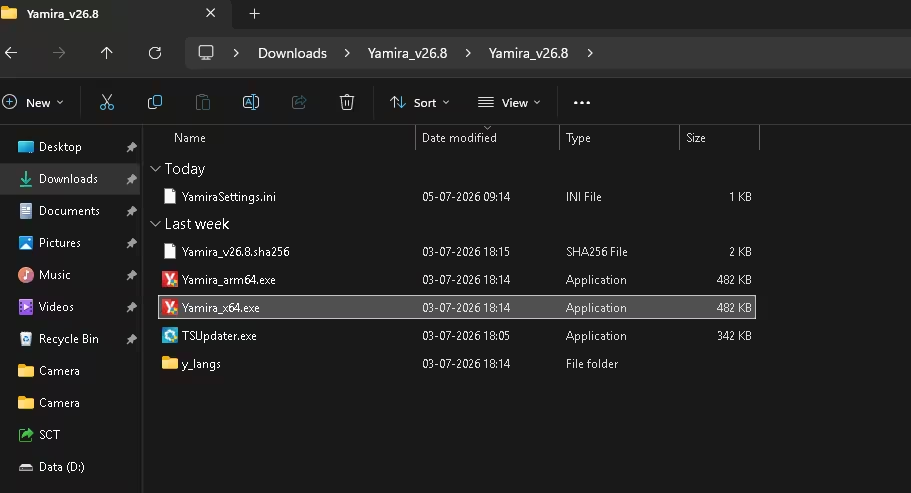
How to Enable Write Protection
After launching Yamira:
- Connect your USB drive.
- Choose the correct drive.
- Click the option to enable protection.
- Wait until the operation completes.
Once finished, Windows will prevent modifications to the protected files.
How to Disable Protection
If you later need to add or remove files:
- Open Yamira.
- Select the protected drive.
- Disable protection.
- Make your changes.
- Re-enable protection when finished.
This makes Yamira practical for users who periodically update the contents of their USB drives.

Advantages of Yamira
Lightweight
Yamira is extremely small and doesn’t consume system resources.
No Background Service
It performs its job without continuously running in memory.
Open Source
Being open source allows anyone to inspect the code, increasing transparency.
Easy to Use
The interface is simple enough for beginners.
Free
There are no subscriptions, advertisements, or hidden charges.
Limitations
While Yamira is useful, it has some important limitations.
NTFS Only
The USB drive must use the NTFS file system.
Not Encryption Software
Anyone with read access can still copy the files.
Windows-Focused
Since Yamira relies on NTFS permissions, protection may not behave the same way on Linux or macOS.
No Password Protection
It doesn’t require a password to disable protection.
Pros and Cons
| Pros | Cons |
|---|---|
| Free and open source | NTFS drives only |
| Lightweight | Doesn’t encrypt files |
| Easy to enable or disable | Windows-focused |
| No drivers required | No password protection |
| Uses built-in Windows security | Not hardware write protection |
Yamira vs Other USB Protection Methods
| Feature | Yamira | BitLocker | Hardware Write-Protect Switch |
| Free | Yes | Included with supported Windows editions | No |
| Prevents file modification | Yes | No | Yes |
| Encrypts files | No | Yes | No |
| Password protection | No | Yes | No |
| Requires special hardware | No | No | Yes |
Is Yamira Safe?
Based on its design and publicly available source code, Yamira appears to be a safe utility for its intended purpose.
It uses Windows’ built-in NTFS permission system instead of installing kernel drivers or making permanent changes to the operating system.
As with any software, it’s best to download it from the official project page to ensure you’re using an authentic release.
Frequently Asked Questions
Does Yamira encrypt my files?
No. Yamira prevents modifications by adjusting NTFS permissions. It does not encrypt your data.
Does it work with FAT32 or exFAT?
No. Yamira requires an NTFS-formatted USB drive.
Can viruses still read my files?
Yes. Write protection doesn’t prevent files from being read. It primarily blocks modifications and deletion.
Can I still copy files from the USB drive?
Yes. Protected files remain readable and can be copied elsewhere.
Does it work on Windows 11?
Yes, it is designed for Windows systems that support NTFS permissions.
Final Verdict
Yamira focuses on one task—protecting the contents of an NTFS USB drive from unwanted changes—and it does that well.
It isn’t an encryption tool or a replacement for antivirus software, but it provides an easy way to reduce the risk of accidental deletion or unauthorized modifications when sharing USB drives.
If you regularly carry documents, software tools, or project files on a flash drive and want a lightweight, free solution that doesn’t require complicated setup, Yamira is worth trying.
Rating: 4.5/5
Best for: Windows users who want a simple, free way to make USB drives effectively read-only.