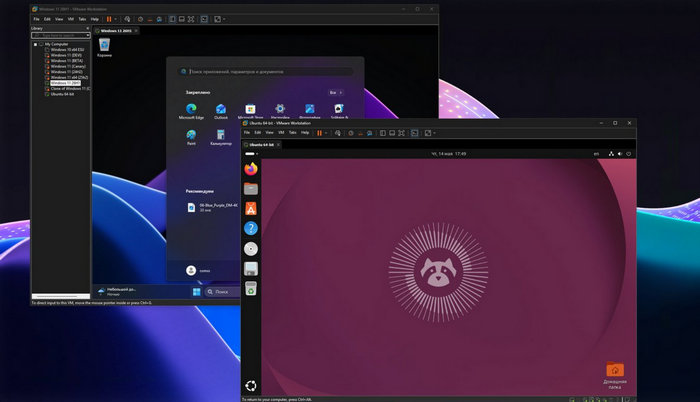
VMware Workstation Pro 26H1u1 26.0.1.25688693 – Professional Virtual Machine Software
VMware Workstation Pro 26H1u1 26.0.1.25688693 is a powerful desktop virtualization solution designed for running multiple operating systems on a single physical computer. It allows users to create, configure, manage, and operate virtual machines directly from Windows or Linux without requiring separate physical hardware for every operating system.
The software is widely used by developers, IT professionals, system administrators, cybersecurity specialists, software testers, and advanced users who need isolated environments for testing applications, operating systems, networks, and different software configurations.
About VMware Workstation Pro 26H1u1
VMware Workstation Pro is a desktop hypervisor that enables users to run multiple virtual machines simultaneously on the same computer.
Each virtual machine operates as an independent computer with its own virtual processor, memory, storage, network adapters, and operating system.
This makes it possible to run Windows, Linux, and many other supported guest operating systems inside separate virtual environments while keeping the main host operating system unchanged.
The 26H1 naming follows VMware’s newer calendar-based release convention, where the release name represents the year and half-year period rather than relying exclusively on the older version numbering system.
Create and Run Virtual Machines
The main purpose of VMware Workstation Pro is to create complete virtual computers inside a physical PC.
Users can configure virtual hardware such as:
- CPU cores
- RAM allocation
- Virtual hard disks
- Network adapters
- USB devices
- Optical drives
- Sound hardware
- Display settings
After creating a virtual machine, an operating system can be installed using an ISO image, installation media, or another supported deployment method.
This provides a convenient way to experiment with operating systems without changing the configuration of the main computer.
Run Multiple Operating Systems
VMware Workstation Pro 26H1u1 allows several operating systems to run on the same physical machine.
For example, a Windows host can run additional Windows or Linux virtual machines at the same time.
This is particularly useful for developers and administrators who need to test software across different environments without maintaining multiple physical computers.
Professional Virtualization Environment
VMware Workstation Pro provides advanced virtualization capabilities for users who need more control than basic virtual machine applications normally provide.
Virtual machines can be configured with different processors, memory sizes, storage devices, networking modes, and other hardware settings.
This makes VMware Workstation suitable for building realistic testing environments that simulate different computer configurations.
Snapshots
One of the most useful VMware Workstation features is snapshot support.
A snapshot saves the current state of a virtual machine at a specific point in time.
Users can later restore the virtual machine to that state if something goes wrong.
Snapshots are especially useful when:
- Testing unknown software
- Installing system updates
- Experimenting with system settings
- Testing drivers
- Developing applications
- Performing security research
Instead of reinstalling the operating system after every test, users can simply return to an earlier snapshot.
Virtual Machine Cloning
VMware Workstation Pro allows users to clone existing virtual machines.
Cloning is useful when multiple identical or similar environments are required.
For example, developers can create one properly configured development machine and then produce additional copies for different projects or testing scenarios.
This can significantly reduce setup time.
Advanced Virtual Networking
Networking is one of the strongest areas of VMware Workstation Pro.
The program supports multiple virtual networking configurations, allowing virtual machines to communicate with the host computer, other virtual machines, or external networks.
Common networking modes include:
Bridged Networking
The virtual machine connects directly to the physical network and behaves like another computer connected to the same router or network infrastructure.
NAT Networking
The virtual machine shares the host computer’s internet connection while remaining behind a virtual NAT environment.
Host-Only Networking
Communication is limited primarily to the host computer and virtual machines connected to the same virtual network.
These networking options are useful for software testing, server laboratories, network simulation, and cybersecurity training environments.
Virtual Machine Isolation
Virtual machines operate in isolated environments.
Programs running inside one virtual machine generally remain separate from the host operating system and other virtual machines.
This isolation is useful when testing software, experimenting with system configurations, or creating dedicated environments for different tasks.
However, virtualization should not be treated as a replacement for proper security practices, especially when working with potentially malicious software.
Support for Windows and Linux Hosts
VMware Workstation Pro supports compatible 64-bit Windows and Linux host operating systems.
VMware’s current documentation lists Workstation Pro 26H1 as part of its supported desktop hypervisor product family across Windows and Linux hosts.
This provides flexibility for users working in different development and IT environments.
Virtual Hardware Configuration
Each virtual machine can be customized according to its requirements.
Users can control hardware resources such as:
- Number of virtual processors
- Number of processor cores
- Amount of RAM
- Disk capacity
- Network configuration
- USB support
- Graphics settings
- Audio devices
- Virtual CD/DVD drives
Allocating resources carefully is important because virtual machines share the physical hardware of the host computer.
USB Device Support
VMware Workstation Pro allows compatible USB devices to be connected directly to virtual machines.
This can be useful for testing external storage devices, USB peripherals, development hardware, security devices, and other compatible equipment inside different operating systems.
Users can switch supported USB devices between the host and guest operating systems as required.
Shared Folders
Shared folders provide a convenient method for transferring files between the host computer and supported guest operating systems.
Instead of configuring a separate network share, users can create designated folders that can be accessed from both environments.
This makes exchanging documents, applications, source code, and other files significantly easier.
Drag and Drop Support
With VMware Tools properly installed in compatible guest systems, users can take advantage of integration features such as drag-and-drop operations between the host and virtual machine.
This improves everyday usability and makes virtual environments feel more closely integrated with the physical computer.
Copy and Paste Integration
VMware Tools can also enable clipboard integration between supported host and guest operating systems.
Users can copy text and other supported content between their main desktop and virtual machines.
For developers and system administrators, this can significantly improve productivity when working across several environments.
VMware Tools
VMware Tools is an important software package installed inside supported guest operating systems.
It improves interaction between the host and guest and can provide enhanced drivers and integration features.
Depending on the guest operating system and configuration, VMware Tools can improve:
- Display performance
- Mouse integration
- Clipboard functionality
- Time synchronization
- Shared folders
- Device support
- Guest operating system integration
Keeping VMware Tools updated is generally recommended after upgrading VMware Workstation.
High-Resolution Display Support
VMware Workstation Pro includes advanced graphics capabilities for supported guest operating systems.
Virtual machines can take advantage of accelerated graphics features where supported, helping provide smoother desktop performance and better compatibility with graphical applications.
Actual graphics performance depends heavily on the host GPU, driver support, guest operating system, and virtual machine configuration.
Full-Screen Virtual Machines
Virtual machines can be displayed in full-screen mode, making the guest operating system appear almost like it is running directly on the physical computer.
This can be useful for demonstrations, development work, software testing, and situations where users need to focus entirely on the guest environment.
Virtual Disk Management
VMware Workstation uses virtual disk files to store the contents of guest operating systems.
Users can create virtual disks with different capacities and configurations depending on their requirements.
Virtual storage makes it possible to move, back up, and clone complete virtual machines without physically changing computer hardware.
Suspend and Resume
Instead of completely shutting down a virtual machine, users can suspend it.
Suspending preserves the current state of the virtual machine so that work can continue later from approximately the same point.
This can save considerable time when working with complex development or testing environments.
Software Development and Testing
VMware Workstation Pro is particularly useful for software developers.
Developers can create multiple environments containing different versions of Windows, Linux distributions, development tools, libraries, and application configurations.
This makes it possible to verify software compatibility across several operating systems without maintaining separate development computers.
IT Administration and Training
System administrators can use VMware Workstation to create virtual laboratories for learning and testing.
A single computer can host multiple virtual servers and client systems, providing an environment for practicing tasks such as:
- Windows administration
- Linux administration
- Active Directory testing
- Server configuration
- Network troubleshooting
- Software deployment
- System upgrades
This can be particularly useful for technical training and certification preparation.
Cybersecurity Testing Environments
Virtual machines are commonly used in cybersecurity laboratories because they allow different systems to be separated and restored easily.
Security professionals may use VMware Workstation to create controlled environments for penetration-testing laboratories, defensive security exercises, operating system analysis, and network simulations.
Snapshots make it possible to quickly restore test systems after completing an experiment.
Any security testing should only be performed on systems and networks that the user owns or has permission to test.
Main Features of VMware Workstation Pro 26H1u1
VMware Workstation Pro provides a comprehensive collection of virtualization features, including:
- Create and run multiple virtual machines
- Support for Windows and Linux host systems
- Run multiple operating systems simultaneously
- Virtual machine snapshots
- Virtual machine cloning
- Advanced virtual networking
- NAT networking
- Bridged networking
- Host-only networking
- Custom virtual hardware
- Virtual CPU and memory configuration
- Virtual disk management
- USB device support
- Shared folders
- Clipboard integration
- Drag-and-drop support
- VMware Tools integration
- Full-screen virtual machines
- Suspend and resume functionality
- Advanced development and testing environments
Performance and Hardware Requirements
Virtualization performance depends greatly on the physical computer.
Running several virtual machines simultaneously requires sufficient processor performance, RAM, and storage capacity.
For better performance, users should generally have:
- A modern 64-bit processor
- Hardware virtualization support
- Sufficient system memory
- Fast SSD or NVMe storage
- Adequate free disk space
- Updated hardware drivers
The more virtual machines that run simultaneously, the more physical resources are required.
VMware Workstation Pro for Developers
For developers, VMware Workstation can provide isolated environments for compiling, testing, and debugging applications.
Different virtual machines can contain different software stacks without causing conflicts on the main system.
For example, a developer can maintain separate virtual machines for legacy applications, current development tools, server environments, and experimental projects.
VMware Workstation Pro for Advanced Users
Advanced PC users can use VMware Workstation to explore operating systems without repartitioning their physical storage or creating dual-boot configurations.
This provides a safer and more convenient environment for experimenting with new Linux distributions, preview versions of operating systems, or specialized software configurations.
Upgrading VMware Workstation Pro
When upgrading to a newer VMware Workstation release, users should shut down important virtual machines and review compatibility requirements before performing the installation.
VMware also recommends reviewing virtual machine hardware compatibility and updating VMware Tools after an upgrade when appropriate.
Maintaining backups of important virtual machines is always advisable before making significant virtualization software changes.
Security Updates
VMware regularly provides security updates for its desktop virtualization products.
The 26H1u1 release is particularly important because Broadcom identifies it as the fixed release for security vulnerabilities affecting earlier 26H1 builds.
For this reason, users of supported VMware Workstation environments should keep their installation updated and follow official security advisories.
Advantages of VMware Workstation Pro
VMware Workstation Pro provides several significant advantages compared with maintaining multiple physical computers.
These include:
- Reduced hardware requirements
- Faster operating system testing
- Easy snapshot restoration
- Flexible network simulation
- Isolated development environments
- Convenient virtual machine cloning
- Simplified software compatibility testing
- Centralized management of multiple guest systems
These capabilities make it an extremely useful tool for professional and technical workflows.
Who Should Use VMware Workstation Pro?
VMware Workstation Pro 26H1u1 is suitable for a wide range of users, including:
- Software developers
- System administrators
- IT professionals
- Cybersecurity specialists
- Technical students
- Network engineers
- Software testers
- Linux users
- Windows power users
- Technical support professionals
It is especially useful for anyone who needs to operate several isolated computer environments from a single workstation.
Conclusion
VMware Workstation Pro 26H1u1 26.0.1.25688693 is a comprehensive desktop virtualization solution designed for professional virtual machine creation, operating system testing, software development, IT laboratories, and advanced technical environments.
With features such as snapshots, cloning, advanced virtual networking, customizable hardware, VMware Tools integration, shared folders, USB support, and multi-operating-system virtualization, VMware Workstation Pro provides the flexibility required for both professional and educational workflows.
Whether you are testing software, building a virtual IT laboratory, experimenting with Linux, running different versions of Windows, or developing applications across multiple operating systems, VMware Workstation Pro offers a powerful environment for managing virtual computers from a single physical machine.