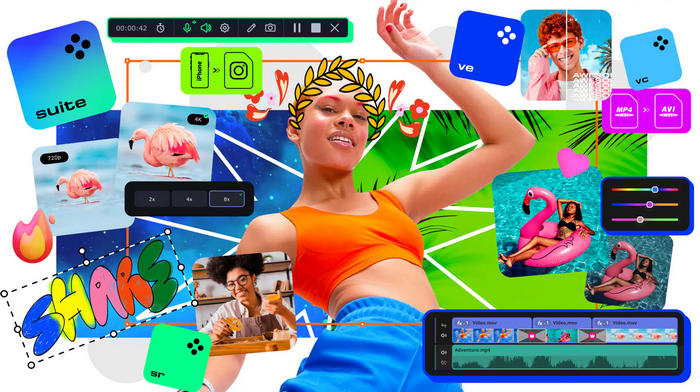
Movavi Video Suite 2026.1.1 – Complete Video Editing, Conversion, and Screen Recording Software
Movavi Video Suite 2026.1.1 is an all-in-one multimedia package designed for users who want to edit videos, convert media files, record their computer screen, and create professional-looking content without dealing with complicated professional software.
Version 26.1.1, released on August 13, 2026, belongs to the Movavi Video Suite 2026 generation and combines several of Movavi’s core multimedia tools in one convenient package.
What Is Movavi Video Suite 2026.1.1?
Movavi Video Suite is a complete multimedia environment aimed at content creators, YouTubers, students, teachers, business users, and anyone who regularly works with video and audio.
Instead of installing separate applications for editing, conversion, and screen capture, the suite provides access to the essential Movavi tools from a single package.
The main components include:
- Video editing
- Video and audio conversion
- Screen recording
- Webcam recording
- Audio editing tools
- Filters and transitions
- Titles and overlays
- Automatic subtitles
- AI-powered enhancement tools
- Media compression and conversion
Movavi officially describes the 2026 edition as a combination of video editing, file conversion, and screen recording with one-click AI tools and a large collection of visual effects.
Modern and Easy-to-Use Interface
One of the biggest advantages of Movavi Video Suite 2026.1.1 is its accessibility.
The interface is designed to remain understandable even for people with little or no previous video-editing experience. Most important features are clearly organized, while drag-and-drop support makes importing and arranging media considerably easier.
Unlike more complex professional editing environments, Movavi focuses on allowing users to begin working quickly without spending days learning the software.
At the same time, the program includes enough advanced features for creating polished YouTube videos, presentations, tutorials, social-media clips, educational content, and personal projects.
Powerful Video Editing Tools
The included video editor provides the essential tools required for creating complete video projects.
Users can cut unwanted footage, split clips, combine multiple recordings, crop scenes, rotate videos, change playback speed, adjust colors, add music, and organize content across a timeline.
Projects can combine:
- Video clips
- Images
- Background music
- Voice recordings
- Titles
- Transitions
- Stickers
- Filters
- Overlays
- Sound effects
The timeline-based workflow provides significantly more control than basic automated video makers while remaining easier to understand than many professional editing packages.
AI-Powered Editing Features
Artificial intelligence plays an increasingly important role in Movavi’s modern editing tools.
Movavi Video Suite 2026 includes AI-assisted features intended to automate time-consuming editing tasks. The official product information highlights tools such as automatic subtitles and AI noise removal.
Automatic Subtitles
Automatic subtitle generation can analyze spoken dialogue and create captions without requiring users to type every sentence manually.
This is especially useful when preparing:
- YouTube videos
- Tutorials
- Interviews
- Educational videos
- Social-media content
- Presentations
Captions can then be reviewed and adjusted before exporting the final project.
AI Noise Removal
Background noise can significantly reduce the quality of a recording.
Movavi’s AI noise-removal technology is designed to reduce unwanted sounds and improve voice clarity, making it useful for podcasts, tutorials, interviews, webcam recordings, and videos captured in noisy environments.
Background Removal
Background-removal tools can help isolate the main subject of a video without requiring a traditional green-screen setup.
This can be useful for presentations, social-media videos, tutorials, product demonstrations, and creative editing projects.
Filters, Transitions, and Visual Effects
Movavi Video Suite includes a large selection of ready-made visual elements.
Users can improve their projects with:
- Cinematic filters
- Animated transitions
- Decorative overlays
- Titles
- Stickers
- Intro elements
- Motion effects
- Background effects
Movavi also provides additional downloadable effects through its Movavi Effects service, including professionally designed titles, transitions, stickers, and other creative elements.
These tools make it possible to create attractive videos without designing every visual element manually.
Titles and Text Tools
Titles are essential for introductions, explanations, names, chapter headings, and closing credits.
Movavi provides customizable title templates that can be placed directly on the editing timeline.
Users can modify properties such as:
- Text
- Size
- Position
- Animation
- Duration
- Style
This makes the title system suitable for YouTube intros, presentations, tutorials, advertisements, and social-media content.
Audio Editing
Good audio quality is just as important as video quality.
Movavi Video Suite provides tools for working with music, dialogue, voiceovers, and sound effects.
Users can perform tasks such as:
- Adjusting volume
- Trimming audio
- Synchronizing sound with video
- Adding background music
- Recording voiceovers
- Removing unwanted noise
- Applying audio effects
The software therefore works well for creators who want to produce videos without relying on a separate audio-editing program for basic tasks.
Screen Recording
Movavi Video Suite also includes screen-recording functionality.
This allows users to capture activity directly from their computer display, making the software particularly useful for creating:
- Software tutorials
- Online courses
- Educational lessons
- Presentations
- Webinars
- Demonstrations
- Video guides
Movavi Screen Recorder is one of the three main applications included with Video Suite alongside Video Editor and Video Converter.
Webcam and Microphone Recording
Screen recordings can be combined with webcam and microphone input.
This feature is especially useful for teachers, online instructors, streamers, reviewers, and business users who want to appear on camera while explaining something displayed on their computer.
Voice commentary can also be recorded to provide narration for instructional or educational videos.
Video Conversion
Movavi Video Converter is another major component included in the package.
It allows users to convert multimedia files between different formats and prepare videos for different devices and platforms.
Conversion tools are useful when a video uses a format that is unsupported by a device, website, editing application, or media player.
Users can also use conversion to reduce file sizes or prepare media for distribution.
Video Compression
Large video files can consume significant storage space and may be inconvenient to upload or share.
Movavi’s conversion tools allow users to reduce video file sizes while balancing compression and image quality.
This is useful when preparing videos for:
- Cloud storage
- Websites
- Messaging applications
- Social networks
- Portable devices
Support for Popular Media Formats
Movavi’s individual Video Editor and Video Converter components are designed to work with a wide variety of common multimedia formats.
This makes the suite suitable for projects involving footage recorded by smartphones, cameras, webcams, screen-capture software, and other devices.
Users can therefore import different types of media into a project without constantly relying on separate conversion applications.
Creating Videos for Social Media
Movavi Video Suite is particularly useful for modern social-media production.
Users can create content for platforms such as:
- YouTube
- TikTok
- Short-form video platforms
Videos can be cropped and resized according to the target platform, while titles, captions, music, transitions, and visual effects can be added before exporting.
This makes the software a practical choice for creators who regularly produce videos for several platforms.
Performance and Hardware Requirements
Movavi Video Suite 2026.1.1 does not require workstation-class hardware for basic use.
However, more demanding projects such as 4K video editing, projects with many effects, and complex timelines will naturally benefit from a faster processor, more RAM, dedicated graphics hardware, and SSD storage.
Windows Minimum System Requirements
According to Movavi’s official specifications for Video Suite 2026 version 26.1.1:
- Operating System: Windows 10 or Windows 11, 64-bit
- Processor: Intel, AMD, or compatible dual-core processor at 1.5 GHz
- RAM: 4 GB
- Display: 1280 × 768 resolution with 32-bit color
- Storage: Approximately 600 MB for installation and 1.35 GB for ongoing operations
- Graphics: Intel HD Graphics 2000, supported NVIDIA GeForce/Quadro, AMD Radeon, or newer compatible hardware with updated drivers
For serious 4K editing, Movavi recommends significantly more capable hardware, with 16 GB RAM considered more suitable for demanding 4K workflows.
macOS Minimum System Requirements
The Mac edition of Movavi Video Suite 2026.1.1 officially requires:
- Operating System: macOS 12.0 or newer
- Processor: 64-bit Intel processor
- RAM: 4 GB
- Display: 1280 × 768 resolution
- Storage: Approximately 800 MB for installation and 1.35 GB for ongoing operations
- Administrator permissions: Required for installation
Who Should Use Movavi Video Suite 2026.1.1?
Movavi Video Suite is suitable for a wide range of users.
YouTube Creators
Creators can edit footage, add music, create titles, improve audio, generate subtitles, and prepare finished videos without switching between several programs.
Teachers and Students
Screen recording, webcam capture, subtitles, and simple editing tools make the software useful for lessons, assignments, presentations, and educational tutorials.
Social Media Creators
Fast editing tools and built-in effects make it suitable for short videos, promotional clips, reels, and other social-media projects.
Business Users
Companies can create training materials, product demonstrations, internal tutorials, marketing videos, and presentations.
Beginners
The straightforward interface makes Movavi especially attractive to users who find professional applications such as Adobe Premiere Pro or DaVinci Resolve unnecessarily complicated for their needs.
Advantages of Movavi Video Suite 2026.1.1
The strongest advantages include:
- Easy-to-understand interface
- Video editing, conversion, and screen recording in one package
- AI-assisted editing tools
- Automatic subtitle generation
- AI noise reduction
- Large collection of filters and transitions
- Built-in titles and overlays
- Audio-editing features
- Screen and webcam recording
- Wide media-format support
- Suitable for beginners
- Useful for YouTube and social-media production
- Relatively modest minimum system requirements
Disadvantages
Despite its strengths, Movavi Video Suite is not designed to replace every professional post-production application.
Possible disadvantages include:
- Some advanced professional workflows remain better suited to dedicated software
- Large 4K projects require stronger hardware than the minimum specifications
- Additional premium effect collections may require separate access
- The trial edition contains several restrictions
- Highly advanced color grading and professional compositing users may require specialized software
Trial Version Limitations
Movavi provides a trial version, but it includes restrictions.
For Video Suite, Movavi currently lists a 7-day trial period, a watermark on exported clips, limits affecting exported video or audio length, and restrictions on some advanced export features.
The paid edition removes these trial restrictions and is more appropriate for regular content production.
Movavi Video Suite vs. Professional Video Editors
Movavi Video Suite occupies a useful position between extremely basic video editors and complex professional production software.
Programs such as Adobe Premiere Pro and DaVinci Resolve offer deeper professional workflows, but they can also require more training and stronger hardware.
Movavi instead emphasizes speed and simplicity.
For creators primarily producing tutorials, YouTube videos, social-media clips, presentations, family videos, educational material, and promotional content, this simpler workflow can be more practical.
Is Movavi Video Suite 2026.1.1 Good for Beginners?
Yes.
Beginners are one of the main audiences for Movavi Video Suite.
Its organized interface, drag-and-drop workflow, ready-made effects, AI tools, and straightforward timeline make it possible to begin editing without extensive technical knowledge.
At the same time, the software provides enough flexibility for users to continue creating increasingly sophisticated projects as their editing skills improve.
Final Verdict
Movavi Video Suite 2026.1.1 is a comprehensive multimedia package that combines video editing, media conversion, screen recording, audio tools, effects, and AI-powered features in a single environment.
The 26.1.1 release was officially updated on August 13, 2026, and remains focused on providing a simpler alternative to complicated professional production software while still offering the features required for modern content creation.
Its combination of an accessible interface, automatic subtitles, AI noise removal, screen capture, video conversion, effects, and timeline-based editing makes it particularly useful for YouTubers, students, educators, social-media creators, and everyday users.
For anyone who wants an all-in-one video production package without the steep learning curve associated with professional editing systems, Movavi Video Suite 2026.1.1 is a practical and well-rounded solution for video creation, editing, recording, and conversion.