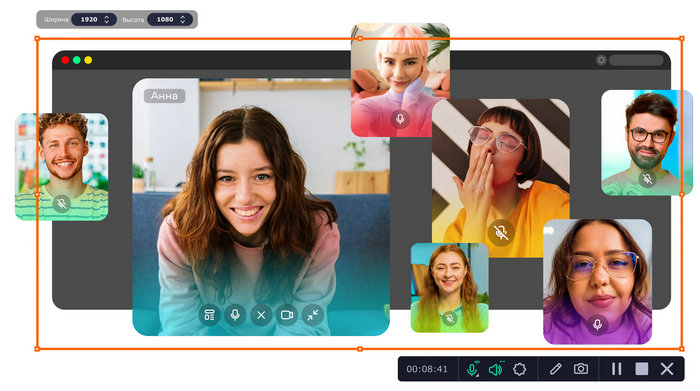
Movavi Screen Recorder 24.8.0 – Complete Review, Features, Advantages and Disadvantages
Introduction
Movavi Screen Recorder 24.8.0 is a screen recording application designed for users who need a simple and practical way to capture activity on their computer. It can be used to record software tutorials, online meetings, presentations, educational content, gameplay demonstrations, video calls, and many other types of on-screen activity.
The program focuses heavily on ease of use. Instead of presenting users with a complicated professional video-production interface, Movavi Screen Recorder provides straightforward controls for selecting a recording area, choosing audio sources, enabling a webcam, and starting a recording.
Simple and User-Friendly Interface
One of the main strengths of Movavi Screen Recorder 24.8.0 is its accessible interface. The essential recording tools are easy to locate, allowing new users to start capturing their screens without spending a long time configuring the software.
Users can select the area they want to capture, adjust recording options, and quickly control microphone, system audio, and webcam settings.
This simplicity makes the program suitable for beginners while still providing enough flexibility for users who regularly create tutorials, presentations, demonstrations, and other screen-based content.
Screen Recording
The core feature of Movavi Screen Recorder is the ability to capture computer screen activity. Users can record the entire screen or select a specific portion of the display.
Recording a custom area is particularly useful when creating tutorials because unnecessary desktop elements can be excluded from the final video. It can also help users focus viewers’ attention on a particular application or section of the screen.
This flexibility makes the software useful for many different recording scenarios, from capturing a small application window to recording a full-screen presentation.
System Audio and Microphone Recording
Movavi Screen Recorder can capture system sounds as well as audio from a connected microphone.
System audio recording is useful when capturing videos, software demonstrations, online presentations, and other content where the sound produced by the computer needs to be included.
Microphone recording allows users to add narration while capturing the screen. This is particularly valuable for tutorial creators, teachers, trainers, and content creators who want to explain what they are doing in real time.
Using screen, system audio, and microphone capture together makes it possible to create complete instructional videos without relying on several separate applications.
Webcam Recording
Webcam support allows users to include camera footage alongside their screen recording. This feature is useful for educational videos, online courses, presentations, reaction-style content, and professional demonstrations.
A presenter can appear on screen while explaining the content being recorded, providing a more personal and engaging experience for viewers.
Depending on the recording setup, users can combine screen capture, webcam footage, microphone narration, and computer audio within the same workflow.
Recording Online Meetings and Video Calls
Movavi Screen Recorder can also be useful for capturing online meetings, webinars, lectures, and video calls when recording is permitted.
For professionals and students, this can make it easier to revisit important information after a session. Recorded material can be reviewed later instead of relying entirely on written notes.
Users should always make sure that recording a meeting or conversation complies with applicable laws, organizational policies, platform rules, and the consent requirements of participants.
Scheduled Recording
Scheduled recording is a convenient feature for situations where users cannot manually start or stop a recording at the required time.
Users can configure recording-related scheduling options so that the software can handle certain capture tasks automatically. This can be useful for webinars, presentations, online lessons, and other events occurring at predetermined times.
Automation reduces the possibility of forgetting to begin an important recording.
Screenshots
Movavi Screen Recorder is not limited to video capture. It can also be used to create screenshots of desktop content.
Screenshots are particularly useful for tutorials, documentation, technical support, educational materials, and social media content. Instead of launching a separate screenshot utility, users can access screen capture functionality from the same recording environment.
This combination makes the program more versatile for users who regularly create instructional or informational content.
Drawing and On-Screen Annotations
Annotation tools can help users highlight important areas while recording. Drawing on the screen can be particularly effective when demonstrating software or explaining complicated steps.
For example, users can draw attention to buttons, menus, settings, or particular sections of an application while recording their explanation.
These visual indicators can make tutorials easier to follow because viewers immediately know which part of the screen they should focus on.
Mouse and Keyboard Display Features
When creating software tutorials, showing mouse actions and keyboard activity can significantly improve clarity.
Movavi Screen Recorder includes features designed to make user interactions easier to understand. Highlighting clicks or displaying keyboard activity can help viewers follow a tutorial without repeatedly pausing the video.
This is especially valuable when explaining software shortcuts, configuration procedures, editing techniques, or other workflows involving frequent keyboard commands.
Basic Editing After Recording
After completing a recording, users can perform basic adjustments before saving or sharing the result.
The available workflow is designed primarily for quick corrections rather than advanced professional video editing. Users who need extensive timelines, sophisticated transitions, advanced color grading, complex visual effects, or detailed audio production will generally need a dedicated video editor.
However, for straightforward screen recordings and tutorials, the available editing and trimming functionality can reduce the need to open another program for minor corrections.
Exporting Recordings
Once a recording has been completed, Movavi Screen Recorder provides options for saving the captured content in commonly used formats.
This makes recorded videos suitable for different purposes, including tutorials, presentations, educational materials, social media, and video-sharing platforms.
Export flexibility is important because users may need different formats depending on where the recording will eventually be viewed or uploaded.
Performance and Recording Quality
Screen recording requires computer resources because the system must capture, process, and encode video while other applications continue running.
Movavi Screen Recorder is designed to provide a balance between recording quality and usability. Performance will nevertheless depend heavily on the computer’s processor, graphics hardware, available memory, storage speed, recording resolution, frame rate, and the applications running simultaneously.
Users recording demanding applications or games should ensure that sufficient system resources remain available for both the application being captured and the recording process.
Useful for Tutorials and Educational Content
One of the strongest use cases for Movavi Screen Recorder 24.8.0 is creating tutorials.
A user can record the screen, explain the process through a microphone, highlight important actions, and potentially include webcam footage. This provides most of the essential tools required to produce straightforward instructional content.
Teachers can record lessons, software instructors can demonstrate applications, and technical support professionals can visually explain troubleshooting procedures.
Useful for Content Creators
Content creators can use Movavi Screen Recorder to capture websites, applications, presentations, demonstrations, and other desktop activity.
YouTube creators, for example, may use screen recording when producing software tutorials, educational videos, technology guides, reviews, and instructional content.
Because the interface is relatively straightforward, creators can concentrate more on the content itself instead of dealing with complicated recording configurations.
Advantages of Movavi Screen Recorder 24.8.0
The program’s biggest advantage is its simplicity. New users can understand the fundamental recording workflow quickly without needing extensive technical knowledge.
It combines screen recording, microphone capture, system audio, webcam support, screenshots, annotations, and useful recording controls within a single application.
The ability to select specific recording areas is another important advantage, particularly for tutorials and demonstrations where only part of the desktop needs to be shown.
Its combination of accessibility and practical recording features makes it suitable for home users, students, educators, professionals, and content creators.
Disadvantages of Movavi Screen Recorder 24.8.0
Movavi Screen Recorder is primarily a recording application rather than a complete professional video-production environment. Users requiring sophisticated editing capabilities may need to combine it with dedicated video-editing software.
Some features and usage conditions can also differ depending on the license or edition being used. Users should check the terms of the version they intend to install, particularly when considering free or trial usage.
Performance during high-resolution recording can depend heavily on computer hardware. Older or less powerful computers may experience higher CPU or GPU usage when recording demanding applications.
Users focused specifically on advanced gameplay recording or professional livestreaming may also prefer specialized broadcasting applications offering deeper control over scenes, sources, encoding, plugins, and streaming configurations.
Who Should Use Movavi Screen Recorder?
Movavi Screen Recorder 24.8.0 is particularly suitable for users who prioritize convenience.
Students can use it for educational material, teachers can prepare lessons, professionals can capture presentations and demonstrations, and content creators can produce screen-based videos.
It is also a practical choice for users who do not want to spend significant time learning complex recording software.
Conclusion
Movavi Screen Recorder 24.8.0 provides a convenient combination of screen capture, audio recording, webcam support, screenshots, annotations, and other practical recording features within an accessible interface.
Its main strength is that it makes screen recording straightforward. Users can quickly configure what they want to capture, choose the appropriate audio sources, record their content, make basic adjustments, and save the finished result.
While professional creators requiring advanced editing, broadcasting, or highly specialized recording controls may need additional software, Movavi Screen Recorder remains a strong option for everyday screen capture, tutorials, presentations, educational videos, demonstrations, and general content creation.
For users looking for an easy-to-use screen recorder without the complexity associated with professional broadcasting software, Movavi Screen Recorder 24.8.0 offers a practical and approachable solution.