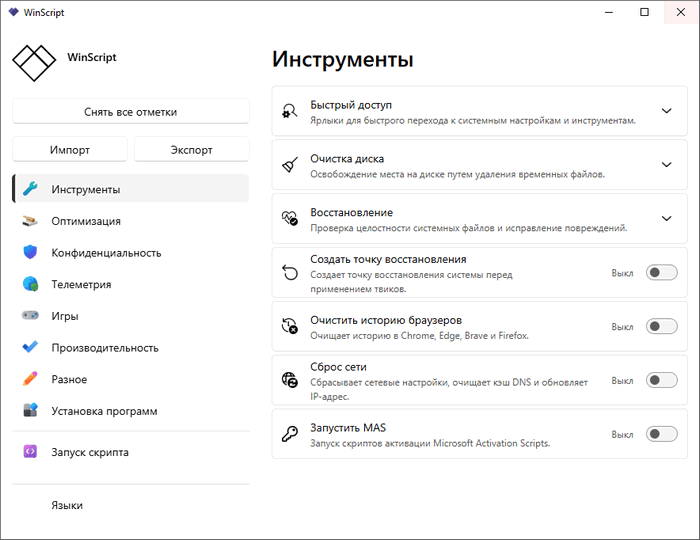
WinScript 2.22.0: Customize, Debloat, Optimize, and Automate Windows
WinScript 2.22.0 is a free and open-source Windows customization utility designed to help users remove unnecessary applications, improve privacy, optimize system performance, install multiple programs, and generate transparent PowerShell scripts.
Unlike many system-tuning applications that apply hidden changes in the background, WinScript allows users to select the modifications they want and review the generated script before running it. This approach gives advanced users greater control while keeping Windows customization accessible to people with limited scripting experience.
WinScript is primarily designed for Windows 10 and Windows 11 computers and is available as a desktop application, portable package, browser-based tool, and open-source project.
What Is WinScript 2.22.0?
WinScript is a lightweight script-generation tool created by the developer known as flick9000. It provides a graphical interface containing numerous Windows adjustments organized into categories such as debloating, privacy, performance, application installation, and unattended Windows setup.
After selecting the desired options, WinScript builds a PowerShell script containing the corresponding commands. The user can inspect, save, download, or execute the script to apply the selected changes.
The official project describes WinScript as a tool for removing Windows bloatware, disabling telemetry, improving performance, installing applications in bulk, and customizing the operating system.
What Is New in WinScript 2.22.0?
WinScript 2.22.0 was published on July 25, 2026, as the latest official release available at the time of writing.
The documented change in this version is an updated Spanish localization. This means the release mainly improves the Spanish-language translation rather than introducing a completely redesigned interface or a large collection of new system tweaks.
The previous version, WinScript 2.21.0, introduced automatic detection of the operating system or browser language and added Minecraft Education to the list of removable third-party applications.
WinScript 2.22.0 therefore continues to include the major functionality introduced throughout earlier 2.x releases, including bulk app installation, unattended Windows setup generation, privacy controls, performance adjustments, and configurable debloating.
Main Features of WinScript 2.22.0
Windows Debloating
WinScript includes tools for removing applications and components that users may consider unnecessary.
Depending on the selected configuration, users can remove or disable items such as:
- Microsoft Copilot.
- Microsoft OneDrive.
- Microsoft Edge.
- Microsoft Store.
- Xbox applications.
- Preinstalled promotional applications.
- Windows Widgets.
- Taskbar Widgets.
- Windows Recall.
- Consumer Features.
- Selected third-party applications.
- Additional optional Windows components.
The official project documentation specifically lists Microsoft Store, OneDrive, Copilot, Edge, Widgets, Recall, and Consumer Features among the removable or configurable components.
Debloating can reduce background activity and simplify the Start menu, but users should carefully review each option before applying it. Removing components such as Microsoft Store, Edge, or OneDrive may affect applications or workflows that depend on them.
Privacy Enhancements
Windows includes several services and settings related to telemetry, diagnostics, personalized advertising, cloud synchronization, application permissions, and usage data.
WinScript provides options for limiting or disabling selected data-collection features.
Privacy-related adjustments may include:
- Disabling Windows telemetry.
- Limiting diagnostic data.
- Blocking personalized advertising.
- Disabling activity tracking.
- Restricting application access to sensitive permissions.
- Disabling cloud synchronization of selected settings.
- Limiting background application access.
- Reducing data collection in Windows Search.
- Disabling selected Microsoft Office telemetry.
- Blocking selected third-party telemetry.
- Adjusting location and privacy permissions.
The project also includes privacy adjustments for selected third-party software, including Adobe applications, Visual Studio Code, and NVIDIA-related services.
These settings may improve privacy, but some changes can disable synchronization, personalized features, error reporting, or cloud-connected functionality.
Performance Optimization
WinScript includes a variety of system adjustments intended to reduce unnecessary background activity and improve Windows responsiveness.
Available performance-related options may include:
- Enabling the Ultimate Performance power plan.
- Reducing mouse input delay.
- Disabling unnecessary background services.
- Setting selected services to manual startup.
- Disabling Superfetch.
- Disabling Storage Sense.
- Adjusting Windows Defender processor usage.
- Removing temporary files.
- Modifying visual effects.
- Adjusting startup behavior.
- Reducing background application activity.
- Optimizing selected network settings.
- Disabling unnecessary scheduled tasks.
The project documentation lists Ultimate Performance mode, mouse-delay reduction, Superfetch controls, Storage Sense adjustments, Windows Defender CPU tuning, and service-startup configuration among the available performance tools.
Performance improvements will vary between computers. A powerful modern system may show little difference, while an older computer with limited memory or a slow processor may benefit more from reducing background activity.
WinScript cannot compensate for insufficient hardware, failing storage devices, overheating, malware, or damaged Windows system files.
Bulk Application Installation
WinScript includes an application browser that allows users to select multiple programs and install them through a generated script.
The feature supports popular Windows package managers such as:
- Microsoft WinGet.
- Chocolatey.
Users can select applications from different categories, including:
- Web browsers.
- Media players.
- Compression utilities.
- Communication applications.
- Development tools.
- Gaming software.
- System utilities.
- Productivity applications.
- Security tools.
- Image and video applications.
Instead of visiting many websites and running several installers individually, WinScript can generate a single script that installs the selected applications automatically.
The official project confirms that the Browse Apps section supports bulk application installation through WinGet or Chocolatey.
This feature is especially useful after installing Windows on a new computer.
Update Installed Applications
Recent WinScript releases added an option for updating applications that are already installed on the system.
This feature can use supported package-management commands to check for newer versions and update multiple programs more efficiently.
The Update Installed Apps feature was introduced in WinScript 2.20.0.
The results depend on whether the installed applications are recognized by the selected package manager. Programs installed manually or through unsupported installers may not appear in the update process.
Unattended Windows Setup
WinScript can generate a customized autounattend.xml file for automating Windows installation.
An unattended setup file can answer installation prompts automatically and apply predefined settings without requiring the user to complete every screen manually.
Available unattended-installation options may include:
- Creating a local account.
- Skipping selected setup questions.
- Bypassing some Windows 11 hardware checks.
- Skipping unnecessary out-of-box experience screens.
- Reducing setup interruptions.
- Preventing selected automatic updates during installation.
- Applying regional preferences.
- Automatically running a WinScript configuration after setup.
- Preconfiguring privacy and system settings.
The official project states that WinScript can generate an autounattend.xml file, automate Windows installation, create local accounts, bypass supported hardware checks, skip selected setup prompts, and apply a WinScript configuration after installation.
This feature is particularly useful for technicians, advanced users, system builders, and people who frequently reinstall Windows.
Incorrect unattended-setup options can cause installation problems, so the generated file should be reviewed and tested before use on an important computer.
Transparent PowerShell Script Generation
One of the most important characteristics of WinScript is transparency.
The program does not simply display a button labeled “Optimize” and apply unknown modifications. Instead, it generates a PowerShell script based on the selected options.
Users can inspect the commands before executing them.
This provides several advantages:
- Users can see exactly what will change.
- Advanced users can modify the generated code.
- Scripts can be saved for future use.
- The same configuration can be applied to multiple computers.
- Organizations can review commands before deployment.
- Users can remove unwanted commands.
- Configurations can be documented and shared.
- Changes are easier to audit than those made by closed-source tuning tools.
However, transparency does not automatically guarantee that every selected adjustment is appropriate for every computer. Users still need to understand the consequences of system-level modifications.
Configuration Import and Export
WinScript configurations can be saved and reused.
A saved configuration allows users to preserve their selected debloat, privacy, performance, and application-installation options.
Configurations can be useful for:
- Reinstalling Windows.
- Preparing several computers.
- Maintaining a consistent setup.
- Sharing configurations with other users.
- Creating gaming or privacy-focused presets.
- Testing different Windows configurations.
- Restoring preferred settings after an upgrade.
The desktop application supports importing a JSON configuration through a command-line parameter. The official repository provides an example using the -i option followed by the path to a configuration file.
Users should only import configuration files from sources they trust because imported presets may contain powerful system changes.
Windows Security Adjustments
WinScript includes options related to selected Windows security features.
Depending on the available configuration, users may be able to modify:
- Windows Defender behavior.
- SmartScreen settings.
- Firewall-related preferences.
- User Account Control behavior.
- BitLocker configuration.
- Application permissions.
- Security-related telemetry.
- Windows update settings.
WinScript 2.20.0 introduced an option to disable BitLocker drive encryption.
Disabling security features can reduce protection against malware, unauthorized access, unsafe downloads, or stolen devices. These options should only be used when the user understands the risks and has an appropriate alternative security strategy.
BitLocker should not be disabled on a sensitive computer without considering the effect on stored data.
Windows Update Controls
WinScript provides adjustments related to Windows Update behavior.
These may allow users to reduce automatic interruptions, change update policies, delay selected updates, or disable some automatic-update behavior.
Windows updates frequently include important security fixes, compatibility updates, and reliability improvements. Completely disabling updates for long periods can expose a computer to known vulnerabilities.
For most users, adjusting update notifications or scheduling is safer than permanently disabling the update service.
Network and DNS Settings
WinScript can generate commands for selected network-related adjustments.
Available options may include:
- Changing DNS servers.
- Resetting network settings.
- Modifying selected network parameters.
- Applying latency-related adjustments.
- Disabling unnecessary network features.
- Changing telemetry-related connections.
A custom DNS provider may offer privacy, filtering, or performance benefits, but results vary depending on the user’s location, internet provider, and network configuration.
Network modifications should be avoided on managed business computers unless approved by the organization’s administrator.
Gaming Tweaks
WinScript includes options intended for gaming-focused Windows configurations.
Gaming-related adjustments may involve:
- Reducing background processes.
- Disabling selected Game Bar components.
- Changing power settings.
- Reducing mouse input delay.
- Adjusting background services.
- Disabling selected telemetry tasks.
- Reducing unnecessary notifications.
- Applying performance-oriented settings.
- Removing preinstalled gaming applications that are not required.
These adjustments may improve consistency or free a small amount of system resources, but they cannot guarantee higher frame rates in every game.
Gaming performance still depends primarily on:
- Graphics-card performance.
- Processor performance.
- Installed memory.
- Storage speed.
- Cooling.
- Graphics settings.
- Display resolution.
- Game optimization.
- Driver quality.
Users should avoid applying every available gaming tweak without reviewing its purpose.
Windows Interface Customization
WinScript contains options for changing selected Windows interface behaviors.
These may include:
- Taskbar configuration.
- Start menu behavior.
- File Explorer preferences.
- Context-menu adjustments.
- Widget controls.
- Search behavior.
- Visual-effect settings.
- Notification settings.
- Dark-mode preferences.
- Desktop-related options.
Interface adjustments are generally less risky than security or service modifications, but some settings may require signing out or restarting Windows before they become visible.
Open-Source Software
WinScript is released under the GNU General Public License version 3.
Its source code is publicly available, allowing developers and security-conscious users to inspect how the application works and what commands it generates.
Open-source availability provides several advantages:
- Public code inspection.
- Community contributions.
- Transparent development.
- Independent security review.
- Custom builds.
- Bug reporting.
- Translation contributions.
- Reusable code under the license terms.
Users should still download the application from the official project or a trusted package source to avoid modified third-party copies.
Desktop and Online Versions
WinScript can be used through different methods.
Desktop Application
The desktop application provides the complete graphical interface and can generate or execute scripts directly on the computer.
Portable Version
A portable build can be used without a traditional installation, depending on the package selected from the official release assets.
Online Version
The browser-based version allows users to select tweaks and create a script without installing the desktop application.
PowerShell Launch Method
The official repository also provides a PowerShell command for launching WinScript directly.
WinGet Installation
WinScript can be installed through Microsoft WinGet using the package name provided by the project.
The desktop version is more convenient for regular use, while the online version may be suitable for quickly generating a script.
Windows Defender Detection Warning
The WinScript developer notes that the desktop application may sometimes be flagged by Windows Defender because the generated scripts are capable of modifying system settings.
The official release notes describe these detections as false positives and emphasize that the project is transparent and open source.
Users should not automatically ignore every antivirus warning. Before running the application, they should:
- Download it from the official project.
- Check the digital signature when available.
- Verify the release version.
- Review the generated script.
- Scan the downloaded file.
- Avoid modified third-party packages.
- Create a system backup.
- Use a restore point.
A system-modification tool naturally requires powerful permissions, which is why careful source verification is essential.
Code Signing
Recent WinScript executables are code-signed through SignPath.
Code signing was added in WinScript 2.20.0, and the project repository credits SignPath for providing signing services.
A valid digital signature helps users verify that an executable was published through the recognized project process and has not been altered after signing.
It does not guarantee that every generated configuration is safe for every system.
Supported Operating Systems
WinScript is designed primarily for:
- Windows 11.
- Windows 10.
Some third-party distribution pages may list older Windows editions, but the current official project focuses on modern Windows 10 and Windows 11 customization.
The application requires an environment capable of running PowerShell and executing administrative system commands.
Some individual tweaks may only work on a specific Windows edition or build.
General System Requirements
WinScript is lightweight and does not require powerful hardware.
A practical configuration should include:
- Windows 10 or Windows 11.
- A 64-bit Intel or AMD-compatible processor.
- At least 2 GB of RAM.
- Available storage for the application and generated scripts.
- PowerShell support.
- Administrator privileges.
- Internet access for application installation and online services.
- A stable Windows installation.
- A backup or restore point before major modifications.
Administrator access is necessary for many operations because WinScript changes system services, applications, policies, permissions, registry entries, and Windows components.
How to Use WinScript 2.22.0
The general workflow is straightforward:
- Download and open WinScript.
- Run the application with appropriate permissions.
- Browse the available categories.
- Select the debloat, privacy, performance, and customization options you need.
- Choose applications to install when required.
- Review the selected configuration.
- Generate the PowerShell script.
- Inspect the generated commands.
- Create a system restore point or backup.
- Run or save the script.
- Restart Windows when required.
- Test important applications and hardware.
Users should avoid selecting every available option without understanding it. A smaller, carefully reviewed configuration is safer than an aggressive script containing unnecessary modifications.
Recommended Safety Steps
Before running a WinScript configuration:
- Create a restore point.
- Back up important personal files.
- Save the BitLocker recovery key when encryption is enabled.
- Export important browser and application settings.
- Review every selected option.
- Read the generated PowerShell script.
- Close active applications.
- Connect laptops to external power.
- Avoid interrupting the process.
- Restart Windows after completion.
- Test networking, audio, printing, and updates.
- Keep the generated script for reference.
For business or school computers, users should obtain administrator approval before changing system policies or removing managed applications.
Advantages of WinScript 2.22.0
- Free and open-source.
- Lightweight application.
- Transparent PowerShell script generation.
- Modern graphical interface.
- Removes selected Windows bloatware.
- Includes privacy-focused adjustments.
- Provides performance-related tweaks.
- Supports bulk application installation.
- Works with WinGet and Chocolatey.
- Generates unattended Windows setup files.
- Supports reusable configurations.
- Can update installed applications.
- Includes gaming-related settings.
- Offers desktop and online versions.
- Suitable for Windows 10 and Windows 11.
- Source code can be publicly reviewed.
- No programming knowledge is required for basic use.
- Useful after a clean Windows installation.
- Allows scripts to be customized before execution.
- Available under the GPL-3.0 license.
Disadvantages
- System-level changes can cause unexpected problems.
- Some tweaks may reduce security.
- Aggressive debloating may break Windows features.
- Removed applications may be difficult to restore.
- Certain settings may be reversed by Windows updates.
- Antivirus software may display warnings.
- Administrator privileges are required.
- Performance gains vary between computers.
- Some options are unsuitable for managed systems.
- Disabling updates can create security risks.
- Removing Edge or Microsoft Store may affect dependent applications.
- Imported configurations may contain unwanted modifications.
- Beginners may not understand every generated command.
- A complete system backup is not created automatically.
- The application is intended only for Windows.
WinScript vs Traditional Windows Optimizers
Traditional Windows optimization programs often apply predefined changes through a closed interface.
WinScript uses a different approach by generating a readable PowerShell script.
This makes it more suitable for users who value:
- Transparency.
- Repeatable configurations.
- Script customization.
- Open-source code.
- Auditable system changes.
- Multi-computer deployment.
However, traditional utilities may be easier for users who prefer a single automatic optimization button and do not want to inspect scripts.
WinScript offers greater control, but that control requires greater responsibility.
Who Should Use WinScript?
WinScript is suitable for:
- Windows enthusiasts.
- Advanced home users.
- PC gamers.
- Computer technicians.
- System builders.
- Privacy-conscious users.
- Developers.
- IT students.
- Users reinstalling Windows.
- People managing multiple personal computers.
- Users who prefer open-source software.
- Anyone who wants transparent Windows customization.
It may not be suitable for users who are uncomfortable reviewing system changes or recovering Windows when a configuration causes problems.
Is WinScript Safe?
WinScript is open-source, and its generated PowerShell commands can be inspected before execution. This provides more transparency than many closed-source optimization utilities.
However, safety depends heavily on the selected options.
A legitimate command can still create problems when it:
- Removes a required component.
- Disables an important service.
- Weakens a security feature.
- Changes networking behavior.
- Disables updates.
- Removes encryption.
- Conflicts with company policies.
WinScript should therefore be viewed as a powerful customization tool rather than a risk-free automatic optimizer.
Final Verdict
WinScript 2.22.0 is a powerful and transparent Windows customization utility for users who want greater control over debloating, privacy, performance, application installation, and automated system setup.
Its greatest advantage is the ability to generate readable PowerShell scripts instead of applying completely hidden modifications. Users can review the commands, customize them, save configurations, and reuse the same setup across multiple computers.
The 2.22.0 update is relatively small and primarily improves the Spanish localization, but the application continues to include the broader functionality introduced in earlier releases.
WinScript is especially useful after a clean Windows installation or when preparing a customized system configuration. However, users should create backups, inspect generated scripts, and avoid disabling essential security or system components without understanding the consequences.
Overall, WinScript 2.22.0 is an excellent open-source option for experienced Windows users who want a configurable and auditable alternative to traditional system-optimization tools.