Win11Debloat 2026.07.11: Remove Windows Bloatware, Improve Privacy, and Customize Your PC
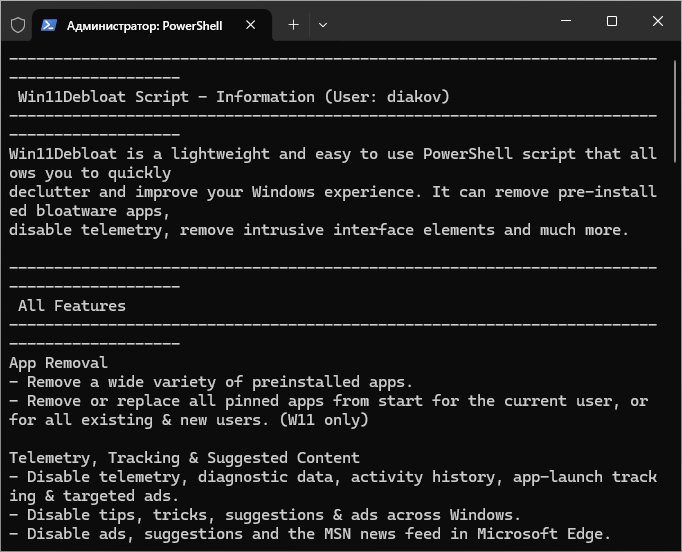
Win11Debloat 2026.07.11 is a lightweight, open-source PowerShell utility designed to help users remove unnecessary preinstalled applications, reduce unwanted Windows features, improve privacy settings, and customize the Windows desktop experience.
Despite its name, Win11Debloat supports both Windows 11 and Windows 10. It provides a graphical setup wizard for regular users and a powerful command-line interface for system administrators, technicians, and advanced users.
The tool does not require a traditional installation. It can be launched directly through PowerShell or downloaded as a small collection of script files. This makes it a practical option for users who want greater control over Windows without installing a large optimization suite.
What Is Win11Debloat 2026.07.11?
Win11Debloat is a system customization and debloating script created to simplify tasks that would otherwise require users to navigate through multiple Windows settings, PowerShell commands, registry locations, and application-management menus.
The tool can remove selected preinstalled applications, disable telemetry-related features, reduce advertisements and suggestions, customize the Start menu and taskbar, adjust File Explorer behavior, and modify several privacy-related Windows settings.
All changes are presented through an organized interface, allowing users to select only the modifications they want to apply.
The project is distributed under the MIT license and its source code is publicly available, making it possible for users and developers to review how the script works.
Clean and User-Friendly Interface
Although Win11Debloat is based on PowerShell, it includes a graphical interface that makes the tool accessible to users who are unfamiliar with terminal commands.
The interactive setup wizard guides users through the customization process step by step. It allows them to:
- Select applications for removal
- Enable or disable Windows features
- Choose privacy-related settings
- Select the Windows user account to modify
- Review pending changes
- Create a system restore point
- Apply all selected changes together
The review stage is particularly useful because it gives users an opportunity to inspect their choices before the script makes system modifications.
Remove Preinstalled Windows Applications
Windows installations often include applications that some users never open. These can include promotional software, communication tools, media applications, games, trial services, and manufacturer-installed utilities.
Win11Debloat can remove a wide variety of applications from Microsoft, computer manufacturers, and selected third-party developers.
The script uses Windows’ built-in Appx and WinGet package-management technologies to perform supported application removals.
Applications that may be available for removal include:
- 3D Viewer
- 3D Builder
- Clipchamp
- Microsoft News
- Microsoft Weather
- Microsoft Solitaire Collection
- Feedback Hub
- Maps
- Mixed Reality components
- Xbox applications
- Copilot-related components
- Microsoft Teams consumer components
- Manufacturer-installed promotional applications
- Selected third-party applications
The exact applications available depend on the installed Windows version, system manufacturer, region, and current Win11Debloat configuration.
Custom Application Selection
Win11Debloat does not force users to remove every supported application.
Users can review the available program list and select individual applications for removal. This is safer than using an aggressive preset that automatically deletes everything classified as unnecessary.
Some Windows applications may be important for specific users. For example, one person may consider Xbox features unnecessary, while another may use them for gaming, recording, or managing a Game Pass subscription.
The selective approach allows users to create a customized Windows installation based on their own requirements.
Disable Windows Telemetry
Windows collects diagnostic and usage information to help Microsoft monitor reliability, compatibility, and product performance.
Win11Debloat includes options designed to reduce or disable several telemetry-related components. Depending on the selected configuration, it may adjust diagnostic settings, disable related scheduled tasks, and reduce background data collection.
Privacy-focused users may find these options useful, particularly on personal systems where extensive diagnostic reporting is not required.
However, disabling telemetry can affect certain diagnostic tools, troubleshooting services, or participation in Windows Insider programs. Users should review each option carefully before applying it.
Disable Advertisements and Suggested Content
Windows can display promotional recommendations, suggested applications, tips, personalized content, and advertisements in several parts of the operating system.
Win11Debloat can reduce or disable suggestions in areas such as:
- The Start menu
- Windows Settings
- The lock screen
- File Explorer
- Notification panels
- Search
- Microsoft Edge
- Windows welcome experiences
- Suggested application areas
Removing these elements can create a cleaner and less distracting desktop experience.
The changes do not block advertising inside independent websites or third-party applications. They primarily affect promotional content integrated into Windows and selected Microsoft components.
Remove Bing and Copilot from Windows Search
Windows Search may combine local computer results with online content from Bing and other Microsoft services.
Win11Debloat provides options to reduce or remove Bing integration from the Windows search interface. This can make searches focus more directly on local files, settings, and installed applications.
The tool may also provide options related to Copilot integration, depending on the installed Windows build and the current availability of Microsoft AI components.
Removing online search integration may improve privacy and reduce unnecessary web suggestions, although users who depend on combined web and local search may prefer to keep it enabled.
Customize the Start Menu
Win11Debloat includes several options for simplifying and customizing the Windows Start menu.
Available settings may allow users to:
- Remove recommended content
- Hide recently opened items
- Reduce suggested applications
- Change the All Apps layout
- Remove unnecessary pinned applications
- Control Start menu recommendations
- Restore a cleaner default layout
Recent project versions have added additional controls for the All Apps view, including layout options such as list, grid, category, and hidden modes on compatible Windows versions.
Not every Start menu setting is available on every Windows release because Microsoft frequently changes the interface through feature updates.
Taskbar Customization
The Windows taskbar contains several buttons and features that users may not need.
Win11Debloat can help users customize taskbar elements such as:
- Search
- Widgets
- Task View
- Chat or communication buttons
- Copilot controls
- News and interest features
- Alignment and visual behavior
- Suggested taskbar content
Removing unnecessary taskbar elements can provide more space for active applications and create a cleaner desktop.
Some changes may require Windows Explorer to restart, while others may require the user to sign out or restart the computer.
File Explorer Improvements
Win11Debloat provides multiple options for modifying File Explorer behavior.
Users may be able to:
- Show file extensions
- Display hidden files
- Disable unnecessary recommendations
- Remove selected navigation sections
- Hide Home, Gallery, or OneDrive entries
- Change the default File Explorer opening page
- Reduce promotional notifications
- Adjust context-menu behavior
- Restore selected classic interface elements
These options can make File Explorer more practical for experienced users who prefer direct access to files and folders.
Some changes depend on the installed Windows version and may behave differently after major Windows updates.
Windows Privacy Controls
In addition to telemetry settings, Win11Debloat includes several privacy-oriented adjustments.
Depending on the selected configuration, users can manage settings associated with:
- Advertising identifiers
- Activity tracking
- Tailored experiences
- Suggested content
- Location-related services
- Windows Recall
- Search history
- Diagnostic information
- Application recommendations
- Cloud-based suggestions
Users should not assume that every privacy option must be disabled. Features such as location access, synchronization, cloud search, and activity history may be useful in certain workflows.
The best configuration depends on the user’s preferred balance between privacy and convenience.
Disable Windows Recall
On supported hardware and Windows editions, Microsoft Recall can periodically save information about on-screen activity to make previous content searchable.
Win11Debloat includes controls related to disabling Recall and its associated settings on compatible systems.
Privacy-conscious users who do not want their activity recorded may prefer to disable this feature. However, the availability and behavior of Recall can differ depending on Windows edition, device hardware, regional restrictions, and Microsoft updates.
Users should verify the current Windows Recall status after applying modifications.
Microsoft Edge Adjustments
Win11Debloat can modify selected Microsoft Edge settings to reduce advertisements, suggestions, promotional content, and AI-related features.
Possible adjustments may include:
- Disabling shopping features
- Reducing new-tab recommendations
- Disabling personalized advertisements
- Limiting sidebar suggestions
- Disabling selected AI integrations
- Reducing first-run promotional messages
- Removing unnecessary background behavior
These settings may be applied through Windows policies or registry modifications.
Some options can appear locked inside Edge after being changed because the browser interprets them as administrator-managed policies. Win11Debloat provides undo registry files that can restore supported Edge settings.
Optional Windows Features
Win11Debloat is not limited to removing applications and disabling settings. It can also help enable selected Windows components.
Supported optional features may include:
- Windows Sandbox
- Windows Subsystem for Linux
- Other Windows components exposed through the tool
Windows Sandbox provides an isolated temporary desktop environment that can be useful for testing unfamiliar software.
Windows Subsystem for Linux allows users and developers to run supported Linux environments directly within Windows.
Availability depends on the installed Windows edition and hardware configuration.
Window Management Settings
The tool includes options for adjusting Windows multitasking behavior.
Users may be able to:
- Disable window snapping
- Disable Snap Assist
- Disable Snap Layout suggestions
- Adjust Alt+Tab behavior
- Control whether browser tabs appear during application switching
- Reduce window-management recommendations
These settings can be useful for users who prefer a traditional desktop workflow or who find automatic snapping suggestions distracting.
Powerful Command-Line Interface
Win11Debloat includes a full command-line interface for advanced users and administrators.
The CLI can be used to:
- Apply default settings
- Remove specific applications
- Repeat previously selected configurations
- Apply multiple changes through parameters
- Run without interactive prompts
- Target specific user accounts
- Integrate with deployment scripts
- Prepare Windows images
- Automate computer configuration
The script supports combining multiple parameters into a single command, allowing administrators to create repeatable configurations for multiple computers.
Silent Operation
The silent parameter allows Win11Debloat to run without interactive confirmation prompts.
This is useful for:
- Automated Windows installations
- Business deployments
- Computer repair environments
- Laboratory computers
- Virtual machines
- Repeated system configurations
- Technician maintenance scripts
Silent execution should be tested carefully before being deployed across multiple machines.
An incorrect configuration could remove applications or disable features required by users or business software.
SYSTEM Account Support
Newer Win11Debloat releases support running under the Windows SYSTEM account.
SYSTEM support makes the tool more suitable for enterprise deployment systems, remote-management platforms, and automated Windows provisioning.
It also enables administrators to apply supported changes to user profiles in scenarios where regular user-level execution may not be practical.
This feature is primarily intended for system administrators and should be used carefully because the SYSTEM account has extensive Windows permissions.
Support for Other Windows Users
Win11Debloat can apply selected changes to user accounts other than the account currently launching the tool.
This can be helpful on:
- Shared family computers
- School computers
- Office workstations
- Public-access machines
- Multi-user systems
- Computers being prepared for another person
Some user-targeting operations may require the selected account to have logged into Windows previously.
The exact limitations depend on the execution method, Windows permissions, and whether the target account is currently active.
Sysprep and Audit Mode Support
System administrators can use Win11Debloat while preparing Windows installations through Sysprep or Audit Mode.
In this environment, selected changes can be applied to the default user profile so that newly created accounts receive the desired configuration.
This capability is particularly useful for:
- Business computer deployment
- School laboratories
- Customized Windows images
- Virtual desktop environments
- Repair-shop installation templates
- Original equipment manufacturer preparation
Administrators should test Sysprep configurations on non-production systems before applying them broadly.
Export and Import Settings
Win11Debloat allows users to export and import preferred configurations.
This feature helps users save a customized setup and reuse it later without manually selecting every option again.
Exported settings can be helpful when:
- Reinstalling Windows
- Configuring a new computer
- Managing several personal computers
- Preparing multiple office devices
- Creating a standard technician configuration
- Testing different Windows environments
Configuration files should be reviewed when moving between different Windows versions because some settings may no longer be supported.
Detect Previously Applied Tweaks
Recent versions of Win11Debloat can detect supported modifications that were previously applied to the logged-in user.
The graphical interface may display these settings as already selected, making it easier to understand the system’s current configuration.
Users can then reverse supported changes by clearing the corresponding option and applying the updated configuration.
This is more convenient than manually locating and restoring every modified registry value.
Preview Changes with WhatIf Mode
Win11Debloat includes WhatIf support for previewing actions before they are performed.
This feature allows users and administrators to inspect the changes the script intends to make without immediately modifying the system.
A preview mode is valuable when testing:
- Application-removal lists
- Registry modifications
- Enterprise deployment configurations
- Silent command-line parameters
- User-targeted changes
- Automated maintenance scripts
Although previewing reduces risk, users should still create backups and test configurations on a non-critical system.
System Restore Point Creation
Before applying changes, the graphical wizard can offer to create a Windows system restore point.
A restore point may help recover from certain unwanted changes by restoring system settings, drivers, registry data, and installed software states.
It does not replace a complete backup because System Restore does not preserve every file or guarantee recovery from all problems.
Important documents should always be backed up separately before making major system modifications.
Reverting Changes
Many Win11Debloat modifications can be reversed.
The project includes undo registry files for restoring supported settings. Users can also reinstall applications that were removed through the script.
Depending on the change, recovery may involve:
- Reopening Win11Debloat and clearing a setting
- Running an undo registry file
- Reinstalling a Microsoft Store application
- Restoring a saved configuration
- Using Windows System Restore
- Restarting Windows Explorer
- Signing out of Windows
- Restarting the computer
The project documentation explains that other supported modifications can be reversed through registry files stored in the Undo folder.
Some removed personal application data may not be recovered when an application is reinstalled.
No Traditional Installation Required
Win11Debloat does not require a conventional software installation.
Users can download the project archive, extract it, and launch the included Run.bat file. Alternatively, the script can be downloaded and started directly through PowerShell.
The lack of a traditional installer provides several benefits:
- Fewer permanent program files
- No background service
- No startup process
- Easy removal
- Suitable for portable maintenance folders
- Simple updates
- Convenient technician use
The script still modifies Windows according to the options selected by the user.
How to Run Win11Debloat
The official project provides several launch methods.
Traditional Method
Users can download the latest project archive, extract it, and open the included Run.bat file.
The Windows User Account Control prompt must be accepted because administrative permissions are required for many operations.
PowerShell Method
Advanced users can open PowerShell as an administrator, navigate to the extracted folder, temporarily allow script execution for the current process, and launch the Win11Debloat PowerShell file.
Quick Method
The official documentation also provides a PowerShell-based quick-launch method that automatically downloads the required files into a temporary directory and removes them after the script finishes.
Users should only execute PowerShell commands obtained directly from the official project.
Is Win11Debloat Safe?
Win11Debloat is open-source and its code can be inspected publicly. It also uses documented Windows technologies such as PowerShell, registry files, Appx, and WinGet.
However, it is still a powerful system-modification tool.
Potential risks include:
- Removing applications that are later needed
- Disabling features used by other programs
- Applying incompatible registry settings
- Affecting business policies
- Creating conflicts after Windows updates
- Changing Microsoft Edge policies
- Disabling useful diagnostic functions
- Applying settings to the wrong user profile
The project itself warns users that the script should be used at their own risk.
Users should review every option and avoid blindly applying aggressive configurations.
Recommended Safety Steps
Before running Win11Debloat:
- Back up important personal files.
- Create a Windows restore point.
- Close active applications.
- Review every selected option.
- Avoid removing applications you do not recognize.
- Test automated configurations before broad deployment.
- Download files only from the official GitHub project.
- Keep a copy of the original settings configuration.
- Restart Windows after completing major changes.
- Check essential applications and services afterward.
Business users should also confirm that changes do not conflict with organizational policies.
Does Win11Debloat Improve Performance?
Removing unnecessary applications and reducing background features may improve system responsiveness in some situations.
Possible benefits include:
- Fewer background processes
- Reduced promotional content
- Lower resource consumption
- Less Start menu clutter
- Fewer unwanted notifications
- Reduced network activity
- More available storage space
- A cleaner desktop environment
The performance difference depends on the original condition of the computer.
A heavily customized manufacturer installation may benefit more than a clean Windows installation. Users should not expect the script to repair failing hardware, malware infections, insufficient memory, or a damaged storage drive.
Privacy Improvements
Win11Debloat can provide a more privacy-focused Windows configuration by reducing diagnostic data collection, advertising identifiers, suggestions, online search integration, and selected cloud-connected features.
These modifications may reduce the amount of background communication and personalized content displayed by Windows.
However, the tool does not provide complete anonymity or replace:
- A firewall
- Antivirus software
- A secure browser
- Account security
- Network encryption
- A privacy-focused DNS service
- Careful online behavior
It should be viewed as one component of a broader privacy strategy.
Win11Debloat System Requirements
Win11Debloat is designed for:
- Microsoft Windows 11
- Microsoft Windows 10
- Windows PowerShell
- Administrator permissions
- An internet connection for automatic downloading and selected app-removal operations
Some features are exclusive to Windows 11 or specific Windows builds.
The tool is lightweight and does not require powerful hardware. Its compatibility depends more on the installed Windows version and available system components than on processor or memory performance.
Advantages of Win11Debloat 2026.07.11
Win11Debloat offers several important advantages:
- Free and open-source
- No traditional installation required
- Supports Windows 10 and Windows 11
- Graphical setup wizard
- Powerful command-line interface
- Removes selected preinstalled applications
- Reduces Windows advertisements and suggestions
- Provides privacy-related settings
- Customizes the Start menu and taskbar
- Includes File Explorer adjustments
- Supports configuration import and export
- Supports automated deployments
- Offers SYSTEM account support
- Can target different Windows users
- Includes undo files for many changes
- Supports system restore point creation
- Includes a WhatIf preview option
- Distributed under the MIT license
Disadvantages of Win11Debloat 2026.07.11
The tool also has several limitations:
- Incorrect selections can remove useful applications
- Some modifications require administrator permissions
- Windows updates may reverse certain settings
- Microsoft can change feature behavior without notice
- Some changes require a restart or sign-out
- Removed application data may not be recoverable
- Advanced command-line options require technical knowledge
- Enterprise policies can override selected changes
- Aggressive privacy settings may disable useful features
- It cannot repair hardware or malware-related problems
- Not every option applies to every Windows version
- Unofficial modified copies may present security risks
Who Should Use Win11Debloat?
Win11Debloat is suitable for:
- Windows users who want a cleaner installation
- Privacy-conscious users
- Computer technicians
- System administrators
- Gamers removing unwanted background features
- Users preparing a newly purchased computer
- Users reinstalling Windows
- Businesses creating standardized configurations
- Virtual-machine administrators
- Advanced users managing multiple computers
Beginners can use the graphical wizard, but they should research unfamiliar settings before enabling them.
Win11Debloat vs. Traditional System Optimizers
Traditional optimization applications often include junk cleaning, registry scanning, driver tools, background monitoring, and promotional features.
Win11Debloat takes a different approach.
It focuses primarily on:
- Removing applications
- Adjusting Windows settings
- Improving privacy
- Simplifying the interface
- Automating system customization
It does not function as a disk cleaner, antivirus program, driver updater, or hardware diagnostic utility.
This narrower focus makes it lightweight and transparent, but users may still need separate tools for storage cleaning and security.
Final Verdict
Win11Debloat 2026.07.11 is a powerful and flexible Windows customization utility that helps users remove unwanted applications, reduce telemetry, disable promotional content, improve privacy, and simplify the Windows interface.
Its graphical wizard makes the tool accessible to everyday users, while its command-line interface, SYSTEM account support, configuration export, silent execution, and Sysprep compatibility make it useful for technicians and administrators.
The ability to preview changes, create a restore point, detect previously applied tweaks, and reverse many settings provides additional control. Nevertheless, Win11Debloat makes meaningful operating-system modifications and should not be used carelessly.
Users should download the script only from its official project, review every selected option, create backups, and avoid removing features they may need later.
For users who want a cleaner and more private Windows 10 or Windows 11 experience without installing a large optimization package, Win11Debloat remains one of the most practical open-source tools available.