Universal USB Installer 2.0.3.9: Create Bootable USB Drives Easily
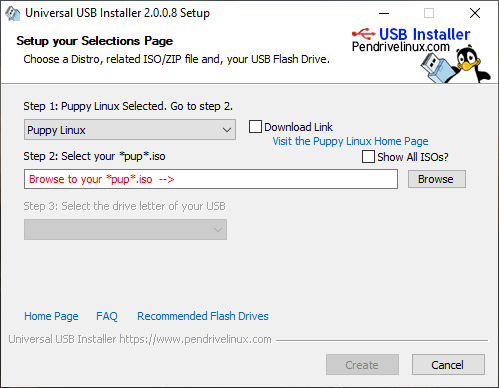
Universal USB Installer 2.0.3.9 is a lightweight and practical Windows utility designed to create bootable USB flash drives from ISO image files. It allows users to prepare portable Linux systems, operating-system installers, antivirus rescue environments, disk-management utilities, and other bootable tools through a simple step-by-step interface.
The program is commonly known as UUI and is developed for users who want an easier alternative to complicated command-line tools. It supports numerous Linux distributions and system utilities while also providing options for manually selecting compatible ISO files.
What Is Universal USB Installer?
Universal USB Installer is a bootable USB creation program that transfers the contents of a supported ISO image to a USB drive and configures it so that a computer can boot from it.
A bootable USB drive can be used to:
- Install an operating system.
- Test a Linux distribution without installing it.
- Repair an unresponsive computer.
- Scan a system for malware.
- Recover deleted or inaccessible files.
- Manage hard-drive partitions.
- Diagnose hardware problems.
- Reset passwords using compatible recovery tools.
- Run portable system utilities.
The program is portable, meaning it can usually be launched directly without going through a traditional installation process.
Main Features of Universal USB Installer 2.0.3.9
Simple Step-by-Step Interface
Universal USB Installer uses an easy interface that guides users through the creation process.
The basic workflow consists of selecting a supported operating system or utility, choosing an ISO image, selecting the destination USB drive, configuring available options, and starting the creation process.
This makes the software suitable for beginners who may not have previous experience creating bootable media.
Support for Many Linux Distributions
The program supports a wide range of popular Linux distributions and related projects.
Compatible choices may include:
- Ubuntu
- Linux Mint
- Debian
- Fedora
- Arch-based distributions
- Puppy Linux
- Kali Linux
- openSUSE
- Lubuntu
- Kubuntu
- Xubuntu
- SystemRescue
- Other supported Linux ISO images
The exact list may change as new program versions and Linux releases become available.
Bootable Windows Installation Media
Universal USB Installer can also be used with supported Microsoft Windows installation ISO files.
A properly prepared USB drive may allow users to:
- Install Windows on a compatible computer.
- Reinstall a damaged operating system.
- Upgrade an existing Windows installation.
- Access Windows recovery tools.
- Perform a clean system installation.
Compatibility can depend on the ISO structure, firmware mode, file system, and computer hardware.
Antivirus and Rescue Utilities
The application supports various rescue and diagnostic environments that can run before the installed operating system starts.
These tools may help users scan infected computers, recover files, repair partitions, inspect disks, or troubleshoot startup problems.
Running a rescue environment from USB is particularly useful when malware prevents Windows from starting normally.
Persistent Storage
Some supported Linux distributions can use persistent storage.
A normal live Linux session may lose downloaded files, changed settings, and installed applications after the computer restarts. Persistence creates a writable storage area on the USB drive where compatible distributions can preserve selected changes.
Depending on the Linux distribution, persistent storage may retain:
- Personal documents
- Wireless network settings
- Browser preferences
- Installed packages
- Desktop customizations
- Application settings
Persistence support is not available for every operating system or ISO image. Its behavior can also vary between different Linux releases.
Portable Operation
Universal USB Installer does not require a large installation package or complex configuration.
Users can download the executable, open it, accept the license terms, and begin creating a bootable USB drive. Its portable nature makes it convenient for computer technicians who need to carry system-maintenance tools between different computers.
Automatic Download Links
For many supported distributions and utilities, the program can provide access to the relevant official download page.
This helps users locate the correct ISO image instead of searching through unofficial websites. Downloading operating-system files from their original developers is recommended to reduce the risk of corrupted or modified images.
Manual ISO Selection
Users are not always limited to the predefined list.
Universal USB Installer may provide an option for selecting an unlisted Linux ISO or another compatible bootable image. However, an unlisted ISO is not guaranteed to work correctly because different bootable environments use different startup structures.
USB Drive Formatting
The program can format the selected USB drive when required.
Formatting prepares the drive with a compatible file system and removes existing files. Users should always verify the selected drive before beginning because choosing the wrong device may result in permanent data loss.
Important files should be copied to another storage location before the USB creation process begins.
How Universal USB Installer Works
Universal USB Installer does more than copy an ISO file directly onto a flash drive.
Depending on the selected operating system or utility, the program may:
- Format or prepare the selected USB drive.
- Extract required files from the ISO image.
- Copy the operating-system files to the drive.
- Install the necessary bootloader.
- Create startup configuration files.
- Configure optional persistent storage.
- Make the USB drive bootable.
After the process is complete, the computer must be restarted and configured to boot from the USB device.
How to Create a Bootable USB Drive
The general process is straightforward:
- Download Universal USB Installer 2.0.3.9.
- Connect a compatible USB flash drive.
- Back up all important files stored on the drive.
- Launch the program with administrator privileges.
- Accept the software license agreement.
- Select the required Linux distribution or system utility.
- Browse to the downloaded ISO image.
- Select the correct USB drive letter.
- Enable formatting when necessary.
- Configure persistent storage if supported.
- Review the selected options carefully.
- Start the creation process.
- Wait until all files have been written.
- Safely eject the USB drive.
- Restart the target computer.
- Open its boot menu and select the USB device.
The keyboard button used to open the boot menu varies by computer manufacturer. Common options include F12, F11, F9, Esc, and Del.
BIOS and UEFI Compatibility
Modern computers generally use UEFI firmware, while older systems may use a traditional BIOS.
Whether a bootable USB works correctly can depend on:
- The selected ISO image.
- The USB file system.
- Secure Boot settings.
- Legacy or UEFI boot mode.
- The partition layout.
- The computer manufacturer.
- The operating system being installed.
Some Linux distributions support Secure Boot, while others may require it to be temporarily disabled. Users should only change firmware settings when they understand the effect of those changes.
Supported USB File Systems
Universal USB Installer may use file systems such as FAT32 or NTFS, depending on the selected image and available options.
FAT32
FAT32 offers broad compatibility with BIOS and UEFI systems. However, it cannot store an individual file larger than 4 GB.
NTFS
NTFS supports files larger than 4 GB and may be useful for certain Windows installation images. Boot compatibility can vary across different UEFI systems.
The most suitable file system depends on the operating system, ISO contents, and target computer.
Universal USB Installer vs Rufus
Universal USB Installer and Rufus can both create bootable USB drives, but their workflows are different.
Universal USB Installer emphasizes a guided distribution list, Linux live systems, system utilities, and persistence support for compatible distributions.
Rufus provides more detailed control over partition schemes, target firmware, file systems, Windows installation options, and low-level formatting settings.
Universal USB Installer may be preferable for users who want:
- A guided Linux distribution list.
- A straightforward interface.
- Linux persistence options.
- Quick access to supported download pages.
- A portable and beginner-friendly utility.
Rufus may be more suitable for users who require advanced Windows installation options or greater control over partition and firmware settings.
Universal USB Installer vs Ventoy
Ventoy uses a different method for creating bootable USB drives.
After Ventoy is installed on a USB device, users can normally copy multiple ISO files directly to the drive. A boot menu then allows them to select which image to launch.
Universal USB Installer traditionally focuses on preparing supported images through its own creation process.
Universal USB Installer is useful for creating a focused bootable drive with a supported system, while Ventoy is often more convenient for storing and launching multiple ISO images from one device.
Universal USB Installer vs YUMI
Universal USB Installer and YUMI are associated with similar bootable USB workflows, but they serve different purposes.
Universal USB Installer is generally intended for creating a bootable drive using one selected distribution or utility at a time.
YUMI is designed primarily for multiboot USB drives that contain several operating systems, antivirus tools, and diagnostic utilities.
Users who need one bootable environment may find Universal USB Installer simpler. Technicians who want a collection of bootable tools on one drive may prefer a multiboot solution.
Common Uses
Universal USB Installer can be useful in many situations.
Installing Linux
Users can prepare a bootable Linux installer and install the operating system on a physical computer.
Testing Linux
A live USB allows users to explore a Linux desktop without modifying the internal drive, provided they do not start the installation process.
Repairing Windows
Supported rescue environments can help users access files or perform repairs when Windows cannot boot.
Malware Removal
Bootable antivirus tools can scan a system without loading the potentially infected Windows installation.
Data Recovery
Recovery utilities can help locate files on damaged or accidentally formatted drives.
Disk Management
Bootable partitioning tools can resize, create, remove, or inspect storage partitions.
Computer Diagnostics
Memory-testing and hardware-diagnostic tools can identify possible system failures.
Advantages
Universal USB Installer 2.0.3.9 offers several benefits:
- Simple and beginner-friendly interface.
- Portable operation without traditional installation.
- Support for many Linux distributions.
- Support for recovery and antivirus utilities.
- Linux persistence for compatible systems.
- Manual selection of certain unlisted ISO images.
- Built-in access to relevant download pages.
- Low system-resource consumption.
- Fast setup process.
- Useful for system installation and recovery.
- Suitable for home users and computer technicians.
- Free to use.
Disadvantages
The program also has some limitations:
- Creating the USB drive may erase all existing data.
- Persistence is not supported by every Linux distribution.
- Unlisted ISO images may not boot correctly.
- Some firmware configurations require manual changes.
- Secure Boot can cause compatibility problems.
- A damaged or incomplete ISO may create an unusable drive.
- USB writing speed depends heavily on the flash drive.
- A bootable USB may work on one computer but fail on another.
- It is less suitable than dedicated multiboot tools for storing many ISO images.
- Advanced users may prefer software with more partition and bootloader options.
System Requirements
Universal USB Installer is designed primarily for Microsoft Windows.
Typical requirements include:
- A supported 64-bit or 32-bit Windows environment, depending on the program build.
- Administrator permissions.
- A USB flash drive with sufficient available capacity.
- A compatible ISO image.
- Enough temporary storage for processing the image.
- A working USB port.
- An internet connection when downloading ISO files.
- A computer capable of booting from USB.
The required USB capacity depends on the selected operating system. Small diagnostic utilities may need only a few gigabytes, while modern operating-system installers may require a considerably larger drive.
An 8 GB or larger USB drive is suitable for many images, but 16 GB, 32 GB, or more may be required for larger systems or persistent storage.
Safety Recommendations
Creating bootable media involves direct access to storage devices. Users should follow several precautions:
- Back up the USB drive before formatting it.
- Verify the correct drive letter.
- Disconnect unnecessary external drives.
- Download ISO files from official sources.
- Check available file hashes when possible.
- Do not remove the USB drive while files are being written.
- Use a reliable flash drive.
- Scan downloaded files with trusted security software.
- Avoid modified operating-system images from unknown websites.
- Keep important recovery files on a separate device.
Selecting the wrong drive is one of the greatest risks when using USB creation tools.
Troubleshooting a USB Drive That Does Not Boot
When the created USB drive fails to start, users can try the following solutions:
- Recreate the drive using a newly downloaded ISO.
- Confirm that the ISO supports booting from USB.
- Try another USB port.
- Use a USB 2.0 port on older computers.
- Open the computer’s one-time boot menu.
- Check whether USB booting is enabled.
- Test both UEFI and Legacy modes when supported.
- Review the Secure Boot setting.
- Try another flash drive.
- Reformat the device before recreating it.
- Confirm that the ISO architecture matches the computer.
- Update the computer firmware when appropriate.
Any firmware changes should be documented so the original settings can be restored later.
Is Universal USB Installer 2.0.3.9 Worth Using?
Universal USB Installer 2.0.3.9 is a useful choice for users who need a straightforward way to create bootable Linux, recovery, diagnostic, or operating-system installation media.
Its guided interface removes much of the complexity associated with manually extracting ISO files and configuring bootloaders. Support for compatible persistent Linux storage also makes it valuable for users who want a portable live operating system that can preserve files and settings.
Users who need advanced Windows customization, detailed partition controls, or a large multiboot library may prefer alternatives such as Rufus, Ventoy, or YUMI. However, Universal USB Installer remains an accessible and effective solution for creating individual bootable USB drives.
Conclusion
Universal USB Installer 2.0.3.9 is a lightweight and convenient bootable USB creation tool for Windows. It supports many Linux distributions, operating-system installers, rescue environments, antivirus utilities, and disk-management tools.
Its portable design, guided workflow, ISO selection options, persistence support, and straightforward controls make it suitable for both beginners and experienced technicians.
Overall, Universal USB Installer is a practical utility for installing operating systems, testing Linux distributions, repairing computers, recovering data, and carrying essential bootable tools on a portable USB drive.