TweakHub 1.3.0: Free Windows 11 Optimization, Tweaking, and Maintenance Toolkit
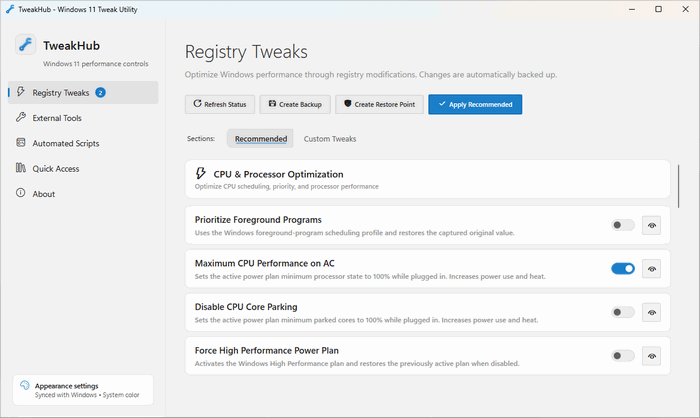
TweakHub 1.3.0 is a free, open-source Windows utility that brings system tweaks, performance optimizations, automated scripts, external maintenance tools, and customization options together within one centralized interface.
Developed by Prime Build, the application is designed primarily for Windows 11 users, computer technicians, gamers, system builders, and advanced users who frequently configure or maintain Windows computers.
TweakHub is available as a standard installer and can also operate as a portable toolkit. The portable configuration is particularly useful for technicians who want to keep their preferred tools, scripts, Registry adjustments, favorites, and appearance settings on a USB drive and carry them between different computers.
What Is TweakHub?
TweakHub is an all-in-one control center for applying common Windows settings and optimizations without manually navigating through Registry Editor, PowerShell, Command Prompt, Windows Settings, and multiple third-party applications.
Its main interface organizes available functions into several categories, including:
- Registry tweaks
- CPU optimizations
- Memory-management settings
- Gaming adjustments
- Network tweaks
- Windows interface customization
- External maintenance tools
- Automated scripts
- Custom user-defined tweaks
- Backup and restore options
Instead of manually locating every Registry value or command, users can select an available adjustment through the graphical interface.
TweakHub is distributed under the MIT license and is provided as an open-source utility.
What Is New in TweakHub 1.3.0?
TweakHub 1.3.0 was released on July 23, 2026. The update primarily expands the application’s localization system and introduces complete Japanese-language support.
Complete Japanese Localization
Version 1.3.0 adds Japanese translations throughout the application.
The localization covers:
- The main interface
- Registry-tweak descriptions
- External tools
- Automated scripts
- Settings and menus
- Installer components
This provides a more consistent experience for Japanese-speaking users instead of translating only a small portion of the interface.
Automatic Japanese Windows Detection
The application can automatically detect Japanese Windows installations and select the appropriate interface language.
Users can also change the language manually through the About and Settings section.
Japanese Installer Support
The standard installation wizard now includes Japanese-language support, allowing users to complete the setup process in Japanese.
Expanded Localization Validation
Version 1.3.0 improves localization checks across all six supported interface languages.
These checks help identify untranslated text, inconsistent labels, and language-related interface problems.
Centralized Windows Tweaking
Windows includes many useful settings that are hidden inside different control panels, administrative consoles, policies, commands, and Registry locations.
TweakHub provides one interface for accessing many of these adjustments.
This can reduce the time needed to configure a newly installed computer or restore preferred settings after reinstalling Windows.
The program is especially useful when preparing:
- Gaming computers
- Office workstations
- Home PCs
- Technician repair systems
- Custom-built computers
- Fresh Windows installations
- Test environments
- Virtual machines
Registry Tweaks
Many of TweakHub’s optimizations work by modifying documented or commonly used Windows Registry values.
The Registry Tweaks section presents these adjustments through switches and selectable options, reducing the need to edit values manually.
Available tweaks may target areas such as:
- Processor scheduling
- Memory management
- Network behavior
- Application responsiveness
- Windows interface behavior
- Gaming settings
- Input configuration
- Background activity
- Privacy-related options
- System services
Using a graphical interface can reduce typing mistakes, but Registry modifications still require caution.
An incorrect or unsuitable tweak can cause instability, compatibility problems, reduced battery life, or unexpected Windows behavior.
CPU Performance Tweaks
TweakHub includes settings intended to adjust how Windows manages processor resources.
Depending on the selected options, CPU-related tweaks may change:
- Foreground application priority
- Background-task scheduling
- Multimedia scheduling
- Processor power behavior
- System responsiveness
- Gaming workload prioritization
- Service scheduling
These settings may help users tailor Windows for gaming, workstation use, or general responsiveness.
However, optimization results depend heavily on the processor, Windows build, power plan, installed drivers, applications, and existing configuration.
A tweak that improves performance on one computer may provide no measurable benefit on another.
Memory-Management Tweaks
The application includes several options related to Windows memory behavior.
Examples may include adjustments for:
- SysMain or SuperFetch
- Page-file behavior
- Clearing the page file during shutdown
- Memory caching
- Application response
- Background memory usage
- System resource management
Disabling SysMain may help troubleshoot unusual disk activity on certain systems, but it is not universally beneficial. On many modern computers, Windows manages this service effectively.
Similarly, clearing the page file during shutdown may improve privacy in specific environments, but it can significantly increase shutdown time.
Users should understand the purpose of each setting before enabling it.
Gaming Optimizations
TweakHub contains settings designed for users who want to prepare Windows for gaming.
Gaming-related adjustments may include:
- Disabling mouse acceleration
- Improving pointer precision configuration
- Adjusting Game Mode
- Managing Game Bar components
- Reducing selected background activity
- Modifying multimedia scheduling
- Changing network-related values
- Applying gaming-focused power settings
Disabling mouse acceleration can provide more predictable pointer movement in competitive games, particularly when the game uses raw input inconsistently.
Users should not expect every optimization to increase average frame rates. Many tweaks are more likely to affect responsiveness, background activity, or consistency than produce a large performance improvement.
Network Tweaks
TweakHub includes Registry settings and scripts intended to modify Windows networking behavior.
Possible network-related functions may address:
- TCP configuration
- Network throttling
- Multimedia network behavior
- DNS settings
- Adapter configuration
- Latency-related options
- Background network services
Network tweaks should be used carefully.
Modern Windows versions automatically configure many TCP and adapter parameters. Applying outdated or unsuitable values can reduce download speed, cause connection instability, or interfere with VPN and business-network configurations.
Users should test network performance before and after applying changes instead of assuming that every tweak is beneficial.
Windows Interface Customization
The program provides convenient access to several Windows interface adjustments.
Depending on the version and Windows configuration, users may be able to modify:
- Taskbar behavior
- Start menu options
- File Explorer settings
- Context menus
- Desktop behavior
- Visual effects
- Animation settings
- Notification preferences
- Search features
- Privacy-related interface options
These settings can help users create a cleaner and more efficient Windows environment without navigating through several menus.
External Tools
The External Tools section provides quick access to additional utilities for specialized maintenance and configuration tasks.
Instead of including every advanced function directly inside TweakHub, the application can help users locate and obtain programs intended for tasks such as:
- System cleaning
- Hardware monitoring
- Software installation
- Privacy configuration
- Driver management
- Disk analysis
- Application removal
- Windows customization
- Network diagnostics
- Performance testing
This allows TweakHub to serve as a central launcher for a broader portable maintenance toolkit.
Users should review the developer, license, and purpose of every external program before installing or running it.
Automated Scripts
TweakHub includes automated scripts that can perform groups of actions with minimal user interaction.
Scripts can be useful for repetitive tasks that would otherwise require several commands or manual configuration steps.
Each included script provides a description, and users can inspect its code before execution. This improves transparency and allows technically experienced users to understand what will be changed.
Automated scripts may perform tasks such as:
- Applying groups of Windows settings
- Removing selected optional applications
- Cleaning temporary data
- Configuring services
- Repairing Windows components
- Installing useful software
- Resetting network components
- Adjusting privacy settings
Users should never execute an unfamiliar script without reviewing its description and understanding the possible effects.
Custom Tweaks
Advanced users can add their own Registry adjustments, scripts, tools, and commands.
This allows technicians to transform TweakHub into a personalized Windows configuration platform.
A custom toolkit may contain:
- Frequently used Registry files
- PowerShell scripts
- Batch files
- Diagnostic applications
- Software installers
- Driver packages
- Repair commands
- Company-specific configurations
- Personal Windows preferences
Custom tweaks offer flexibility, but TweakHub cannot automatically guarantee that every user-created action is safe or compatible.
Incorrect custom commands may damage Windows settings or remove important components.
Backup and Restore Features
Before applying significant changes, users can create backups or a Windows restore point.
This is one of the most important steps when using any tweaking application.
A restore point may help recover system settings if a modification causes:
- Application errors
- Driver problems
- Missing Windows features
- Network failures
- Interface instability
- Reduced performance
- Startup issues
Users should also keep a separate backup of important files because System Restore is not a complete replacement for file backup software.
Reverting Changes
Some adjustments can be restored through TweakHub or by applying the original Windows default value.
The exact restoration method depends on the tweak.
Possible recovery options include:
- Using the application’s restore function
- Disabling the selected tweak
- Applying the default Registry value
- Importing a Registry backup
- Running a reversal script
- Using Windows System Restore
- Restoring a system image
Users should document the changes they apply, particularly when configuring several computers.
Portable Version
TweakHub is designed to support a portable workflow.
The developer describes the application as being built to live on a USB drive. Users can extract the application, add preferred tools and scripts, configure Registry tweaks, save favorites, and retain interface preferences inside the same portable folder.
The folder can then be carried between authorized Windows computers.
Advantages of the Portable Edition
The portable version provides several practical benefits:
- No traditional installation is required.
- It can be stored on a USB drive.
- User preferences remain with the application.
- Custom scripts and tools can be carried together.
- It is useful for computer technicians.
- It can be removed by deleting its folder.
- Multiple PCs can be configured with the same toolkit.
- It is suitable for temporary maintenance sessions.
The portable edition may still create normal Windows logs, recent-file information, or temporary files while running.
Portable software also does not avoid administrator requirements. Operations that modify system-level settings still require elevated privileges.
Standard Installer Version
The installer edition is suitable for users who want TweakHub permanently available on one computer.
The standard setup package provides a more traditional Windows application experience.
Possible advantages include:
- Start menu integration
- Desktop shortcuts
- Standard uninstall support
- A consistent installation location
- Easier access for regular use
- Installer-based language detection
- Better convenience for a personal computer
Softpedia lists the setup package as TweakHub-Setup-1.3.0.exe, with a download size of approximately 47.3 MB.
Installer vs. Portable Edition
Both editions provide the main TweakHub features. The primary difference is how the program and its configuration are stored.
Choose the installer edition when:
- The program will remain on one PC.
- Start menu shortcuts are preferred.
- A standard uninstall process is required.
- TweakHub will be used frequently.
- Automatic installer language selection is useful.
Choose the portable edition when:
- No permanent installation is desired.
- The toolkit will be carried on a USB drive.
- Multiple authorized computers must be maintained.
- Custom tools and scripts should remain together.
- The program is needed only temporarily.
- A technician is preparing a repair toolkit.
Administrator Privileges
TweakHub runs with the current user’s normal permissions and requests administrator privileges only when an operation requires them.
Administrative access may be required for:
- System-wide Registry changes
- Service configuration
- Power-plan adjustments
- Removing built-in applications
- Changing protected Windows settings
- Running elevated scripts
- Repairing system components
- Installing external utilities
Users should review the Windows User Account Control request before approving it.
Supported Languages
TweakHub 1.3.0 includes support for six interface languages.
Version 1.3.0 specifically expands localization with complete Japanese support and improves translation checks throughout all supported languages.
The available language can be detected automatically or selected manually through the application settings.
User Interface
TweakHub uses a modern graphical interface that organizes available functions into clearly separated areas.
Instead of presenting users with a large command-line window, it provides descriptions, buttons, switches, categories, and status information.
The interface is intended to make Windows optimization more accessible while preserving advanced options for experienced users.
Users can generally:
- Select a category.
- Read the description of a tweak.
- Choose the required adjustment.
- Create a backup.
- Apply the selected changes.
- Restart Windows when necessary.
- Test system behavior.
- Reverse unsuitable changes.
System Requirements
General requirements for TweakHub 1.3.0 include:
- Microsoft Windows 11
- A compatible 64-bit processor
- Administrator privileges for advanced operations
- Sufficient free storage for the application and external tools
- An internet connection for downloading optional utilities
- PowerShell and standard Windows management components
- A display capable of showing the full interface
Softpedia currently lists Windows 11 as the supported operating system for version 1.3.0.
Although some individual Registry adjustments may also exist on Windows 10, users should not assume complete compatibility unless the developer explicitly supports that system.
How to Install TweakHub 1.3.0
To use the standard installer edition:
- Obtain the official setup package.
- Verify that the file comes from the project repository or another trusted source.
- Run
TweakHub-Setup-1.3.0.exe. - Approve the Windows security request.
- Select the preferred language.
- Follow the installation wizard.
- Launch TweakHub.
- Create a restore point.
- Review each optimization before applying it.
- Restart Windows when requested.
How to Use the Portable Version
To use the portable edition:
- Download the official portable package.
- Extract all files to a dedicated folder.
- Do not run the program directly inside the compressed archive.
- Place custom tools and scripts in the appropriate folders.
- Launch TweakHub normally.
- Approve administrator access only when required.
- Create a restore point before applying changes.
- Keep the folder on a reliable USB drive if it will be used across several computers.
Users should not disconnect the portable drive while TweakHub or one of its external tools is running.
Recommended Safety Practices
Windows tweaking tools can modify important system settings. The following precautions are strongly recommended:
- Create a restore point first.
- Back up important files.
- Apply only a few tweaks at a time.
- Read every description carefully.
- Inspect automated scripts before execution.
- Avoid importing unknown custom tweaks.
- Record the original configuration.
- Restart and test Windows after major changes.
- Do not disable essential security services.
- Avoid unsupported tweaks found on random websites.
- Use only the official or trusted release.
- Test changes before deploying them across multiple PCs.
Users should also avoid applying performance tweaks merely because they sound advanced. A measurable benchmark or clearly defined problem should justify each modification.
Does TweakHub Increase Gaming Performance?
TweakHub may help improve system responsiveness or reduce unnecessary background activity in certain situations.
Potential benefits may include:
- More predictable mouse input
- Reduced background processes
- Improved power-plan configuration
- Lower unnecessary memory usage
- Fewer interface animations
- Better control over gaming-related Windows features
However, it cannot transform weak hardware into a high-end gaming computer.
Actual gaming performance is primarily determined by:
- The processor
- Graphics hardware
- Available memory
- Storage performance
- Cooling
- Game settings
- Drivers
- Background software
- The game engine
Users should compare frame rates, frame times, latency, temperatures, and power consumption before and after applying optimizations.
Advantages of TweakHub 1.3.0
- Free and open-source
- Distributed under the MIT license
- Centralizes Windows 11 tweaks
- Provides CPU and memory adjustments
- Includes gaming-related settings
- Offers network and interface customization
- Supports automated scripts
- Allows users to inspect script code
- Integrates external maintenance tools
- Supports custom tweaks and utilities
- Includes backup and recovery options
- Can operate as a portable toolkit
- Keeps portable preferences with the application
- Requests elevation only when required
- Adds complete Japanese localization
- Supports six interface languages
- Suitable for technicians and power users
Disadvantages
- Primarily designed for Windows 11.
- Some adjustments may provide little measurable improvement.
- Incorrect Registry changes can cause system problems.
- Custom tweaks may be unsafe or incompatible.
- Automated scripts require careful review.
- Several features require administrator privileges.
- Network modifications may reduce performance when misconfigured.
- Aggressive gaming tweaks may increase energy consumption.
- It does not replace antivirus or backup software.
- Beginners may not understand every available option.
- Results differ between hardware configurations.
Is TweakHub Safe?
TweakHub is an open-source project, which allows its code and development activity to be reviewed publicly.
The official repository describes it as an all-in-one control center for Windows system tweaks and optimizations and distributes it under the MIT license.
However, the fact that an application is open source does not make every tweak automatically suitable for every computer.
TweakHub changes Windows settings, and some available actions can affect performance, stability, privacy, networking, or application compatibility.
Users should obtain the program from its official project repository or another trusted distributor and avoid unofficial modified packages.
Is TweakHub an Antivirus?
No.
TweakHub is a Windows optimization and configuration toolkit. It is not designed to detect, quarantine, or remove malware.
Users should continue using Microsoft Defender or another reputable security solution.
Disabling security components for a possible performance improvement is generally not recommended.
Who Should Use TweakHub?
TweakHub 1.3.0 is suitable for:
- Windows 11 users
- Gamers
- Computer technicians
- System builders
- Advanced home users
- IT support professionals
- Users reinstalling Windows
- People managing several computers
- Users who want a portable maintenance toolkit
- Anyone who frequently applies the same Windows settings
- Users who prefer open-source system utilities
Beginners can use the graphical interface, but they should avoid advanced and custom tweaks until they understand their effects.
Is TweakHub 1.3.0 Worth Using?
TweakHub can be valuable for users who regularly configure Windows 11 computers and want a single location for Registry adjustments, scripts, external tools, and preferred settings.
Its portable design is one of its strongest advantages. Technicians can create a personalized toolkit, store it on removable media, and retain their configuration between maintenance sessions.
The application also provides greater transparency than many automatic optimization programs because users can read tweak descriptions and inspect scripts before execution.
TweakHub should nevertheless be treated as a configuration tool rather than a guaranteed performance booster. The best results come from selecting only relevant changes, testing them carefully, and maintaining a reliable recovery method.
Final Verdict
TweakHub 1.3.0 is a flexible, free, and open-source Windows 11 optimization toolkit that combines Registry tweaks, system adjustments, gaming settings, automated scripts, external utilities, custom actions, and recovery options in one interface.
Version 1.3.0 improves accessibility by adding complete Japanese localization, automatic detection of Japanese Windows installations, Japanese installer support, and expanded translation checks across all six supported languages.
Its installer edition is suitable for regular use on a single computer, while the portable edition is particularly useful for technicians and advanced users who want to carry a customized Windows maintenance toolkit between PCs.
When used carefully, TweakHub can simplify repetitive Windows configuration tasks and provide convenient access to many hidden settings. Users should still create backups, review every action, and avoid applying unnecessary tweaks without measuring their actual effect.