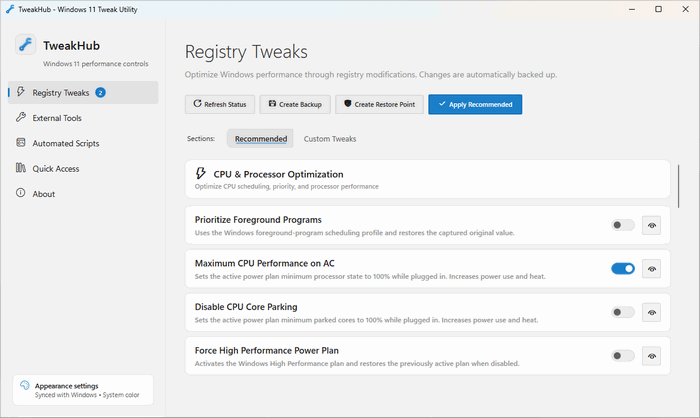
TweakHub 1.0.1 Portable: The Complete Windows 11 Tweaking, Repair, and Optimization Toolkit
TweakHub 1.0.1 is a free and open-source Windows utility that brings system tweaks, performance settings, repair commands, automation scripts, external tools, and administrative shortcuts together in one organized interface.
The application is primarily designed for Windows 11 users, system administrators, technicians, gamers, and advanced users who frequently configure, optimize, repair, or rebuild computers.
Instead of manually searching through Windows settings, editing Registry entries, opening different management consoles, or running complicated command-line instructions, users can access many common operations directly through TweakHub.
The program is available as both a standard installer and a portable edition. The portable version is particularly useful because it can be stored on a USB drive and carried between different Windows 11 computers while preserving custom tools, scripts, preferences, favorites, and configuration files.
What Is TweakHub 1.0.1?
TweakHub is an all-in-one control center for Windows 11 system configuration and optimization.
It provides a graphical interface for applying selected Windows Registry modifications, changing power settings, running automated PowerShell and Command Prompt scripts, repairing damaged Windows components, installing useful applications, and opening administrative tools.
The application is not intended to replace Windows itself or perform automatic one-click optimization without user involvement. Instead, it provides a structured environment where users can review available changes and select the operations that match their requirements.
TweakHub can apply modifications related to:
- Processor behavior
- Memory management
- Power settings
- Gaming responsiveness
- Mouse behavior
- Network configuration
- Windows interface options
- Privacy-related settings
- Background services
- System repair
- Application installation
- Administrative tools
Because many of these operations change important Windows settings, users should understand each option before applying it.
TweakHub 1.0.1 Release
TweakHub 1.0.1 was officially published on July 18, 2026.
The release is designed for Windows 11 build 22000 or later. It is available through the project’s official releases in portable and installer formats.
The project is distributed under the MIT open-source license, allowing users to inspect the source code and understand how the application performs its operations.
Version 1.0.1 belongs to the early stable release line of the application and focuses on providing a reliable central location for Windows tweaks, repair tools, scripts, and external utilities.
Main Features of TweakHub 1.0.1
Windows Registry Tweaks
TweakHub provides a collection of selected Registry modifications that can change how Windows manages performance, responsiveness, memory, power, gaming, networking, and interface behavior.
Instead of opening Registry Editor and manually navigating through complicated Registry paths, users can apply supported modifications through the application interface.
Registry-related options may include adjustments for:
- CPU task prioritization
- Background process behavior
- Memory management
- Windows responsiveness
- Network latency
- Gaming performance
- Mouse acceleration
- Power throttling
- System interface behavior
- Privacy-related Windows features
Each tweak should be reviewed carefully because the effect can vary depending on the computer, hardware, drivers, and current Windows configuration.
Automatic Registry Backups
Before supported Registry modifications are applied, TweakHub can save the original values.
These backups allow users to restore previous settings when a change causes an unexpected result or does not provide the desired improvement.
The portable edition stores Registry backup information inside its own Data directory, allowing the application to remember outstanding changes and rollback information.
Users should not delete the backup files before restoring any settings they may want to reverse.
Tweak Verification
TweakHub can verify whether supported modifications were applied correctly.
Verification helps users determine whether Windows accepted the requested change or whether the setting is still using its previous value.
This is especially helpful when dealing with Registry values, power settings, and configurations that may be affected by Windows updates, security policies, or administrator permissions.
Rollback and Restoration
A major advantage of TweakHub is its rollback functionality.
Users can return supported Registry and power settings to their previously recorded values when necessary. This is safer than manually trying to remember every original configuration.
Rollback can be useful when:
- A tweak causes instability
- A game performs worse
- A Windows feature stops working
- Power consumption increases
- Network performance changes
- The system becomes less responsive
- A modification is no longer required
Machine-specific rollback backups are not automatically included when exporting portable profiles because restoring settings from a different computer could cause problems.
Power Configuration
TweakHub includes options for managing Windows power-related settings and active power plans.
Power configuration can affect:
- Processor performance
- Energy consumption
- Laptop battery life
- Sleep behavior
- Hardware responsiveness
- Gaming performance
- Thermal output
- Background activity
The application stores original power settings when supported modifications are applied, allowing users to restore them later.
Performance-focused power configurations may increase electricity usage, fan activity, and system temperature. Laptop users should consider the effect on battery life.
CPU Optimization Options
The program includes tweaks intended to change how Windows prioritizes processor activity.
These options may help users configure the system for workloads such as:
- Gaming
- Real-time applications
- Content creation
- General desktop use
- Background processing
- Low-latency tasks
CPU tweaks do not increase the physical capabilities of a processor. Their purpose is to modify how Windows schedules or prioritizes selected operations.
The actual benefit depends on the processor, Windows build, active programs, cooling system, drivers, and workload.
Memory Management Tweaks
TweakHub provides access to memory-related Windows adjustments.
These may include options associated with:
- SysMain behavior
- Virtual memory
- Page file management
- Memory cleanup
- Application responsiveness
- Cached data
- Shutdown behavior
Disabling or changing Windows memory-management features does not always improve performance. Systems with limited RAM may perform worse when important features are disabled.
Users should select memory tweaks based on their hardware and workload rather than applying every available option.
Gaming Tweaks
TweakHub includes settings intended for users who want to configure Windows for gaming.
Gaming-related options may focus on:
- Input responsiveness
- Mouse acceleration
- Network latency
- Background activity
- Processor scheduling
- Power performance
- Game-related Windows services
- System responsiveness
The application can make it easier to disable unwanted behavior or select gaming-oriented configurations.
However, performance gains are not guaranteed. Game performance is mainly influenced by the processor, graphics card, memory, storage, drivers, game engine, resolution, and graphics settings.
Mouse and Input Adjustments
Some users prefer direct mouse input without additional Windows acceleration.
TweakHub may provide options for disabling mouse acceleration or adjusting input-related behavior.
These settings can be useful for competitive gaming, aiming consistency, design software, and other tasks that benefit from predictable pointer movement.
The best configuration depends on the mouse, sensitivity settings, display resolution, game settings, and personal preference.
Network Tweaks
The program can provide access to selected Windows network settings.
These tweaks may be intended to adjust:
- Latency-related behavior
- Network responsiveness
- TCP settings
- Background network activity
- Connection behavior
- Gaming communication
Network tweaks should be applied carefully. A setting that benefits one connection type may not improve another.
Internet performance remains dependent on:
- Internet service provider
- Router
- Network adapter
- Wi-Fi signal
- Ethernet connection
- Server distance
- Network congestion
- Application behavior
TweakHub cannot increase an internet connection beyond the limits of the network service.
Automated PowerShell and CMD Scripts
TweakHub includes an automation section for running PowerShell and Command Prompt scripts.
Scripts can perform multiple system operations without requiring the user to enter every command manually.
The application provides important controls such as:
- Script previews
- Administrator elevation
- Execution timeout
- Cancellation
- Descriptions
- Saved output
- Custom script support
Users can inspect script content before running it, helping them understand what changes will be made.
Custom scripts are powerful but may also be dangerous when obtained from an untrusted source.
Script Preview
Before an automated script is executed, TweakHub can display its commands.
This allows advanced users to inspect the instructions and confirm whether they are appropriate.
A preview is particularly important for scripts that:
- Remove applications
- Disable Windows components
- Change services
- Edit Registry values
- Delete files
- Modify power settings
- Reset network configurations
- Run repair operations
Users who do not understand a command should research it before allowing the script to continue.
Administrator Privileges When Required
TweakHub normally runs using the current Windows account.
It requests administrator privileges only when an operation requires elevated access.
This approach avoids keeping the entire application permanently elevated while still allowing it to perform administrative tasks when necessary.
Windows may display a User Account Control confirmation before an elevated operation begins.
Custom Scripts
Advanced users can add their own PowerShell and CMD scripts.
Custom scripts can be used for repetitive tasks such as:
- Applying organizational settings
- Installing applications
- Configuring gaming computers
- Cleaning temporary files
- Starting repair commands
- Changing network options
- Preparing newly installed systems
- Running maintenance procedures
In portable mode, custom script definitions are stored with the application configuration.
Users should test custom scripts carefully before applying them to important or production computers.
DISM Repair Tools
TweakHub provides access to Windows Deployment Image Servicing and Management repair commands.
DISM can check and repair the Windows component store, which may help resolve problems caused by damaged system files, incomplete updates, or corrupted Windows components.
A typical repair workflow may include checking the system image and restoring damaged components.
DISM operations may require:
- Administrator privileges
- An active internet connection
- Windows Update access
- Sufficient free storage space
- Several minutes to complete
Users should not close the application or restart the computer while an important repair process is running unless the operation has clearly stopped.
System File Checker
The application also supports the System File Checker workflow.
SFC scans protected Windows system files and replaces corrupted or modified files with valid copies when possible.
It can help with issues such as:
- Missing Windows files
- Damaged system components
- Unstable Windows features
- Application errors
- Update-related corruption
- Unexpected crashes
TweakHub saves repair output, allowing users to review the results after the operation is completed.
Combined Windows Repair Workflow
TweakHub can combine verified DISM and SFC operations into an organized repair procedure.
Using DISM before SFC is often helpful because DISM repairs the component source that SFC may use when replacing damaged files.
The repair tools do not fix every Windows problem. Hardware failure, malware, damaged user profiles, incompatible drivers, and third-party application problems may require additional troubleshooting.
External Tools Library
TweakHub includes a toolbox containing categorized external applications and utilities.
The toolbox can provide convenient access to programs for:
- System monitoring
- Hardware information
- Cleaning
- Benchmarking
- Driver management
- Troubleshooting
- Software installation
- Gaming optimization
- Security
- Maintenance
Some tools can be installed using Windows Package Manager, while others may be opened through trusted HTTPS links.
External applications are separate products and may have their own licenses, privacy policies, system requirements, and risks.
WinGet Integration
TweakHub can use WinGet to install supported software packages.
WinGet is Microsoft’s command-line package manager for Windows. It can search for, install, upgrade, and manage applications from registered package sources.
TweakHub provides a graphical way to access selected WinGet packages without manually entering commands.
The success of a WinGet installation depends on:
- Internet access
- Package availability
- WinGet configuration
- Administrator permissions
- Source-server status
- Application requirements
User-Created Tool Cards
Users can add custom external applications to the TweakHub toolbox.
A custom tool card can provide quick access to a frequently used utility, installer, script, executable file, or trusted website.
This feature is useful for technicians who maintain a personal toolkit containing diagnostic and maintenance applications.
Custom tools can be stored with the portable profile so that the same toolbox can be used on multiple computers.
Trusted Download Links
TweakHub uses trusted HTTPS links for supported external resources.
HTTPS encrypts the network connection between the application and the website. However, it does not automatically guarantee that every downloaded program is suitable for every user.
Downloaded files should still be verified and scanned using trusted security software.
Quick Access to Windows Tools
The program provides shortcuts to common Windows administration consoles and Control Panel sections.
Quick-access items may include tools such as:
- Device Manager
- Disk Management
- Services
- Registry Editor
- Task Scheduler
- Event Viewer
- System Configuration
- Control Panel
- Network settings
- Power options
- Windows Terminal
- Computer Management
This saves time for users who regularly work with different Windows administration interfaces.
Favorites
External tools can be added to a favorites section for quicker access.
This is useful when the toolbox contains many applications but the user regularly works with only a selected group.
Portable builds store favorite selections beside the application, allowing the same list to travel with the user.
Customizable Appearance
TweakHub supports multiple appearance options, including:
- System theme
- Light theme
- Dark theme
- Accent selection
- Transparency settings
Appearance preferences are saved in the application profile.
The interface is designed as a modern Windows 11 control center, making its sections easier to navigate than manual Registry paths and command-line tools.
Update System
TweakHub includes an update mechanism for checking and installing newer versions.
Official updates use confirmation controls and SHA-256 verification.
SHA-256 checksums help verify that downloaded update files match the files released by the developer and were not accidentally corrupted.
Users should obtain updates from the official project rather than downloading modified copies from unknown websites.
Portable Version
The portable edition is the recommended TweakHub distribution for users who maintain multiple computers.
It does not require a conventional system-wide installation. Users can extract the complete archive into a local folder or USB drive and launch TweakHub.exe.
The portable folder contains the application, portable marker, configuration files, operation records, and user-created content.
Benefits of the Portable Edition
The portable version offers several advantages:
- No traditional installation required
- Can run from a USB drive
- Easy to move between computers
- Saves custom scripts
- Saves custom tools
- Saves Registry tweaks
- Saves favorites
- Preserves themes and appearance settings
- Stores operation logs
- Keeps rollback information
- Useful for technicians
- Suitable for computer repair toolkits
Users should copy the entire portable directory when moving the program.
Copying only TweakHub.exe will not preserve all required configuration, backup, and profile files.
Portable Data Folder
The portable edition creates a Data directory beside the main application files.
This directory may contain files such as:
registry-backup.json
Stores original Windows Registry values that may be required when rolling back applied tweaks.
power-backup.json
Stores original power settings and information about the previously active Windows power plan.
operations.jsonl
Contains an audit log of Registry and power-related operations performed through the program.
custom-scripts.json
Stores PowerShell and CMD scripts created or added by the user.
custom-tweaks.json
Stores user-created Registry modifications.
custom-tools.json
Stores custom external tool cards.
favorites.json
Stores applications and external tools marked as favorites.
appearance.json
Stores interface theme, accent, and transparency preferences.
pending-restarts.json
Tracks changes that require Windows to be restarted before they can take full effect.
Users should not manually delete these files unless they understand their purpose and no longer require the stored information.
Portable Profile Export and Import
TweakHub can export or import a complete portable user profile using a TweakHub profile file.
The profile can include:
- Custom tools
- Custom scripts
- Custom Registry tweaks
- Favorites
- Appearance settings
- General preferences
Machine-specific rollback backups are intentionally excluded from exported profiles.
This protects users from accidentally restoring Registry or power values that belong to another computer.
Installer Version
The installer edition provides a conventional per-computer setup.
It installs TweakHub on the selected Windows machine and stores user data under the Windows AppData directory instead of beside the application executable.
The installed version is suitable for users who intend to use the program regularly on one computer and do not need to carry its configuration between systems.
TweakHub can also be installed or upgraded through WinGet using the official package identifier.
Portable vs Installer Edition
The portable edition is better suited to:
- Repair technicians
- IT administrators
- Users maintaining multiple PCs
- USB maintenance toolkits
- Temporary troubleshooting sessions
- Users who prefer self-contained applications
The installer edition is better suited to:
- A permanent personal computer
- Regular daily use
- Standard Start menu integration
- Users who prefer automatic application management
- A fixed configuration on one machine
Both editions provide the same general system-tweaking and repair capabilities.
The main difference is where the program stores its data and how it is deployed.
Operation Logs
TweakHub records selected Registry and power operations.
Logs can help users determine:
- Which modification was applied
- When an operation occurred
- Whether a process succeeded
- Whether administrator access was used
- Which setting may need to be restored
Operation history is especially valuable when troubleshooting unexpected behavior after several tweaks have been applied.
Pending Restart Tracking
Some Windows changes do not take effect immediately.
TweakHub can track tweaks that require a system restart and notify the user that Windows must be rebooted.
Restart-dependent changes may involve:
- System services
- Registry settings
- Memory behavior
- Power configuration
- Windows Explorer
- Networking components
- Security policies
Users should save their work before restarting Windows.
Safety Precautions
TweakHub changes important Windows settings, so it should be used carefully.
Before applying modifications:
- Create a Windows restore point.
- Back up important personal files.
- Read the description of every tweak.
- Apply only changes you understand.
- Avoid selecting all tweaks at once.
- Test modifications in small groups.
- Restart Windows when requested.
- Keep TweakHub backup files.
- Record the original system behavior.
- Avoid untrusted custom scripts.
- Use the official version.
- Confirm that important Windows updates are installed.
A system restore point provides an additional recovery option if a change causes serious Windows problems.
Why Not Apply Every Tweak?
More tweaks do not necessarily produce better performance.
Windows 11 automatically manages many settings according to the computer’s hardware and workload. Disabling services, memory features, security options, or background components can sometimes reduce performance or break required functionality.
A gaming computer, office workstation, laptop, editing system, and server-like machine may require different configurations.
Users should select tweaks according to their actual needs rather than applying every available setting.
System Requirements
TweakHub 1.0.1 officially supports:
- Windows 11
- Windows 11 build 22000 or newer
- A 64-bit Windows environment
- Administrator access for protected operations
- Sufficient storage space for the application and backups
- An internet connection for updates, WinGet, and external tools
- A compatible display resolution
- Windows PowerShell and command-line components
The portable release is published as a self-contained Windows x64 application.
Developers who want to build the project from source require Windows 11 and the .NET 10 SDK.
Ordinary users running the self-contained release should not need to install the complete development SDK.
Windows 10 Compatibility
TweakHub is officially designed for Windows 11 build 22000 or later.
Users should not assume that all features will function correctly on Windows 10.
Registry paths, system services, PowerShell behavior, administrative tools, and interface components may differ between Windows versions.
Using the program on an unsupported operating system may result in unavailable features or unexpected system behavior.
Advantages of TweakHub 1.0.1
TweakHub provides several important advantages:
- Free and open-source
- Modern Windows 11 interface
- Portable edition available
- Standard installer available
- Centralized Registry tweaks
- Registry backup and rollback
- Power-setting backup
- Script previews
- Custom PowerShell and CMD scripts
- DISM and SFC repair workflow
- External tools library
- WinGet integration
- Quick access to Windows consoles
- Custom tool cards
- Operation audit logs
- Restart tracking
- Portable profile export and import
- Theme and appearance customization
- SHA-256 update verification
- Administrator access only when required
- Useful for technicians and power users
Disadvantages of TweakHub 1.0.1
The program also has several limitations:
- Designed only for Windows 11
- Some operations require administrator privileges
- Incorrect tweaks can cause system problems
- Performance improvements are not guaranteed
- Custom scripts can be dangerous
- Some tweaks may reduce security or stability
- External tools have separate risks and licenses
- Windows updates may reset certain settings
- Advanced features require technical understanding
- Portable backups must be managed carefully
- Some releases may be unsigned
- Microsoft Defender SmartScreen may display a warning
- It cannot repair hardware failures
- It does not replace a complete system backup
Microsoft Defender SmartScreen Warning
Official releases may be unsigned, meaning Windows can display a Microsoft Defender SmartScreen warning when the application is launched.
An unsigned application is not automatically malicious. It means the executable does not contain a recognized commercial code-signing certificate.
Users should verify that the application came from the official project and compare its checksum when available.
They should not disable Windows security permanently simply to run the program.
Is TweakHub Safe?
TweakHub is open-source software, allowing users and security researchers to inspect its code.
The official application includes safety-oriented features such as:
- Change previews
- Registry backups
- Power-setting backups
- Rollback support
- Script previews
- Operation logs
- Update checksum verification
- Administrator elevation only when necessary
However, no Windows tweaking program is completely risk-free.
The safety of a particular operation depends on the selected tweak, computer configuration, Windows version, installed applications, hardware, and user knowledge.
The safest approach is to apply only the required changes and preserve all backups.
Is TweakHub Free?
TweakHub is available free of charge.
It is released under the MIT license and may also accept voluntary donations to support continued development.
Users do not need to purchase a subscription to access the core application.
External tools launched or installed through TweakHub may have their own free, paid, trial, or commercial licensing conditions.
Who Should Use TweakHub?
TweakHub may be useful for:
- Windows 11 power users
- PC repair technicians
- System administrators
- Gamers
- Computer builders
- Users reinstalling Windows
- IT support professionals
- Performance enthusiasts
- Users managing several computers
- People who frequently run DISM and SFC
- Users creating portable maintenance toolkits
- Advanced users managing custom scripts
Beginners can use the program, but they should avoid applying technical modifications they do not understand.
Who Should Avoid TweakHub?
The program may not be suitable for:
- Users who are uncomfortable changing Windows settings
- Computers running unsupported Windows versions
- Business systems managed through strict IT policies
- Critical production computers without backups
- Users expecting automatic hardware performance increases
- People who do not understand Registry modifications
- Systems affected by serious hardware failure
- Users who plan to apply every option without review
Managed workplace computers should only be modified with permission from the responsible IT department.
Common Problems and Solutions
TweakHub Does Not Start
Possible causes include:
- Unsupported Windows version
- Incomplete portable archive extraction
- Security software interference
- Missing application files
- Damaged download
- Restricted user account
- SmartScreen protection
- Incorrect file permissions
Users should extract the complete archive before launching the program rather than running it directly from inside the compressed file.
A Tweak Does Not Apply
A setting may fail because:
- Administrator access was denied
- Windows policies block the change
- The tweak is already active
- The Registry path is unavailable
- Security software prevents modification
- The Windows build is unsupported
- A restart is required
- Another tool controls the same setting
Users can review the operation log and verification result for more information.
Windows Behaves Differently After a Tweak
Users should identify the most recently applied setting and use TweakHub’s rollback option.
When multiple changes were applied together, they may need to restore the group of related settings.
A Windows restore point can be used when normal rollback is unavailable.
A Script Stops Responding
The application supports timeout and cancellation controls.
Some Windows commands, particularly DISM and SFC, may appear inactive for several minutes while continuing to work.
Users should review the saved output before forcing the process to stop.
Portable Settings Are Missing
Portable data may be lost when:
- Only TweakHub.exe was copied
- The Data directory was deleted
- The portable.flag file is missing
- The archive was not fully extracted
- Security software removed a file
- The program was launched from a read-only location
The complete portable folder should always be copied together.
An External Tool Cannot Be Installed
Possible causes include:
- WinGet is unavailable
- The package source is offline
- Internet access is blocked
- Administrator privileges are required
- The application is already installed
- The package identifier changed
- A firewall blocks the connection
- Windows is waiting for another installation to finish
Running a WinGet source update may resolve some package problems.
Recommended Usage Workflow
A safe TweakHub workflow includes:
- Download the official portable or installer release.
- Scan the application using trusted security software.
- Create a Windows restore point.
- Launch TweakHub.
- Review the available categories.
- Read every tweak description.
- Apply one small group of changes.
- Restart Windows when required.
- Test the affected applications and games.
- Check system stability.
- Keep modifications that provide a useful result.
- Roll back changes that create problems.
- Preserve the application’s backup files.
- Export the portable profile when needed.
This method makes it easier to identify which setting caused a positive or negative change.
Final Verdict
TweakHub 1.0.1 is a practical and well-organized Windows 11 toolkit for system tweaking, repair, automation, software installation, and administrative access.
Its greatest strength is not a single performance tweak. Instead, it provides a central workspace where users can manage Registry adjustments, power settings, scripts, repair commands, external tools, favorites, logs, backups, and rollback information.
The portable edition is especially valuable for technicians and advanced users because it can carry custom tools, scripts, settings, favorites, and appearance preferences between multiple computers.
Features such as Registry backups, power backups, script previews, operation verification, rollback support, DISM and SFC integration, and SHA-256 update verification make the application safer than manually applying undocumented Registry files or random internet scripts.
However, TweakHub remains an advanced system-modification tool. Users should not expect every tweak to improve performance, and they should never apply large numbers of modifications without understanding their effects.
Overall, TweakHub 1.0.1 Portable is a useful free and open-source solution for Windows 11 power users, gamers, technicians, and administrators who want an organized and portable control center for system configuration and maintenance.