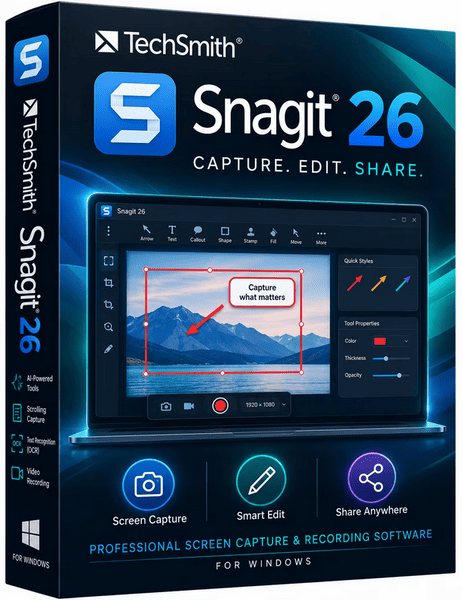
TechSmith Snagit 2026.3.1 Build 11825 Review: Advanced Screen Capture, Recording, and Visual Documentation
TechSmith Snagit 2026.3.1 Build 11825 is a professional screen-capture and screen-recording application for Windows. It allows users to capture screenshots, record videos, extract text, document processes, annotate images, hide sensitive information, and share finished content through email, cloud platforms, Microsoft Office applications, and TechSmith’s Camtasia tools.
Released on July 23, 2026, Snagit 2026.3.1 is primarily a maintenance, accessibility, security, and workflow update. It improves integration with Camtasia Online, restores additional email-sharing options, strengthens keyboard and screen-reader accessibility, updates OpenSSL, addresses a local privilege-elevation risk, and fixes several crashes and interface issues.
What Is TechSmith Snagit?
Snagit is an all-in-one screen-capture, lightweight recording, image-editing, and visual-communication tool developed by TechSmith.
Unlike the basic screenshot function included with Windows, Snagit provides advanced capture modes and a built-in editor. Users can capture a selected region, an entire window, a full scrolling webpage, an application menu, or a precisely measured area. They can then add arrows, text, callouts, numbered steps, shapes, highlights, stamps, effects, and privacy protection.
The software is especially useful for:
- Creating tutorials and how-to guides
- Documenting business processes
- Producing software instructions
- Reporting technical problems
- Recording short demonstrations
- Giving visual feedback
- Preparing training materials
- Capturing long webpages
- Creating annotated screenshots
- Sharing workplace updates
- Building standard operating procedures
- Converting screen recordings into GIF animations
Snagit is not intended to replace a complete video editor such as Camtasia. It is designed for faster capture, explanation, documentation, and short-form visual communication.
What Is New in Snagit 2026.3.1 Build 11825?
Version 2026.3.1 introduces several targeted improvements rather than a completely redesigned application.
Improved Camtasia Online Sharing
Snagit can now send images to Camtasia Online using the original .snagx format.
The SNAGX format preserves editable information such as:
- Text objects
- Cursor information
- Annotations
- Capture details
- Editable image components
This is more useful than sending a flattened image because the content remains easier to modify when building a video or presentation in Camtasia Online.
The integration allows users to capture and annotate material in Snagit, transfer it to Camtasia Online, and then add narration, camera footage, animation, backgrounds, or additional video elements.
Updated Interval Capture Timing
The minimum interval for Time Delay or Interval Capture has been changed from one second to three seconds.
Interval Capture automatically takes screenshots from the same location at regular intervals. It can be useful for monitoring:
- Software installation progress
- Dashboard changes
- Website updates
- Long-running processes
- Application behavior
- Visual testing
- Timed demonstrations
The three-second minimum may reduce excessive image creation and help improve reliability during repeated captures.
Restored Email Composition Options
Snagit 2026.3.1 restores Compose email options in the Share to Email output.
This provides more flexibility when sending captures through a compatible email application. Users can prepare a message, add recipients, review the content, and make changes before sending it.
The update builds on earlier improvements that expanded compatibility with both classic Outlook and the newer Outlook for Windows.
Better Screen-Reader Accessibility
TechSmith updated the Tool Properties and Effects panels in Snagit Editor to work more effectively with screen readers.
This is important because these panels contain many of the controls used to customize:
- Arrows
- Shapes
- Text
- Callouts
- Borders
- Shadows
- Colors
- Effects
- Image properties
- Annotation styles
The update also improves keyboard accessibility in the Time Delay options of the Capture window.
Security Improvements
Snagit 2026.3.1 updates OpenSSL to version 3.6.3.
The release also addresses an untrusted search-path issue that could potentially allow a local attacker to elevate privileges under specific circumstances. This makes version 2026.3.1 an important update for business, educational, and managed enterprise environments.
Stability and Bug Fixes
The update fixes several reported issues, including:
- A crash when displaying the video-recording toolbar
- A rare crash when entering a software key
- Incorrect Step Capture images when sharing to Camtasia Online
- Truncated text in some French Share dialogs
These changes improve reliability for recording, activation, localization, and Camtasia-based workflows.
Step Capture
Step Capture is one of the most valuable features in recent Snagit releases. It records a sequence of user clicks and automatically transforms them into an organized visual guide.
Instead of manually taking a separate screenshot after every action, users can start Step Capture and complete a process normally. Snagit captures the relevant steps and creates a structured document containing images, step numbers, text, and cursor information.
Step Capture is useful for creating:
- Software tutorials
- Employee onboarding instructions
- Technical support guides
- Installation procedures
- Website-management documentation
- Customer-service instructions
- Internal company processes
- Standard operating procedures
Snagit 2026.3.0 added a dedicated Step Capture category to the Library and image-count indicators for Step Capture thumbnails. It also introduced direct sharing to Camtasia Online and Camtasia Editor.
Share Step Captures to Camtasia Online
Users can transform a Step Capture into a narrated step-by-step video through Camtasia Online.
After transferring the captured steps, they can:
- Add animated backgrounds
- Record narration
- Add webcam footage
- Rearrange scenes
- Apply visual presentation styles
- Share the final video through a link
This workflow is useful for training teams, supporting customers, explaining software, or converting written documentation into video content.
Share Step Captures to Camtasia Editor
Snagit can also send Step Captures to Camtasia Editor 2026.2.0 or later.
Each captured step is placed on the Camtasia timeline, allowing users to add:
- Voice narration
- Music
- Zoom animations
- Transitions
- Cursor effects
- Titles
- Captions
- Additional recordings
This provides a convenient path from quick documentation to polished training videos.
Professional Screenshot Capture
Snagit offers several image-capture methods for different tasks.
Region Capture
Region Capture allows users to drag over a selected portion of the screen. It is suitable for capturing dialog boxes, website sections, error messages, images, charts, and application controls.
Window Capture
Window Capture automatically detects and captures a complete application window. It can help avoid unwanted desktop elements and produce cleaner documentation.
Full-Screen Capture
Full-Screen Capture records the entire visible display. This is useful when the arrangement of multiple windows or desktop elements is important.
Scrolling Capture
Scrolling Capture can capture content that extends beyond the visible screen, including long webpages, documents, tables, and wide datasets.
Instead of combining several screenshots manually, Snagit creates one continuous image.
Menu and Object Capture
On Windows, Snagit can identify menus, application elements, and interface objects automatically. This makes it easier to capture a specific button, panel, dialog box, or dropdown menu.
Exact-Dimension Capture
Users can define exact width and height values for a capture.
This is useful when creating images for:
- Websites
- Social media
- Documentation systems
- Product listings
- Presentation slides
- Knowledge-base articles
Screen Recording
Snagit includes a lightweight video recorder for capturing the screen, microphone, system audio, cursor, and webcam.
It is suitable for:
- Short tutorials
- Software demonstrations
- Bug reports
- Visual feedback
- Workplace updates
- Customer support
- Online lessons
- Process explanations
Users can record the full screen, a selected region, or a specific application window.
Snagit focuses on fast and practical recordings. Users who need advanced timeline editing, multi-track production, professional effects, or complex audio editing should transfer the recording to Camtasia Editor.
Open Recordings in Camtasia Editor
The video settings include an Open In option that allows recordings to be sent directly to Camtasia Editor.
When supported, Camtasia can receive separate streams for:
- Screen content
- Webcam video
- Cursor information
- Audio
Keeping these elements separate provides more editing flexibility than using one flattened video file.
Users can also select Snagit Editor for quick previewing or choose not to open an editor and save the recording directly to the Snagit Library.
Image Editor
Snagit Editor provides an accessible workspace for improving screenshots without requiring a complex graphics-design application.
Its tools include:
- Text
- Arrows
- Shapes
- Callouts
- Lines
- Highlighter
- Blur
- Crop
- Fill
- Eraser
- Magnify
- Stamps
- Step numbers
- Selection tools
- Image effects
- Borders
- Shadows
- Perspective
- Edge effects
These tools are designed for communication rather than advanced photo manipulation.
Smart Redact
Smart Redact automatically detects and hides sensitive information in screenshots.
It can help obscure content such as:
- Email addresses
- Account details
- Personal names
- Identification numbers
- Contact information
- Financial data
- Confidential business information
Users should review the final image manually because automated detection may not identify every sensitive item. TechSmith lists Smart Redact among Snagit’s AI-assisted editing tools.
Text Recognition and Grab Text
Snagit uses Optical Character Recognition to detect text inside images.
The recognized text can be:
- Copied
- Edited
- Removed
- Reused in another document
- Added to a report
- Extracted from an interface
This is useful when text cannot be selected normally, such as text displayed inside an image, scanned document, application dialog, or video frame.
OCR accuracy depends on image quality, font size, language, contrast, and layout complexity.
Edit Text Inside Screenshots
Snagit can recognize editable text regions inside a screenshot. Users may change words without recreating the entire image.
This is useful when updating documentation after:
- A button label changes
- A menu item is renamed
- A version number is updated
- A minor spelling error is found
- An interface changes slightly
The result should be reviewed carefully because reconstructed backgrounds and typography may not always match the original perfectly.
Simplify Tool
The Simplify feature converts a detailed screenshot into a cleaner illustration by replacing interface elements and text with simplified shapes.
This helps create:
- Evergreen documentation
- Conceptual interface diagrams
- Privacy-conscious examples
- Cleaner training material
- Less distracting instructions
Simplified screenshots can remain useful even when minor interface labels change.
Smart Move
Smart Move identifies individual interface elements inside a flattened screenshot and allows users to reposition them.
It can be used to:
- Rearrange interface examples
- Make space for annotations
- Correct layouts
- Remove visual clutter
- Modify training graphics
The effectiveness of Smart Move depends on how clearly Snagit can distinguish each element from the background.
Background Removal
Snagit includes AI-assisted background-removal capabilities for selected images.
Removing the background can help users create:
- Product illustrations
- Profile images
- Training graphics
- Presentation content
- Composite images
- Marketing visuals
Complex hair, transparent objects, shadows, and low-contrast boundaries may still require manual correction.
Background Noise Removal
Snagit can apply AI-assisted noise removal to improve the clarity of recorded audio.
This may reduce sounds such as:
- Fan noise
- Air-conditioning hum
- Light room noise
- Continuous background hiss
It cannot always remove voices, music, sudden sounds, or severe microphone distortion without affecting speech quality.
Video to GIF Conversion
Short recordings can be converted into animated GIF files.
GIFs are useful for:
- Demonstrating a simple action
- Showing an interface change
- Answering support questions
- Adding motion to documentation
- Sharing short examples in chat
GIF files do not provide the same image quality, audio, or compression efficiency as modern video formats, so they are best used for brief and simple demonstrations.
Snagit Library
The Library stores and organizes previous screenshots and recordings.
Users can locate content based on information such as:
- Date
- File type
- Application
- Website
- Tags
- Capture source
- Step Capture category
The Library is useful for users who create large volumes of documentation and frequently reuse previous captures.
Important Library data should be backed up, especially before reinstalling Windows, replacing a storage drive, or moving to another computer.
Templates
Snagit includes templates that combine multiple screenshots into a structured visual document.
Templates can be used for:
- Instructions
- Comparisons
- Process guides
- Reports
- Training sheets
- Product explanations
Users can add images, titles, descriptions, step numbers, and other elements without designing the entire layout manually.
Sharing and Export Options
Snagit supports several sharing and export workflows.
Depending on the installed version and connected services, users may send content to:
- Camtasia Editor
- Camtasia Online
- Microsoft PowerPoint
- Microsoft Word
- Email applications
- Microsoft Teams
- Slack
- Google Drive
- YouTube
- Dropbox
- Local folders
- Clipboard
- Printer
Available destinations may vary based on the operating system, subscription, installed applications, account permissions, and administrator settings.
Supported File Formats
Snagit can work with several common image and video formats.
Typical formats include:
- SNAGX
- PNG
- JPG
- GIF
- BMP
- TIFF
- MP4
The native SNAGX format should be retained when users want to preserve editable annotations, text, cursor data, and other Snagit-specific information.
A standard format such as PNG or JPG is more appropriate for publishing or sharing a finished image.
System Requirements
TechSmith lists the following Windows platforms for the current Snagit release:
- Windows 11
- Windows 11 on ARM, version 23H2 or later
- Windows 10, version 20H2 or later
- Windows Server 2016
- Windows Server 2019
- Windows Server 2022
The application requires a 64-bit version of Windows. Windows N editions require the Media Foundation Pack. The Snagit Printer feature is not available on Windows on ARM.
Additional Requirements
- .NET Framework 4.7.2 or later
- Microsoft WebView2 Runtime
- Intel Core i5 sixth-generation processor or AMD equivalent
- Sufficient memory for image and video editing
- Available disk space for installation and Library files
- Microphone for voice recording
- Webcam for picture-in-picture recording
- Internet connection for activation, updates, cloud sharing, and online services
For smoother video recording and editing, a modern multi-core processor, at least 8 GB of RAM, and solid-state storage are recommended.
Advantages
TechSmith Snagit 2026.3.1 provides several important advantages:
- Advanced screenshot capture
- Scrolling webpage capture
- Screen and webcam recording
- Built-in image editor
- Step Capture for automatic guides
- OCR and text extraction
- Editable text inside screenshots
- Smart Redact for hiding sensitive data
- Simplify and Smart Move tools
- Noise-removal assistance
- Video-to-GIF conversion
- Direct Camtasia integration
- Extensive annotation tools
- Organized capture Library
- Professional templates
- Fast sharing options
- Improved accessibility
- Updated security components
- Suitable for individuals, educators, and businesses
Disadvantages
The program also has some limitations:
- It requires a paid subscription.
- It is more expensive than basic screenshot tools.
- It does not provide full professional video editing.
- Some AI tools may require manual correction.
- Large Libraries can consume significant storage space.
- Cloud-sharing features require internet access and accounts.
- Some features differ between Windows and macOS.
- Advanced image manipulation still requires dedicated graphics software.
- Camtasia may be required for polished, multi-track video production.
- Windows users need a supported 64-bit operating system.
Who Should Use Snagit?
Snagit is particularly suitable for:
- Technical writers
- Teachers and trainers
- Software developers
- Customer-support teams
- Human-resources departments
- Business analysts
- Quality-assurance testers
- Marketing teams
- Remote workers
- Content creators
- Project managers
- IT administrators
- Documentation specialists
It may be unnecessary for users who only need occasional basic screenshots and are satisfied with the built-in Windows Snipping Tool.
Snagit vs Windows Snipping Tool
The Windows Snipping Tool is free and suitable for basic screenshots and simple recordings.
Snagit provides a more complete professional workflow with:
- Scrolling capture
- Advanced annotations
- Templates
- OCR
- Step Capture
- Smart Redact
- Image simplification
- Organized Library management
- Custom presets
- More export options
- Camtasia integration
The Snipping Tool is sufficient for occasional personal use, while Snagit is better suited to frequent documentation, training, technical support, and business communication.
Is TechSmith Snagit 2026.3.1 Worth Using?
Snagit 2026.3.1 is a valuable update for existing subscribers, particularly because it includes security improvements, accessibility enhancements, stability fixes, and better Camtasia Online integration.
The release is especially worthwhile for users who:
- Create step-by-step instructions
- Record software demonstrations
- Share captures through email
- Use screen readers or keyboard navigation
- Transfer screenshots into Camtasia projects
- Work in enterprise or security-conscious environments
Users running an earlier 2026 build should consider installing the update because it addresses both crashes and a local privilege-elevation risk.
Final Verdict
TechSmith Snagit 2026.3.1 Build 11825 is a powerful visual-communication application that goes far beyond ordinary screenshot capture. It combines advanced image capture, screen recording, OCR, annotation, privacy tools, process documentation, templates, sharing, and Camtasia integration in one accessible workspace.
Version 2026.3.1 does not introduce a large collection of new creative tools, but it delivers meaningful improvements to security, accessibility, email sharing, Camtasia Online workflows, and general stability.
For technical writers, educators, support teams, businesses, and professionals who regularly explain processes visually, Snagit remains one of the most practical screen-capture and documentation solutions available for Windows.