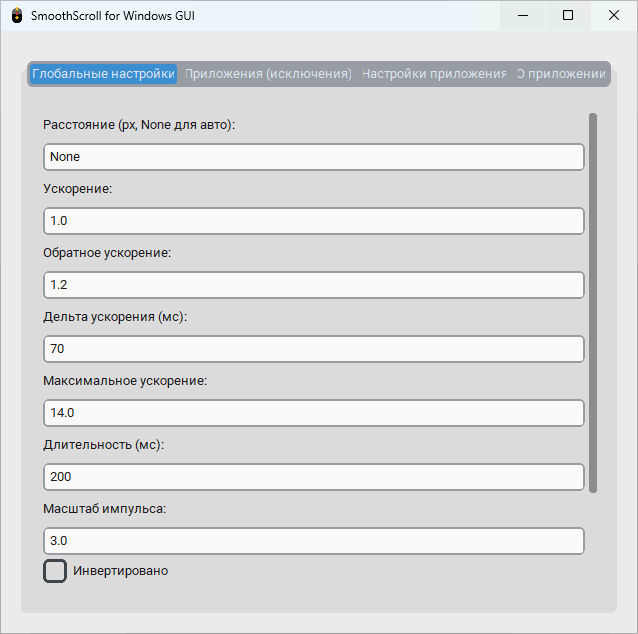
SmoothScroll for Windows GUI 1.0.2: Enjoy Smoother and More Natural Scrolling
SmoothScroll for Windows GUI 1.0.2 is a lightweight Windows utility designed to transform traditional mouse-wheel movement into a smoother, more natural scrolling experience. Instead of moving through pages and documents in sudden steps, the program adds customizable animation, acceleration, and inertia effects.
The application is an enhanced graphical-interface fork of the original Smoothscroll-for-windows project. It introduces a modern GUI, system-tray controls, per-application configuration, multilingual support, and several options for adjusting scrolling behavior. Version 1.0.2 was released on February 8, 2026.
What Is SmoothScroll for Windows GUI?
SmoothScroll for Windows GUI is intended for users who find the standard scrolling behavior of a traditional mouse too sharp or inconsistent. Once activated, the program processes mouse-wheel input and creates animated movement that feels closer to scrolling on a touchscreen or precision touchpad.
The software can operate across supported Windows applications, allowing users to enjoy a more consistent scrolling experience while browsing websites, reading documents, working with long lists, or navigating software interfaces.
Its graphical control panel makes it easier to configure the scrolling engine without manually editing configuration files or running complicated commands.
Main Features
Smooth and Inertial Scrolling
The program replaces abrupt mouse-wheel movement with animated scrolling. Momentum and easing effects help pages move gradually rather than jumping directly from one position to another.
Modern Graphical Interface
SmoothScroll for Windows GUI uses a modern interface built with CustomTkinter. Settings are divided into organized sections, making the application accessible even to users with limited technical experience.
Customizable Scroll Distance
Users can control how far the page moves with each mouse-wheel action. A shorter distance offers more precise navigation, while a larger value makes it easier to move through long pages.
Adjustable Acceleration
The acceleration controls determine how scrolling speed changes when the mouse wheel is used repeatedly. This can make slow movements precise while allowing faster wheel actions to travel through content more quickly.
Animation Duration
The duration setting controls how long each scrolling animation takes to complete. Lower values produce faster movement, while higher values create a softer and more gradual effect.
Multiple Easing Functions
Easing functions define how the scrolling animation starts, accelerates, and stops. Users can experiment with different animation curves to find the most comfortable scrolling style.
Per-Application Settings
One of the most useful features is the ability to create individual rules for different applications. Users can customize scrolling behavior for specific programs or disable SmoothScroll where it causes compatibility problems.
Applications can be added using their executable path or a matching pattern. Each rule may use customized settings independently from the global configuration.
Horizontal Scrolling Support
A configurable modifier key can be assigned for horizontal scrolling. This is useful when working with wide documents, timelines, spreadsheets, development tools, and creative applications.
Reverse Scrolling Direction
The inverted scrolling option allows users to reverse the traditional mouse-wheel direction. This can provide a natural-scrolling experience similar to the movement used on many touchpads and mobile devices.
System-Tray Integration
SmoothScroll can run quietly in the Windows system tray. Users can access the program when needed without keeping the main settings window open.
Start with Windows
The autostart option launches the program automatically when Windows starts. This ensures that customized scrolling behavior is available without manually opening the application after every restart.
Light and Dark Themes
The interface supports Light, Dark, and System appearance modes. The System option follows the current Windows theme automatically.
English and Russian Languages
The program currently provides English and Russian interface languages. The selected language is saved and automatically applied the next time the application starts.
Global Scrolling Settings
The Global Settings section controls the default scrolling behavior used across Windows. Available parameters include:
- Scroll distance
- Acceleration and reverse acceleration
- Time-based acceleration
- Maximum acceleration
- Animation duration
- Pulse scaling
- Inverted scrolling
- Easing function
- Horizontal-scrolling modifier key
These settings allow users to create anything from subtle smoothing to a stronger momentum-based scrolling effect.
Application Management
The Applications section is used to create exceptions and custom profiles. This is particularly helpful because not every application handles simulated scrolling in the same way.
Users can add programs, enable or disable smooth scrolling for them, edit existing rules, or apply different values based on the application being used.
For example, a browser may work best with stronger acceleration, while a professional editing program may require slower and more precise movement.
Configuration and Automatic Saving
SmoothScroll automatically stores its settings in a config.json file located in the application directory. Changes remain available after closing or restarting the program.
The configuration system stores global scrolling values, application rules, language selection, theme preference, and startup behavior.
System Requirements
SmoothScroll for Windows GUI is developed for:
- Windows 10 or Windows 11
- A standard mouse with a scroll wheel
- Python 3.11 or later when running from source
The source version requires several Python packages, including CustomTkinter, PyStray, PyWin32, Pillow, and easing-functions. A standalone executable can also be created with PyInstaller.
How to Use SmoothScroll
After launching the application, open the Global Settings tab and adjust the basic distance, duration, and acceleration values.
Start with moderate settings and test the mouse wheel in a web browser or document. Increase the duration for a softer animation or reduce it for a quicker response.
Next, open the Applications tab to add programs that require special settings. Applications that do not behave correctly can be excluded without disabling SmoothScroll globally.
Finally, enable the system-tray and Windows-startup options to keep the utility running automatically in the background.
Advantages
SmoothScroll for Windows GUI offers several benefits:
- Makes mouse-wheel scrolling feel smoother
- Provides detailed control over movement and acceleration
- Includes a clear graphical configuration interface
- Supports separate settings for individual applications
- Runs from the Windows system tray
- Can start automatically with Windows
- Supports horizontal and inverted scrolling
- Offers light and dark interface themes
- Saves settings automatically
- Distributed as an open-source project under the MIT License
Possible Disadvantages
The program may not behave identically in every Windows application. Some programs use custom scrolling systems or interface frameworks that may not respond correctly to simulated smooth movement.
Highly aggressive acceleration settings can also make navigation feel difficult to control. Users may need to experiment with several values before finding a comfortable configuration.
Because the application works by processing mouse-wheel input, it may not be suitable for games or programs where the wheel is assigned to actions other than traditional scrolling. Creating application-specific exclusions can help prevent these conflicts.
Is SmoothScroll for Windows GUI 1.0.2 Worth Using?
SmoothScroll for Windows GUI 1.0.2 is a useful utility for anyone who wants to improve the standard mouse-scrolling experience on Windows. Its combination of smooth animation, acceleration controls, easing functions, application profiles, system-tray integration, and automatic startup makes it more flexible than basic scrolling tools.
The program is especially suitable for users who spend a lot of time browsing long websites, reading documents, navigating source code, or working with applications that contain large scrollable interfaces.
Final Conclusion
SmoothScroll for Windows GUI 1.0.2 provides a practical way to make scrolling on Windows feel softer, faster, and more responsive. Its modern graphical interface removes much of the complexity normally associated with configuring advanced mouse behavior.
With adjustable animation settings, per-application profiles, theme support, autostart functionality, and system-tray operation, it offers a balanced combination of simplicity and customization. Users looking for a more natural mouse-wheel experience may find it a valuable addition to their Windows setup.