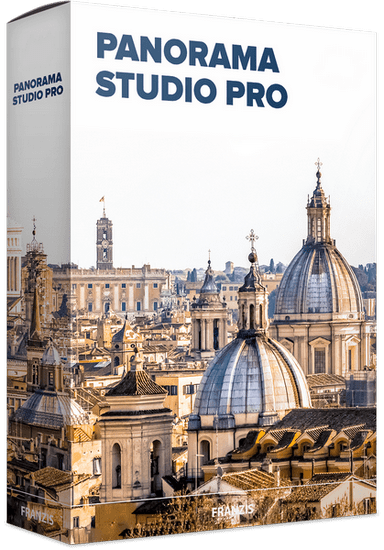
PanoramaStudio 4.2.1.498: Professional Panorama Stitching and Virtual Tour Software
PanoramaStudio 4.2.1.498 is a professional photo-stitching application designed to create seamless panoramic images from multiple photographs. It combines automatic image alignment with detailed manual editing tools, making it suitable for photographers, real-estate professionals, architects, designers, tourism businesses, and users who want to produce wide-angle or interactive panoramic content.
The software can process photos captured with digital cameras, smartphones, drones, and other imaging devices. It can automatically recognize overlapping areas, correct lens distortion and exposure differences, blend images together, and generate a complete panorama with minimal manual work.
PanoramaStudio is available for Windows and macOS, while its more advanced Pro edition adds features such as HDR panorama creation, fisheye-lens support, additional projection types, automatic white-balance correction, viewpoint correction, and tools for organizing very large image collections.
What Is PanoramaStudio?
PanoramaStudio is an image-stitching and panorama-production program developed by Tobias Hüllmandel Software.
Its main purpose is to combine several overlapping photographs into one continuous panoramic image. Instead of manually arranging and blending every photograph inside a traditional image editor, users can allow PanoramaStudio to detect matching visual points and automatically calculate the correct position of each image.
The program can be used to create:
- Wide landscape panoramas
- Horizontal and vertical panoramas
- 360-degree panoramas
- Multi-row panoramas
- Interior photography
- Architectural panoramas
- Real-estate property views
- Drone panoramas
- Large-resolution composite images
- Interactive web panoramas
- Virtual tours
- Panoramic posters
- Creative projection effects
The standard edition includes the main stitching, editing, printing, and interactive-export tools. PanoramaStudio Pro provides additional professional features for HDR, fisheye photography, advanced projections, and complex image arrangements.
Automatic Panorama Stitching
The most important feature of PanoramaStudio is its automatic stitching engine.
After users import a group of overlapping photographs, the software analyzes the images and searches for matching details. These details may include buildings, trees, landscape features, furniture, road markings, or other recognizable objects.
The program then attempts to:
- Determine the correct image sequence.
- Calculate the camera position.
- Align overlapping areas.
- Correct perspective and lens distortion.
- Match brightness and exposure.
- Blend the individual images.
- Generate a unified panoramic image.
This automated process can produce a complete panorama in only a few steps, while manual controls remain available when the automatic result requires correction.
Single-Row Panoramas
A single-row panorama is created from a horizontal or vertical sequence of overlapping photographs.
This is the simplest panorama type and is commonly used for:
- Natural landscapes
- City skylines
- Interior rooms
- Group photographs
- Architectural facades
- Mountain ranges
- Coastal views
- Long product displays
Users should normally keep the camera at a consistent position and ensure that neighboring images contain sufficient overlap.
Multi-Row Panoramas
Multi-row stitching combines photographs captured across several horizontal and vertical rows.
This method can produce images with a wider field of view and substantially higher resolution than a single photograph. It is suitable for detailed city views, architectural photography, large interiors, artwork reproduction, and extremely high-resolution landscapes.
The software can automatically arrange supported image sets, including photographs that are not organized in one simple row. PanoramaStudio Pro also includes a grid assistant for preparing projects that contain very large numbers of source images.
360-Degree Panoramas
PanoramaStudio can create complete 360-degree panoramic images.
A 360-degree panorama covers the entire horizontal view around the camera position. Users can rotate the finished interactive panorama to explore the scene in different directions.
These panoramas are useful for:
- Real-estate listings
- Hotels and resorts
- Museums
- Tourism websites
- Educational environments
- Restaurants
- Event locations
- Virtual property inspections
- Interactive presentations
For the best results, the first and last photographs should overlap sufficiently so the program can create a seamless connection.
Full Spherical Panoramas
The Pro edition can create full spherical panoramas that cover a field of view of up to 360 by 180 degrees.
A spherical panorama allows viewers to look horizontally, vertically, upward, and downward from one virtual camera position.
This format is useful for immersive virtual tours and virtual-reality experiences. Creating a complete sphere usually requires carefully captured multi-row photographs or images taken with a suitable fisheye lens.
Image Arrangement Detection
PanoramaStudio can automatically process photographs captured in different arrangements.
Instead of requiring every image to follow a perfectly organized sequence, the stitching engine can detect how supported images overlap and determine their positions.
This is particularly useful when working with:
- Drone photographs
- Large multi-row image sets
- Mosaic-style captures
- Gigapixel projects
- Irregularly arranged images
- Complex architectural scenes
Automatic arrangement reduces the amount of manual positioning required before stitching begins.
Seamless Image Blending
Even accurately aligned photographs can show visible transitions because of exposure changes, moving subjects, lens vignetting, or differences in lighting.
PanoramaStudio uses blending methods to create smoother transitions between overlapping images.
The software can adjust:
- Brightness differences
- Exposure mismatches
- Color transitions
- Lens vignetting
- Overlap boundaries
- Visible seams
- Moving objects in selected situations
Its adaptive blending method is intended to determine suitable seams and reduce ghosting in dynamic scenes. The newer rendering engine also improves processing speed and transition quality.
Exposure Correction
When a camera automatically changes its exposure between photographs, some images may appear brighter or darker than others.
PanoramaStudio analyzes these differences and attempts to balance the images before blending them together.
Exposure correction is particularly useful when photographing:
- Sunsets
- Indoor rooms with bright windows
- Landscapes with changing cloud cover
- Scenes containing both shadows and direct sunlight
- Long panoramas captured over several minutes
The Pro edition also provides additional automatic white-balance correction for managing color-temperature differences between source images.
Lens-Distortion Correction
Camera lenses can bend straight lines or distort image edges, especially at wide focal lengths.
PanoramaStudio can read available EXIF metadata and identify the camera and lens used to capture the source images. It then applies suitable corrections before stitching.
The current product documentation states that the software recognizes more than 2,830 cameras through their EXIF information and can automatically correct lens distortion.
Users can also configure custom lens information when the required profile is not detected automatically.
Support for Cameras, Smartphones, and Drones
PanoramaStudio can process images from many types of photographic devices, including:
- DSLR cameras
- Mirrorless cameras
- Compact cameras
- Smartphones
- Action cameras
- Drones
- Scanned film photographs
- Fisheye-equipped cameras in the Pro edition
The quality of the resulting panorama depends on the original images, available overlap, lens distortion, camera movement, exposure consistency, and scene content.
RAW Image Support
The software supports direct import from more than 1,250 RAW image formats.
RAW files preserve more image information than compressed JPEG files, giving photographers greater control over brightness, color, highlights, shadows, and overall image quality.
Supported RAW formats may include files produced by major camera manufacturers such as Canon, Nikon, Sony, Fujifilm, Panasonic, Olympus, Pentax, and Leica.
Using RAW source files can be particularly beneficial for HDR panoramas and scenes with difficult lighting.
HDR Panorama Creation
PanoramaStudio Pro includes complete High Dynamic Range processing.
HDR is useful when a scene contains a wider brightness range than a single exposure can capture. For example, an interior photograph may contain dark furniture and extremely bright outdoor windows.
Users can capture several exposures of the same camera position and combine them using:
- HDR processing with tone mapping
- Exposure Fusion
Tone mapping transforms high-dynamic-range information into an image that can be displayed on a standard screen. Exposure Fusion combines well-exposed parts of different photographs to create a balanced result.
The software can process exposure brackets and supported HDR source images directly into HDR panoramas.
Real-Time HDR Preview
The Pro edition provides a real-time preview while users adjust HDR tone-mapping and Exposure Fusion settings.
This allows photographers to evaluate changes before rendering the final panorama.
Possible adjustments may affect:
- Highlight recovery
- Shadow detail
- Local contrast
- Overall brightness
- Tonal compression
- Color intensity
- Natural or dramatic appearance
Real-time previewing can reduce repeated trial-and-error exports.
Internal HDR Color Processing
Modern PanoramaStudio versions process panoramas internally in an HDR color space, including projects created with the standard edition.
This helps preserve image information during alignment, blending, exposure correction, filtering, and rendering.
The Pro edition additionally supports loading and saving professional HDR formats such as OpenEXR, Radiance HDR, JPEG XL, and 32-bit TIFF.
Fisheye Lens Support
PanoramaStudio Pro supports photographs captured with fisheye lenses.
Fisheye lenses provide an extremely wide field of view, allowing photographers to create complete panoramas using fewer images. However, they also produce strong optical distortion that requires specialized processing.
Fisheye support is useful for:
- Spherical panoramas
- Virtual tours
- Interior photography
- Small spaces
- Fast 360-degree capture
- Panoramic tripod systems
Accurate lens information and suitable image overlap remain important for reliable stitching.
Multiple Projection Types
A panorama can be displayed using different mathematical projections. Each projection transforms the original view in a different way.
PanoramaStudio Pro provides up to 15 projection types, including conventional and creative options such as:
- Rectilinear projection
- Cylindrical projection
- Spherical projection
- Mercator projection
- Pannini projection
- Little Planet projection
- Fisheye projections
- Cassini projection
- Transverse projection variations
Different projections can dramatically alter the visual appearance of the same panorama. Rectilinear projections preserve straight lines but become stretched at wide fields of view, while cylindrical and spherical projections are often more suitable for extremely wide scenes.
Creative options such as Little Planet can transform a spherical panorama into a small circular world.
Dynamic 2D and 3D Preview
PanoramaStudio provides real-time previews in both 2D and 3D views.
The 2D view displays the panorama as a flat image, while the 3D view allows users to explore the scene in a more interactive format.
Preview modes help users inspect:
- Stitching accuracy
- Image alignment
- Exposure balance
- Panorama boundaries
- Projection appearance
- Cropping
- Distortion
- Blending quality
Modern versions include linear and multi-band preview modes, with multi-band blending providing a result closer to the final rendered image.
Control Point Editor
Control points identify corresponding locations in overlapping photographs.
Although PanoramaStudio can detect these points automatically, users can manually inspect, add, move, or remove them when the image alignment is incorrect.
The Control Point Editor is useful when:
- Images contain few recognizable details
- Repeated patterns confuse automatic detection
- Indoor walls lack texture
- Clouds or water dominate the overlap
- Moving subjects create incorrect matches
- A lens produces unusual distortion
Adding accurate control points can improve difficult panorama projects considerably.
Masking Tools
Masking allows users to control which parts of overlapping images should appear in the final panorama.
Masks can help remove or reduce:
- Duplicate people
- Moving cars
- Misaligned tree branches
- Tripod elements
- Unwanted objects
- Ghosting
- Poorly blended areas
For example, if a person appears in two overlapping photographs, masking can instruct the program to use the person from only one image.
Viewpoint Correction
PanoramaStudio Pro includes viewpoint-correction tools.
These tools can help adjust source images that were not captured from a perfectly consistent camera position. They can be useful when stitching flat surfaces such as:
- Murals
- Building facades
- Large documents
- Walls
- Artwork
- Maps
- Architectural elevations
Viewpoint correction is particularly valuable when the photographer could not rotate the camera around a fixed optical center.
Non-Destructive Image Filters
The software includes image-processing filters that can improve the final appearance without permanently changing the original source images.
Filter categories include tools related to:
- Light and color
- Tone curves
- Color balance
- Sharpening
- Noise reduction
- Contrast
- Saturation
- HDR and tone mapping in the Pro edition
Because the adjustments are non-destructive, users can change or disable them until the panorama is exported.
Cropping and Panorama Boundaries
After stitching, the outside edges of a panorama may contain empty or irregular areas.
PanoramaStudio allows users to define the final crop and image boundaries before export.
Cropping can be used to:
- Remove empty edges
- Improve composition
- Select a specific aspect ratio
- Remove unwanted objects
- Prepare the panorama for printing
- Create a banner image
- Center the most important subject
The selected projection can influence how much cropping is required.
Interactive HTML5 Panoramas
PanoramaStudio can export interactive panoramas that run in modern web browsers.
Users can drag, rotate, and zoom around the scene instead of viewing it only as a flat image.
The included PanoramaStudio Viewer is a browser-based web application that can display interactive 3D panoramas and zoomable images. Exported panoramas may be viewed locally or embedded into websites.
HTML5 output is useful because it works without outdated browser plugins such as Adobe Flash.
Virtual Tour Creation
Multiple interactive panoramas can be connected to form a virtual tour.
Hotspots can be placed inside each panorama, allowing viewers to move between locations.
A virtual tour might contain:
- Different rooms in a property
- Hotel areas
- Museum galleries
- Tourist destinations
- University buildings
- Retail stores
- Construction sites
- Event venues
Additional interface elements can include navigation controls, information points, maps, radar indicators, galleries, and custom links.
WebXR and VR Viewing
Interactive panorama exports can support immersive viewing environments, including compatible virtual-reality devices.
WebXR-based viewing allows supported browsers and headsets to display panoramas in an immersive format.
The experience depends on the exported project, browser capabilities, device hardware, and viewer settings.
Large and Gigapixel Panoramas
PanoramaStudio can process very large image projects, including panoramas that reach or exceed gigapixel resolution.
A gigapixel image contains at least one billion pixels and can preserve extreme levels of detail. Such panoramas are often created from hundreds or thousands of telephoto photographs.
Possible uses include:
- Cityscape documentation
- Landscape exploration
- Artwork archiving
- Scientific observation
- Architecture
- Tourism
- Large event photography
Gigapixel projects require substantial memory, processing power, storage space, and rendering time. The Pro edition’s grid assistant helps organize large source-image collections.
Poster Printing
PanoramaStudio includes a poster-printing function that can divide a large panorama across multiple sheets of paper.
Users can print the pages separately and assemble them into one large poster.
This is useful for:
- Exhibition displays
- Office decoration
- Educational projects
- Architectural presentations
- Event banners
- Home photography
- Temporary signs
Print quality depends on the panorama resolution, printer capabilities, paper type, and selected scaling settings.
Standard Image Export
Finished panoramas can be exported in common image formats.
Depending on the edition and source material, supported formats include:
- JPEG
- PNG
- TIFF
- BMP
- PSD
- OpenEXR in the Pro edition
- Radiance HDR in the Pro edition
- JPEG XL in supported HDR workflows
- 32-bit TIFF in the Pro edition
JPEG is suitable for websites and easy sharing, while TIFF and PSD are more appropriate for professional editing and high-quality preservation.
Layered Image Export
Layered export allows users to continue editing individual source images or panorama components in compatible image-editing software.
This is useful for advanced retouching in applications such as Adobe Photoshop.
Layered output can help users:
- Refine masks
- Correct difficult seams
- Remove unwanted objects
- Adjust local colors
- Edit individual source layers
- Add text or design elements
- Apply specialized effects
Layered files can be significantly larger than flattened images.
Project Files
PanoramaStudio can save the current work as a project.
A project preserves settings and editing decisions so users can continue working later without restarting the stitching process.
A saved project may contain references to:
- Source images
- Image order
- Control points
- Alignment settings
- Masks
- Crop boundaries
- Projection settings
- Image filters
- Export preferences
Source photographs should not be moved or renamed after saving unless the software can locate them again.
Command-Line Processing
Advanced users can use supported command-line parameters to automate certain operations.
Command-line support can be useful for:
- Repeated panorama tasks
- Automated rendering
- Scheduled workflows
- Processing through external scripts
- Integrating the software into production systems
The exact available commands should be checked in the official manual for the installed release.
Standard Edition vs Pro Edition
PanoramaStudio and PanoramaStudio Pro share the main panorama-stitching workflow, but the Pro edition adds several advanced capabilities.
PanoramaStudio Standard
The standard edition is suitable for users who need:
- Automatic panorama stitching
- Single-row and multi-row panoramas
- 360-degree images
- Manual alignment corrections
- Image filters
- Standard image export
- Interactive panoramas
- Virtual tours
- Poster printing
- Camera and lens recognition
PanoramaStudio Pro
The Pro edition additionally provides:
- Complete HDR panorama creation
- Exposure Fusion
- HDR tone mapping
- Fisheye-lens support
- Automatic white-balance correction
- Viewpoint correction
- Up to 15 projection types
- Grid assistant for large projects
- Professional HDR import and export
- More advanced panorama workflows
The Pro edition is therefore better suited to professional photographers, virtual-tour producers, and users working with complex or high-resolution projects.
Advantages
PanoramaStudio 4.2.1.498 offers several important advantages:
- Automatic image alignment
- Seamless panorama blending
- Single-row and multi-row stitching
- 360-degree panorama creation
- Full spherical panoramas in supported workflows
- Automatic exposure correction
- Camera and lens recognition
- Lens-distortion correction
- Support for more than 1,250 RAW formats
- Recognition of more than 2,830 cameras
- Interactive 2D and 3D previews
- Manual control-point editing
- Masking and local corrections
- Non-destructive image filters
- Interactive HTML5 panorama export
- Virtual tour creation
- Poster printing
- Standard and professional image export
- HDR and fisheye processing in the Pro edition
- Support for very large and gigapixel projects
- Windows and macOS compatibility
Disadvantages
The program also has some limitations:
- Advanced professional features require the Pro edition.
- Very large panoramas can require significant memory and storage.
- Complex scenes may still require manual control-point corrections.
- Moving people, vehicles, water, or clouds can create ghosting.
- Full spherical photography requires careful shooting technique.
- HDR processing can look unnatural when settings are overused.
- Fisheye support is limited to the Pro edition.
- Some users may need time to understand projection methods.
- Interactive virtual tours require additional planning and hotspot configuration.
- The software is focused on panoramic still images rather than panoramic video.
- Exact changes for build 4.2.1.498 are not publicly documented on the official version-history page.
Windows System Requirements
The official requirements for the current PanoramaStudio 4 generation include:
- Windows 10 or Windows 11
- 64-bit operating system
- At least 4 GB of RAM
- 8 GB of RAM or more recommended
- Approximately 75 MB of storage for the application
- At least 10 GB of available storage when creating panoramas
- Display resolution of at least 1280 × 720 pixels
Large multi-row, RAW, HDR, and gigapixel projects may require considerably more memory and temporary storage.
macOS System Requirements
The macOS edition requires:
- macOS 10.15 Catalina or newer
- A supported Intel processor or Apple silicon
- Approximately 180 MB of installation storage
- At least 10 GB of available space for panorama processing
- 8 GB of RAM or more recommended
- Display resolution of at least 1600 × 900 pixels
The official compatibility list includes recent macOS generations and Apple silicon processors through the M-series.
Recommended Hardware
For professional panorama work, a more powerful configuration is advisable:
- A modern multicore Intel, AMD, or Apple silicon processor
- 16 GB of RAM for large RAW projects
- 32 GB or more for gigapixel or extensive HDR workflows
- Fast SSD storage
- A color-accurate Full HD or 4K monitor
- A dedicated graphics processor where beneficial
- Sufficient backup storage
- A calibrated display for professional printing
The source-image resolution and number of photographs directly affect memory and storage requirements.
How to Create a Panorama
A typical PanoramaStudio workflow follows these steps:
- Capture a sequence of overlapping photographs.
- Transfer the images to the computer.
- Open PanoramaStudio.
- Select the panorama type.
- Import the source images.
- Allow the program to detect the image arrangement.
- Start automatic alignment.
- Review the panorama in the 2D or 3D preview.
- Correct control points when necessary.
- Adjust exposure and white balance.
- Use masks to fix moving objects or ghosting.
- Select an appropriate projection.
- Crop the panorama.
- Apply non-destructive image filters.
- Save the project.
- Export the final panorama as an image or interactive presentation.
Photography Tips for Better Stitching
The quality of a panorama depends heavily on how the source photographs are captured.
For better results:
- Use a tripod whenever possible.
- Rotate the camera around its optical center.
- Maintain approximately 25% to 40% overlap between images.
- Use manual exposure for consistent brightness.
- Lock white balance.
- Avoid changing focal length during the sequence.
- Capture photographs in a consistent direction.
- Keep the camera level.
- Avoid moving subjects near image boundaries.
- Shoot RAW files when maximum quality is required.
- Use a panoramic tripod head for interior or close-range scenes.
- Capture exposure brackets for HDR projects.
- Take additional images of the top and bottom for spherical panoramas.
- Avoid extremely long delays between photographs when lighting is changing.
- Keep all original files until the final panorama has been completed.
PanoramaStudio vs Adobe Photoshop
Adobe Photoshop includes a Photomerge feature that can combine several images into a panorama.
Photoshop may be suitable for users who already own it and need occasional panorama stitching alongside general image editing.
PanoramaStudio provides a more specialized workflow with:
- Dedicated panorama project management
- Interactive 2D and 3D previews
- Virtual-tour creation
- HTML5 panorama export
- Camera and lens databases
- Specialized panorama projections
- Large-image processing
- Control-point editing
- HDR panorama functions in the Pro edition
Photoshop remains stronger for detailed retouching, compositing, object removal, and layer-based design after the panorama has been created.
PanoramaStudio vs PTGui
PTGui is another professional panorama-stitching application widely used for complex 360-degree and gigapixel projects.
Both programs offer automatic alignment, control points, masking, HDR support in advanced editions, and spherical panorama creation.
PanoramaStudio may appeal to users who prefer:
- A guided workflow
- Integrated image filters
- Built-in interactive panorama export
- Virtual-tour tools
- Poster printing
- A straightforward visual interface
PTGui may be preferred by some advanced users who require highly specialized control over difficult stitching projects and extensive batch-processing workflows.
The best choice depends on project complexity, preferred interface, required output formats, and budget.
Common Uses
PanoramaStudio can support many creative and commercial applications.
Landscape Photography
Create wide views that cannot be captured with a single lens.
Real-Estate Marketing
Produce interactive room views and complete virtual property tours.
Architecture
Document buildings, interiors, facades, and construction progress.
Tourism
Create immersive presentations of destinations, hotels, landmarks, and natural attractions.
Drone Photography
Combine aerial photographs into broad high-resolution views.
Museums and Education
Build virtual tours and interactive visual learning environments.
Gigapixel Imaging
Create extremely detailed images for scientific, cultural, or artistic purposes.
Interior Design
Present rooms and design projects from an immersive viewpoint.
Is PanoramaStudio 4.2.1.498 Worth Using?
PanoramaStudio is a strong option for users who need more control and higher-quality results than basic mobile panorama applications provide.
Its automated stitching engine can create panoramas quickly, while control-point editing, masking, exposure correction, lens profiles, multiple projections, image filters, and interactive export tools provide enough flexibility for advanced projects.
The standard edition should meet the needs of many photographers who create ordinary wide-angle, multi-row, and interactive panoramas. The Pro edition is more suitable for professionals who need HDR processing, fisheye support, advanced projections, viewpoint correction, or large gigapixel workflows.
Version Information
The official PanoramaStudio website lists version 4.2.0 as released on July 8, 2026. The specific build designation 4.2.1.498 was not separately documented on the public download or version-history pages available when this article was prepared.
The build may represent a later maintenance revision containing small stability, compatibility, installer, or processing improvements. Users should check the application’s About window, included change log, or official installer metadata for exact patch-level information.
Conclusion
PanoramaStudio 4.2.1.498 is a comprehensive panorama-stitching solution for creating wide-angle photographs, multi-row images, full 360-degree scenes, interactive presentations, virtual tours, and high-resolution panoramic projects.
Its combination of automatic alignment, seamless blending, lens correction, exposure adjustment, RAW support, control-point editing, masking, projections, image filters, and browser-based panorama export makes it suitable for both enthusiastic photographers and professional content creators.
The Pro edition expands the software with full HDR processing, fisheye support, advanced projections, automatic white-balance correction, viewpoint correction, and tools for managing extremely large image sets.
Overall, PanoramaStudio provides an accessible yet capable workflow for transforming overlapping photographs into polished panoramic images and immersive virtual experiences.