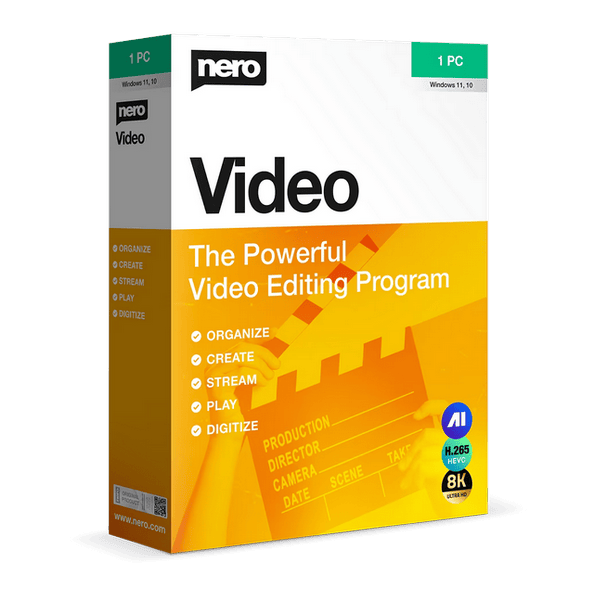
Nero Video 2026 v2.1.5.0: Professional Video Editing, 8K Projects, Effects, and Disc Authoring
Nero Video 2026 v2.1.5.0 is a comprehensive video-editing application for Windows that allows users to create, edit, enhance, organize, export, play, and burn video projects from one integrated workspace.
The software combines beginner-friendly editing tools with an advanced multi-track timeline, making it suitable for quick family videos, social media clips, presentations, slideshows, YouTube projects, educational content, and more detailed productions.
It supports projects in HD, Full HD, 4K, and 8K, along with portrait-oriented videos, green-screen effects, picture-in-picture compositions, motion tracking, transitions, titles, audio editing, templates, DVD creation, and Blu-ray authoring.
What Is Nero Video 2026?
Nero Video 2026 is a multimedia editing and disc-authoring program developed for Windows computers. It provides tools for importing footage from different sources, arranging clips on a timeline, adding visual effects, improving audio, creating titles, and exporting the finished project in a suitable format.
Unlike basic trimming applications, Nero Video offers two main editing approaches. Beginners can use a simplified editing environment for faster results, while experienced users can work with a multi-track timeline for greater control over video, audio, graphics, effects, and transitions.
The program also retains Nero’s traditional disc-authoring capabilities, allowing users to create video DVDs and Blu-ray projects with menus, chapters, backgrounds, and navigation elements.
Main Features of Nero Video 2026 v2.1.5.0
Express and Advanced Editing Modes
Nero Video provides editing environments suitable for different levels of experience.
Express editing is designed for users who want to build a project quickly. Clips, photos, music, titles, and transitions can be arranged without dealing with a complicated professional timeline.
Advanced editing provides a multi-track timeline where users can position and modify several video, audio, image, text, and effect elements independently.
The advanced environment is more suitable for:
- Complex video compositions
- Multiple camera angles
- Background music and narration
- Layered graphics
- Picture-in-picture effects
- Precise clip placement
- Detailed audio adjustments
- Keyframe-based animation
Users can choose the editing method that best matches the complexity of the project.
Multi-Track Timeline
The multi-track timeline is one of the program’s most important tools. It allows multiple media elements to appear simultaneously and provides precise control over their order and timing.
Separate tracks can be used for:
- Main video footage
- Additional camera footage
- Background videos
- Music
- Voice narration
- Sound effects
- Titles
- Logos
- Images
- Overlays
- Visual effects
Clips can be moved, shortened, split, duplicated, grouped, or placed above other elements to create layered compositions.
HD, 4K, and 8K Video Editing
Nero Video supports modern high-resolution projects, including HD, Full HD, 4K Ultra HD, and 8K.
This allows users to work with footage recorded by:
- Smartphones
- Digital cameras
- Action cameras
- Drones
- Camcorders
- Screen-recording programs
- Professional video equipment
High-resolution editing requires stronger hardware than ordinary HD projects. The performance of 4K and 8K editing depends heavily on the processor, graphics card, memory, storage speed, codecs, and complexity of the timeline.
Portrait Video Support
Nero Video supports vertical and portrait-oriented media, making it useful for creating content intended for mobile platforms.
Portrait projects can be prepared for formats commonly used by:
- Instagram Reels
- TikTok
- YouTube Shorts
- Facebook Stories
- Mobile advertisements
- Smartphone presentations
Using the correct aspect ratio prevents unnecessary black borders, cropping, or stretched images when the video is viewed on a phone.
Motion Tracking
Motion tracking allows an effect, text element, graphic, or mask to follow a moving subject throughout a scene.
This can be useful for:
- Following a person with a label
- Attaching text to a moving object
- Highlighting products
- Tracking vehicles
- Applying censorship effects
- Adding graphics to sports footage
- Creating animated callouts
The quality of tracking depends on the visibility of the subject, contrast, camera movement, lighting, motion blur, and video resolution.
Nero also offers additional AI Motion Tracker functionality as part of selected product bundles. Some advanced tracking capabilities may therefore depend on the purchased edition or separate component.
Green-Screen Effects
The chroma-key tool allows users to remove a selected background color, commonly green or blue, and replace it with another image or video.
Green-screen editing can be used for:
- Tutorials
- Weather-style presentations
- Gaming videos
- Virtual backgrounds
- Product demonstrations
- Educational videos
- Creative visual effects
- Social media content
For the best result, the background should be evenly lit and clearly separated from the subject’s clothing and skin tones.
Picture-in-Picture
Picture-in-picture allows one video to be placed over another.
It is commonly used for:
- Reaction videos
- Webcam recordings
- Video lessons
- Game commentary
- Product demonstrations
- Interviews
- Comparison videos
- Multi-camera presentations
Users can resize and reposition the secondary video, add borders or effects, and control when it appears during the project.
Keyframe Animation
Keyframes allow properties to change gradually over time.
Depending on the selected element and effect, keyframes can be used to animate:
- Position
- Scale
- Rotation
- Transparency
- Cropping
- Effect intensity
- Volume
- Picture-in-picture movement
For example, a logo can move from one side of the screen to another, an image can slowly zoom in, or an overlay can gradually fade into the scene.
Video Trimming and Splitting
Nero Video includes the standard tools required to remove unwanted content and rearrange recordings.
Users can:
- Trim the beginning or end of a clip
- Split long footage into smaller sections
- Delete unnecessary scenes
- Reorder clips
- Duplicate selected segments
- Extract useful moments
- Combine several recordings
- Adjust clip duration
These tools are suitable for removing mistakes, pauses, advertisements, camera preparation, and unwanted sections.
Transitions
Transitions create visual movement between two clips or images.
The program includes multiple transition styles that can be used in slideshows, family videos, presentations, travel projects, and creative edits.
Transitions should generally be used consistently. Applying too many unrelated effects can make a professional project look distracting or disorganized.
Simple fades and dissolves are often more suitable for formal videos, while animated transitions may work well for entertainment and social media projects.
Titles and Text
Users can add titles, captions, credits, labels, and other text elements to a project.
Text tools may be used for:
- Opening titles
- Subtitles
- Speaker names
- Explanations
- Chapter headings
- End credits
- Dates and locations
- Calls to action
- Product information
The appearance, size, position, duration, and animation of text can be adjusted to match the design of the video.
Video Templates
Nero Video provides ready-made templates that can accelerate the editing process.
Templates can include coordinated:
- Transitions
- Titles
- Music
- Animations
- Color styles
- Introductory scenes
- Closing scenes
- Graphic elements
They are useful for users who want polished results without manually building every part of a project.
Additional templates are available through Nero Creative Center, including landscape and vertical designs for various occasions and publishing platforms.
Slideshow Creation
The program can turn collections of photographs and video clips into animated slideshows.
Users can combine:
- Photos
- Short video clips
- Background music
- Titles
- Captions
- Transitions
- Pan-and-zoom effects
- Theme templates
Slideshows can be created for weddings, holidays, birthdays, graduations, business presentations, memorials, school activities, and travel memories.
One-Click Video Creation
Automated video-story tools can help users create a basic project with limited manual work.
After media files are selected, the application can arrange them and apply suitable music, transitions, and visual styling.
The automatically created result can then be reviewed and customized.
This feature is useful for beginners and users who need a quick result, although manual editing provides more control over timing and presentation.
Color Correction
Color-adjustment tools can improve footage that appears too dark, washed out, excessively warm, or incorrectly balanced.
Available controls may help modify:
- Brightness
- Contrast
- Saturation
- Color temperature
- Highlights
- Shadows
- Overall tone
Color correction is useful for matching footage recorded by different cameras or under different lighting conditions.
It cannot completely restore visual information that was not captured by the original camera.
Slow Motion and Time-Lapse Effects
Clip speed can be changed to create slow-motion or accelerated sequences.
Slow motion is useful for:
- Sports
- Tutorials
- Emotional scenes
- Action footage
- Product demonstrations
Time-lapse and speed-up effects can be used for:
- Travel sequences
- Construction projects
- Creative transitions
- Long processes
- Screen recordings
- Event preparation
The smoothness of slow motion depends partly on the frame rate of the original recording.
Tilt-Shift Effects
Tilt-shift effects can create selective focus or make real-world scenes resemble miniature models.
The effect can be adjusted according to the desired creative style and is particularly effective with city views, traffic, buildings, and footage recorded from an elevated position.
Alpha-Channel Support
Alpha channels allow transparent parts of a video or image to reveal the media beneath them.
This feature is important when working with:
- Animated logos
- Transparent overlays
- Motion graphics
- Lower-thirds
- Custom transitions
- Graphic elements
Correct alpha-channel support helps users combine externally created design elements with their Nero Video projects.
Audio Editing and Mixing
Audio plays an important role in the quality of a video project. Nero Video provides controls for managing sound from clips, narration, music, and effects.
Users can:
- Adjust volume levels
- Add background music
- Include narration
- Fade audio in or out
- Position sounds on separate tracks
- Balance different audio sources
- Remove unwanted sections
- Synchronize sound with video
Keeping speech clear and preventing music from overpowering narration are essential for professional results.
Voice Narration
Users can add recorded narration to explain a presentation, guide viewers through a tutorial, or provide commentary.
Narration is useful for:
- Educational lessons
- Product demonstrations
- Travel videos
- Software tutorials
- Documentary projects
- Business presentations
A quiet recording environment and a suitable microphone can significantly improve voice quality.
AI-Supported Media Management
Nero Video 2026 is designed to work alongside Nero’s media-management technologies, helping users organize and locate their content more efficiently.
AI-supported functions within the wider Nero environment can assist with recognizing scenes, organizing photographs, identifying similar media, and managing large personal collections.
The exact functions available depend on the installed Nero products and purchased license.
Media Import
The application can import video, audio, and image files from various sources.
Media may be obtained from:
- Local drives
- External hard drives
- USB storage
- Memory cards
- Cameras
- Smartphones
- Optical discs
- Network folders
The ability to edit a particular file depends on its format, codec, resolution, protection, and condition.
Broad Format Support
Nero Video works with many commonly used multimedia formats, including containers and standards such as:
- MP4
- AVI
- MKV
- WMV
- MPEG
- AVCHD
- Common audio formats
- Common image formats
Format support may depend on the installed Nero edition and licensing requirements for certain codecs.
The standalone editions released before Nero Video 2024 did not include H.265 or HEVC decoding. Current users working with HEVC footage should confirm that the feature is available and activated in their purchased Nero Video 2026 configuration.
Video Export
Completed projects can be exported as video files for playback, sharing, archiving, or uploading.
Users can select settings based on:
- Resolution
- Format
- Quality
- Frame rate
- Bitrate
- Destination device
- Publishing platform
- File size
A high bitrate generally preserves more detail but creates a larger output file.
Export quality cannot exceed the quality of the original footage.
Hardware Acceleration
Supported graphics hardware can assist with video decoding, preview, effects processing, and exporting.
Hardware acceleration may improve performance when working with high-resolution footage, but the exact benefit depends on:
- Graphics card
- Graphics driver
- Codec
- Video resolution
- Export format
- Project effects
- Processor
- System memory
Keeping graphics drivers updated can improve application stability and compatibility.
DVD Authoring
Nero Video can create video DVDs that play in compatible home DVD players.
A DVD project can include:
- Custom menus
- Chapter selection
- Background images
- Background music
- Navigation buttons
- Introductory videos
- Multiple titles
Videos must be converted to a DVD-compatible format during authoring. Standard DVD-Video resolution is lower than Full HD, 4K, or 8K.
Blu-ray Authoring
Compatible editions can create high-definition Blu-ray video projects with menus and chapters.
Blu-ray discs can store higher-resolution content and more data than DVDs, making them suitable for longer or higher-quality projects.
Blu-ray creation requires:
- A compatible Blu-ray writer
- Recordable Blu-ray media
- Adequate storage space
- Supported authoring features
- A compatible playback device
Some optical-disc functions may require additional components or licenses.
Menu Creation
Menu templates can be customized to give discs a professional appearance.
Users may change:
- Backgrounds
- Button designs
- Text
- Thumbnails
- Music
- Navigation order
- Chapter layout
Menus allow viewers to select specific videos or chapters when the finished disc is played.
Nero CoverDesigner Integration
Nero CoverDesigner can be used to design disc covers, labels, booklets, and case inserts.
This allows users to create a coordinated physical presentation for home videos, event recordings, educational discs, or archived projects.
Printing directly onto a disc requires compatible printable media and suitable printing hardware.
Media Playback
Nero Video and related Nero components can play a range of video, audio, photo, slideshow, DVD, and high-resolution media content.
This enables users to preview source material, inspect completed projects, and manage supported media without relying entirely on third-party players.
Streaming to Other Devices
Nero’s companion applications can stream supported videos, slideshows, music, and photos to compatible devices on the same network.
Media can be shared with:
- Smart televisions
- Smartphones
- Tablets
- Other compatible playback devices
Streaming performance depends on the local Wi-Fi or wired network, media format, device compatibility, and file resolution.
Wireless Mobile Transfer
The Nero WiFi Transfer application can move supported media between a mobile device and a computer over a wireless network.
This provides a convenient way to import phone recordings and photographs into a Nero Video project without connecting a USB cable.
Both devices normally need to be connected to the same accessible network.
Light and Dark Modes
Nero Video 2026 allows users to choose between light and dark interface modes.
Dark mode may be more comfortable in low-light environments and can reduce visual distraction around the preview window.
Light mode may be preferable in bright offices or for users who want stronger interface contrast.
The appearance choice does not affect the final exported video.
How to Create a Video Project
A typical project can be created through the following process:
- Launch Nero Video.
- Create a new project.
- Choose Express or Advanced Editing.
- Select the required aspect ratio and resolution.
- Import video clips, photographs, and audio files.
- Drag the media onto the timeline or storyboard.
- Trim and arrange the clips.
- Add transitions, titles, and effects.
- Correct colors and adjust audio.
- Preview the project.
- Save the editable project file.
- Export the finished video or create a disc.
Saving the project regularly reduces the risk of losing editing work after an unexpected interruption.
Express Editing Mode
Express Editing is designed for fast and uncomplicated projects.
It is suitable for:
- Short family videos
- Slideshows
- Social media clips
- School projects
- Holiday videos
- Simple promotional content
Users can arrange clips, add basic transitions and titles, apply a theme, and export the result without managing many timeline tracks.
Advanced Editing Mode
Advanced Editing is intended for projects requiring precise control.
It supports tasks such as:
- Multi-track editing
- Detailed clip positioning
- Keyframe animation
- Audio mixing
- Green-screen compositions
- Picture-in-picture
- Layered graphics
- Color correction
- Complex transitions
Advanced editing requires more time to learn but provides significantly greater creative flexibility.
Creating Vertical Social Media Videos
To prepare a vertical video:
- Start a new project.
- Choose a portrait aspect ratio such as 9:16.
- Import vertical smartphone recordings.
- Reposition landscape clips when necessary.
- Add mobile-friendly text.
- Keep important content away from interface overlay areas.
- Preview the project in portrait orientation.
- Export using the appropriate resolution.
Large text and clear visual composition are important because many viewers watch social videos on small screens.
Creating a DVD or Blu-ray Disc
A disc project generally involves:
- Completing the video edit.
- Opening the disc-authoring section.
- Selecting DVD or Blu-ray.
- Adding one or more video titles.
- Creating chapters.
- Selecting a menu template.
- Customizing buttons, text, and backgrounds.
- Previewing the navigation.
- Choosing recording quality.
- Inserting compatible blank media.
- Starting the burning process.
- Testing the completed disc.
Users can also create a disc image or folder structure when they do not want to burn physical media immediately.
System Requirements
Nero Video 2026 is designed for Windows computers.
General requirements may include:
- Windows 8, Windows 10, or Windows 11
- A compatible 64-bit system for advanced functions
- A modern Intel or AMD processor
- Sufficient system memory
- Free storage for installation and temporary files
- Additional storage for video projects
- A DirectX-compatible graphics device
- An internet connection for activation and updates
- A compatible optical drive for disc burning
More demanding features require stronger hardware.
For 8K playback and editing, Windows 10 or Windows 11 64-bit and at least 8 GB of RAM are recommended. A significantly stronger system is preferable for complex 8K timelines.
Advanced AI motion-tracking workflows may require Windows 10 or Windows 11 64-bit, approximately 16 GB of RAM, and a supported NVIDIA graphics card with sufficient dedicated video memory.
Recommended Hardware for Smooth Editing
For comfortable Full HD and 4K editing, a practical configuration includes:
- Modern multi-core Intel Core or AMD Ryzen processor
- 16 GB of RAM or more
- Dedicated NVIDIA, AMD, or modern Intel graphics
- Solid-state drive
- Separate storage for source footage
- Updated graphics drivers
- Full HD or higher-resolution display
For complex 4K and 8K projects, 32 GB of RAM, a powerful graphics card, fast NVMe storage, and a recent high-performance processor are preferable.
These are practical recommendations rather than guaranteed official minimums for every workflow.
Advantages of Nero Video 2026
Nero Video offers several important advantages:
- Beginner-friendly Express Editing mode
- Advanced multi-track timeline
- HD, 4K, and 8K support
- Portrait video projects
- Green-screen effects
- Picture-in-picture
- Motion tracking
- Keyframe animation
- Audio editing and narration
- Ready-made templates
- Slideshow creation
- DVD and Blu-ray authoring
- Custom disc menus
- Streaming and mobile-transfer features
- Light and dark interface modes
- One-time purchase option
- Integration with other Nero applications
- Suitable for personal and semi-professional projects
Disadvantages of Nero Video 2026
The software also has some limitations:
- Available only for Windows
- High-resolution editing requires powerful hardware
- Advanced features take time to learn
- Some AI tools may be separate products or paid additions
- Certain codecs may depend on licensing and activation
- Large projects require substantial storage space
- 8K editing can be demanding
- Disc authoring requires compatible hardware
- Interface sections may feel extensive to new users
- It is not intended to replace high-end cinema production software
- Older computers may experience slow previews and exports
- Some bundled features depend on the purchased Nero package
Nero Video vs Basic Video Editors
Basic editors are generally limited to trimming, joining, adding music, and exporting short clips.
Nero Video provides additional capabilities such as:
- Multi-track editing
- Keyframes
- Chroma key
- Picture-in-picture
- Motion tracking
- Disc authoring
- Menu creation
- High-resolution projects
- Templates
- Audio mixing
- Media streaming
It is therefore more suitable for users who need greater control than a simple mobile or browser-based editor provides.
Nero Video vs Professional Editing Suites
Nero Video provides many advanced tools while remaining more accessible than professional cinema and broadcast applications.
It is especially suitable for:
- Home-video creators
- YouTube producers
- Teachers
- Small businesses
- Social media creators
- Event videographers
- Hobbyists
- Users creating DVDs or Blu-ray discs
Professional applications may provide deeper color grading, collaboration, compositing, audio engineering, and production-management features, but they can also require more training and more expensive hardware.
Common Problems and Solutions
Video Preview Is Slow
Slow previews may result from:
- High-resolution footage
- Complex effects
- Insufficient memory
- Weak graphics hardware
- Slow storage
- Outdated drivers
- Background applications
Users can reduce preview quality, close unnecessary programs, update graphics drivers, and store project media on a faster drive.
Export Takes Too Long
Export speed depends on:
- Video duration
- Resolution
- Frame rate
- Codec
- Bitrate
- Effects
- Hardware acceleration
- Processor performance
- Graphics card
- Storage speed
A long 4K or 8K project with multiple effects can require significant processing time.
Imported Video Has No Sound
Possible reasons include:
- Unsupported audio codec
- Damaged source file
- Muted timeline track
- Low clip volume
- Missing audio stream
- Incorrect Windows audio configuration
Testing the source file in another trusted media player can help determine whether the problem exists in the original recording.
Nero Video Cannot Import a File
A file may fail to import because it is:
- Damaged
- Incomplete
- Encrypted
- DRM-protected
- Encoded with an unsupported codec
- Using an unusual container
- Stored in an inaccessible location
Converting an unprotected file to a commonly supported format may resolve compatibility problems.
DVD Does Not Play
Possible causes include:
- Incompatible disc type
- Failed burn process
- Unsupported television standard
- Incorrect finalization
- Damaged blank media
- Player incompatibility
- Excessive recording speed
Using quality media and a moderate burning speed may improve compatibility.
Application Crashes During Editing
Users should:
- Install current Nero updates.
- Update Windows.
- Update graphics drivers.
- Check available storage.
- Close unnecessary applications.
- Test the source footage.
- Remove the most recently added effect.
- Divide an extremely large project into smaller sections.
- Reinstall the official application if necessary.
Regularly saving project files is essential when working on long edits.
Safety and Installation
Nero Video should be downloaded from the official Nero website or another authorized source.
Unofficial repacks, cracks, modified installers, and activation tools may contain:
- Malware
- Password-stealing components
- Advertising software
- Cryptocurrency miners
- Damaged libraries
- Modified system services
- Unsafe browser components
A legitimate copy provides access to proper activation, updates, technical support, and licensed components.
Is Nero Video Free?
Nero Video is commercial software. It is generally offered through a one-time purchase or as part of a larger Nero multimedia package.
Prices, bundles, discounts, included AI tools, and license conditions can change.
Users should review the current edition carefully to determine whether it includes all required features, particularly advanced AI functions and codec support.
Who Should Use Nero Video 2026?
The program is suitable for:
- Home-video creators
- YouTube users
- Social media creators
- Teachers and students
- Small businesses
- Event videographers
- Families creating slideshows
- Users archiving personal recordings
- DVD and Blu-ray creators
- Beginners learning timeline editing
- Hobbyists working with 4K footage
- Users already working within the Nero ecosystem
Final Verdict
Nero Video 2026 v2.1.5.0 is a versatile Windows video editor that combines accessible project creation with advanced editing, high-resolution support, visual effects, templates, media management, streaming, and optical-disc authoring.
Its Express Editing mode allows beginners to create videos and slideshows quickly, while the advanced multi-track timeline offers greater control over clips, audio, text, overlays, keyframes, green-screen effects, and picture-in-picture compositions.
Support for portrait videos, 4K and 8K projects, motion tracking, modern templates, and light or dark interface modes makes the 2026 generation suitable for both traditional home-video projects and modern social media content.
The continued inclusion of DVD and Blu-ray authoring is also a major advantage for users who want to create physical video collections with menus and chapter navigation.
Although demanding high-resolution projects require powerful hardware and some AI capabilities may require additional components, Nero Video remains a practical all-in-one choice for Windows users who want video editing, slideshow creation, export, playback, streaming, and disc production in a single package.