Offer Status: 🟢 ACTIVE (Limited Time)
Platform: Windows 11 / 10 / 8 / 7
Software Version: FolderIco 9.3.2
License Duration: 6 Months (Personal Use Only)
Disclaimer: This is an official promotional giveaway. We do not host cracked or unauthorized software. The license key provided is for personal, non-commercial use only.
Why We Are Featuring FolderIco
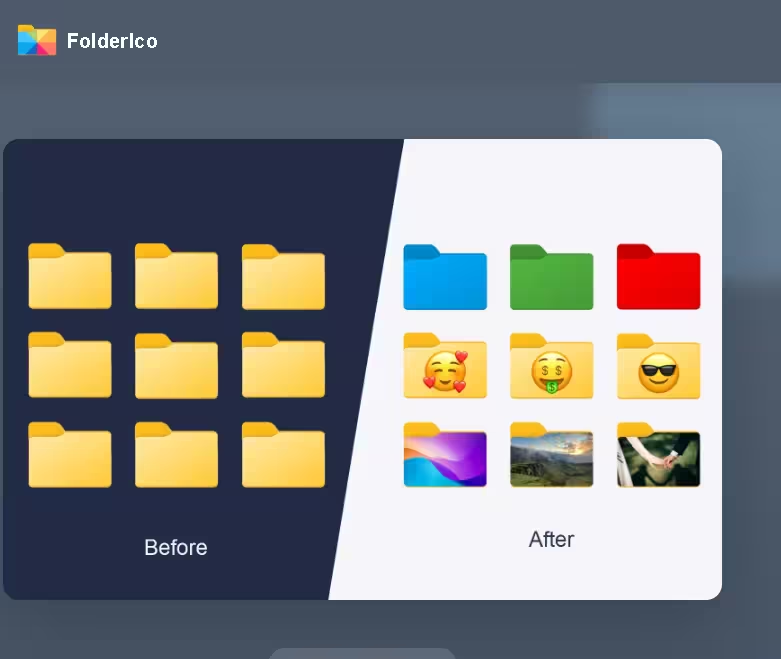
Windows has been using the same plain yellow folder icons since forever. If you manage dozens of project folders, client files, or personal documents on your desktop, finding the right folder quickly can be a real pain. That is where FolderIco steps in — and honestly, it solves a problem most of us have just learned to live with.
After installing FolderIco 9.3.2 on a test machine running Windows 11, the right-click integration worked immediately. Changing a folder color literally takes two clicks. No reboot required. No complicated settings. For anyone who manages a lot of files — whether it is freelance project folders, client work, or just personal organization — the visual color-coding system alone is worth it.
If you are comfortable manually editing Windows Explorer folder properties every time you want a custom icon, you might not feel the need for this. But if you want a fast, clean way to color-code and organize your folders in seconds, grabbing this free 6-month license is a no-brainer.
What Is FolderIco?
FolderIco is a lightweight Windows utility that lets you customize folder icons and colors directly from the right-click context menu in Windows Explorer. Instead of going through Properties > Customize tab > Change Icon every single time, FolderIco adds the option right where you need it — in the context menu.
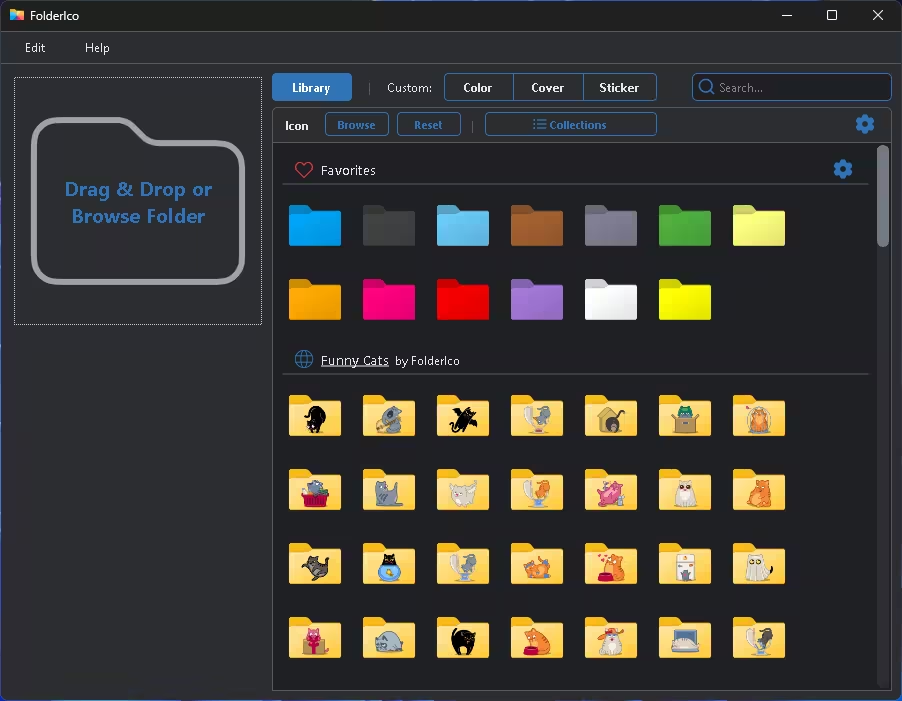
You can swap out the boring default yellow folder icon with colored versions, stickers, custom images, or even your own photos. The tool works at the system level, meaning the changes look native and do not slow down your PC.
Key Features at a Glance
- One-click color coding: Instantly change any folder’s color — no digging through Windows settings.
- Priority-based organization: Use red for important folders, orange for urgent, and green for non-urgent tasks — a simple system that actually sticks.
- Seamless Windows Explorer integration: Works right from the right-click menu. No separate launcher needed.
- Custom icon support: Import your own photos, PNG, or ICO files as folder icons for full personalization.
- Lightweight performance: Uses native Windows functionality, so it does not hog memory or slow down your system.
- Icon library: 1,000+ built-in icons, stickers, and styles to choose from.
Pros and Cons
| What We Liked | What Could Be Better |
|---|---|
| Genuinely saves time when managing lots of folders | Free version limits icon application (colors only) |
| Right-click integration feels native on Windows 11/10 | No Mac support in this version (Windows only) |
| Large built-in icon library with 1,000+ options | Updates and technical support not included in giveaway |
| Supports custom photo/image imports as folder icons | UI layout can feel slightly dated compared to modern apps |
| Lightweight — no noticeable performance impact | License is 6 months, not perpetual |
How to Claim Your Free 6-Month FolderIco License
Follow these steps carefully to make sure your free license registers properly before the promotion expires.
- Install the Software: Run the installer and follow the standard setup steps. No bundled extras to watch out for.
- Open FolderIco: Launch the application after installation completes.
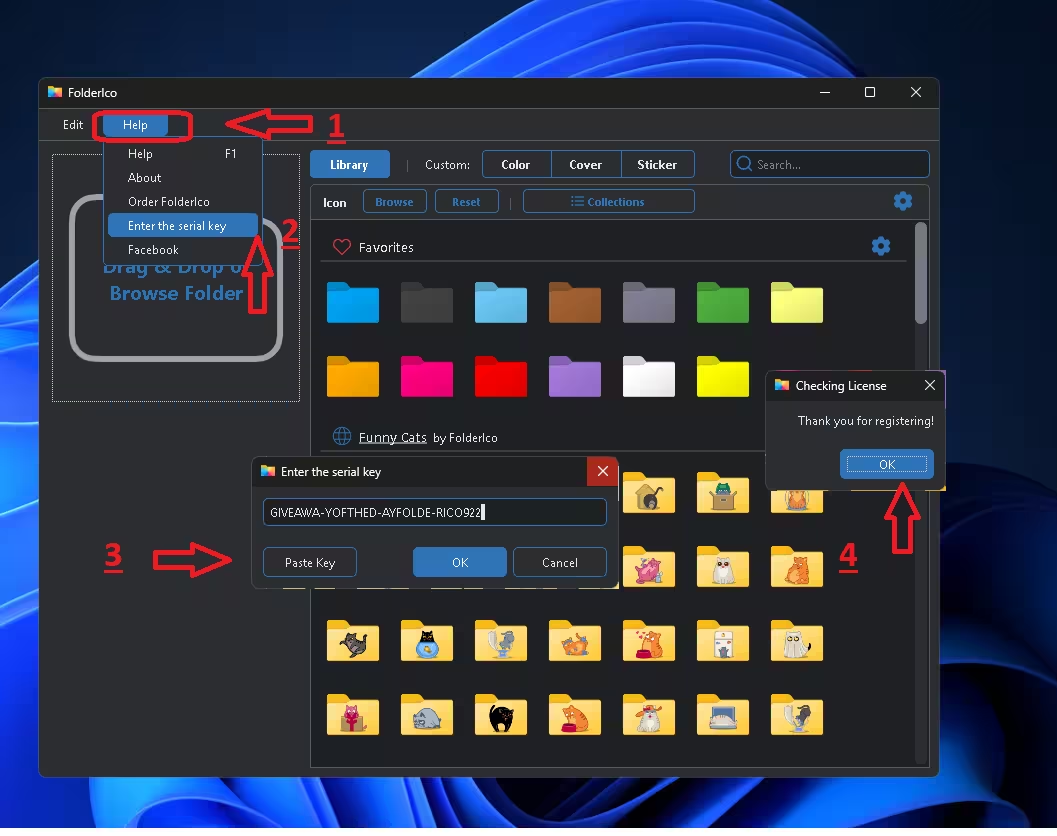
- Go to Help: In the main window, click on “Help” in the top menu bar.
- Enter the Serial Key: Select “Enter the serial key” from the dropdown and a registration dialog will appear.
- Paste the Code: Copy and paste the free license key from the box below, then click Activate.
Terms:
- Software Version: 9.3.2
- License Duration: 6 months from activation date
- Updates: Not included
- Technical Support: Not included
- Usage: Personal, non-commercial use at home only
FolderIco vs. Free Alternatives — Is It Worth It?
Windows does not offer a built-in way to bulk-change folder icons easily. The native method (Properties > Customize > Change Icon) works but requires repeating the process folder by folder. Here is how FolderIco stacks up against the common alternatives:
| Feature | FolderIco Pro (This Giveaway) | Folder Colorizer (Free) | Windows Native Method |
|---|---|---|---|
| Right-click context menu | Yes — instant access | Yes | No (Properties only) |
| Color coding | Yes — large color range | Yes — limited colors | No built-in colors |
| Custom image as icon | Yes — photos/PNG/ICO | No | ICO files only |
| Built-in icon library | 1,000+ icons & stickers | None | Very limited |
| Ease of use | Two-click simplicity | Simple but fewer options | Manual, folder by folder |
| Performance impact | Minimal (native integration) | Minimal | None |
Bottom Line: If all you need is basic color changes and you are comfortable with limited options, Folder Colorizer’s free version gets the job done. But if you want proper icon customization with a large built-in library, photo support, and a clean right-click workflow — the FolderIco Pro license from this giveaway is worth grabbing while it is free.
Conclusion
If you spend any real time working on a Windows PC, having a messy sea of identical yellow folders is genuinely frustrating. FolderIco 9.3.2 is one of those tools that feels obvious once you start using it — you wonder why Windows does not just include this natively.
The free 6-month Pro license gives you full access to the entire icon library and all customization features. It takes about two minutes to set up, and the difference in how quickly you can navigate your file system is noticeable right away.