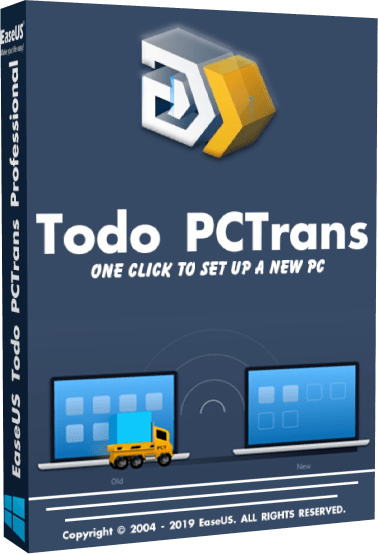
EaseUS Todo PCTrans Professional and Technician 14.2.4: Complete PC Migration and Data Transfer Software
EaseUS Todo PCTrans Professional and Technician 14.2.4 is a comprehensive Windows migration solution designed to transfer applications, files, user accounts, settings, and other important data between computers.
The software can help users move from an old computer to a new Windows PC without manually reinstalling every program or copying individual folders. It also includes tools for transferring installed applications between local drives, creating migration backups, recovering information from an unbootable computer, locating software product keys, and cleaning unnecessary system files.
The Professional edition is primarily intended for individuals, home offices, and users migrating their own computers. The Technician edition provides broader commercial licensing for IT administrators, technical-support companies, managed service providers, and organizations handling migrations across multiple computers or for multiple clients.
What Is EaseUS Todo PCTrans 14.2.4?
EaseUS Todo PCTrans is a Windows PC migration and application-transfer utility. It provides guided tools for moving personal files, installed programs, application settings, user profiles, and selected Windows configurations from one system to another.
The program is especially useful when:
- Replacing an old computer
- Moving to a new Windows 11 PC
- Reinstalling Windows
- Upgrading an internal drive
- Moving applications away from a full system partition
- Recovering files from a damaged computer
- Deploying multiple business computers
- Transferring large amounts of data
EaseUS officially describes the software as an all-in-one migration tool capable of transferring files, applications, accounts, and settings through a network, cable connection, or migration image.
Main Features of EaseUS Todo PCTrans 14.2.4
PC-to-PC Data Transfer
The PC-to-PC mode transfers selected content directly between two Windows computers.
Users can move:
- Documents
- Photographs
- Videos
- Music
- Downloads
- Desktop files
- Browser data
- Email data
- User folders
- Application settings
- Installed programs
- User accounts
The application scans the source computer and organizes available items into categories. Users can then select the content they want to transfer and choose suitable locations on the destination computer.
Both computers normally need to run Todo PCTrans during a direct transfer.
Wired and Wireless Connections
Todo PCTrans supports direct migration through a local network and compatible wired connections.
A wired Ethernet connection can provide better stability and speed when transferring large applications or many gigabytes of data. EaseUS states that supported wired connections can offer transfer speeds several times faster than ordinary wireless migration.
Wireless transfer remains useful when the computers cannot be connected directly, but performance depends on:
- Router speed
- Wi-Fi signal quality
- Network congestion
- Computer hardware
- Storage performance
- Amount of transferred data
For the most reliable migration, both computers should remain connected to power and should not enter sleep mode.
Application Transfer Without Manual Reinstallation
One of the program’s most useful features is its ability to move supported installed applications to another PC.
This can reduce the time normally required to:
- Find the original installers.
- Download every application again.
- Reinstall each program.
- Recreate user preferences.
- Copy application-related data manually.
Todo PCTrans supports many commonly used programs, including productivity applications, browsers, communication tools, utilities, and selected games. EaseUS specifically identifies Microsoft Office applications among the commonly supported programs.
Application transfer success depends on the program’s installation method, licensing system, drivers, services, and compatibility with the destination operating system.
Some transferred applications may still require:
- Reactivation
- Account sign-in
- Repair installation
- Driver installation
- A newer program version
- Reconfiguration of security permissions
User Account Migration
The software can migrate Windows user profiles and related settings to a new computer.
Transferred account information may include:
- User folders
- Desktop layout
- Documents
- Personal settings
- Application preferences
- Browser information
- Selected account data
- Profile configuration
This helps the new computer feel more familiar and reduces the amount of manual setup required after migration.
Passwords and protected credentials may not always transfer because Windows and individual applications can encrypt them according to the original computer’s hardware or user-security configuration.
Domain Account Transfer
Business editions can support the migration of domain-related accounts and settings.
This is useful for organizations replacing employee computers or deploying new workstations in a managed Windows environment.
Domain migration should be coordinated with the company’s IT administrator because account permissions, security policies, encryption, and network access may depend on the organization’s Active Directory configuration.
The Technician edition is particularly suitable for larger deployment and administration workflows that involve domain accounts and multiple computers.
Backup and Restore Migration
Todo PCTrans can create a migration image containing selected applications, files, accounts, and settings.
The image can be saved to:
- An external hard drive
- A secondary internal drive
- A network location
- Another accessible storage device
The image can later be restored on the same computer after reinstalling Windows or transferred to another computer.
EaseUS uses its own migration-image format for this process. Users can restore the complete image or select only specific applications and files from it.
This method is useful when the old and new computers cannot be connected simultaneously.
Application Migration Between Drives
Todo PCTrans can move supported installed applications from one local drive to another without requiring a complete reinstallation.
For example, users can move applications from a full C drive to:
- Another internal partition
- A larger hard drive
- A solid-state drive
- An external storage device, when supported
This can help free space on the system partition while keeping important programs available.
The program attempts to update relevant paths and application references automatically.
Some applications should not be moved because they depend on:
- System-level drivers
- Windows services
- Fixed installation paths
- Hardware-specific components
- Anti-cheat systems
- Security software
- Deep Windows integration
Windows components, hardware drivers, antivirus programs, and low-level system tools should generally remain on their original drive.
Large File Transfer
Todo PCTrans provides tools for transferring large files between computers without manually copying and organizing each folder.
It can be useful for moving:
- Video projects
- Photography libraries
- Game files
- Virtual machines
- Archives
- Business records
- Backup collections
- Media libraries
Transfer speed remains limited by the slowest component involved, such as the network, hard drive, USB connection, or destination storage.
Data Rescue from a Non-Booting Computer
The Data Rescue feature can retrieve files, applications, accounts, and selected settings from the drive of a computer that no longer starts.
A typical recovery process includes:
- Removing the drive from the failed computer.
- Connecting it to a working computer.
- Launching Todo PCTrans.
- Selecting the connected old drive.
- Scanning its available data.
- Transferring the required files and applications.
EaseUS officially promotes this feature for recovering data from broken, damaged, or non-booting computers.
The feature cannot recover information from a physically destroyed drive or a storage device that the operating system cannot detect.
A professional recovery service may be required when a drive:
- Makes unusual mechanical noises
- Is not detected in the BIOS
- Has suffered water or fire damage
- Disconnects repeatedly
- Contains critical business information
- Uses damaged encryption metadata
Software Product Key Recovery
Todo PCTrans can scan for selected software product keys stored on the computer.
Depending on the installed software, it may locate licensing information for applications such as:
- Windows
- Microsoft Office
- Adobe products
- Other supported commercial programs
This can be helpful before replacing or reinstalling a computer.
Not every modern application stores a recoverable product key locally. Many products now use online accounts, digital licenses, hardware-linked activation, or subscription authentication.
Users should also record their license information through the software publisher’s account portal whenever possible.
System Cleanup
Todo PCTrans includes cleanup tools that can locate unnecessary files and help recover storage space.
The software may identify:
- Temporary files
- Update leftovers
- Browser caches
- Application caches
- Large unused files
- Downloaded installation packages
- Other removable data
Users should review selected items before deletion, especially when the computer contains active projects or application data stored in unusual locations.
Large File Cleanup
The large-file cleanup feature helps identify files that occupy significant storage space.
It can locate items such as:
- Old video files
- Virtual-machine images
- Disk images
- Compressed archives
- Outdated backups
- Installation packages
- Duplicate exports
The tool does not automatically determine whether every large file is unnecessary. Users should confirm the purpose of each item before deleting or moving it.
Application Management
Todo PCTrans provides an organized view of installed applications and can help users identify which programs can be transferred.
This is useful when preparing a new computer because the user can review installed software before migration and avoid transferring outdated or unnecessary applications.
Applications may be marked according to their likely transfer compatibility.
A compatibility indication is not an absolute guarantee because successful operation also depends on the destination system and licensing requirements.
Professional Edition
EaseUS Todo PCTrans Professional is intended mainly for personal users and home offices.
It provides unlimited transfer of supported files and programs compared with the restricted Free edition. The Professional edition also supports user-account migration, application transfer between computers or local drives, product-key scanning, backup-based migration, system cleanup, and data rescue.
Professional Edition Is Suitable For
- Moving to a new personal computer
- Upgrading a family computer
- Reinstalling Windows
- Moving applications to another drive
- Recovering files from an old computer
- Transferring a home-office environment
- Migrating a limited number of licensed PCs
The exact number of computers permitted depends on the purchased license and current EaseUS licensing terms.
Technician Edition
EaseUS Todo PCTrans Technician is designed for commercial technical work and larger business deployments.
It includes the core migration features while offering licensing suitable for IT administrators, service providers, repair companies, and technicians who work with multiple computers.
EaseUS describes the Technician edition as a professional solution for bulk PC deployment and for reducing the complexity and downtime associated with setting up business computers.
Technician Edition Is Suitable For
- IT service providers
- Computer repair businesses
- Corporate IT departments
- Managed service providers
- System administrators
- Deployment teams
- Migration consultants
- Organizations replacing many workstations
- Technicians providing services to multiple clients
Technician-Specific Benefits
Depending on the license, the Technician edition can provide:
- Activation on multiple computers
- Commercial service rights
- Migration services for multiple clients
- Support for batch deployment
- Domain-account transfer
- Windows Server support
- Centralized business migration workflows
- Broader company usage rights
EaseUS distinguishes the Technician edition by allowing service for multiple clients, while business-focused licensing can also permit wider usage within an organization.
Professional vs Technician Edition
The two editions use similar migration technology, but their intended users and licensing rights differ.
Choose Professional When
- You are transferring your own computers.
- You need a personal or home-office migration.
- You only work with a small number of PCs.
- You do not provide paid migration services.
- You do not require broad multi-machine deployment rights.
Choose Technician When
- You manage computers professionally.
- You provide migration services to clients.
- You maintain many computers.
- You need business deployment features.
- You migrate domain accounts.
- You require flexible activation across multiple systems.
- You support Windows Server environments.
The Technician edition should not be selected only because it has a larger name. Its primary advantage is commercial licensing and multi-computer usage rather than a completely different consumer migration engine.
How to Transfer Data Between Two Computers
A normal PC-to-PC transfer can be completed through the following steps:
- Install Todo PCTrans on the old and new computers.
- Connect both systems to the same network or compatible cable.
- Launch the program on both computers.
- Select the PC-to-PC transfer option.
- Choose whether the current machine is the old or new computer.
- Select the destination computer.
- Enter connection credentials when required.
- Allow the software to scan the source computer.
- Select applications, accounts, and files.
- Choose destination paths.
- Start the transfer.
- Restart the new computer if requested.
- Test transferred applications and files.
Both systems should remain powered on until the operation is complete.
How to Transfer Through a Backup Image
When the computers cannot connect directly:
- Launch Todo PCTrans on the old computer.
- Select the backup-based transfer mode.
- Choose the applications, accounts, and files to include.
- Save the image to an external or network drive.
- Connect the storage device to the new computer.
- Install and open Todo PCTrans on the destination computer.
- Select the restore or new-PC option.
- Browse to the migration image.
- Select the required content.
- Choose destination paths.
- Begin the restoration.
- Restart Windows when required.
The external drive must have enough free space for the selected data.
Preparing for a PC Migration
Before beginning a migration:
- Update Windows on both computers.
- Install current device drivers.
- Back up important files separately.
- Connect laptops to power.
- Disable sleep mode temporarily.
- Confirm that the destination has enough storage.
- Remove unnecessary temporary files.
- Sign out of applications with limited activations.
- Record product keys and account credentials.
- Close running programs.
- Use a stable wired connection when possible.
- Scan both systems for malware.
- Create a Windows restore point.
Todo PCTrans should not be treated as the only backup of critical information.
Applications That May Require Reactivation
Some commercial programs bind their licenses to the original computer.
After transfer, applications such as the following may request activation again:
- Microsoft Office
- Adobe Creative Cloud applications
- CAD software
- Professional accounting software
- Antivirus programs
- Games with third-party launchers
- Hardware-control utilities
- Subscription applications
Users should deactivate the software on the old computer before migration when the publisher provides that option.
Applications That May Not Transfer Correctly
Certain programs are more difficult to migrate because they contain low-level components.
These can include:
- Hardware drivers
- VPN drivers
- Antivirus programs
- Firewall software
- Virtualization platforms
- Disk-encryption tools
- Anti-cheat services
- Printer suites
- Motherboard utilities
- Programs with hardware-bound activation
Such applications should normally be reinstalled from their official installers on the new computer.
Windows Compatibility
Current EaseUS product pages list support for Windows 11, Windows 10, Windows 8, Windows 7, and Windows XP across the PCTrans product line. Business editions also list compatibility with Windows Server versions including Server 2022, 2019, 2016, 2012, 2008, and 2003.
Compatibility with older operating systems does not mean that every modern application can be transferred from an older Windows version and run correctly on Windows 11.
The destination operating system must still support the transferred program.
General System Requirements
A practical installation requires:
- A supported Windows operating system
- Administrator privileges
- A compatible Intel or AMD processor
- Sufficient system memory
- Free storage for the program and temporary migration data
- Enough destination space for transferred files
- Network connectivity for PC-to-PC migration
- An external or secondary drive for image-based migration
- Internet access for activation, updates, and support
Large migrations benefit from:
- Gigabit Ethernet
- Solid-state drives
- At least 8 GB of RAM
- Stable power
- Adequate cooling
- Updated network drivers
Advantages of EaseUS Todo PCTrans 14.2.4
EaseUS Todo PCTrans offers several important advantages:
- Easy wizard-based interface
- Direct PC-to-PC migration
- Wired and wireless transfer
- Application migration without complete reinstallation
- User-account transfer
- Backup-image migration
- Application movement between drives
- Large-file transfer
- Product-key scanning
- Data rescue from non-booting computers
- System-cleanup tools
- Support for Windows 11
- Windows Server support in business editions
- Commercial Technician licensing
- Batch deployment capabilities
- Suitable for personal and professional migrations
Disadvantages of EaseUS Todo PCTrans 14.2.4
The software also has several limitations:
- It is a commercial application.
- The Free edition has transfer limits.
- Not every installed program can be migrated.
- Some programs require reactivation.
- Drivers and security software may need manual reinstallation.
- Transfer performance depends on the network and storage.
- Large migrations can take considerable time.
- Applications incompatible with the new Windows version will not work correctly.
- Technician licensing is significantly more expensive.
- A successful transfer does not replace a proper backup.
- Damaged drives may require professional recovery.
- Protected passwords and credentials may not migrate.
- Some application settings may need manual correction.
Common Problems and Solutions
The Computers Cannot Find Each Other
Check the following:
- Both computers are connected to the same network.
- Todo PCTrans is running on both systems.
- Network discovery is enabled.
- Windows Firewall allows the application.
- The network profile is not blocking device discovery.
- The correct connection password is being used.
- VPN software is temporarily disconnected.
- Both computers are using current network drivers.
A direct wired connection can help when wireless discovery is unreliable.
Application Transfer Fails
An application may fail to transfer because:
- It is currently running.
- It uses a protected installer.
- It contains hardware-specific drivers.
- It requires administrator privileges.
- The destination Windows version is incompatible.
- The program is damaged.
- Security software blocks the migration.
- The destination drive lacks space.
Close the application completely and reinstall it manually when transfer continues to fail.
The Transferred Program Does Not Open
Try the following:
- Restart the destination computer.
- Run the program as administrator.
- Sign in to the program account.
- Reactivate the license.
- Install required runtimes or drivers.
- Use the application’s repair option.
- Download its latest official installer.
- Reinstall the program while preserving transferred user data.
Transfer Speed Is Slow
Slow transfer may result from:
- Weak Wi-Fi
- Old mechanical drives
- Antivirus scanning
- Many small files
- Network congestion
- USB limitations
- Background applications
- Insufficient memory
Use Gigabit Ethernet, close unnecessary programs, and connect both systems directly when possible.
The Destination Drive Is Full
Before starting again:
- Remove unnecessary files.
- Change the destination path.
- Move large media libraries separately.
- Uninstall unused applications.
- Use a larger drive.
- Transfer the migration in several stages.
Some Files Are Missing
Verify whether:
- The folders were selected.
- The source files were accessible.
- The files were encrypted.
- The destination path was changed.
- Security software quarantined an item.
- The transfer log reported an error.
- The source disk contains file-system damage.
Keep the old computer unchanged until all transferred data has been verified.
Is EaseUS Todo PCTrans Safe?
EaseUS Todo PCTrans is generally safe when downloaded from the official EaseUS website or an authorized reseller.
Users should avoid cracked copies, unofficial portable releases, repacked installers, and unauthorized license tools.
Modified copies may contain:
- Malware
- Password stealers
- Cryptocurrency miners
- Advertising software
- Damaged program components
- Suspicious services
- Modified network libraries
Because the program accesses personal files, installed applications, accounts, and system settings, using a trusted installer is especially important.
Is EaseUS Todo PCTrans Free?
EaseUS provides a Free edition with limited transfer capacity. The official product page currently describes the free allowance as up to 2 GB of data and five programs. Unlimited supported transfers require a paid edition.
Professional and Technician editions require commercial licenses.
The exact price, subscription duration, supported device count, and upgrade policy may vary by country and purchase date.
Who Should Use Todo PCTrans Professional?
The Professional edition is suitable for:
- Home users buying a new PC
- Freelancers
- Students
- Small home offices
- Users reinstalling Windows
- People moving programs to another drive
- Users recovering files from an old computer
Who Should Use Todo PCTrans Technician?
The Technician edition is suitable for:
- Computer repair shops
- IT consultants
- Managed service providers
- Corporate IT departments
- Deployment specialists
- System administrators
- Migration-service businesses
- Technical-support organizations
- Professionals working with multiple client computers
Final Verdict
EaseUS Todo PCTrans Professional and Technician 14.2.4 is a practical Windows migration solution for transferring files, installed applications, accounts, settings, and other important data between computers.
Its direct PC-to-PC mode is useful when both systems are available, while backup-image migration provides an alternative when the computers cannot be connected simultaneously. Application transfer, drive migration, product-key scanning, cleanup tools, and data rescue make it more versatile than a basic file-copying utility.
The Professional edition is the appropriate choice for most personal and home-office migrations. It provides the main transfer and recovery features without the broader commercial licensing required by technical-service businesses.
The Technician edition is better suited to IT professionals and organizations that deploy many computers or provide migration services to multiple clients. Its main advantages are its flexible multi-computer licensing, business deployment features, domain-account support, and commercial-use permissions.
The software cannot guarantee that every application will work after migration. Programs that depend on drivers, hardware-specific activation, security components, or unsupported Windows versions may still require manual installation.
Overall, EaseUS Todo PCTrans 14.2.4 is a useful time-saving tool for Windows users and technicians who need a guided method for moving complete working environments rather than copying personal files one folder at a time.