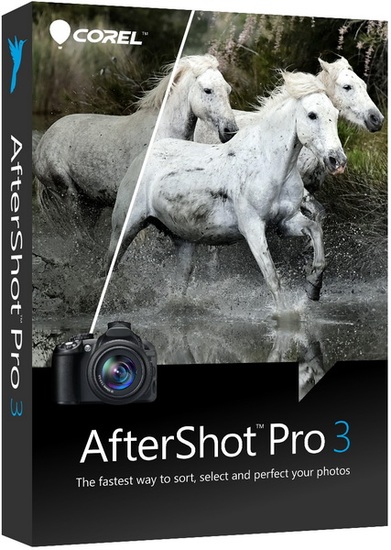
Corel AfterShot Pro 3.7.0.457: Professional RAW Photo Editing and Management Software
Overview of Corel AfterShot Pro
Corel AfterShot Pro 3.7.0.457 is a professional photo-editing and image-management application created for photographers who need a fast and efficient workflow for processing RAW files, organizing large photo collections, correcting image problems, and exporting finished photographs.
The software combines RAW image development, nondestructive editing, catalog management, metadata tools, batch processing, presets, watermarking, noise reduction, and detailed color adjustments inside a single workspace.
Unlike traditional pixel-editing applications, AfterShot Pro focuses primarily on developing photographs and managing complete photography workflows. It is suitable for processing individual images as well as hundreds or thousands of photos captured during professional assignments, events, travel, product sessions, or personal projects.
Professional RAW Photo Processing
One of the most important capabilities of Corel AfterShot Pro is its support for RAW photography workflows.
RAW files contain a larger amount of original camera information than compressed formats such as JPEG. This gives photographers greater control over exposure, white balance, colors, shadows, highlights, contrast, and fine image details.
AfterShot Pro allows users to develop supported RAW files while preserving the original source image. The editing instructions are stored separately, so photographers can return to the original photograph or modify their adjustments at any time.
This process is known as nondestructive editing.
Nondestructive Editing Workflow
Nondestructive editing means that the program does not permanently replace the original photo while adjustments are being made.
Users can experiment with:
- Exposure corrections
- White balance
- Contrast
- Color saturation
- Sharpness
- Noise reduction
- Cropping
- Rotation
- Highlight recovery
- Shadow adjustments
- Lens corrections
- Local editing
All adjustments can be changed, removed, copied, or applied to other images without damaging the original file.
AfterShot Pro can also use XMP sidecar information for metadata and supported image adjustments, helping photographers exchange ratings, color labels, keywords, categories, flags, and other information with compatible applications.
Fast Photography Workflow
Corel AfterShot Pro is designed to reduce the amount of time photographers spend waiting for images to load, process, and export.
The program allows users to browse folders directly, review photographs, compare similar shots, apply corrections, organize files, and prepare final images without moving through several unrelated applications.
Its streamlined workflow is useful for photographers who regularly handle:
- Wedding photographs
- Sports photography
- Event coverage
- Travel collections
- Studio sessions
- Product photography
- Portraits
- Landscape images
- Real-estate photography
- Social-media content
Corel promotes AfterShot Pro 3 as a fast RAW conversion and photo-management solution with folder-based browsing and batch-processing capabilities.
Photo Organization and Catalogs
Corel AfterShot Pro includes tools for managing large photography libraries.
Users can browse image folders directly or create catalogs for more structured management. Catalogs allow photographs to be indexed and organized without requiring every image to remain inside one physical folder.
Images can be organized using:
- Star ratings
- Color labels
- Flags
- Keywords
- Categories
- Camera information
- Capture dates
- File names
- Metadata
- Custom collections
These tools make it easier to locate specific photographs inside large archives.
For example, a professional photographer can add keywords for the client name, event, location, subject, camera, and project type. The photographer can then search the catalog instead of manually opening many folders.
Flexible File Management
AfterShot Pro allows users to work directly with files stored in existing folders.
This approach is useful for photographers who already have an established folder structure and do not want to import every image into a centralized library before editing.
Users can organize photographs by:
- Year
- Month
- Client
- Event
- Location
- Camera
- Project
- Photography category
The software also supports portable catalogs, although catalog accessibility and file paths must be managed carefully when photographs are moved between computers or network locations.
Exposure and Tone Adjustments
AfterShot Pro provides essential tools for improving overall image brightness and tonal balance.
Photographers can adjust:
- Exposure
- Contrast
- Highlights
- Shadows
- Black levels
- Fill light
- Brightness
- Saturation
- Vibrance
- Tone curves
These controls are useful for correcting photographs that appear too bright, too dark, flat, washed out, or lacking detail.
Highlight recovery can help restore information in bright areas such as skies, windows, reflective surfaces, and light-colored clothing. The official AfterShot Pro 3 feature set specifically highlights enhanced highlight recovery.
White Balance Correction
Incorrect white balance can cause photographs to appear too warm, too cool, green, or purple.
AfterShot Pro allows photographers to correct white balance using automatic controls, presets, temperature adjustments, tint controls, or a neutral reference point inside the image.
White-balance tools are useful for photographs captured under:
- Sunlight
- Cloudy skies
- Indoor lighting
- Fluorescent lamps
- Tungsten lighting
- Mixed lighting
- Studio flashes
- Night conditions
Because RAW files preserve more color information, white-balance corrections can usually be performed with greater flexibility than when editing compressed JPEG images.
Levels and Curves
Levels and curve controls provide more advanced control over brightness and contrast.
The Levels tool can be used to adjust:
- Black points
- White points
- Midtones
- Tonal range
- Individual color channels
The Curves tool allows photographers to create precise tonal adjustments using control points.
It can be used to:
- Increase contrast
- Reduce contrast
- Brighten shadows
- Protect highlights
- Create faded effects
- Correct color casts
- Adjust individual RGB channels
Levels and curves are included among the advanced features identified for the Pro edition.
Highlight Recovery
Bright areas can lose visible detail when a photograph is overexposed.
AfterShot Pro includes highlight-recovery tools intended to restore usable information from supported RAW files.
This can help recover details in:
- Bright skies
- White clothing
- Reflections
- Clouds
- Snow
- Windows
- Metallic surfaces
- Studio backgrounds
The amount of recoverable detail depends on the camera sensor, exposure settings, RAW file, and severity of the overexposure.
Noise Reduction
Digital noise often appears in photographs captured using high ISO settings, low light, long exposures, or older camera sensors.
Corel AfterShot Pro provides noise-reduction tools for reducing unwanted grain and color artifacts while attempting to preserve important image details.
Noise reduction is particularly useful for:
- Indoor photographs
- Night photography
- Concert images
- Sports photography
- Wildlife photography
- Astrophotography
- Event photography
- Shadow recovery
Excessive noise reduction can make photographs look soft or artificial, so the settings should be adjusted carefully.
Sharpening and Detail Enhancement
AfterShot Pro includes sharpening controls for improving edge definition and visible image detail.
Sharpening can help enhance:
- Facial features
- Hair
- Fabric
- Architecture
- Landscape details
- Product textures
- Printed text
- Small objects
The appropriate sharpening level depends on the image resolution, camera, lens, output format, and intended use.
A photograph prepared for printing may require different settings from one designed for a website or social-media platform.
Lens Correction
Camera lenses can introduce several types of optical imperfections.
Depending on the supported camera and lens combination, correction tools may help reduce:
- Geometric distortion
- Darkened corners
- Chromatic aberration
- Perspective problems
- Lens-related color fringes
These corrections are useful in architectural, interior, landscape, real-estate, and product photography, where straight lines and accurate shapes are especially important.
Local Adjustment Tools
Global adjustments affect the entire photograph, while local adjustments allow the photographer to modify selected areas.
Local editing can be used to:
- Brighten a face
- Darken a sky
- Increase detail in a subject
- Correct a small color cast
- Reduce noise in shadows
- Enhance selected objects
- Improve specific areas without changing the rest of the image
This provides more creative control than applying the same correction to every part of the photograph.
Blemish Remover
Corel AfterShot Pro 3 includes Blemish Remover tools for removing small imperfections from photographs.
The official feature description lists circle, brush, polygon, and freehand tools for detailed corrections. These tools can be used to remove dust, spots, smudges, skin imperfections, and other unwanted details.
The feature is particularly useful for:
- Portrait retouching
- Product photography
- Sensor-dust removal
- Old photograph cleanup
- Studio backgrounds
- Small distracting objects
Complex image manipulation may still require a dedicated pixel editor such as Corel PaintShop Pro or Adobe Photoshop.
Image Presets
Presets allow photographers to save time by applying predefined adjustment combinations.
AfterShot Pro includes an Image Preset Library that allows users to browse and preview available presets. Presets can reproduce a particular appearance without manually recreating every setting.
Presets can be used for:
- Portrait styles
- Black-and-white effects
- Landscape enhancements
- Film-inspired looks
- High-contrast images
- Soft color treatments
- Wedding photography
- Product images
- Social-media styles
Users can also create custom presets for their own workflow.
Batch Processing
Batch processing is one of the most valuable features for professional photographers.
Instead of editing and exporting every image separately, users can select multiple photographs and apply the same settings to all of them.
Batch operations may include:
- Exposure correction
- White-balance adjustment
- Noise reduction
- Sharpening
- Resizing
- File conversion
- Metadata editing
- Watermarking
- Renaming
- Output settings
This is especially helpful when processing photographs captured under similar lighting conditions.
For example, a photographer can adjust one photograph from a studio session and copy the same corrections to the remaining images.
Versions and Image Variations
AfterShot Pro can create multiple edited versions of a photograph without duplicating the complete original file.
A photographer can create:
- A color version
- A black-and-white version
- A high-contrast version
- A print version
- A web version
- A cropped social-media version
- A client-preview version
Each version can use different settings while referencing the same original photograph.
This saves storage space and allows users to compare creative alternatives.
HDR Photography
AfterShot Pro includes features for working with high-dynamic-range photography.
HDR processing combines photographs captured at different exposure levels to preserve details in both bright and dark areas.
HDR can be useful for:
- Landscapes
- Architecture
- Interior photography
- Real estate
- City scenes
- Sunset photography
- High-contrast environments
Corel recommends at least 4 GB of RAM for HDR-related use, even though the general minimum memory requirement is lower.
HDR effects should be applied carefully, as excessive processing can create unnatural colors, halos, and unrealistic contrast.
Watermarking Tools
AfterShot Pro provides watermarking features that allow photographers to add branding, ownership information, or copyright notices to exported images.
Watermarks can be useful for:
- Client previews
- Online portfolios
- Social-media publishing
- Stock photography
- Proof galleries
- Business promotion
- Copyright identification
The official AfterShot Pro 3 feature list includes comprehensive watermarking tools.
Users should keep clean, unwatermarked copies of their original photographs and apply watermarks only during export.
Metadata Management
Metadata provides information about a photograph.
AfterShot Pro can help photographers view and manage information such as:
- Camera model
- Lens information
- Exposure settings
- Capture date
- Copyright information
- Author name
- Keywords
- Ratings
- Labels
- Descriptions
- Location information
Metadata tools are essential for professionals managing large archives or delivering organized image collections to clients and agencies.
Image Comparison and Selection
Photography sessions often produce many similar photographs.
AfterShot Pro helps users review, rate, label, and compare images so they can select the strongest photographs before spending time on detailed editing.
This workflow can be used to identify:
- Sharp images
- Correct facial expressions
- Better compositions
- Proper exposure
- Reduced motion blur
- Stronger subject placement
- Images without closed eyes
- Duplicate or unnecessary shots
Efficient selection can significantly reduce the time required to complete a photography project.
Output and File Conversion
After editing, photographs can be exported into common image formats for printing, archiving, web publishing, or client delivery.
Supported output workflows commonly include formats such as:
- JPEG
- TIFF
- PNG
The selected format should depend on the intended use.
JPEG
JPEG is suitable for websites, email, social media, and general image sharing because it creates relatively small files.
TIFF
TIFF is suitable for high-quality printing, professional workflows, and further editing because it can preserve more image information.
PNG
PNG is useful for lossless web graphics and certain images that require high visual quality or transparency support.
The official learning resources describe workflows for sorting, enhancing, batch processing, and outputting images to formats such as TIFF and JPEG.
Hardware Acceleration
AfterShot Pro can use OpenCL-compatible graphics hardware to improve some processing tasks.
Corel’s documentation explains that OpenCL can use compatible GPU resources to increase processing speed, with benefits being especially noticeable during image output. Performance depends on the graphics card, driver, system configuration, and OpenCL utilization settings.
Users should install current graphics drivers before enabling hardware acceleration.
Cross-Platform Availability
Corel AfterShot Pro 3 was designed for 64-bit Windows, macOS, and selected Linux distributions.
This cross-platform support makes it useful for photographers who prefer Linux or who work across different operating systems.
However, the official requirements were written for older operating-system generations. Compatibility with newer systems should be tested before the program is used for essential professional work.
Official System Requirements
Windows
The official requirements list:
- Windows 10, Windows 8.1, Windows 8, or Windows 7 with the latest service pack
- 64-bit edition of Windows
- 64-bit Intel or AMD processor
- Multi-core processor recommended
- 2 GB of RAM
- 4 GB of RAM recommended for HDR
- Approximately 400 MB of available storage
- Minimum display resolution of 1024 × 768
- Internet connection for online help and program updates
macOS
The official requirements list:
- Mac OS X 10.9 or later
- 64-bit operating system
- Supported Intel-based Mac
- 2 GB of RAM
- Approximately 250 MB of available storage
- Display resolution of at least 1024 × 768
- Internet connection for help and updates
Linux
The official requirements list:
- Fedora 19 or Ubuntu 14.04 or later
- 64-bit distribution
- 64-bit Intel or AMD processor
- Multi-core processor recommended
- 2 GB of RAM
- Approximately 250 MB of available storage
- Display resolution of at least 1024 × 768
- Required compatibility libraries and dependencies
Recommended Modern Configuration
For a smoother photography workflow, especially with large RAW files and batch processing, a stronger configuration is recommended:
- 64-bit operating system
- Modern multi-core processor
- 8 GB of RAM or more
- SSD storage
- OpenCL-compatible graphics card
- Full HD display
- Calibrated monitor
- Sufficient storage for RAW archives
- External backup drive
These recommendations exceed the official minimum requirements but provide a more comfortable experience for demanding projects.
Advantages of Corel AfterShot Pro 3.7.0.457
- Professional RAW image development
- Nondestructive editing workflow
- Fast folder-based photo browsing
- Catalog and metadata management
- Powerful batch processing
- Exposure and white-balance controls
- Highlight-recovery tools
- Noise reduction and sharpening
- Levels and curves
- Local adjustments
- Lens correction
- Blemish-removal tools
- Image presets
- HDR capabilities
- Watermarking
- Multiple image versions
- Common image-format export
- OpenCL hardware acceleration
- Availability for Windows, macOS, and Linux
- No permanent alteration of original photographs
Possible Disadvantages
- The interface may require time to learn
- Camera support may not include newer models
- Official system requirements reference older operating systems
- Advanced pixel manipulation is limited compared with Photoshop
- Some plugins and presets may no longer receive frequent updates
- Large RAW catalogs require substantial storage
- Noise reduction may not match newer specialized applications
- Compatibility with current macOS or Linux releases may vary
- HDR processing requires additional memory
- It is not designed for graphic design, illustration, or complex compositing
Who Should Use Corel AfterShot Pro?
Corel AfterShot Pro is suitable for:
- Professional photographers
- Photography enthusiasts
- Wedding photographers
- Event photographers
- Portrait photographers
- Travel photographers
- Landscape photographers
- Product photographers
- Real-estate photographers
- Linux-based photographers
- Users managing large RAW collections
- Users seeking a nondestructive alternative to subscription-based editors
It is especially valuable for photographers who prioritize efficient RAW processing and batch editing over advanced graphic-design functions.
AfterShot Pro Versus Pixel Editors
AfterShot Pro and traditional pixel editors serve different purposes.
AfterShot Pro is primarily designed for:
- RAW development
- Photo organization
- Exposure correction
- Batch processing
- Catalog management
- Metadata editing
- Fast image export
Pixel editors are generally more suitable for:
- Complex selections
- Advanced compositing
- Digital painting
- Graphic design
- Text-based artwork
- Detailed layer manipulation
- Major object removal
- Creative image construction
Many photographers use a RAW editor for the majority of their workflow and send selected images to a pixel editor only when advanced retouching is required.
Tips for Better Performance
To improve performance while using AfterShot Pro:
- Store active projects on an SSD
- Use a multi-core processor
- Install enough RAM
- Update graphics drivers
- Enable OpenCL when compatible
- Avoid placing active catalogs on slow drives
- Organize photographs into manageable folders
- Back up catalogs and original RAW files
- Remove unnecessary duplicate images
- Generate previews before detailed review
- Close unused applications during large exports
- Test updates before using them in critical projects
Photography Workflow Example
A practical workflow inside Corel AfterShot Pro can follow these steps:
- Copy original camera files to a dedicated project folder.
- Create a backup of the original photographs.
- Browse the folder or add the images to a catalog.
- Reject unusable and duplicate images.
- Add ratings, labels, and keywords.
- Correct white balance and exposure.
- Recover highlights and adjust shadows.
- Apply lens correction and noise reduction.
- Perform local corrections where necessary.
- Copy common settings to similar photographs.
- Apply sharpening based on the intended output.
- Add metadata or copyright information.
- Export images to JPEG, TIFF, or another appropriate format.
- Preserve the original RAW files and catalog backup.
Final Verdict
Corel AfterShot Pro 3.7.0.457 is a capable RAW photo editor and photography-management solution built around speed, nondestructive processing, catalog organization, metadata management, and efficient batch editing.
Its exposure controls, white-balance correction, levels, curves, highlight recovery, local adjustments, blemish removal, presets, watermarking, HDR tools, and hardware acceleration provide photographers with a complete environment for developing and organizing digital images.
The software is particularly attractive to users who want a traditional desktop photography application that works across Windows, macOS, and Linux without depending entirely on a cloud-based workflow.
Although its age may limit support for the newest cameras and operating systems, Corel AfterShot Pro remains a useful option for supported photography equipment and established RAW-processing workflows.