Advanced SystemCare Pro 19.5.0.221: Complete PC Cleaning, Optimization, and Protection Solution
Advanced SystemCare Pro 19.5.0.221 is a comprehensive Windows maintenance program developed by IObit. It combines system cleaning, performance optimization, privacy protection, startup management, software updating, and real-time monitoring within one easy-to-use interface.
The program is designed for users experiencing slow startup times, limited storage space, system instability, excessive background processes, privacy concerns, or gradually declining computer performance. Instead of requiring several separate maintenance applications, Advanced SystemCare Pro brings its main optimization tools together in a centralized dashboard.
Version 19 introduces an updated interface, improved junk-file detection, stronger privacy-cleaning capabilities, expanded security databases, enhanced startup management, and the Safe Folder feature for protecting important personal files.
What Is Advanced SystemCare Pro?
Advanced SystemCare Pro is an all-in-one PC optimization utility created specifically for Microsoft Windows. It analyzes different areas of the operating system and helps users remove unnecessary files, correct certain system issues, manage startup applications, optimize resource usage, and improve privacy.
The program offers a one-click scanning system that allows less experienced users to perform common maintenance tasks without navigating complicated Windows settings. Advanced users can also choose individual modules and customize which areas should be scanned or optimized.
Unlike the Free edition, the Pro version unlocks automatic maintenance, deeper cleaning, real-time optimization, enhanced internet tuning, stronger privacy features, and additional performance tools.
Main Features of Advanced SystemCare Pro 19.5.0.221
AI-Powered System Scan
The AI scanning mode automatically selects suitable cleaning and optimization options according to the condition of the computer.
Instead of applying exactly the same maintenance routine to every device, the program can evaluate system behavior and recommend relevant actions. This makes regular maintenance easier for users who do not know which settings should be enabled.
The scan can examine areas such as:
- Temporary and unnecessary files
- Invalid or obsolete registry entries
- Privacy traces
- Startup applications
- Internet settings
- Security weaknesses
- System performance problems
- Software update status
After completing the scan, Advanced SystemCare displays a summary of detected items before applying the selected fixes.
Improved Junk File Cleaning
Over time, Windows and installed applications generate temporary files, cached data, installation leftovers, logs, thumbnails, browser files, and other unnecessary content.
Advanced SystemCare Pro scans these locations and removes items that are no longer needed. The cleaning engine in version 19 was expanded to detect additional obsolete data, including junk generated by Microsoft Store applications.
Removing unnecessary files may:
- Recover storage space
- Reduce clutter on the system drive
- Improve application responsiveness
- Make file searches and maintenance easier
- Prevent temporary data from accumulating excessively
Users should still review scan results before deleting unfamiliar items, especially when using advanced cleaning options.
Registry Cleaning
The Windows Registry contains configuration information used by the operating system and installed programs. Uninstalled applications, failed installations, missing files, and outdated components may leave unnecessary entries behind.
Advanced SystemCare Pro includes a registry cleaner that searches for invalid or obsolete entries and offers to remove them.
Registry cleaning is unlikely to produce a dramatic performance increase on a healthy modern computer, but it may help resolve certain leftover references or configuration problems. Creating a restore point or backup before performing deep registry maintenance is recommended.
Advanced SystemCare includes a Rescue Center that can restore registry-related changes, Internet Boost changes, startup optimizations, and certain other adjustments when backups are available.
Startup Optimization
Too many programs launching automatically can increase Windows startup time and consume memory before the user begins working.
The Startup Optimizer identifies applications, services, scheduled tasks, and background components that begin running with Windows. Users can disable unnecessary items, delay selected programs, or keep essential services active.
Version 19 expands startup management to recognize more startup items and services.
This feature can be particularly useful on older computers or systems containing many installed applications.
Real-Time Performance Optimization
Advanced SystemCare Pro can monitor system resource usage and help reduce unnecessary background activity.
Its real-time optimization tools are designed to manage processes that consume excessive processor power, memory, or disk resources. When the computer becomes overloaded, the program can help release resources and improve responsiveness.
This can benefit users who frequently run:
- Web browsers with many tabs
- Office applications
- Video-editing software
- Communication programs
- Games
- Multiple applications simultaneously
Results will depend on the computer’s hardware, installed software, and the cause of the slowdown.
Turbo Boost
Turbo Boost temporarily stops selected background services, applications, and processes to free additional system resources.
The program offers several configurable modes:
- Work Mode: Prioritizes productivity applications.
- Game Mode: Reduces background activity while gaming.
- Economy Mode: Limits unnecessary processes to reduce resource and power consumption.
Users can customize which services are disabled and configure Turbo Boost to start automatically with Windows.
This feature does not upgrade the computer’s physical hardware, but it can make more existing resources available to active programs.
Internet Optimization
Advanced SystemCare Pro includes Internet Boost tools that adjust certain Windows and browser-related network settings.
The feature is intended to optimize connection parameters according to the user’s network type. It may improve browsing responsiveness or network stability when existing settings are poorly configured.
However, it cannot increase the maximum speed provided by an internet service provider or solve external problems such as weak Wi-Fi coverage, network congestion, damaged cables, or overloaded servers.
Changes made by Internet Boost can be reversed through the program’s recovery options.
Privacy Sweep
Web browsers, Windows features, and desktop applications can store browsing history, recently opened files, cookies, cached content, search records, and other activity traces.
Privacy Sweep helps remove selected records to reduce the amount of personal activity information stored locally.
Version 19 strengthens privacy cleaning by supporting a wider range of privacy traces.
Users can select which applications and data categories should be cleaned, preventing the accidental removal of useful browser sessions or saved information.
Anti-Tracking Protection
Online services may use cookies, browser identifiers, and other techniques to follow user activity across websites.
Advanced SystemCare Pro includes privacy-oriented browser protection intended to reduce tracking and limit the collection of browsing information. It can also help clean stored identifiers and browsing traces.
This feature provides an additional privacy layer, but it should be used alongside secure browser settings, updated software, strong passwords, and reputable security protection.
Safe Folder
Safe Folder is one of the major additions introduced with Advanced SystemCare 19.
It allows users to protect sensitive files from unauthorized access and potentially harmful modifications. The feature is designed to help safeguard personal documents, private photographs, financial records, business files, and other confidential information.
IObit also presents Safe Folder as an additional protective measure against ransomware-related access or modification attempts.
Important files should still be backed up to a separate drive or trusted cloud service because no local protection feature can replace a complete backup strategy.
Anti-Spyware Tools
The program contains an anti-spyware component designed to detect selected security and privacy threats.
Advanced SystemCare 19 includes an expanded anti-spyware database to recognize more potentially harmful items.
However, Advanced SystemCare Pro should not be considered a complete replacement for dedicated antivirus software. IObit states that Advanced SystemCare functions primarily as a PC health and optimization utility, while the separate Ultimate edition includes a full antivirus engine.
Surfing Protection
Surfing Protection is designed to identify potentially dangerous websites, block selected online threats, and reduce unwanted advertisements.
Version 19 expands the Surfing Protection database to improve browser safety and recognize additional threats.
The feature works as a supplementary security layer and should be combined with an updated browser, antivirus protection, and careful browsing habits.
Software Updater
Outdated software may contain security vulnerabilities, compatibility problems, and unresolved bugs.
The Software Updater checks supported applications and helps users install newer versions from a centralized interface. Advanced SystemCare 19 expands support for additional popular desktop programs and Microsoft Store applications.
Keeping applications updated can improve security, stability, compatibility, and access to new features.
Disk Optimization
Advanced SystemCare can detect both traditional hard disk drives and solid-state drives.
For mechanical HDDs, it can use suitable defragmentation-related optimization. For SSDs, it uses a different optimization method based on TRIM rather than applying traditional disk defragmentation.
This distinction is important because SSDs and mechanical hard drives require different maintenance techniques.
Performance Monitor
The built-in Performance Monitor provides real-time information about important system resources and hardware conditions.
Depending on the system and available sensors, it may display information such as:
- CPU usage
- Memory consumption
- Disk activity
- Network activity
- Hardware temperature
- Running processes
The monitor can help users identify applications consuming excessive resources and close unnecessary processes more easily.
Automatic Maintenance
Advanced SystemCare Pro can perform maintenance automatically according to configured preferences.
AutoCare may clean unnecessary files, remove privacy traces, optimize performance, and perform selected maintenance tasks without requiring a full manual scan every time.
Version 19 includes an optimized AutoCare system intended to provide smarter automatic cleanup.
Users should review the automatic-cleaning settings before enabling them to ensure that important cookies, browser sessions, or application data are not removed.
Rescue Center and Backup Options
System optimization tools can occasionally make changes that users want to reverse.
Advanced SystemCare includes a Rescue Center that stores backups for supported operations. Depending on the feature used, it may allow users to undo:
- Registry cleaning changes
- Startup optimization changes
- Internet optimization adjustments
- Registry defragmentation changes
- Other supported maintenance operations
This recovery system makes experimentation safer, although creating a Windows restore point before performing major system changes remains a sensible precaution.
User Interface
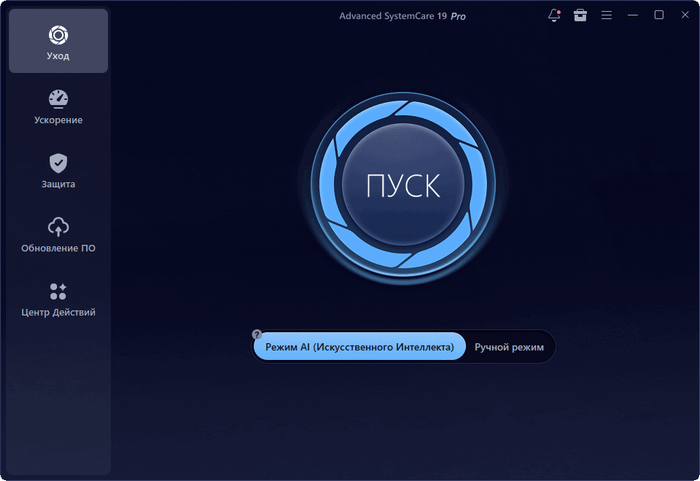
Advanced SystemCare Pro 19 features a redesigned interface intended to improve navigation and visual clarity.
The main screen provides access to the central AI scan, while dedicated sections organize performance tools, protection features, software utilities, and maintenance modules.
The interface is suitable for beginners because the primary scan requires minimal interaction. At the same time, experienced users can open individual tools and customize detailed settings.
The program also supports 37 languages, including English, Arabic, French, German, Spanish, Italian, Portuguese, Japanese, Korean, Turkish, and several others.
How to Use Advanced SystemCare Pro
Install the Program
Download the installer from the official IObit website and run the setup file.
During installation, carefully review each screen and select the preferred installation directory and options. Downloading from the official source helps reduce the risk of modified or unsafe installers.
Create a Restore Point
Before using deep cleaning or optimization features, create a Windows restore point or verify that the Rescue Center is enabled.
This provides an additional recovery option if a setting change causes unexpected behavior.
Run the First Scan
Open Advanced SystemCare and select AI Mode or configure the scan manually.
The program will inspect the selected system areas and generate a list of detected problems.
Review the Results
Do not immediately repair every detected item without checking the results.
Review categories involving:
- Registry entries
- Startup services
- Browser cookies
- Saved sessions
- Application caches
- Network settings
Disable any cleaning action that may remove information you still need.
Apply the Selected Fixes
After reviewing the findings, allow the program to repair or clean the selected categories.
Some changes may take effect immediately, while startup or system-level adjustments may require restarting Windows.
Configure Automatic Features
After the initial maintenance process, configure AutoCare, startup optimization, privacy protection, and performance monitoring according to your preferences.
Avoid enabling aggressive automatic deletion until you understand which data categories are affected.
Advanced SystemCare Free vs. Pro
The Free edition provides basic system scanning, cleaning, and optimization tools. It is suitable for users who only need occasional manual maintenance.
The Pro edition adds more advanced capabilities, including:
- Deeper system cleaning
- Automatic maintenance
- Real-time performance optimization
- Enhanced startup management
- Advanced privacy protection
- Internet optimization
- Expanded security features
- Automatic program updates
- Premium technical support
- Automatic access to newer program versions
Pro users can receive updates automatically when the automatic-update option is enabled.
System Requirements
Advanced SystemCare 19 supports the following Windows versions:
- Windows 11
- Windows 10
- Windows 8.1
- Windows 8
- Windows 7
- Windows Vista
- Windows XP
The official requirements also list:
- 1 GHz processor or faster
- 512 MB of RAM
- 300 MB of available disk space
- Screen resolution of 1024 × 768 or higher
- Internet connection for updates and online functions
These are minimum requirements. A newer processor, additional memory, and an SSD will provide a smoother experience, especially while scanning large drives.
Advantages
Advanced SystemCare Pro offers several notable advantages:
- Clean and beginner-friendly interface
- Multiple maintenance tools in one application
- Convenient one-click scanning
- Improved junk-file detection
- Effective startup management
- Automatic maintenance options
- Real-time resource monitoring
- Privacy-cleaning capabilities
- Software update management
- Recovery tools for supported changes
- Separate optimization methods for HDDs and SSDs
- Broad support for Windows versions
- Extensive language support
Disadvantages
Despite its broad feature set, users should consider several limitations:
- Some detected issues may not significantly affect performance.
- Registry cleaning rarely produces major speed improvements on modern computers.
- Automatic cleaning requires careful configuration.
- Internet optimization cannot overcome limitations imposed by the network provider.
- Some features may duplicate tools already available in Windows.
- The Pro edition requires a paid license.
- The application may promote other IObit products or upgrades.
- It does not replace a full antivirus solution.
- Performance improvements depend heavily on the original condition of the computer.
Is Advanced SystemCare Pro Safe?
Advanced SystemCare Pro is generally safe when downloaded from the official IObit website and used with appropriate settings.
Nevertheless, system-cleaning utilities can modify important Windows areas. Users should review scan results, maintain backups, create restore points, and avoid deleting entries they do not understand.
The safest approach is to begin with standard cleaning options before using deeper registry, startup, or network optimization tools.
Does Advanced SystemCare Pro Really Speed Up a PC?
Advanced SystemCare Pro can improve responsiveness when a computer is slowed by excessive startup applications, unnecessary background processes, accumulated temporary files, poorly configured settings, or limited free storage.
However, it cannot repair every cause of poor performance.
It will not compensate for:
- Insufficient physical memory
- A failing storage drive
- Processor limitations
- Overheating hardware
- Malware requiring dedicated removal tools
- Damaged Windows components
- Weak internet service
- Severely outdated hardware
The most noticeable results are usually achieved on computers that have not received regular maintenance for a long time.
Who Should Use Advanced SystemCare Pro?
The program may be suitable for:
- Beginners wanting simple one-click maintenance
- Users with slow Windows startup times
- Owners of older computers
- People who frequently install and uninstall applications
- Users who want automated system cleaning
- Gamers seeking to reduce background activity
- Users concerned about locally stored privacy traces
- People who prefer one maintenance suite instead of several separate utilities
Experienced users who already manage Windows manually may find some functions unnecessary, although the centralized interface can still save time.
Tips for Getting the Best Results
For safer and more effective use:
- Download the program only from the official website.
- Create a restore point before the first deep scan.
- Review detected items before repairing them.
- Avoid removing unfamiliar registry entries manually.
- Keep important documents backed up separately.
- Use Safe Folder as an additional layer, not as a replacement for backups.
- Keep Windows and security software updated.
- Disable unnecessary startup applications gradually.
- Do not run several system optimizers simultaneously.
- Use automatic cleaning only after reviewing its settings.
Final Verdict
Advanced SystemCare Pro 19.5.0.221 is a versatile Windows maintenance suite that combines cleaning, optimization, privacy, monitoring, startup management, software updating, and supplementary protection tools in a single package.
Its greatest strength is convenience. Users can perform common maintenance tasks through a straightforward AI-powered scan, while more advanced modules remain available for targeted optimization.
The improved junk cleaner, enhanced startup management, strengthened privacy tools, expanded security databases, optimized AutoCare, and Safe Folder feature make version 19 a meaningful upgrade over earlier releases.
Advanced SystemCare Pro is not a substitute for hardware upgrades, professional repair, reliable antivirus software, or a proper backup strategy. However, when used carefully, it can help keep Windows cleaner, more organized, and more responsive.
For users seeking an accessible all-in-one PC maintenance solution with automatic features and deeper optimization options, Advanced SystemCare Pro 19.5.0.221 represents a practical and feature-rich choice.