Adobe DNG Converter 18.4: A Free RAW Conversion Tool for Better Compatibility
Introduction
Adobe DNG Converter 18.4 is a free utility from Adobe designed to convert camera-specific RAW files into the more universal DNG format. It is an important tool for photographers, editors, designers, and creative users who work with RAW images from different camera brands and need better compatibility with Adobe applications or older versions of photo editing software.
Many cameras create RAW files in their own proprietary formats, such as CR3, NEF, ARW, RAF, ORF, RW2, and others. These files contain high-quality image data, but they may not always be supported by older versions of Photoshop, Lightroom, Bridge, or other editing programs. Adobe DNG Converter solves this problem by converting those original RAW files into DNG, which stands for Digital Negative.
The DNG format is designed to be more open, consistent, and suitable for long-term archiving. With Adobe DNG Converter 18.4, users can convert supported camera RAW files into a format that is easier to store, organize, edit, and open across different workflows.
What Is Adobe DNG Converter?
Adobe DNG Converter is a standalone application that converts camera RAW files into DNG files. Unlike Adobe Camera Raw or Lightroom, it is not a full photo editor. Its main purpose is conversion and compatibility.
The program is especially useful when a photographer buys a new camera but uses an older version of Photoshop or Lightroom that does not support that camera’s RAW files directly. Instead of upgrading the entire editing software immediately, the user can convert the new RAW files to DNG and then open them in older compatible Adobe applications.
Adobe DNG Converter is also useful for photographers who want to create a more organized and future-friendly archive of their RAW images. Since DNG is a standardized format created by Adobe, it can reduce the risk of having old proprietary RAW files become difficult to open in the future.
What’s New in Adobe DNG Converter 18.4?
Adobe DNG Converter 18.4 is aligned with the Adobe Camera Raw 18.4 update. This release focuses mainly on updated camera compatibility, improved support for newer camera models, and better workflow reliability for users working with the latest RAW files.
The most important benefit of this version is support for newly added camera models introduced with Camera Raw 18.4. This includes support for Canon EOS R6 V RAW files and multiple DJI Mavic 4 Pro DNG camera profiles.
The update also benefits photographers using newly supported lens profiles in Adobe’s imaging ecosystem, including Canon RF and Sony FE lenses. While DNG Converter itself is mainly a conversion tool, its compatibility is closely connected to Adobe Camera Raw’s support system.
Version 18.4 is especially useful for photographers who use newer Canon or DJI equipment and need to convert files into DNG for editing or archiving.
Main Purpose of Adobe DNG Converter
The main purpose of Adobe DNG Converter is to make RAW files more compatible. Camera manufacturers often create their own RAW formats, and every new camera model may require updated software support.
This can create problems for users who use older editing applications. For example, a new camera may produce RAW files that an older version of Lightroom cannot open. Adobe DNG Converter helps solve this by converting the original RAW files into DNG files that older supported Adobe applications can recognize.
This makes the program very useful for photographers who do not want to upgrade their full editing software every time they buy a new camera.
Why Convert RAW Files to DNG?
Converting RAW files to DNG has several advantages. The first advantage is compatibility. DNG files are easier to open across Adobe applications and many other photo editing programs.
The second advantage is long-term archiving. Proprietary RAW formats may become harder to support over time, especially if a camera model becomes old or the manufacturer changes its file structure. DNG is designed as a more universal digital negative format, which makes it a safer option for storing important photo archives.
The third advantage is workflow consistency. Instead of dealing with many RAW file types from different camera brands, photographers can convert everything into one format. This makes file management easier, especially for professionals who shoot with multiple camera systems.
Camera Support in Version 18.4
Adobe DNG Converter 18.4 includes updated support based on the Camera Raw 18.4 engine. This means it supports newly added cameras from the June 2026 update.
The newly supported cameras include Canon EOS R6 V and several DJI Mavic 4 Pro camera models, including DJI FC9284, DJI FC9287, and Hasselblad L3D-100c variants.
This is useful for photographers, drone operators, content creators, and videographers who work with the latest camera hardware and need a reliable way to convert RAW files into DNG.
Lens Profile Support
Adobe’s Camera Raw 18.4 update also adds support for new lens profiles, including Canon RF 20-50mm F4 L IS USM PZ and Sony FE 100-400mm F4.5 GM OSS, along with teleconverter combinations.
Lens profiles are useful because they help correct optical issues such as distortion, vignetting, and other lens-related imperfections inside Adobe editing applications. Although DNG Converter is not a full editor, DNG files can be used later in Adobe Camera Raw, Lightroom, or Photoshop, where lens correction tools become part of the editing workflow.
This makes the DNG workflow useful for photographers who want better compatibility and correction support after conversion.
Simple Conversion Workflow
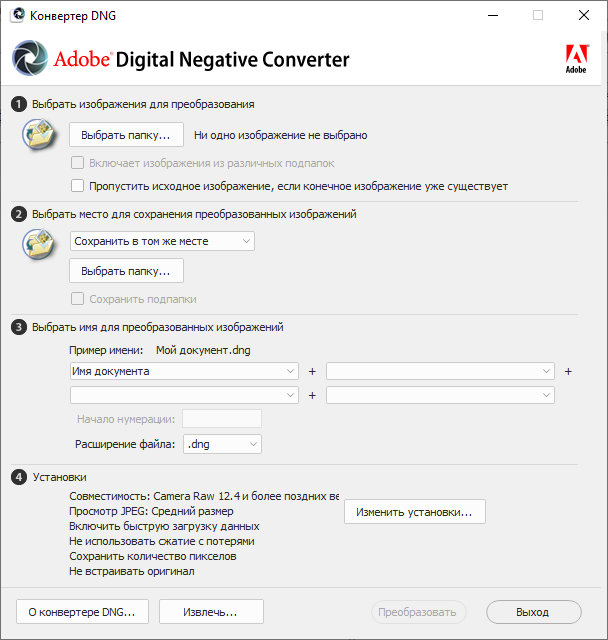
Adobe DNG Converter is designed to be simple. Users select the folder that contains the original RAW files, choose a destination folder for the converted DNG files, select naming options, adjust compatibility preferences if needed, and start the conversion.
This folder-based workflow is useful for photographers who need to convert many images at once. Instead of opening files one by one, users can process complete folders from a photo session, wedding shoot, product shoot, travel project, or drone capture.
The program can also be used as part of a larger workflow before importing files into Lightroom, Photoshop, Bridge, or another compatible application.
Backward Compatibility
One of the strongest reasons to use Adobe DNG Converter is backward compatibility. New RAW formats often require new versions of Adobe Camera Raw or Lightroom. If the user has an older supported Adobe application, it may not recognize files from a newly released camera.
By converting those files into DNG, users can often continue working with older software versions. This is extremely useful for photographers who prefer not to upgrade immediately or who work on systems where older software is still part of the production workflow.
For example, a photographer using a new Canon or DJI camera may convert the files to DNG first, then open them in an older Adobe workflow that supports DNG.
Batch Conversion
Adobe DNG Converter supports batch conversion, allowing users to convert multiple RAW files at once. This is very important for professional photographers because photo shoots often produce hundreds or thousands of images.
Batch conversion saves time and makes the workflow more efficient. Instead of converting each file manually, users can process entire folders in one operation.
This is useful for weddings, events, sports photography, travel photography, commercial shoots, real estate photography, and drone projects.
File Naming Options
The program includes file naming options that help users organize converted images. Users can keep the original file name or apply numbering patterns and naming rules.
This is useful when creating organized archives or delivering files to clients. A consistent naming system helps avoid confusion and makes it easier to sort and search files later.
For professional workflows, proper file naming is an important part of digital asset management.
DNG Compatibility Preferences
Adobe DNG Converter allows users to adjust compatibility preferences. This determines which versions of Camera Raw and Lightroom should be able to open the converted DNG files.
This is important when working with older software. Choosing the correct compatibility setting can help ensure that the converted DNG files open correctly in the intended application.
However, users should be careful when selecting compatibility settings. Very old compatibility settings may limit certain modern RAW features, while newer settings may not work with older software.
Archiving Benefits
DNG is often used for long-term image archiving. Since it is a more standardized format than many camera-specific RAW formats, it can make future file access easier.
Photographers who keep large archives may prefer DNG because it reduces dependence on proprietary formats. This can be useful for professional studios, agencies, documentary photographers, journalists, and anyone who wants to preserve image files for many years.
DNG files can also store important metadata, making them useful for organized digital libraries.
Difference Between Adobe DNG Converter and Adobe Camera Raw
Adobe DNG Converter and Adobe Camera Raw are related, but they are not the same.
Adobe DNG Converter is mainly a file conversion tool. It converts RAW files into DNG format.
Adobe Camera Raw is a full RAW editing plug-in used inside Photoshop, Bridge, Lightroom, and other Adobe applications. It allows users to adjust exposure, color, contrast, masks, lens corrections, noise reduction, and many other image settings.
In simple terms, DNG Converter prepares or converts the file, while Camera Raw edits the file.
Difference Between DNG and Original RAW Files
Original RAW files are created by the camera manufacturer. They may contain proprietary data that is specific to that camera brand or model.
DNG files are converted RAW files based on Adobe’s Digital Negative format. They are designed to be more universal and easier to support across software.
Some photographers prefer to keep both the original RAW file and the converted DNG file for maximum safety. Others prefer to convert everything to DNG and use that as their main archive format.
The best choice depends on the user’s workflow, storage needs, and long-term archive strategy.
System Requirements
Adobe DNG Converter 18.4 is available for Windows and macOS.
On Windows, it supports modern 64-bit systems, including Windows 10 version 22H2 or later and Windows 11. It is available for Windows x64 and Windows ARM64 systems.
On macOS, it supports macOS Ventura version 13 or later and works with Intel processors and Apple Silicon systems such as Apple M1 or later.
A modern processor and enough storage space are recommended, especially when converting large folders of high-resolution RAW files.
Who Should Use Adobe DNG Converter 18.4?
Adobe DNG Converter 18.4 is ideal for photographers who use new cameras but still work with older Adobe software. It is also useful for users who want to create a consistent DNG-based photo archive.
Drone photographers can benefit from the updated DJI Mavic 4 Pro support. Canon users can benefit from the new Canon EOS R6 V support. Professional photographers who manage large image libraries can also use it to simplify their file format structure.
It is also useful for students, hobbyists, editors, and designers who receive RAW files from different camera brands and need a simple way to convert them into a more compatible format.
Advantages
Adobe DNG Converter 18.4 is free, reliable, and easy to use. It supports a wide range of camera RAW formats and helps users convert files into the more universal DNG format.
The program is especially useful for backward compatibility with older Adobe applications. It also helps create cleaner archives and supports batch conversion for large photo folders.
Version 18.4 adds compatibility with newer camera models, making it useful for users working with recent Canon and DJI cameras.
Disadvantages
Adobe DNG Converter is not a photo editor. Users cannot use it to adjust exposure, colors, masks, sharpness, or creative effects. For editing, users need Adobe Camera Raw, Lightroom, Photoshop, or another photo editing application.
Another limitation is that conversion adds an extra step to the workflow. Users must convert files before editing them, which can take time when working with large folders.
Some photographers may also prefer to keep original manufacturer RAW files because they may contain proprietary metadata that could be useful in the manufacturer’s own software.
Best Use Cases
Adobe DNG Converter 18.4 is best used when a camera’s RAW files are not supported by the user’s current editing software. It is also useful when building a long-term photo archive based on a more universal format.
It is a good tool for photographers who shoot with multiple camera brands, users who receive RAW files from clients, and professionals who need a consistent format for storage and editing.
It is also useful for drone creators who work with DNG files and need updated compatibility with newer DJI camera models.
Safety Tips Before Converting
Before converting important photo sessions, users should decide whether they want to keep the original RAW files. For maximum safety, it is often a good idea to keep the original files and store the converted DNG files separately.
Users should also check compatibility settings before conversion, especially if they plan to open the files in older versions of Photoshop, Lightroom, or Camera Raw.
It is also recommended to test a small group of files before converting a full archive.
Final Verdict
Adobe DNG Converter 18.4 is a practical and valuable tool for photographers who need better RAW compatibility, especially when working with newer cameras and older editing software.
It is not an editor, but it performs an important job: converting camera-specific RAW files into the more universal DNG format. This makes files easier to open, organize, archive, and use across Adobe workflows.
With support aligned with Camera Raw 18.4, including newer Canon and DJI camera models, Adobe DNG Converter 18.4 is a useful update for photographers, drone creators, and anyone who wants a simple, free, and reliable RAW conversion solution.